> ## Documentation Index
> Fetch the complete documentation index at: https://help.slashy.com/llms.txt
> Use this file to discover all available pages before exploring further.
# How to Never Miss a Follow-up
> Set up automated follow-up tracking with the Dropped Ball Scanner, auto-reminders, manual reminders, and snooze presets.
Slashy gives you four layers of follow-up protection. Enable all four and no email falls through the cracks.
For the best coverage, enable both Auto-Reminders (Layer 2) and the Dropped Ball Scanner (Layer 1). Auto-Reminders track your outgoing emails; the Scanner catches everything else.
## Layer 1: Daily Dropped Ball Scanner
Runs every morning and scans for emails where you owe a reply or are waiting for one.
Press `Cmd+Shift+L`
Say: *"Set up a daily dropped ball scanner that runs every weekday at 8am"*
The agent scans for: unreplied received emails, unanswered sent emails, stalled threads, and approaching commitments.
Customize the schedule, days, and scope (all email, specific labels, or specific contacts).
## Layer 2: AI Auto-Reminders
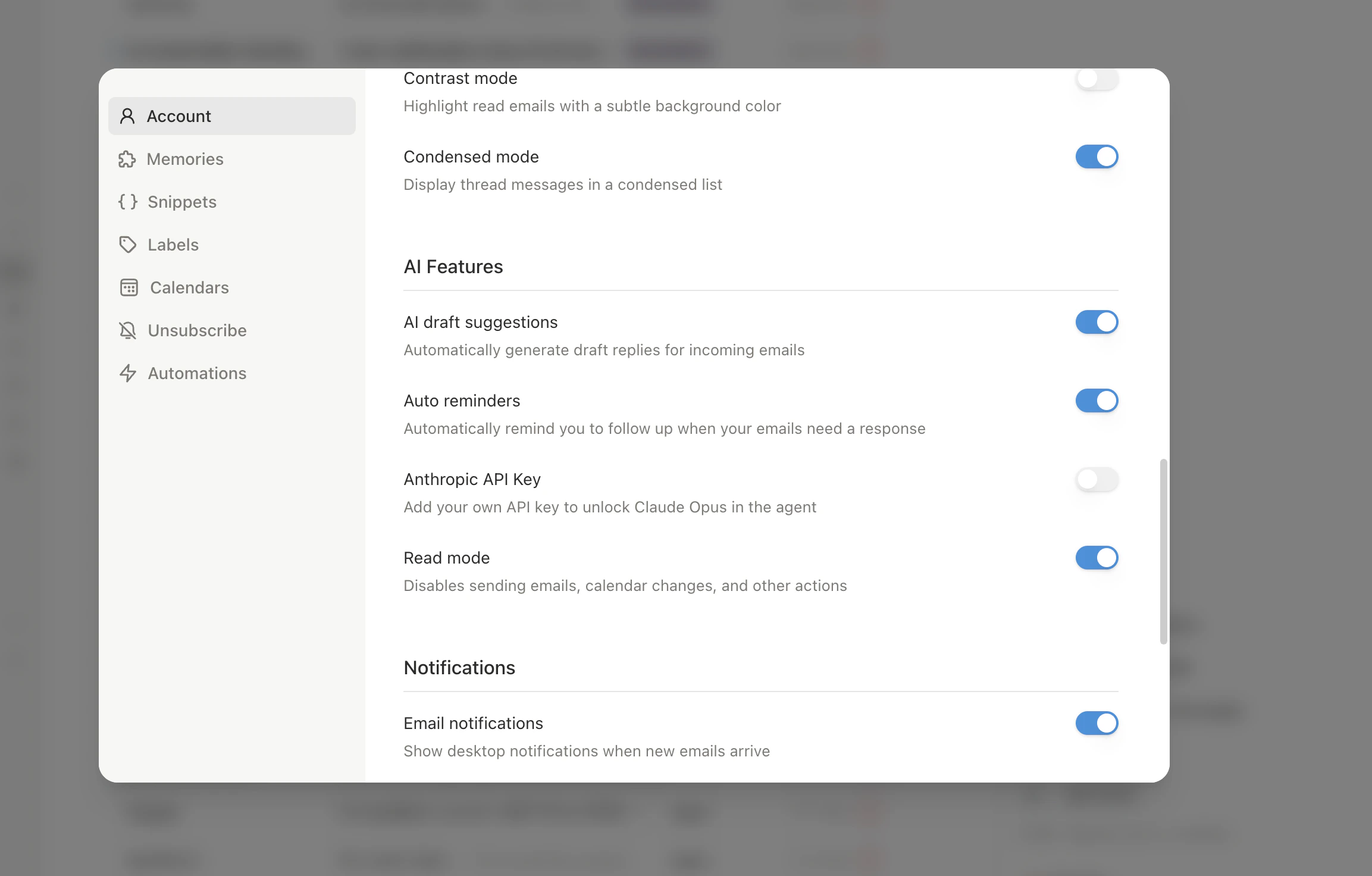
When enabled, Slashy evaluates every email you send and automatically sets a "remind if no reply" reminder with an appropriate delay (1-14 days based on urgency). If the recipient replies, the reminder cancels automatically.
**Enable:** **Settings** (`Cmd+,`) > **Account** > toggle **Auto-Reminders**
That's it. Every outgoing email is now tracked for follow-up.
## Layer 3: Manual Reminders
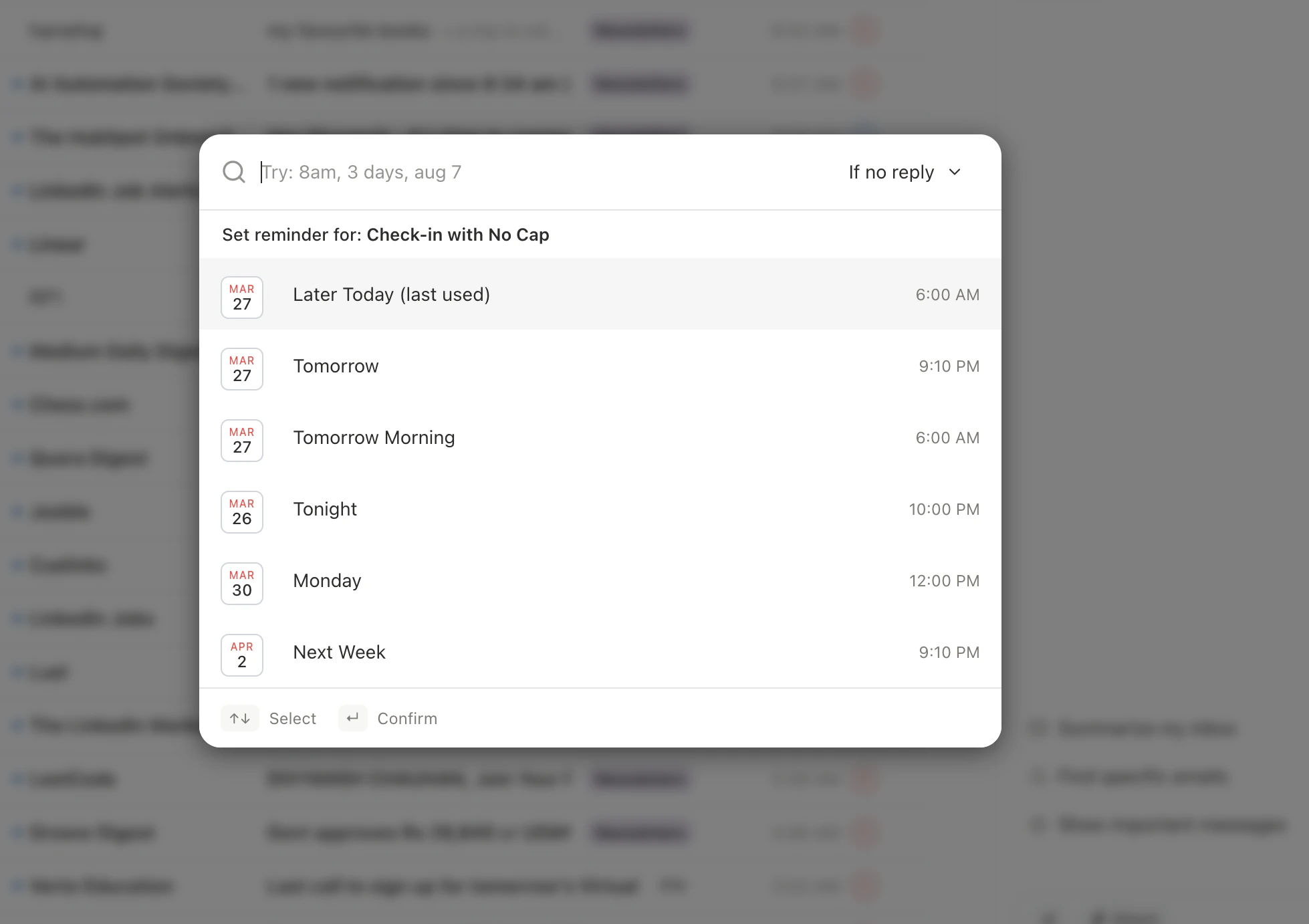
For any thread, press `h` to set a reminder.
| Preset | When It Fires |
| ------------ | ----------------- |
| Later today | 3 hours from now |
| Tonight | 6:00 PM today |
| Tomorrow | 8:00 AM tomorrow |
| This weekend | Saturday morning |
| Next week | Monday 8:00 AM |
| Custom | Any date and time |
**Reminder types:**
* **If no reply** — only fires if no one replied (best for follow-up tracking)
* **Regardless** — fires no matter what (for time-sensitive items)
When a reminder fires, the thread moves back into your inbox.
**Bulk reminders:** Select multiple threads (`Shift+J`/`Shift+K` or `Cmd+A`), then press `h`.
 ## Layer 4: Default Reminder on Send
Add a follow-up reminder to every email automatically at send time.
1. **Settings** (`Cmd+,`) > toggle **Default Reminder**
2. Configure: **Days** (default: 2), **Time** (default: 8:00 AM), **Type** (default: if no reply)
Override or remove the reminder on individual emails before sending.
## Viewing Reminders
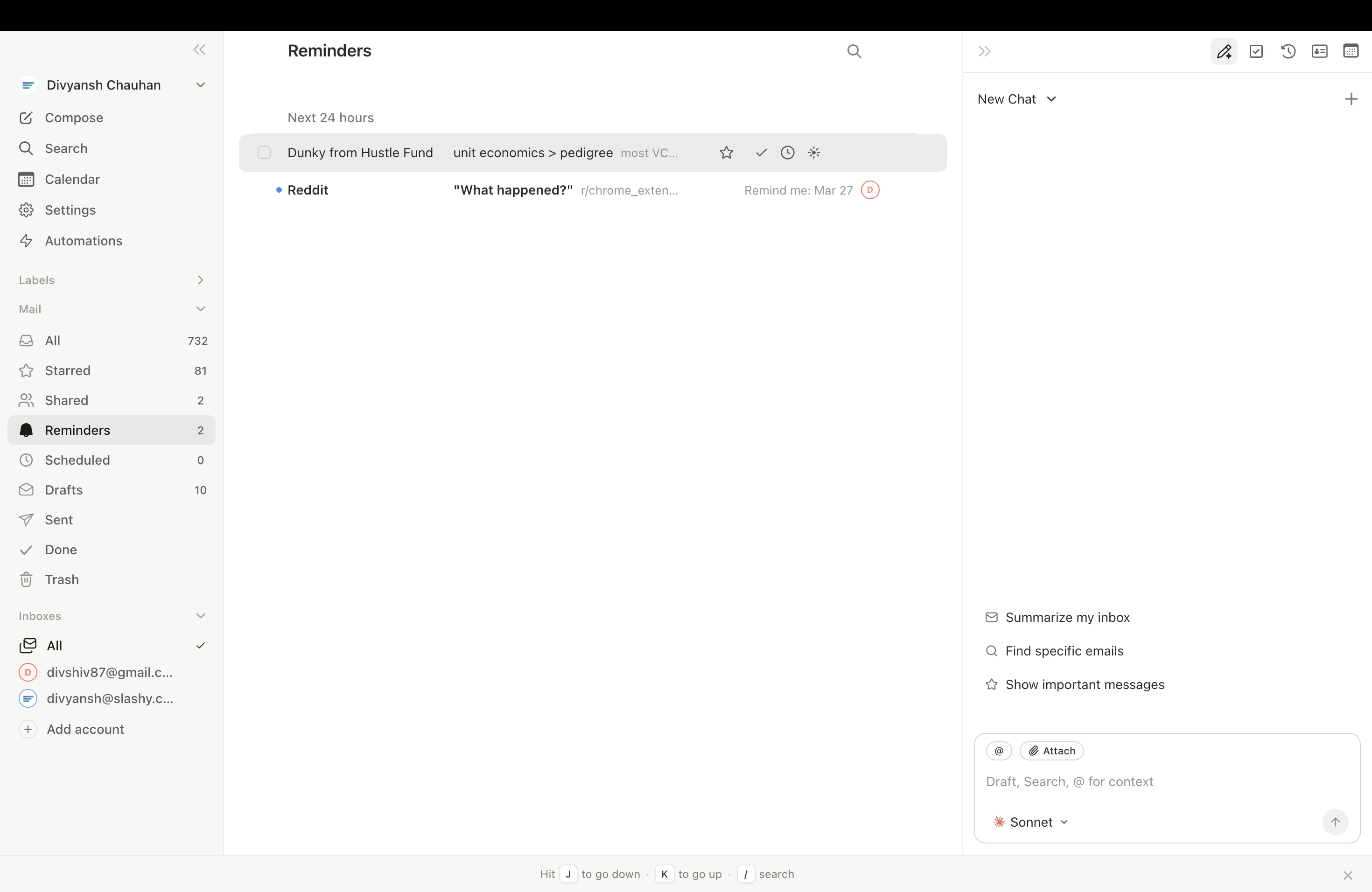
Press `g h` to see all threads with active reminders, sorted by fire time. Cancel a reminder by opening the thread, pressing `h`, and selecting cancel.
## Layer 4: Default Reminder on Send
Add a follow-up reminder to every email automatically at send time.
1. **Settings** (`Cmd+,`) > toggle **Default Reminder**
2. Configure: **Days** (default: 2), **Time** (default: 8:00 AM), **Type** (default: if no reply)
Override or remove the reminder on individual emails before sending.
## Viewing Reminders
Press `g h` to see all threads with active reminders, sorted by fire time. Cancel a reminder by opening the thread, pressing `h`, and selecting cancel.
 ## Recommended Setup
Covers all outgoing email automatically
Catches anything that slips through
Specific timing for important emails
Safety net on every outgoing email
***
## Related Articles
Set up impactful automations
Track opens and read receipts
Automated follow-up tracking for key accounts
Process your entire inbox in 5 minutes
## Recommended Setup
Covers all outgoing email automatically
Catches anything that slips through
Specific timing for important emails
Safety net on every outgoing email
***
## Related Articles
Set up impactful automations
Track opens and read receipts
Automated follow-up tracking for key accounts
Process your entire inbox in 5 minutes