> ## Documentation Index
> Fetch the complete documentation index at: https://help.slashy.com/llms.txt
> Use this file to discover all available pages before exploring further.
# Manage Multiple Email Accounts
> Connect multiple Gmail accounts, use the All unified view, configure per-inbox labels, and compose from different accounts.
Connect all your Gmail accounts in one place. Each gets its own labels, settings, and automations, but you manage everything from a single interface.
Most users connect 2-3 accounts (work + personal). Slashy supports up to 10 connected Gmail accounts with full AI features on each.
## Connect Additional Accounts
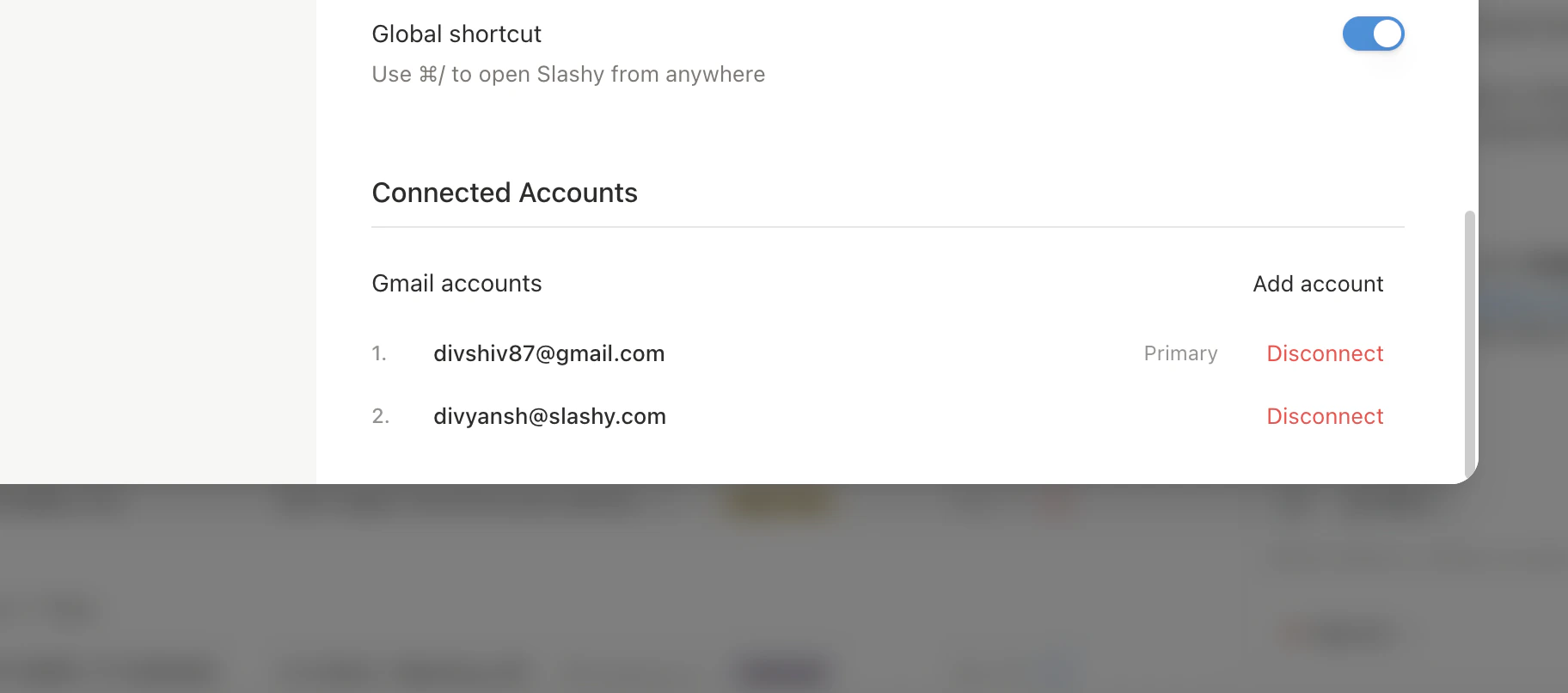
Go to **Settings > Account** (`Cmd+,`).
Click **Add Account** under Connected Accounts.
Sign in with Google and grant the same permissions as your first account.
Initial sync takes 2-15 minutes depending on inbox size. Labels and importance classification begin automatically.
 ## Switch Accounts
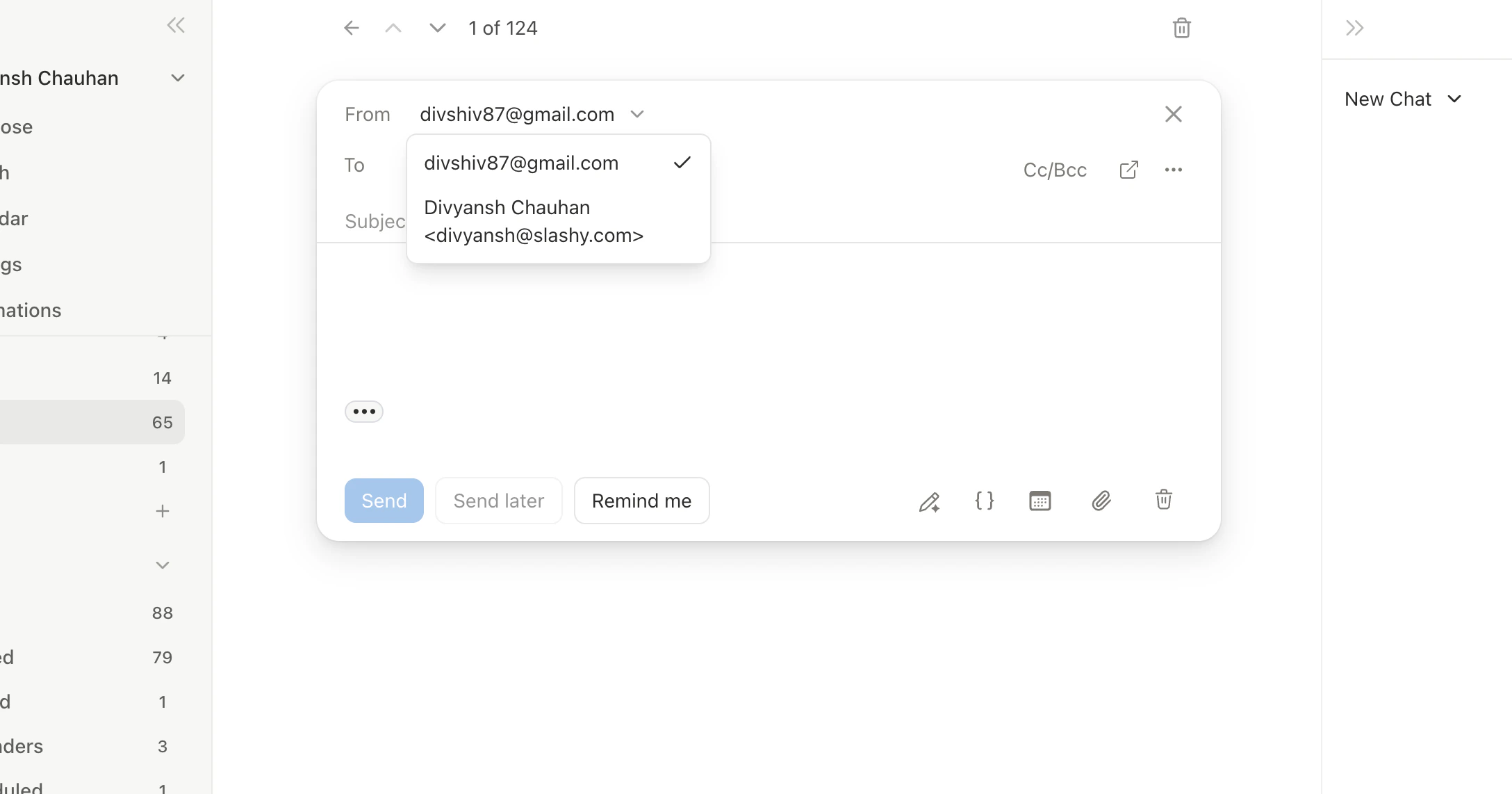
`Alt+1` through `Alt+9` switch between accounts. `Alt+0` switches to the **All** unified view.
## The "All" Unified View
Press `Alt+0` to merge all inboxes into a single chronological stream. Useful for morning triage and catching emails across accounts. Each thread shows which account it belongs to.
## Per-Inbox Configuration
Each connected account has its own:
* **Importance labels** -- work account uses Client/Internal, personal uses Family/Shopping
* **Automations** -- work gets meeting prep and VIP alerts, personal gets receipt forwarding
* **AI memories** -- different context per account
* **Unsubscribe and block lists**
Switch to the target account first, then open **Settings > Labels** to configure.
## Composing from Different Accounts
When composing (`c`), the **From** dropdown lets you choose which account to send from. Replies auto-select the account that received the email.
## Switch Accounts
`Alt+1` through `Alt+9` switch between accounts. `Alt+0` switches to the **All** unified view.
## The "All" Unified View
Press `Alt+0` to merge all inboxes into a single chronological stream. Useful for morning triage and catching emails across accounts. Each thread shows which account it belongs to.
## Per-Inbox Configuration
Each connected account has its own:
* **Importance labels** -- work account uses Client/Internal, personal uses Family/Shopping
* **Automations** -- work gets meeting prep and VIP alerts, personal gets receipt forwarding
* **AI memories** -- different context per account
* **Unsubscribe and block lists**
Switch to the target account first, then open **Settings > Labels** to configure.
## Composing from Different Accounts
When composing (`c`), the **From** dropdown lets you choose which account to send from. Replies auto-select the account that received the email.
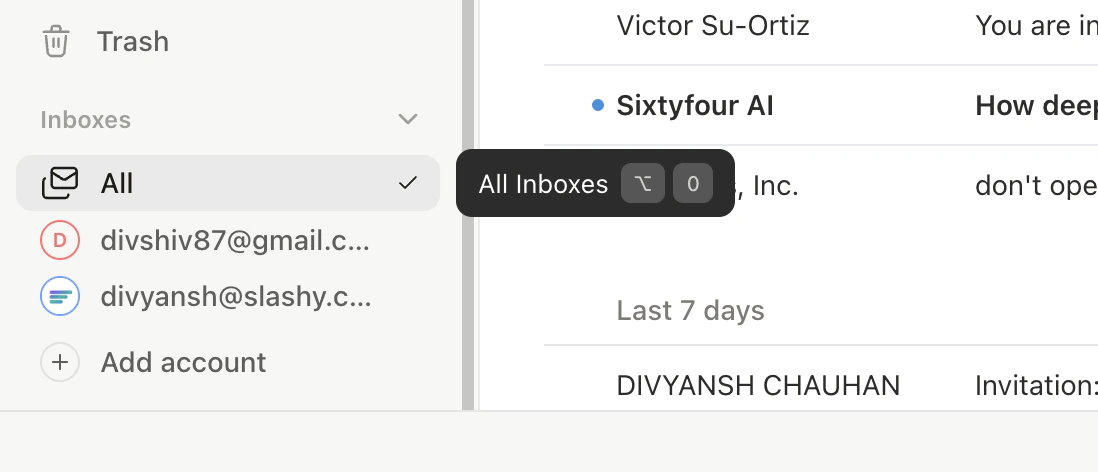 Always check the **From** field before sending. New emails default to the account you last viewed, not necessarily the one you intend to send from.
 ## Separate vs. Merged Behavior
| Feature | Behavior |
| ----------------- | -------------------------------------- |
| Inbox threads | Separate (merged in All view) |
| Importance labels | Separate per account |
| Automations | Separate per account |
| AI memories | Separate, but agent can access all |
| Calendar | All calendars visible together |
| AI agent sidebar | Shared -- searches across all accounts |
| Snippets & Tasks | Shared |
## Best Practices
* **Keep label names distinct** across accounts to avoid confusion
* **Set up separate automations** per account (meeting prep for work, receipts for personal)
* **Glance at the From field** before sending to confirm the right account
* **Add account-specific memories:** *"My work email is CEO of a startup. Professional and concise."*
The AI agent can search across all accounts simultaneously. Ask: *"Did anyone from Sequoia email either of my accounts this week?"* and it checks everything.
***
## Related Articles
Quick setup for adding another Gmail account.
Day-by-day onboarding guide.
How Slashy and Gmail sync bidirectionally.
Configure AI sorting per account.
## Separate vs. Merged Behavior
| Feature | Behavior |
| ----------------- | -------------------------------------- |
| Inbox threads | Separate (merged in All view) |
| Importance labels | Separate per account |
| Automations | Separate per account |
| AI memories | Separate, but agent can access all |
| Calendar | All calendars visible together |
| AI agent sidebar | Shared -- searches across all accounts |
| Snippets & Tasks | Shared |
## Best Practices
* **Keep label names distinct** across accounts to avoid confusion
* **Set up separate automations** per account (meeting prep for work, receipts for personal)
* **Glance at the From field** before sending to confirm the right account
* **Add account-specific memories:** *"My work email is CEO of a startup. Professional and concise."*
The AI agent can search across all accounts simultaneously. Ask: *"Did anyone from Sequoia email either of my accounts this week?"* and it checks everything.
***
## Related Articles
Quick setup for adding another Gmail account.
Day-by-day onboarding guide.
How Slashy and Gmail sync bidirectionally.
Configure AI sorting per account.