> ## Documentation Index
> Fetch the complete documentation index at: https://help.slashy.com/llms.txt
> Use this file to discover all available pages before exploring further.
# Reach Inbox Zero with AI Labels
> A 5-minute daily workflow using AI labels, keyboard shortcuts, and bulk actions to process your entire inbox.
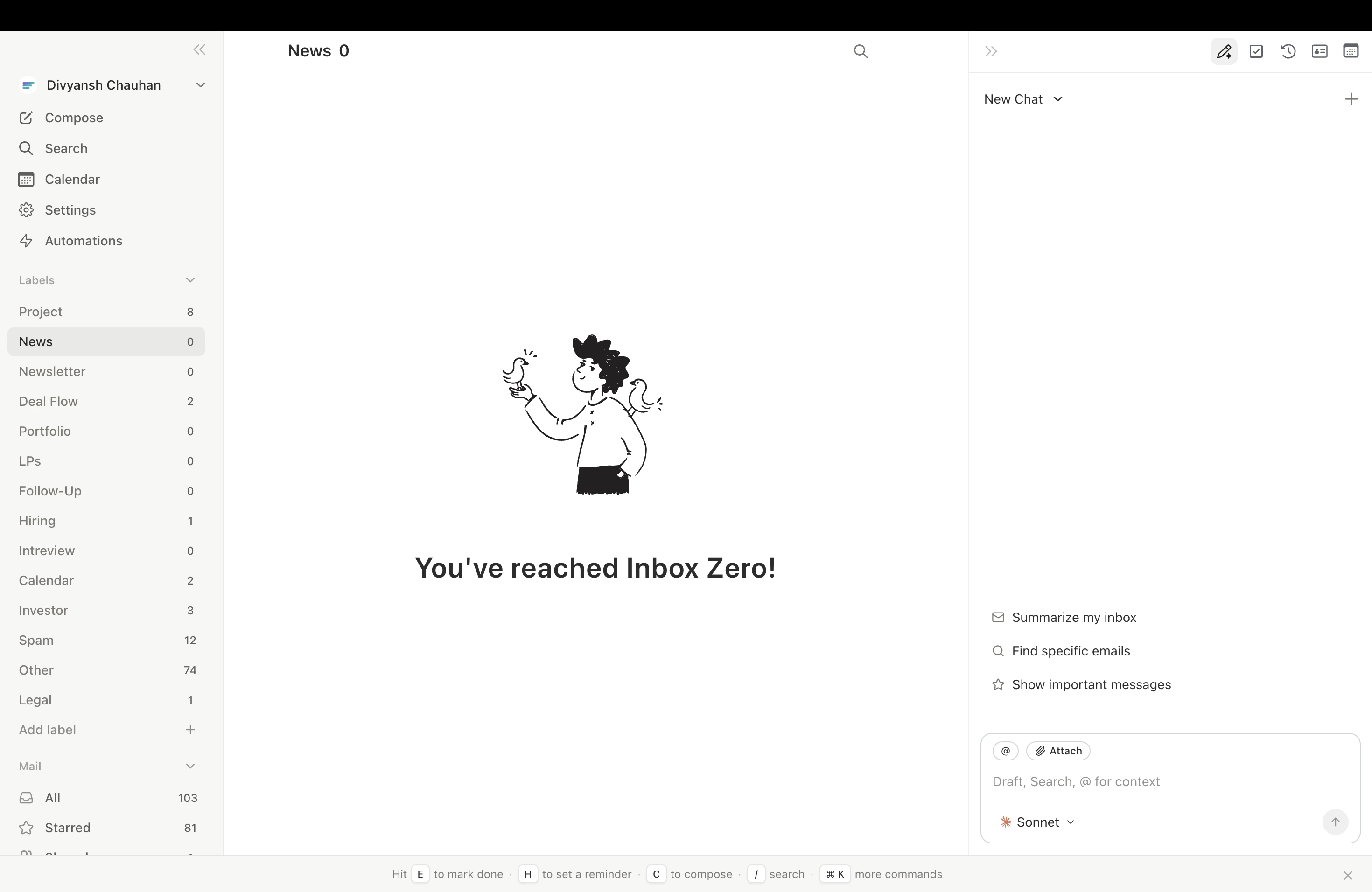
Inbox zero isn't about reading every email -- it's about processing every email: deciding what needs action, what needs a reply, and what gets archived. AI labels pre-sort your inbox before you touch it, and shortcuts let you fly through the rest.
Most Slashy users reach inbox zero in under 5 minutes per session once labels are configured and they've learned the core shortcuts (`j`, `k`, `e`, `Cmd+Enter`).
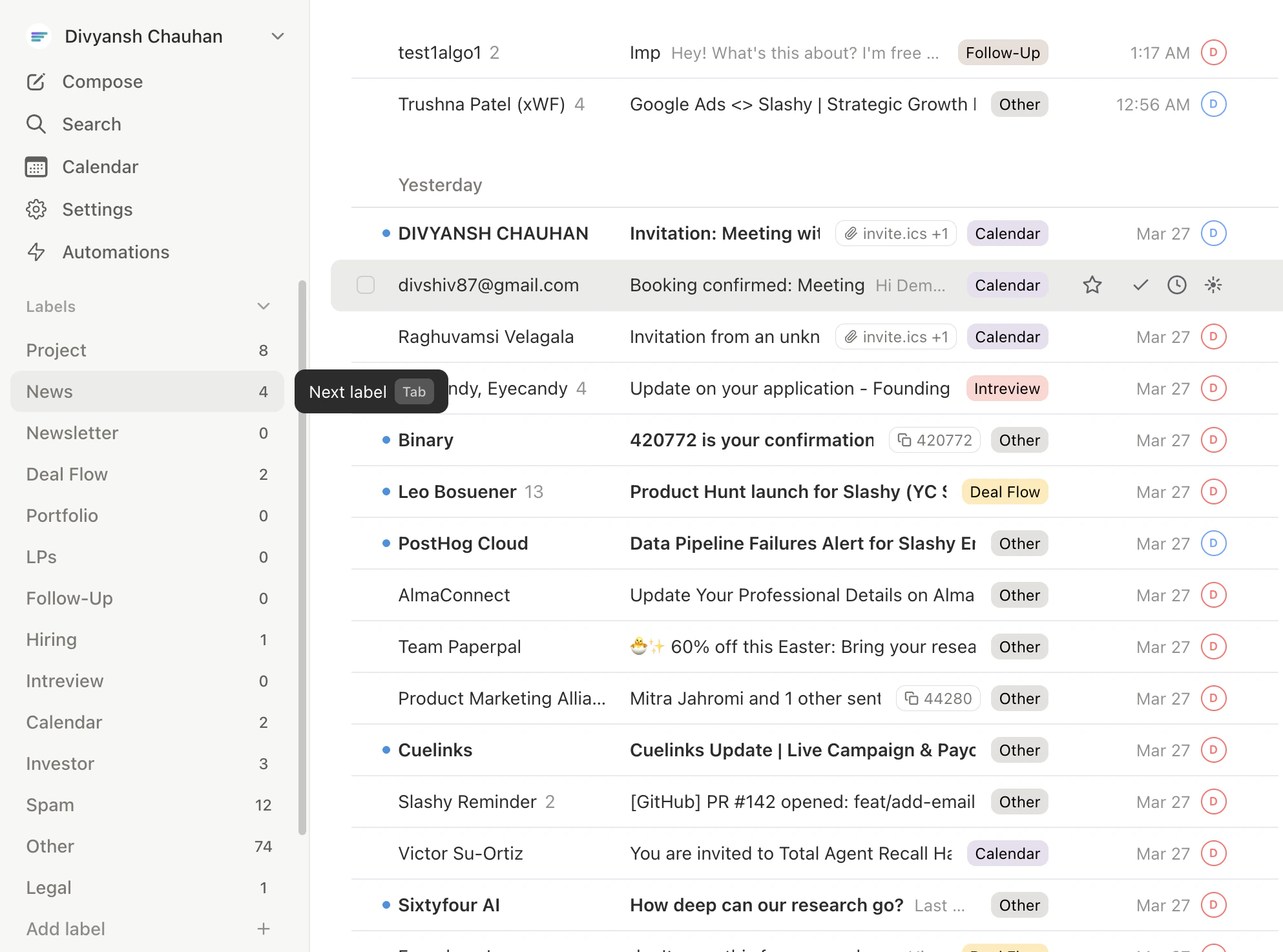 ## Configure Labels First
Labels are the foundation of this workflow. If you skip this step, your inbox won't be pre-sorted and you'll spend more time triaging manually.
Go to **Settings > Labels** (`Cmd+,`)
Choose labels that match your workflow: Important, Newsletter, Notifications, plus any custom ones for your role.
Drag labels so highest priority appears first. You'll process them in this order.
Press `n l` to create role-specific labels (e.g., "Prospects" for sales, "Portfolio" for VCs).
## The 5-Minute Workflow
`Tab` to your Important label. For each email:
* `r` to reply (or `Cmd+Enter` for AI draft)
* `e` to archive
* `s` to star for later
* `h` to snooze
* `#` to trash
Process until the tab shows zero unread.
`Tab` to the next label. For low-priority labels (Newsletter, Notifications), process in bulk:
* `Shift+J` repeatedly to select threads
* `e` to archive the entire batch
* `s` to star anything worth keeping first
* `Shift+U` -- unread only (anything you skipped)
* `Shift+R` -- no-reply threads (emails awaiting your response)
* `Shift+S` -- starred items (review for pending action)
## Bulk Actions Reference
| Action | Shortcut |
| ----------------------- | --------------------- |
| Select and move down/up | `Shift+J` / `Shift+K` |
| Select all visible | `Cmd+A` |
| Archive | `e` |
| Star | `s` |
| Trash | `#` |
| Label | `l` or `v` |
| Snooze | `h` |
| Undo | `z` or `Cmd+Z` |
## The Daily Habit
| When | What | Time |
| ---------- | ------------------------------- | ----- |
| Morning | Process all labels | 5 min |
| Afternoon | Quick pass on Important only | 3 min |
| End of day | `Shift+U` for unread stragglers | 2 min |
## Staying at Zero
* **Bulk Unsubscribe** in Settings > Unsubscribe to reduce incoming volume
* **Block aggressively** with `Cmd+U`
* **Trust AI labels** -- if newsletters are in the Newsletter tab, skim and bulk archive
* **Set up the Dropped Ball Scanner** to catch forgotten replies automatically
## Configure Labels First
Labels are the foundation of this workflow. If you skip this step, your inbox won't be pre-sorted and you'll spend more time triaging manually.
Go to **Settings > Labels** (`Cmd+,`)
Choose labels that match your workflow: Important, Newsletter, Notifications, plus any custom ones for your role.
Drag labels so highest priority appears first. You'll process them in this order.
Press `n l` to create role-specific labels (e.g., "Prospects" for sales, "Portfolio" for VCs).
## The 5-Minute Workflow
`Tab` to your Important label. For each email:
* `r` to reply (or `Cmd+Enter` for AI draft)
* `e` to archive
* `s` to star for later
* `h` to snooze
* `#` to trash
Process until the tab shows zero unread.
`Tab` to the next label. For low-priority labels (Newsletter, Notifications), process in bulk:
* `Shift+J` repeatedly to select threads
* `e` to archive the entire batch
* `s` to star anything worth keeping first
* `Shift+U` -- unread only (anything you skipped)
* `Shift+R` -- no-reply threads (emails awaiting your response)
* `Shift+S` -- starred items (review for pending action)
## Bulk Actions Reference
| Action | Shortcut |
| ----------------------- | --------------------- |
| Select and move down/up | `Shift+J` / `Shift+K` |
| Select all visible | `Cmd+A` |
| Archive | `e` |
| Star | `s` |
| Trash | `#` |
| Label | `l` or `v` |
| Snooze | `h` |
| Undo | `z` or `Cmd+Z` |
## The Daily Habit
| When | What | Time |
| ---------- | ------------------------------- | ----- |
| Morning | Process all labels | 5 min |
| Afternoon | Quick pass on Important only | 3 min |
| End of day | `Shift+U` for unread stragglers | 2 min |
## Staying at Zero
* **Bulk Unsubscribe** in Settings > Unsubscribe to reduce incoming volume
* **Block aggressively** with `Cmd+U`
* **Trust AI labels** -- if newsletters are in the Newsletter tab, skim and bulk archive
* **Set up the Dropped Ball Scanner** to catch forgotten replies automatically
 ***
## Related Articles
Power user workflow for processing 50+ emails fast
Full shortcut reference for every view
The philosophy behind AI-first email
Essential automations for inbox management
***
## Related Articles
Power user workflow for processing 50+ emails fast
Full shortcut reference for every view
The philosophy behind AI-first email
Essential automations for inbox management