> ## Documentation Index
> Fetch the complete documentation index at: https://help.slashy.com/llms.txt
> Use this file to discover all available pages before exploring further.
# Setting Up the iMessage Agent
> Connect your phone number to the Slashy iMessage agent and troubleshoot common issues.
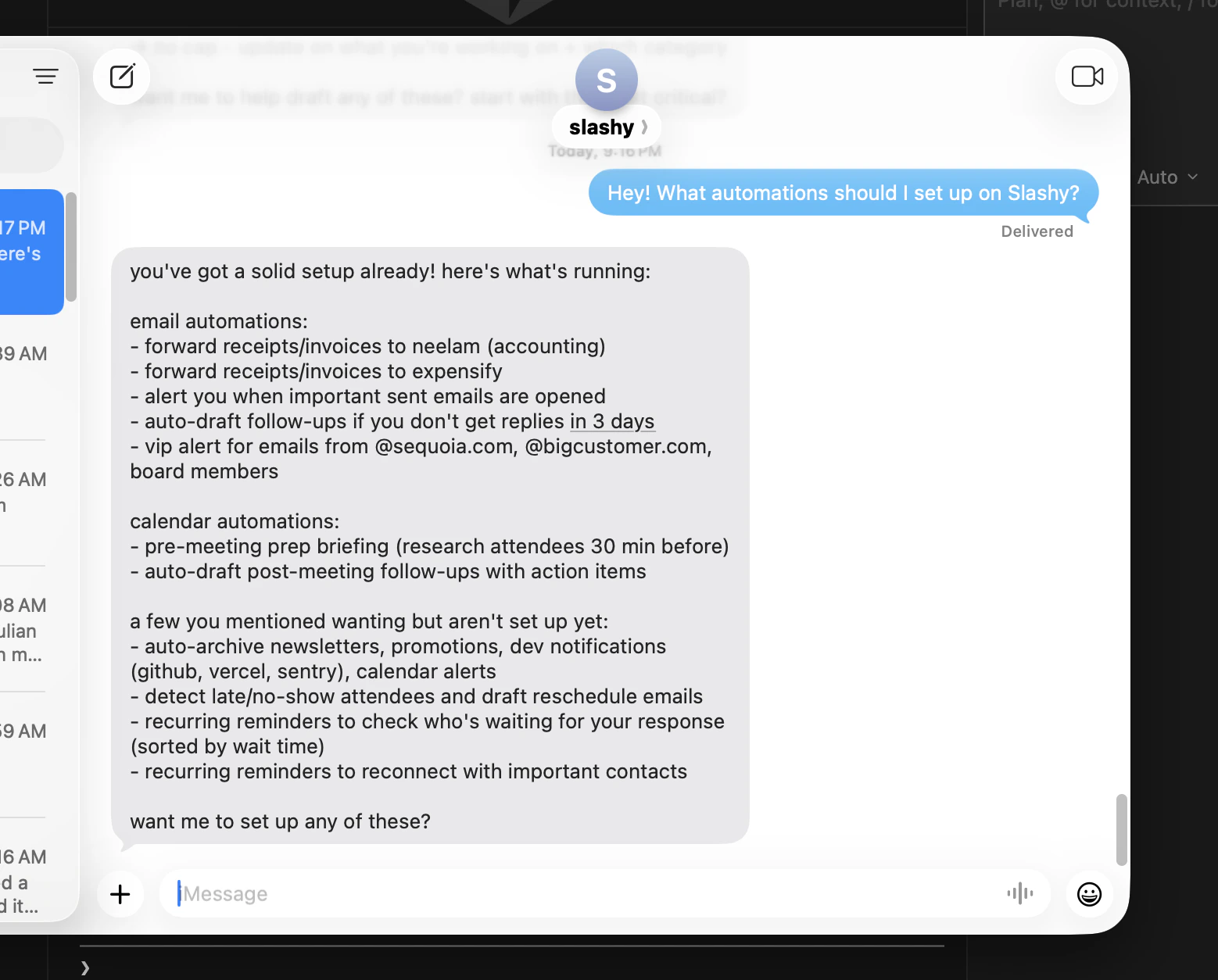
The iMessage agent lets you manage email, calendar, and automations entirely through text messages. Once connected, you can search emails, draft replies, get briefings, and more -- without opening any app.
The iMessage agent is one of Slashy's biggest differentiators. No other email client lets you manage your entire inbox via text. Set it up now and you will wonder how you ever lived without it.
## Connecting During Onboarding
iMessage connection is step 6 of the onboarding guide.
Google sign-in, Gmail connection, labels, memories, bulk cleanup.
This generates a link that opens iMessage with a pre-filled message to the Slashy number.
Do not edit it -- the message contains invisible zero-width Unicode characters that link your phone number to your account.
The Slashy agent responds within seconds confirming the link.
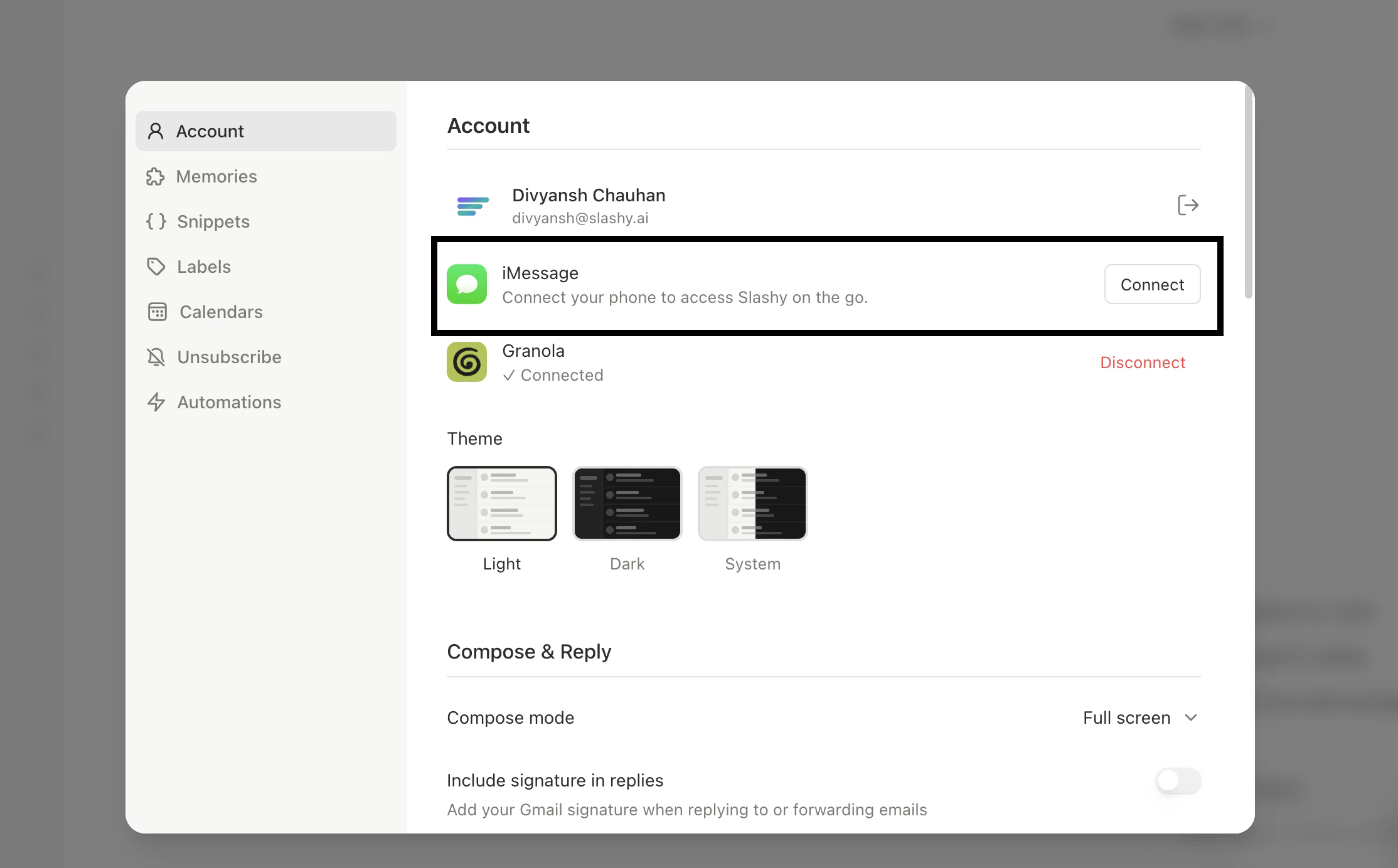 If you retype the message manually, the linking will fail. Always use the generated link.
## Re-Activating the Agent
If the iMessage agent stops responding or you skipped it during onboarding: **just send it a text.** A simple "hi" works. There is no toggle -- the agent is always listening once linked. Sending a new message restarts the connection.
If you retype the message manually, the linking will fail. Always use the generated link.
## Re-Activating the Agent
If the iMessage agent stops responding or you skipped it during onboarding: **just send it a text.** A simple "hi" works. There is no toggle -- the agent is always listening once linked. Sending a new message restarts the connection.
 ## Linking a New Phone Number
Go to **Settings** (`Cmd+,`) > **Integrations** > **Messaging** > **iMessage** and update your phone number.
Open the agent sidebar (`p a`) and type: *"Generate my iMessage link."*
Click the provided URL to open iMessage and send.
## Quick Test After Setup
Verify everything works by trying these three messages right after connecting:
Text: *"Show me my latest unread email"* -- the agent should respond with a visual preview within 10 seconds.
Text: *"What's on my calendar today?"* -- confirms calendar access is working.
Text: *"Draft a test reply to my most recent email saying thanks"* -- confirms the agent can compose on your behalf.
## Troubleshooting
Send any message (even "hi") to restart the connection. If it still does not respond after 60 seconds, re-generate the iMessage link from the agent sidebar.
The pre-filled message may have been edited. Go to the agent sidebar (`p a`) and type *"Generate my iMessage link"* to get a fresh link. Send the new pre-filled message without editing.
Your phone number is not linked to your Slashy account. Update it in **Settings > Integrations > Messaging > iMessage**, then generate a new iMessage link from the agent sidebar.
Slashy requires iMessage, not SMS. Enable iMessage on your iPhone: **Settings > Messages > iMessage** (toggle on). If you are on Android, iMessage is not available -- use the Slashy mobile app instead.
Complex tasks (meeting prep, multi-email searches) take longer. If simple queries like "show my unread emails" are consistently slow, contact [founders@slashy.com](mailto:founders@slashy.com).
## Privacy
iMessage conversations are processed by the same AI as the web and desktop apps. Messages follow the same rolling summary approach -- they are not stored permanently. See [AI Privacy](/getting-started/ai-privacy) for full details on how your data is handled.
***
## Related Articles
Everything you can do via text
Morning summaries delivered to your phone
Set up the most impactful automations
Control your agent's writing style
## Linking a New Phone Number
Go to **Settings** (`Cmd+,`) > **Integrations** > **Messaging** > **iMessage** and update your phone number.
Open the agent sidebar (`p a`) and type: *"Generate my iMessage link."*
Click the provided URL to open iMessage and send.
## Quick Test After Setup
Verify everything works by trying these three messages right after connecting:
Text: *"Show me my latest unread email"* -- the agent should respond with a visual preview within 10 seconds.
Text: *"What's on my calendar today?"* -- confirms calendar access is working.
Text: *"Draft a test reply to my most recent email saying thanks"* -- confirms the agent can compose on your behalf.
## Troubleshooting
Send any message (even "hi") to restart the connection. If it still does not respond after 60 seconds, re-generate the iMessage link from the agent sidebar.
The pre-filled message may have been edited. Go to the agent sidebar (`p a`) and type *"Generate my iMessage link"* to get a fresh link. Send the new pre-filled message without editing.
Your phone number is not linked to your Slashy account. Update it in **Settings > Integrations > Messaging > iMessage**, then generate a new iMessage link from the agent sidebar.
Slashy requires iMessage, not SMS. Enable iMessage on your iPhone: **Settings > Messages > iMessage** (toggle on). If you are on Android, iMessage is not available -- use the Slashy mobile app instead.
Complex tasks (meeting prep, multi-email searches) take longer. If simple queries like "show my unread emails" are consistently slow, contact [founders@slashy.com](mailto:founders@slashy.com).
## Privacy
iMessage conversations are processed by the same AI as the web and desktop apps. Messages follow the same rolling summary approach -- they are not stored permanently. See [AI Privacy](/getting-started/ai-privacy) for full details on how your data is handled.
***
## Related Articles
Everything you can do via text
Morning summaries delivered to your phone
Set up the most impactful automations
Control your agent's writing style