> ## Documentation Index
> Fetch the complete documentation index at: https://help.slashy.com/llms.txt
> Use this file to discover all available pages before exploring further.
# What You Can Do via iMessage
> Everything the Slashy iMessage agent can do -- search, draft, preview, briefings, voice messages, reminders, calendar, and more.
The iMessage agent is your personal email assistant via text. Everything the AI can do in the Slashy sidebar, it can do through iMessage. Text instructions in plain English.
Think of iMessage as a remote control for your inbox. You can do everything from your phone that you would do on your laptop -- without opening any app.
## Top 10 things to text Slashy
Copy any of these into iMessage to get going:
1. *"Give me my daily summary."*
2. *"Forward me any OTP codes from the last hour."*
3. *"Schedule an email to Sarah for tomorrow at 9am saying I'll send the deck by Friday."*
4. *"Find the thread with Acme about pricing."*
5. *"Summarize the latest thread from the investor list."*
6. *"Draft a reply to John saying I'm in for Thursday."*
7. *"Add a task to review the contract by Friday."*
8. *"Who's on my calendar today?"*
9. *"What did Priya say last about the launch?"*
10. *"Remind me to follow up with Alex on Monday morning."*
## Search Emails
Find any email with natural language. The agent searches your entire inbox history.
* *"Find the last email from Sarah about the Q4 budget"*
* *"Show me unread emails from today"*
* *"Did John ever reply to my proposal?"*
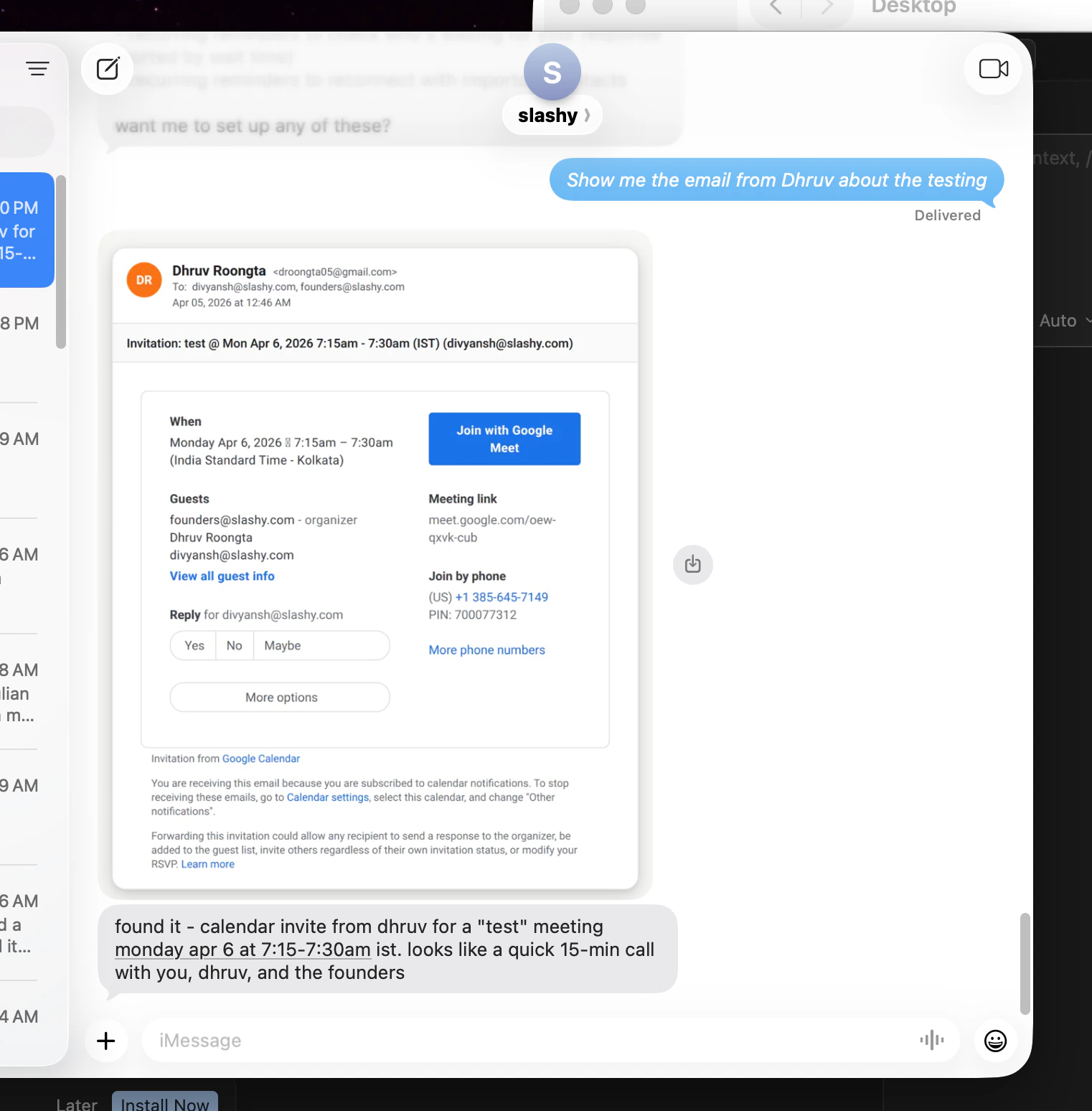
## Visual Email Previews
The agent renders any email as a screenshot and sends it in the conversation -- full layout, formatting, and images.
* *"Show me the email from Alex about the partnership"*
* *"Send me that invoice from yesterday"*
 ## Draft and Send Replies
Tell the agent what to say. Review the draft via preview, then iterate before sending.
Text: *"Reply to Sarah's email saying I'll have the report ready by Thursday"*
The agent sends a visual preview of the draft for your review.
Reply with *"send it"*, *"make it more formal"*, or *"add a line about the timeline"* to refine. The agent keeps adjusting until you approve.
Saying *"send it"* actually sends the email. If you want to save it as a draft to review on desktop, say *"save as draft"* instead.
## Daily Briefings
Set up a [recurring briefing](/how-to-guides/imessage-briefings) or request on demand:
* *"Give me my morning briefing"*
* *"What's on my plate today?"*
Covers important unread emails, today's calendar, pending replies, and dropped balls.
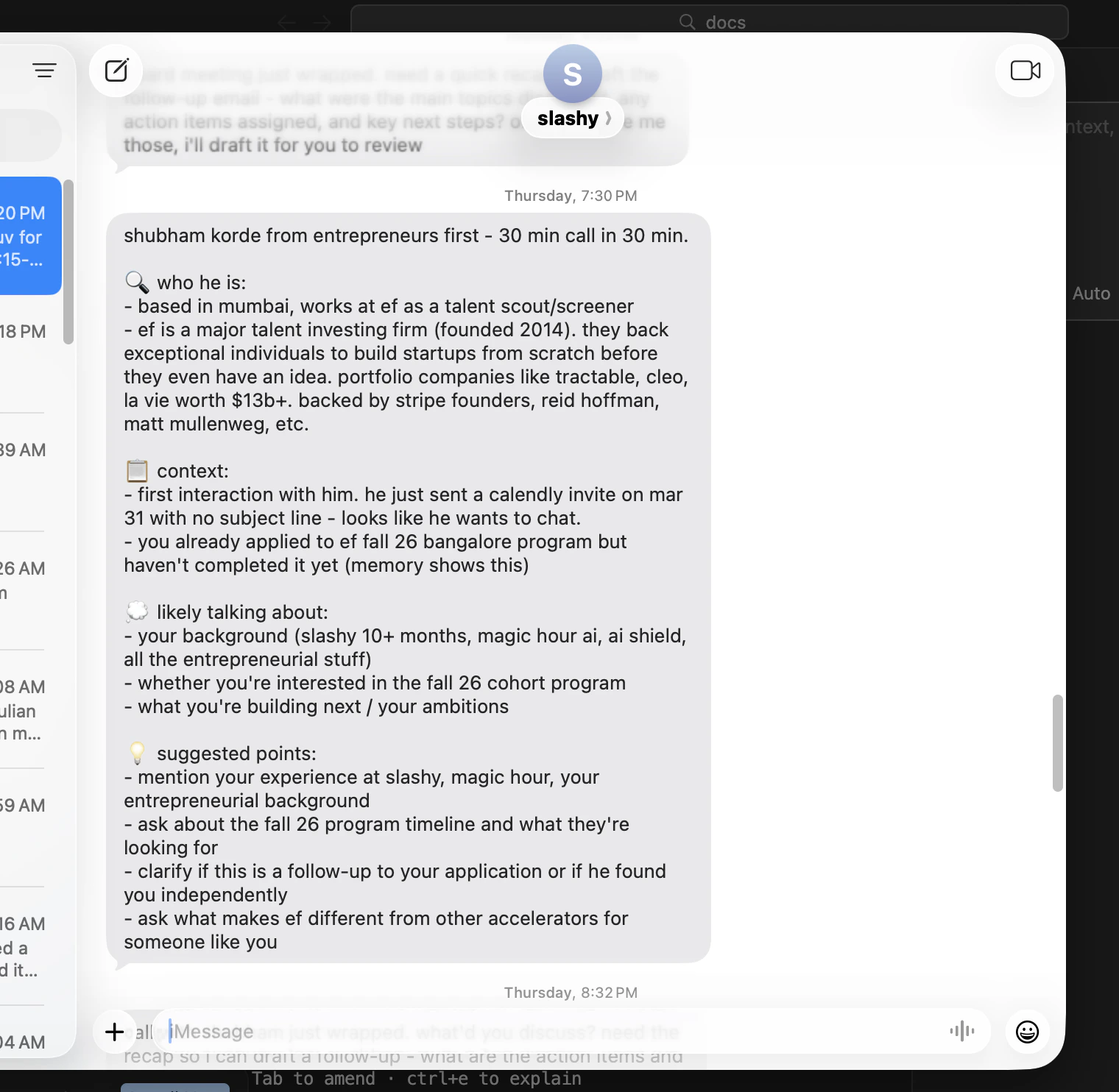
## Meeting Prep
Get attendee research and context before any meeting.
* *"Prep me for my 2pm meeting"*
* *"Research the attendees of my call with Sequoia tomorrow"*
Pulls LinkedIn profiles, past email history, and relevant memories for each attendee.
## Draft and Send Replies
Tell the agent what to say. Review the draft via preview, then iterate before sending.
Text: *"Reply to Sarah's email saying I'll have the report ready by Thursday"*
The agent sends a visual preview of the draft for your review.
Reply with *"send it"*, *"make it more formal"*, or *"add a line about the timeline"* to refine. The agent keeps adjusting until you approve.
Saying *"send it"* actually sends the email. If you want to save it as a draft to review on desktop, say *"save as draft"* instead.
## Daily Briefings
Set up a [recurring briefing](/how-to-guides/imessage-briefings) or request on demand:
* *"Give me my morning briefing"*
* *"What's on my plate today?"*
Covers important unread emails, today's calendar, pending replies, and dropped balls.
## Meeting Prep
Get attendee research and context before any meeting.
* *"Prep me for my 2pm meeting"*
* *"Research the attendees of my call with Sequoia tomorrow"*
Pulls LinkedIn profiles, past email history, and relevant memories for each attendee.
 ## Voice Messages
Send a voice message through iMessage. The agent transcribes it and acts on your instructions -- useful when you are driving, walking, or in between meetings.
Voice messages are great for complex requests. Instead of typing *"Find all emails from investors this month where I haven't replied and draft updates for each,"* just say it out loud.
## Set Reminders
* *"Remind me to follow up with Jane on Friday"*
* *"If Mike doesn't reply by Wednesday, remind me"*
## Manage Calendar
* *"Schedule a 30-minute meeting with [sarah@acme.com](mailto:sarah@acme.com) on Tuesday at 10am"*
* *"Move my 3pm to 4pm"*
* *"Am I free Thursday afternoon?"*
Creates events with conferencing links and checks for conflicts automatically.
## Manage Automations
* *"List my active automations"*
* *"Turn off the receipt forwarding automation"*
* *"Add [ceo@company.com](mailto:ceo@company.com) to my VIP alert list"*
## Web Search
The agent searches the web via Perplexity AI on your behalf.
* *"What's the latest funding round for Acme Corp?"*
## Power User Tips
*"Reply to Sarah's email about the budget"* works better than *"reply to that email."* The more context you give, the faster the agent finds the right thread.
Complex multi-step tasks work in a single message: *"Find all emails from investors where I haven't replied, draft a short update for each, and list them for my review."*
Send a voice message for anything longer than a sentence. The agent transcribes and executes -- no typing needed.
If you want to polish a reply on your laptop before sending, say *"save as draft"* instead of *"send it."* The draft will be waiting in Slashy when you open it.
***
## Related Articles
Connect your phone number
Morning summaries delivered to your phone
Automate your inbox
Auto-suggestions and learning
## Voice Messages
Send a voice message through iMessage. The agent transcribes it and acts on your instructions -- useful when you are driving, walking, or in between meetings.
Voice messages are great for complex requests. Instead of typing *"Find all emails from investors this month where I haven't replied and draft updates for each,"* just say it out loud.
## Set Reminders
* *"Remind me to follow up with Jane on Friday"*
* *"If Mike doesn't reply by Wednesday, remind me"*
## Manage Calendar
* *"Schedule a 30-minute meeting with [sarah@acme.com](mailto:sarah@acme.com) on Tuesday at 10am"*
* *"Move my 3pm to 4pm"*
* *"Am I free Thursday afternoon?"*
Creates events with conferencing links and checks for conflicts automatically.
## Manage Automations
* *"List my active automations"*
* *"Turn off the receipt forwarding automation"*
* *"Add [ceo@company.com](mailto:ceo@company.com) to my VIP alert list"*
## Web Search
The agent searches the web via Perplexity AI on your behalf.
* *"What's the latest funding round for Acme Corp?"*
## Power User Tips
*"Reply to Sarah's email about the budget"* works better than *"reply to that email."* The more context you give, the faster the agent finds the right thread.
Complex multi-step tasks work in a single message: *"Find all emails from investors where I haven't replied, draft a short update for each, and list them for my review."*
Send a voice message for anything longer than a sentence. The agent transcribes and executes -- no typing needed.
If you want to polish a reply on your laptop before sending, say *"save as draft"* instead of *"send it."* The draft will be waiting in Slashy when you open it.
***
## Related Articles
Connect your phone number
Morning summaries delivered to your phone
Automate your inbox
Auto-suggestions and learning