> ## Documentation Index
> Fetch the complete documentation index at: https://help.slashy.com/llms.txt
> Use this file to discover all available pages before exploring further.
# Daily Briefings via iMessage
> Set up recurring morning briefings with meetings, VIP emails, and pending follow-ups delivered to your phone.
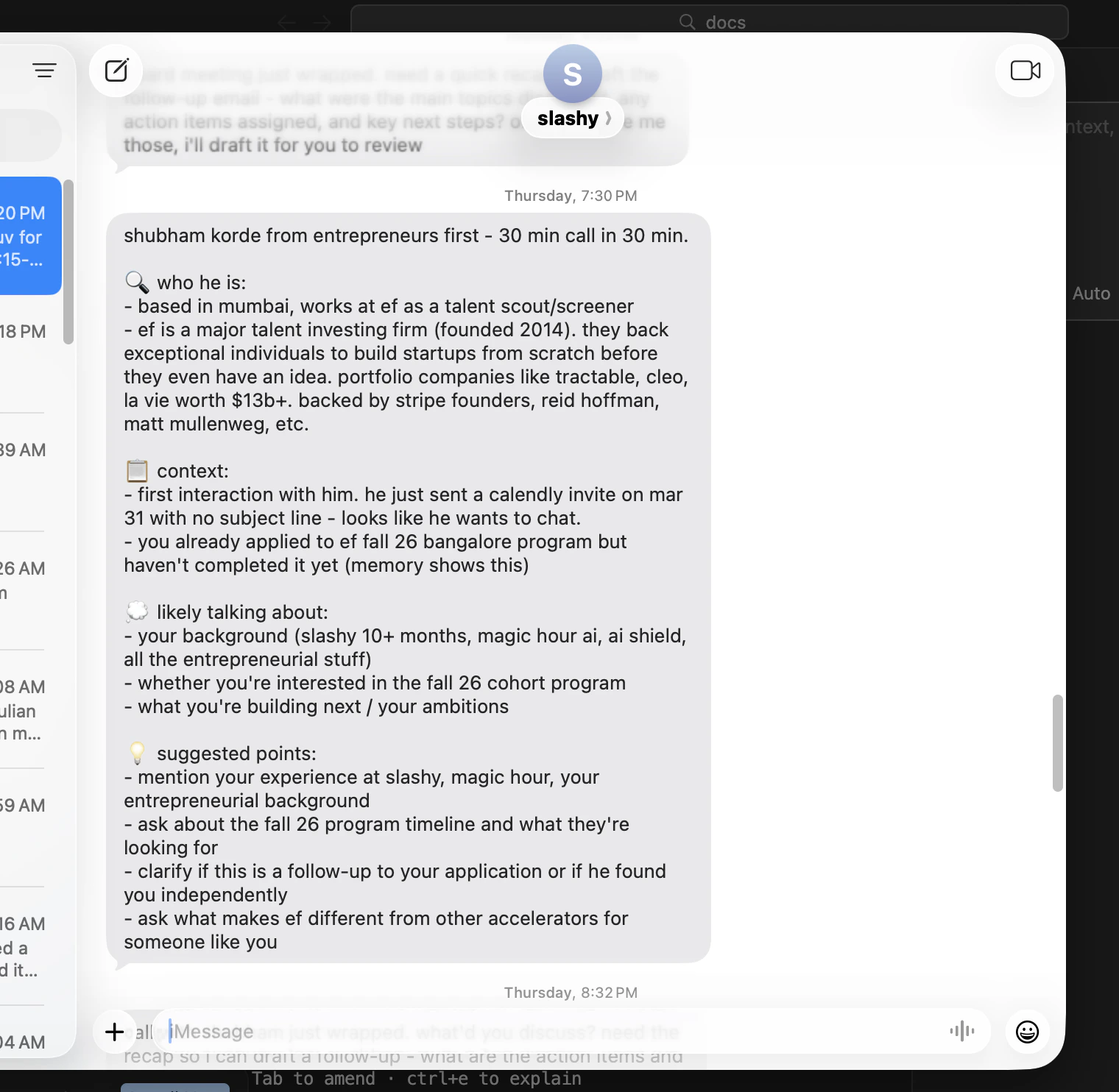
Set up a recurring daily briefing and every morning get a text summarizing your day: meetings, unread VIP emails, and pending follow-ups. Read it with coffee, before opening your laptop.
The iMessage agent must be connected first. See [Setting Up the iMessage Agent](/how-to-guides/imessage-setup) if you haven't done this yet.
 ## Set Up Your Morning Briefing
Press `Cmd+Shift+L`.
Type: *"Set up a recurring agent reminder: every weekday at 8am, send me a morning briefing on iMessage. Include today's calendar meetings, unread emails from VIPs, and any pending follow-ups."*
The agent shows you a summary of the automation it will create. Confirm to activate it.
Your first briefing arrives the next weekday at 8am. Reply to it to act on any items immediately.
Set up your briefing at the end of your first day with Slashy. By the next morning, you will have a personalized daily summary waiting on your phone.
## What the Briefing Includes
A typical briefing:
> **Good morning. Here is your briefing for Tuesday, March 24.**
>
> **Calendar (4 meetings):**
> 9:00am - Team standup (Google Meet)
> 11:00am - Sarah Chen, product review (Zoom)
> 2:00pm - Investor call with Mark at Sequoia (Zoom)
>
> **Unread from VIPs (2):**
> Mark from Sequoia - RE: Q1 metrics (received 11pm)
> Lisa from BigCorp - Contract renewal question (received 7am)
>
> **Pending follow-ups (1):**
> You emailed David about the partnership 3 days ago. No reply yet.
## Customize Content
* *"Include a count of total unread emails per label"*
* *"Include tasks due today or overdue"*
* *"Include emails where someone is waiting on me for 2+ days"*
* *"Don't include follow-ups, just calendar and VIP emails"*
* *"Skip recurring internal meetings"*
* *"VIPs are anyone from @sequoia.com, my co-founder [alex@mycompany.com](mailto:alex@mycompany.com), and anyone in my Investors label"*
## Adjust Schedule
* *"Change my briefing to 7:30am"*
* *"Send every day including weekends"*
* *"Also send an end-of-day briefing at 5pm with just pending follow-ups"*
* *"Pause the briefing for the next week while I'm on vacation"*
## Add an End-of-Day Wrap-Up
Many users pair a morning briefing with an evening summary. Here is how to set up both:
In the agent sidebar, type: *"Set up a recurring agent reminder: every weekday at 5pm, send me an end-of-day summary on iMessage. Include emails I didn't reply to today, commitments I made, and tomorrow's first meeting."*
You now get two briefings -- one to start your day, one to close it.
## Respond and Act
Text back to act on items immediately:
* *"Draft a reply to Mark's email confirming we'll have metrics by Friday"*
* *"Cancel my 4:30 design review and let Alex know I need to reschedule"*
* *"Follow up with David about the partnership -- say we'd love to move forward"*
Actions queue up so they are waiting when you open Slashy on your laptop.
Your briefing is interactive. Do not just read it -- reply to it. The agent processes your responses immediately, so you can triage your morning inbox from bed.
***
## Related Articles
Connect your phone for agent access
Everything you can do via text
Auto-generate attendee briefings before meetings
The most impactful automations to set up
## Set Up Your Morning Briefing
Press `Cmd+Shift+L`.
Type: *"Set up a recurring agent reminder: every weekday at 8am, send me a morning briefing on iMessage. Include today's calendar meetings, unread emails from VIPs, and any pending follow-ups."*
The agent shows you a summary of the automation it will create. Confirm to activate it.
Your first briefing arrives the next weekday at 8am. Reply to it to act on any items immediately.
Set up your briefing at the end of your first day with Slashy. By the next morning, you will have a personalized daily summary waiting on your phone.
## What the Briefing Includes
A typical briefing:
> **Good morning. Here is your briefing for Tuesday, March 24.**
>
> **Calendar (4 meetings):**
> 9:00am - Team standup (Google Meet)
> 11:00am - Sarah Chen, product review (Zoom)
> 2:00pm - Investor call with Mark at Sequoia (Zoom)
>
> **Unread from VIPs (2):**
> Mark from Sequoia - RE: Q1 metrics (received 11pm)
> Lisa from BigCorp - Contract renewal question (received 7am)
>
> **Pending follow-ups (1):**
> You emailed David about the partnership 3 days ago. No reply yet.
## Customize Content
* *"Include a count of total unread emails per label"*
* *"Include tasks due today or overdue"*
* *"Include emails where someone is waiting on me for 2+ days"*
* *"Don't include follow-ups, just calendar and VIP emails"*
* *"Skip recurring internal meetings"*
* *"VIPs are anyone from @sequoia.com, my co-founder [alex@mycompany.com](mailto:alex@mycompany.com), and anyone in my Investors label"*
## Adjust Schedule
* *"Change my briefing to 7:30am"*
* *"Send every day including weekends"*
* *"Also send an end-of-day briefing at 5pm with just pending follow-ups"*
* *"Pause the briefing for the next week while I'm on vacation"*
## Add an End-of-Day Wrap-Up
Many users pair a morning briefing with an evening summary. Here is how to set up both:
In the agent sidebar, type: *"Set up a recurring agent reminder: every weekday at 5pm, send me an end-of-day summary on iMessage. Include emails I didn't reply to today, commitments I made, and tomorrow's first meeting."*
You now get two briefings -- one to start your day, one to close it.
## Respond and Act
Text back to act on items immediately:
* *"Draft a reply to Mark's email confirming we'll have metrics by Friday"*
* *"Cancel my 4:30 design review and let Alex know I need to reschedule"*
* *"Follow up with David about the partnership -- say we'd love to move forward"*
Actions queue up so they are waiting when you open Slashy on your laptop.
Your briefing is interactive. Do not just read it -- reply to it. The agent processes your responses immediately, so you can triage your morning inbox from bed.
***
## Related Articles
Connect your phone for agent access
Everything you can do via text
Auto-generate attendee briefings before meetings
The most impactful automations to set up