> ## Documentation Index
> Fetch the complete documentation index at: https://help.slashy.com/llms.txt
> Use this file to discover all available pages before exploring further.
# Email Tracking and Read Receipts
> How Slashy's tracking pixel works, how to enable or disable it, view open data, and understand tracking limitations.
Slashy embeds an invisible tracking pixel in outgoing emails so you know when a recipient opens your message.
Email tracking is not 100% reliable. Privacy features in Apple Mail, corporate firewalls, and image-blocking settings can prevent tracking pixels from firing. Treat open data as a signal, not a certainty.
## How It Works
When tracking is enabled, each outgoing email gets a tiny invisible image per recipient. When the recipient's email client loads images, Slashy records:
* Exact timestamp
* Device type and OS
* Email client
Tracking is per-recipient — if you send to three people, you see exactly who opened.
 ## Enabling and Disabling
**Globally:** **Settings** (`Cmd+,`) > **Account** > toggle **Email Tracking**
**Per email:** Toggle tracking on/off in the compose window before sending.
## Viewing Open Data
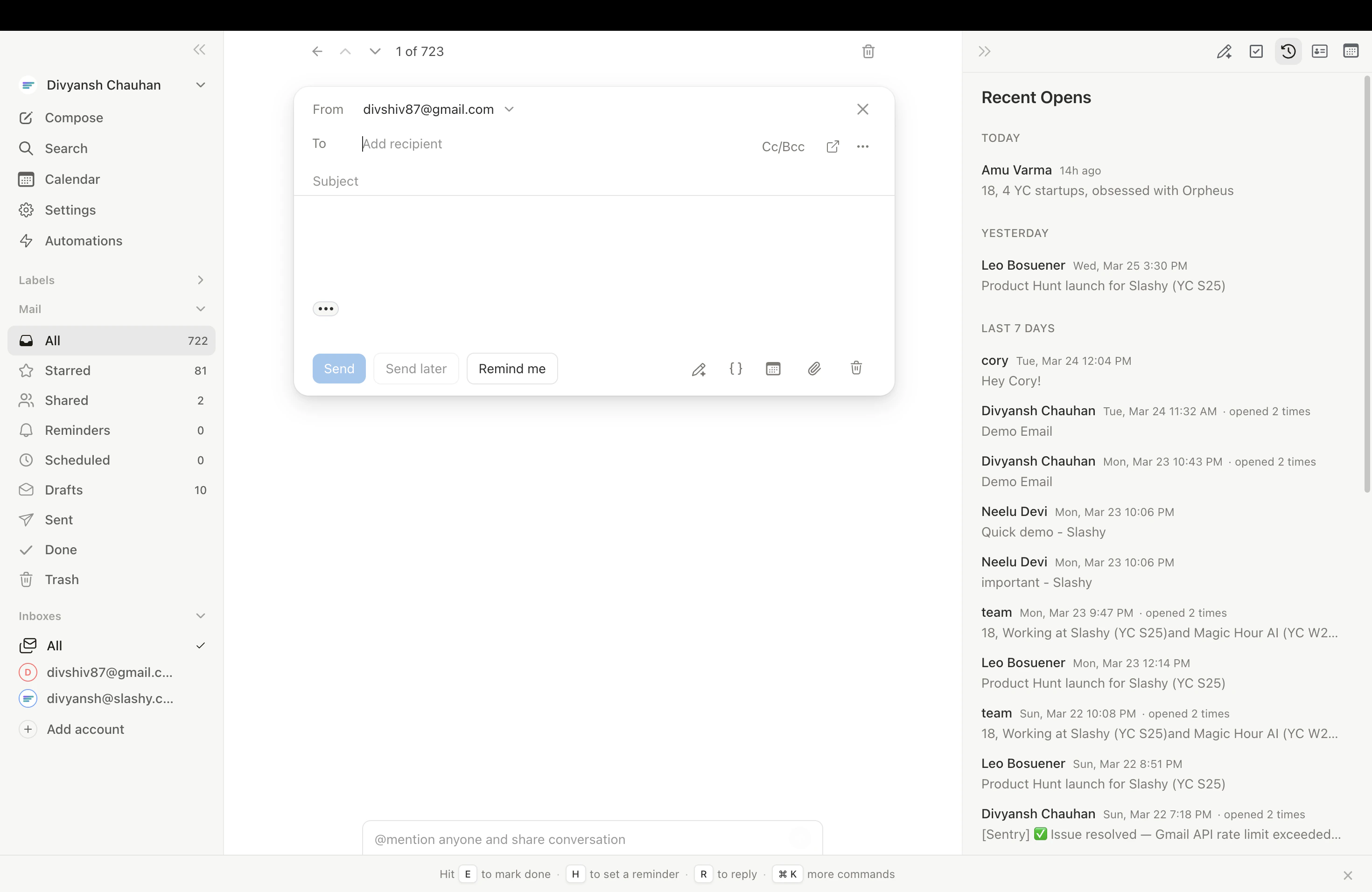
Press `p o` to open the **Recent Opens** panel — a live feed of who's reading your tracked emails.
Each entry shows: recipient name, email subject, time opened, device type, OS, and email client.
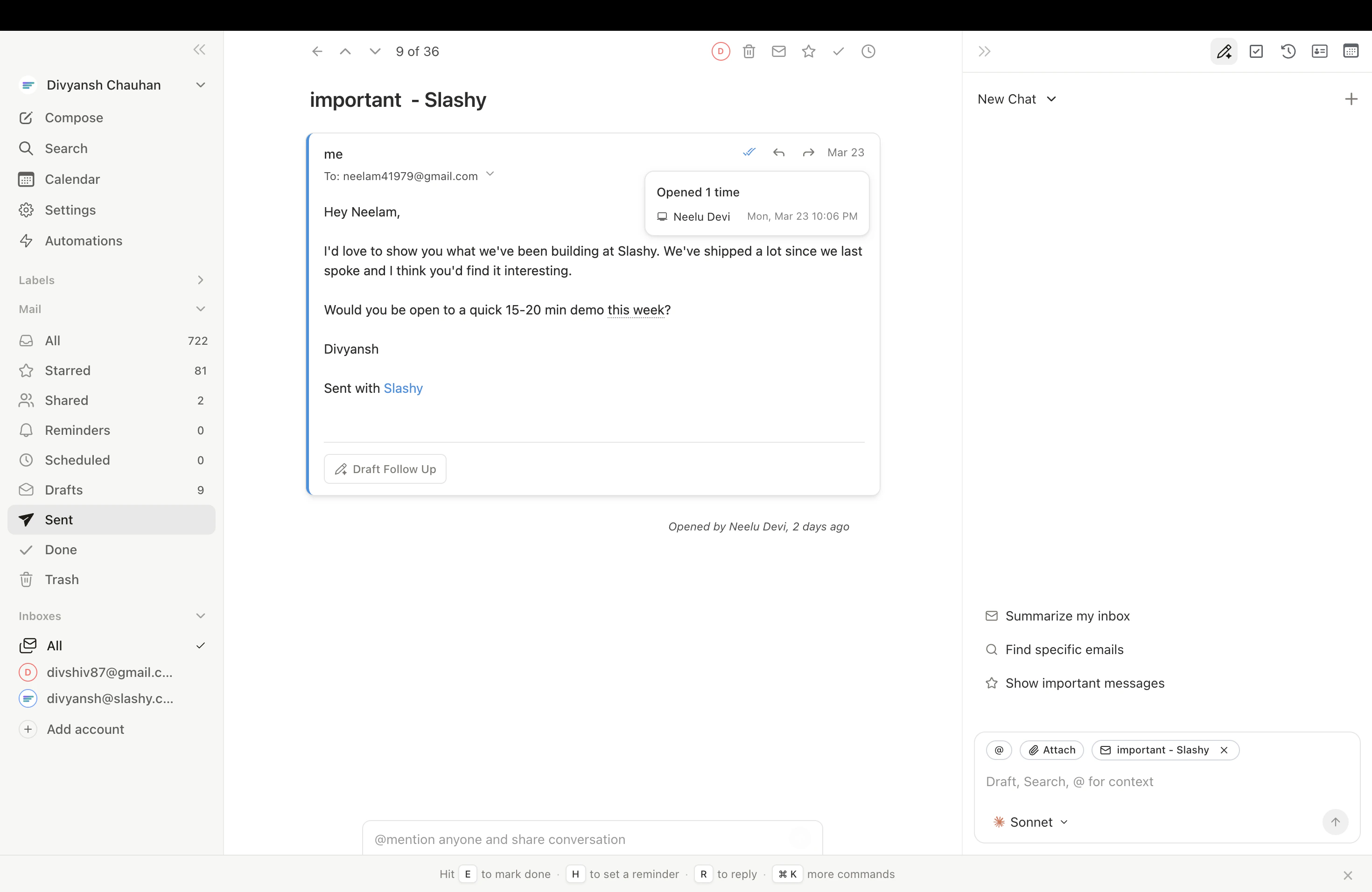
You can also view tracking data on individual threads — sent messages show an "Opened by" indicator.
## Enabling and Disabling
**Globally:** **Settings** (`Cmd+,`) > **Account** > toggle **Email Tracking**
**Per email:** Toggle tracking on/off in the compose window before sending.
## Viewing Open Data
Press `p o` to open the **Recent Opens** panel — a live feed of who's reading your tracked emails.
Each entry shows: recipient name, email subject, time opened, device type, OS, and email client.
You can also view tracking data on individual threads — sent messages show an "Opened by" indicator.
 ## When Tracking Doesn't Work
| Cause | Impact |
| --------------------------------- | ------------------------------------------------------------------------------------------------------------------ |
| **Apple Mail Privacy Protection** | Pre-fetches all images via proxy. Slashy filters these to avoid false positives, which may also filter real opens. |
| **Gmail Image Proxy** | Routes images through Google servers. Opens still register but device details may be less accurate. |
| **Outlook / corporate email** | Often blocks external images by default. Pixel won't fire unless recipient clicks "Load images." |
| **Images disabled** | Any client blocking remote images prevents tracking. |
| **Plain-text readers** | Strip all images including tracking pixels. |
## Auto-Open Filtering
Slashy filters automated opens from Gmail Image Proxy, Apple MPP, Microsoft SafeLinks, and corporate security scanners. You may miss occasional real opens, but the ones you see are genuine.
## Open Trigger Automations
Create automations that fire when a tracked email is opened -- for example, get notified when a prospect opens your proposal.
Press `Cmd+Shift+L` or `p a`.
Example: *"Create an email open trigger: when anyone at @bigclient.com opens my email for the first time, message me on iMessage."*
The agent shows a preview of the trigger for your confirmation. Adjust the scope or action as needed.
Open triggers include the same auto-open filtering and can fire on first open only or every open.
Combine email tracking with the [Follow-Up Nudge automation](/how-to-guides/10-automations) for a powerful outreach workflow: track opens, then auto-draft a follow-up if the recipient opens but doesn't reply within 3 days.
***
## Related Articles
Set up email open alerts and more
Four layers of follow-up protection
Sales workflows using tracking and follow-ups
Automated follow-up tracking for key accounts
## When Tracking Doesn't Work
| Cause | Impact |
| --------------------------------- | ------------------------------------------------------------------------------------------------------------------ |
| **Apple Mail Privacy Protection** | Pre-fetches all images via proxy. Slashy filters these to avoid false positives, which may also filter real opens. |
| **Gmail Image Proxy** | Routes images through Google servers. Opens still register but device details may be less accurate. |
| **Outlook / corporate email** | Often blocks external images by default. Pixel won't fire unless recipient clicks "Load images." |
| **Images disabled** | Any client blocking remote images prevents tracking. |
| **Plain-text readers** | Strip all images including tracking pixels. |
## Auto-Open Filtering
Slashy filters automated opens from Gmail Image Proxy, Apple MPP, Microsoft SafeLinks, and corporate security scanners. You may miss occasional real opens, but the ones you see are genuine.
## Open Trigger Automations
Create automations that fire when a tracked email is opened -- for example, get notified when a prospect opens your proposal.
Press `Cmd+Shift+L` or `p a`.
Example: *"Create an email open trigger: when anyone at @bigclient.com opens my email for the first time, message me on iMessage."*
The agent shows a preview of the trigger for your confirmation. Adjust the scope or action as needed.
Open triggers include the same auto-open filtering and can fire on first open only or every open.
Combine email tracking with the [Follow-Up Nudge automation](/how-to-guides/10-automations) for a powerful outreach workflow: track opens, then auto-draft a follow-up if the recipient opens but doesn't reply within 3 days.
***
## Related Articles
Set up email open alerts and more
Four layers of follow-up protection
Sales workflows using tracking and follow-ups
Automated follow-up tracking for key accounts