> ## Documentation Index
> Fetch the complete documentation index at: https://help.slashy.com/llms.txt
> Use this file to discover all available pages before exploring further.
# Connect an MCP server to Slashy
> Give the Slashy agent access to outside tools like Linear, Stripe, and GitHub by connecting their MCP servers, with one-click presets or a custom server URL.
Slashy MCP has two directions, and they solve different problems:
| Direction | What it does | Guide |
| ----------------------------- | -------------------------------------------------------------------- | --------------------------------------------------------- |
| Slashy **into** your AI tools | Claude Code, Cursor, and Codex get Slashy's email and calendar tools | [Slashy MCP Overview](/how-to-guides/slashy-mcp-overview) |
| Other tools **into** Slashy | The Slashy agent gets Linear, Notion, GitHub, and others | This page |
This page covers the second one. Connect an outside MCP server and the Slashy agent can use its tools while it works on your email, so you can say *"file this bug in Linear"* or *"check whether this customer's payment went through"* without leaving your inbox.
## Connecting a server
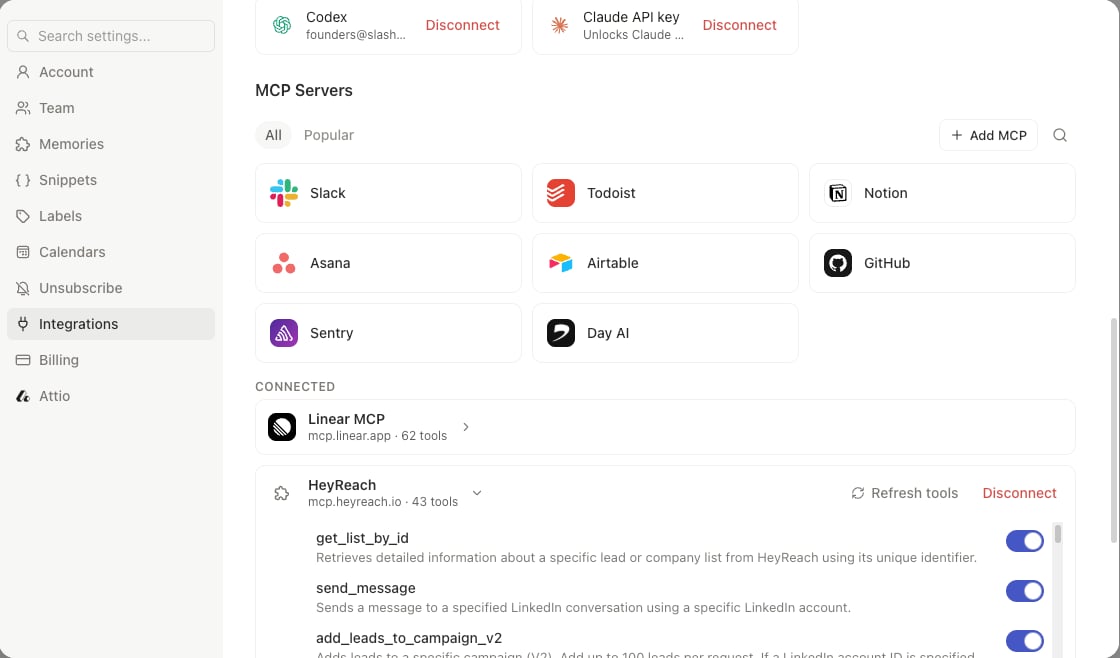
Press `Cmd+,` to open Settings, go to **Integrations**, and scroll to **MCP Servers**.
Search the catalog, or choose one of the one-click presets: Slack, Todoist, Notion, Asana, Airtable, GitHub, Sentry, or Day AI.
Most servers open an OAuth sign-in in your browser. Approve access and you land back in Slashy with the server connected.
A connected server shows how many tools it exposes, for example "43 tools". That is your confirmation the agent can now use it.
 ## Connecting a custom server
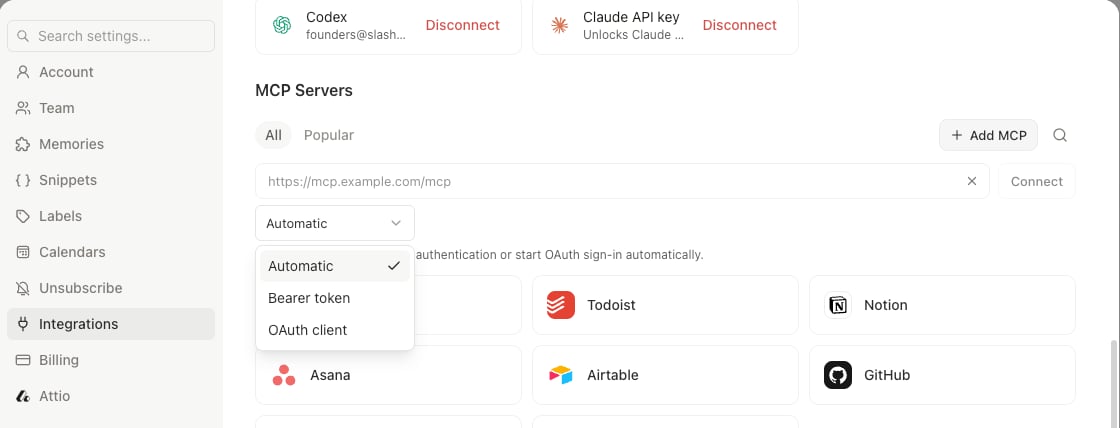
If the tool you want is not in the catalog, for example Linear or Stripe, click **Add MCP** and paste the server's MCP URL, usually something ending in `/mcp`.
Slashy supports three auth styles, chosen from a dropdown next to the URL field:
* **Automatic.** The default. Slashy connects without authentication or starts an OAuth sign-in automatically, whichever the server needs.
* **Bearer token.** Paste a token alongside the URL for servers that authenticate that way.
* **OAuth client.** For servers that do not support dynamic client registration, supply your own OAuth client ID and secret.
## Connecting a custom server
If the tool you want is not in the catalog, for example Linear or Stripe, click **Add MCP** and paste the server's MCP URL, usually something ending in `/mcp`.
Slashy supports three auth styles, chosen from a dropdown next to the URL field:
* **Automatic.** The default. Slashy connects without authentication or starts an OAuth sign-in automatically, whichever the server needs.
* **Bearer token.** Paste a token alongside the URL for servers that authenticate that way.
* **OAuth client.** For servers that do not support dynamic client registration, supply your own OAuth client ID and secret.
 ## Choosing which tools the agent can use
Expand a connected server to see every tool it exposes, each with its own toggle. Turn off anything you do not want the agent reaching for.
This matters most for write-capable servers. If you want the agent to read from a system but never change it, connect the server and disable the write tools rather than skipping the integration entirely.
## Keeping a server healthy
Each connected server has two controls:
* **Refresh tools** re-fetches the tool catalog. Run it after the provider ships new tools, and Slashy reports the new count.
* **Disconnect** removes the server and its tools from the agent.
A server that needs attention says so in place of the tool count:
| Status | Meaning |
| ------------------- | --------------------------------------------------------------- |
| **Needs reconnect** | Authorization expired or was revoked. Reconnect to restore it. |
| **Inactive** | The server is connected but not currently reachable. |
| An error message | The server returned an error. The text comes from the provider. |
## Using it
Once a server is connected, just ask the agent in plain language. It picks the right tool on its own:
* *"Create a Linear issue from this bug report and link the thread."*
* *"Has this customer paid their last invoice?"*
* *"Pull up the Notion doc about our refund policy and summarize it for this reply."*
* *"What Sentry errors spiked after yesterday's release?"*
## Related
The other direction: Slashy's tools inside Claude, Cursor, and Codex.
What the agent will and will not do without asking.
Slashy's native Notion integration.
Common connection problems.
## Choosing which tools the agent can use
Expand a connected server to see every tool it exposes, each with its own toggle. Turn off anything you do not want the agent reaching for.
This matters most for write-capable servers. If you want the agent to read from a system but never change it, connect the server and disable the write tools rather than skipping the integration entirely.
## Keeping a server healthy
Each connected server has two controls:
* **Refresh tools** re-fetches the tool catalog. Run it after the provider ships new tools, and Slashy reports the new count.
* **Disconnect** removes the server and its tools from the agent.
A server that needs attention says so in place of the tool count:
| Status | Meaning |
| ------------------- | --------------------------------------------------------------- |
| **Needs reconnect** | Authorization expired or was revoked. Reconnect to restore it. |
| **Inactive** | The server is connected but not currently reachable. |
| An error message | The server returned an error. The text comes from the provider. |
## Using it
Once a server is connected, just ask the agent in plain language. It picks the right tool on its own:
* *"Create a Linear issue from this bug report and link the thread."*
* *"Has this customer paid their last invoice?"*
* *"Pull up the Notion doc about our refund policy and summarize it for this reply."*
* *"What Sentry errors spiked after yesterday's release?"*
## Related
The other direction: Slashy's tools inside Claude, Cursor, and Codex.
What the agent will and will not do without asking.
Slashy's native Notion integration.
Common connection problems.