> ## Documentation Index
> Fetch the complete documentation index at: https://help.slashy.com/llms.txt
> Use this file to discover all available pages before exploring further.
# The command palette
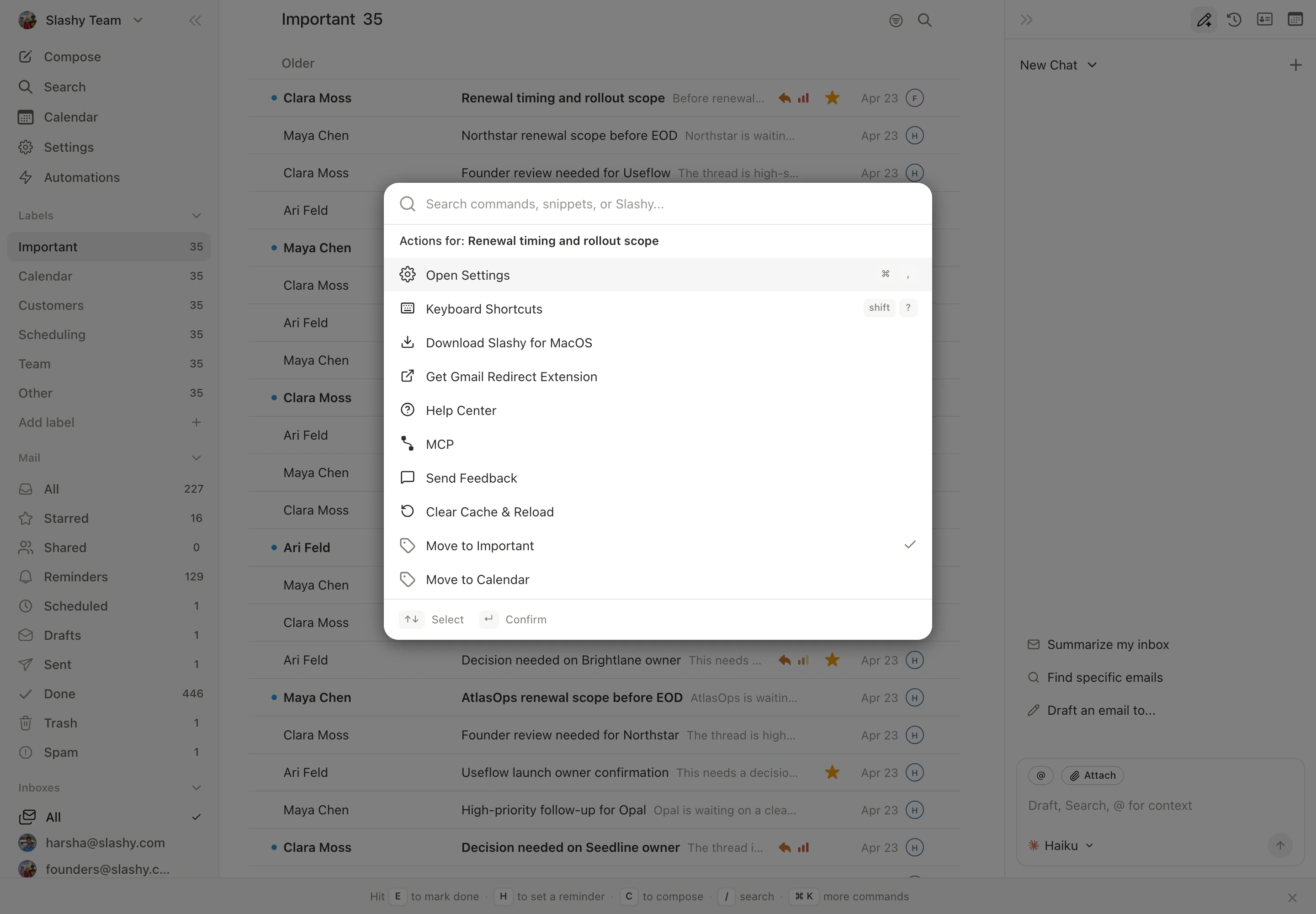
> Cmd+K opens a searchable list of everything you can do in Slashy.
The command palette is the keyboard-first way to drive Slashy. Hit `Cmd+K` from anywhere and start typing what you want.
## Open the palette
Press `Cmd+K` on any screen. A search box opens in the middle of the window with a list of commands ranked by recency and relevance.
 ## Palette vs agent sidebar
The palette and the agent sidebar (`Cmd+Shift+L`) are different tools for different jobs:
* **Palette** runs deterministic commands. You type the name of a thing you can already do with a click or shortcut, and it runs immediately. No model in the loop.
* **Agent** reasons through a request. Use it when you want Slashy to read a thread, decide what to do, and act, all from a sentence.
If you know the name of what you want, use the palette. If you're describing a task, use the agent.
## What you can run
Commands are organized by area:
* **Navigate.** Jump to an inbox, label, calendar, or settings page.
* **Compose.** Start a new email, reply to the current thread, insert a snippet.
* **Calendar.** Create an event, open availability, switch to multi-person view.
* **Search.** Run a saved search, scope to a single inbox, filter by sender.
* **Settings.** Open any settings panel directly.
## Highlighted commands
A few favorites worth remembering:
* **Save email as PDF.** Open a thread, hit `Cmd+K`, type "PDF", and save the rendered message to disk.
* **Copy thread.** Copies a plain-text version of the current thread to the clipboard, useful for pasting into a CRM note or a doc.
* **Jump to a label.** Type the label name and press Enter to filter the inbox.
* **Switch inbox.** Type the inbox alias to flip between connected accounts without leaving the keyboard.
## Keyboard shortcuts in line
Commands that have a dedicated shortcut show the keys on the right side of the row. You can run the command from the palette once and then memorize the shortcut for next time.
## Palette vs agent sidebar
The palette and the agent sidebar (`Cmd+Shift+L`) are different tools for different jobs:
* **Palette** runs deterministic commands. You type the name of a thing you can already do with a click or shortcut, and it runs immediately. No model in the loop.
* **Agent** reasons through a request. Use it when you want Slashy to read a thread, decide what to do, and act, all from a sentence.
If you know the name of what you want, use the palette. If you're describing a task, use the agent.
## What you can run
Commands are organized by area:
* **Navigate.** Jump to an inbox, label, calendar, or settings page.
* **Compose.** Start a new email, reply to the current thread, insert a snippet.
* **Calendar.** Create an event, open availability, switch to multi-person view.
* **Search.** Run a saved search, scope to a single inbox, filter by sender.
* **Settings.** Open any settings panel directly.
## Highlighted commands
A few favorites worth remembering:
* **Save email as PDF.** Open a thread, hit `Cmd+K`, type "PDF", and save the rendered message to disk.
* **Copy thread.** Copies a plain-text version of the current thread to the clipboard, useful for pasting into a CRM note or a doc.
* **Jump to a label.** Type the label name and press Enter to filter the inbox.
* **Switch inbox.** Type the inbox alias to flip between connected accounts without leaving the keyboard.
## Keyboard shortcuts in line
Commands that have a dedicated shortcut show the keys on the right side of the row. You can run the command from the palette once and then memorize the shortcut for next time.
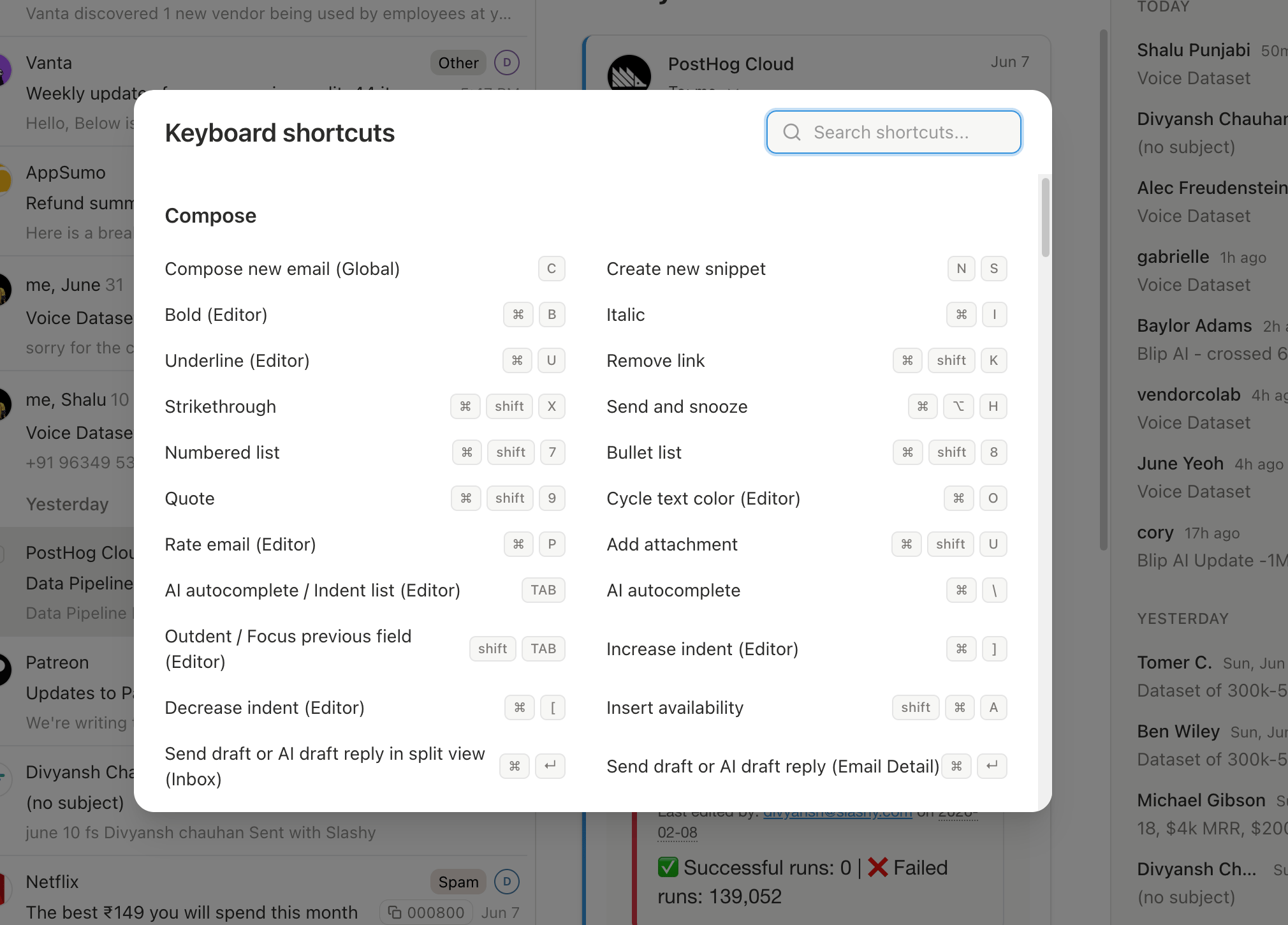 Press `Shift+?` for the full keyboard cheat sheet.
## Mobile
The palette is desktop only. On iOS, open the agent sidebar instead. Anything you'd run from the palette can be described to the agent in a sentence.
The full shortcut map.
Write and send mail.
Find anything across inboxes.
When the agent acts on its own.
How power users work in Slashy.
Press `Shift+?` for the full keyboard cheat sheet.
## Mobile
The palette is desktop only. On iOS, open the agent sidebar instead. Anything you'd run from the palette can be described to the agent in a sentence.
The full shortcut map.
Write and send mail.
Find anything across inboxes.
When the agent acts on its own.
How power users work in Slashy.