> ## Documentation Index
> Fetch the complete documentation index at: https://help.slashy.com/llms.txt
> Use this file to discover all available pages before exploring further.
# Automation Recipes
> Copy-paste automation setups for common workflows -- receipts, meeting prep, follow-ups, VIP alerts, and more. Each takes under 2 minutes.
These are ready-to-use automation recipes. Open the agent sidebar (`Cmd+Shift+L`), paste the command, and confirm. Each one takes under two minutes to set up.
You can customize any recipe after setup. Just tell the agent what to change -- *"Make the receipt forwarder also catch invoices"* or *"Change the meeting prep timing to 20 minutes before."*
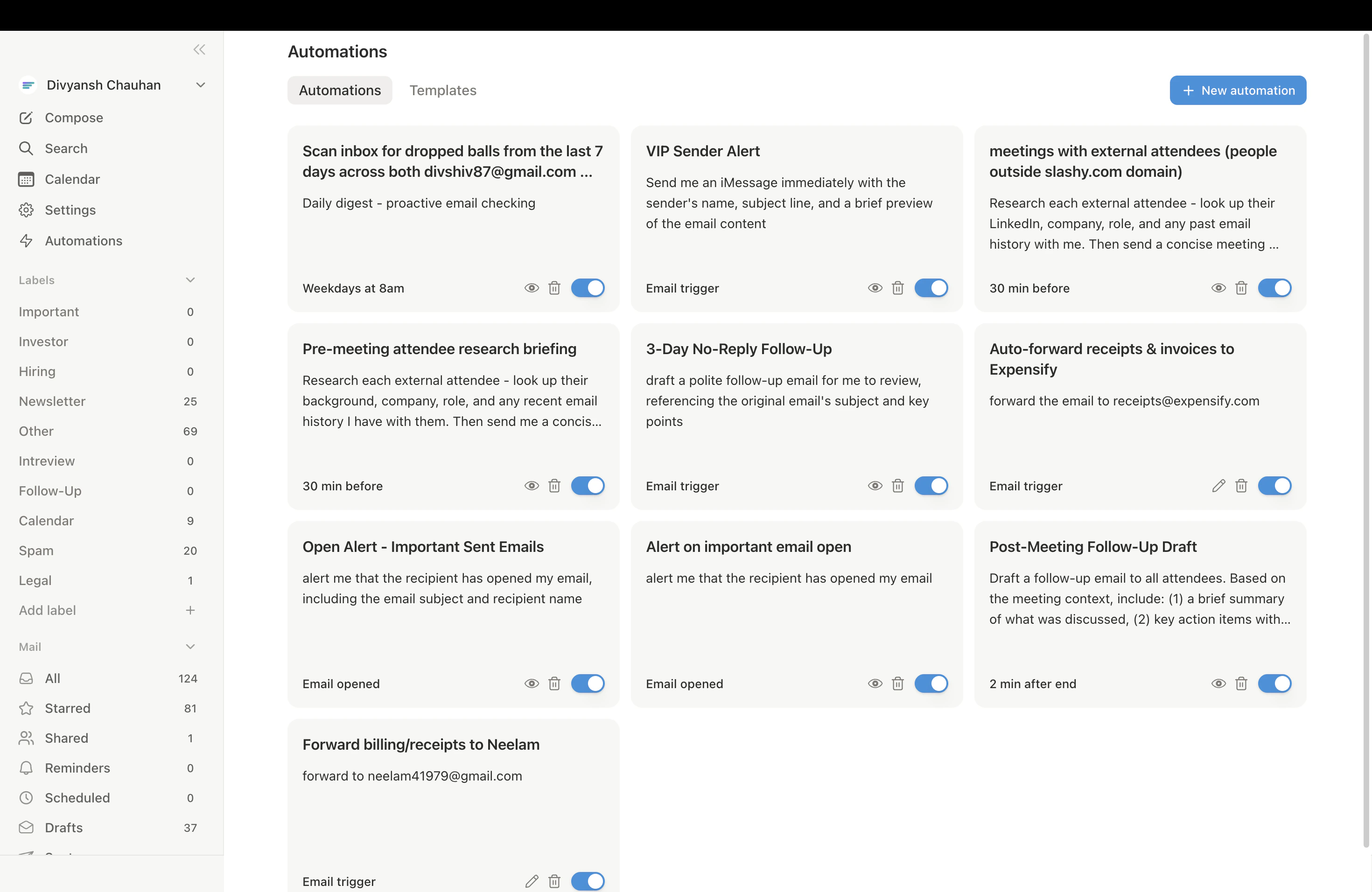 ## Recipe 1: Auto-Forward Receipts to Your Accountant
Automatically forward receipts, invoices, and payment confirmations to your bookkeeper or expense tool.
Press `Cmd+Shift+L`.
*"When I receive an email that is a receipt, invoice, or payment confirmation, forward it to [receipts@expensify.com](mailto:receipts@expensify.com). Don't forward subscription renewal notices or marketing emails."*
The agent shows you the trigger condition and action. Confirm to activate.
Replace `receipts@expensify.com` with your Expensify, Ramp, Brex, or accountant's intake email address.
***
## Recipe 2: Send Meeting Prep 30 Minutes Before External Calls
Get attendee research, recent email threads, and suggested talking points before every external meeting.
Press `Cmd+Shift+L`.
*"30 minutes before any meeting with external attendees, research all attendees and send me a meeting prep briefing on iMessage. Include their LinkedIn summary, our recent email history, and any open threads. Skip internal-only meetings."*
The agent creates a calendar trigger. Your first briefing arrives before your next external meeting.
Add *"and suggest 3 talking points based on our email history"* to get conversation starters.
***
## Recipe 3: Daily Dropped Ball Scanner at 8am
Every morning, get a summary of emails you forgot to reply to, commitments you made but have not followed up on, and threads where someone is waiting on you.
Press `Cmd+Shift+L`.
*"Every weekday at 8am, scan my inbox for dropped balls: emails I sent with no reply in 7 days, emails I received but didn't respond to where a response is expected, and commitments I made in email that I haven't followed up on. Send the summary on iMessage."*
The agent creates a scheduled reminder via AWS EventBridge.
***
## Recipe 4: VIP Email Alerts with Visual Preview
Get an instant iMessage alert with a screenshot preview when specific people email you.
Press `Cmd+Shift+L`.
*"When I receive an email from anyone @sequoia.com, anyone @bigclient.com, or my co-founder [alex@mycompany.com](mailto:alex@mycompany.com), send me an iMessage alert with a visual preview of the email."*
The agent creates an email trigger. Alerts arrive within seconds of the email landing.
Replace the domains and addresses with your own VIPs. You can also use conditions like *"any email with 'urgent' in the subject"* or *"anyone in my Investors label."*
***
## Recipe 5: Post-Meeting Follow-Up Drafts
Automatically draft a follow-up email to all attendees after every external meeting ends.
Press `Cmd+Shift+L`.
*"5 minutes after any external meeting ends, draft a follow-up email to all attendees. Include a brief summary of the meeting context based on our email history and a 'Next Steps' section. Don't send it -- save as draft for my review."*
The agent creates a calendar trigger. Drafts appear in your Slashy drafts folder after each meeting.
Connect [Granola](/features/calendar/granola) for more accurate follow-ups. The agent uses your meeting notes to write better summaries.
***
## Recipe 6: Weekly Email Digest Every Friday
Get a categorized summary of your entire email week -- what is resolved, what is pending, and who you owe replies to.
Press `Cmd+Shift+L`.
*"Every Friday at 3pm, review my email from this week. Categorize into: resolved threads, pending threads waiting on others, emails I owe replies to, and important threads to watch next week. Send the summary on iMessage."*
The agent creates a scheduled reminder. Your first digest arrives on Friday.
***
## More recipes by role
Each of these is a command you paste into the agent sidebar (`Cmd+Shift+L`) and confirm. Edit any wording to fit your workflow.
### Sales and outbound
**Follow up when a prospect opens but doesn't reply.** Pairs open tracking with a timed nudge.
> *"When someone opens an email I sent but hasn't replied within 3 days, draft a short follow-up and text me that it's ready."*
**Bump anyone who goes quiet for 7 days.**
> *"If I sent an email and there's no reply after 7 days, draft a follow-up bump on the same thread for my review."*
**Run a multi-step follow-up sequence.** Slashy can stage follow-ups at a cadence, so a no-reply keeps moving until they respond.
> *"For prospects I email cold, if there's no reply: draft follow-up one after 3 days, follow-up two after 7 days, and follow-up three after 14 days. Stop the sequence the moment they reply."*
**Text me the second a customer or prospect emails, and pre-draft a reply.**
> *"When I get an email from anyone in my Customers label, text me right away and draft a reply I can review."*
### Recruiting
**Draft a reschedule when a candidate no-shows.**
> *"When a meeting ends and the other attendee didn't join, draft a polite reschedule email offering two new times."*
**Auto-reply to scheduling requests with your availability.**
> *"When someone asks to find a time to meet, reply with a few open times from my calendar and a friendly note."*
### Founders and investors
**Always BCC the person who introduced you.**
> *"Whenever someone introduces me to a new person over email, draft my reply and always BCC the introducer."*
**Label every intro so they live in one place.**
> *"When an email is an introduction, apply the Introductions label and text me a one-line summary."*
**Decline cold pitches warmly.**
> *"When I get unsolicited cold outreach from a founder, draft a warm but firm decline that thanks them, says it's not a fit right now, and keeps the door open."*
### Customer success
**Catch onboarding emails you didn't get to.**
> *"If I haven't replied to an email from an onboarding customer within 2 business days, send an auto-reply pointing them to [onboarding@mycompany.com](mailto:onboarding@mycompany.com) and text me."*
### Executives
**Tell attendees you're running late, by text.**
> *"When I text you 'running late', message everyone on my next meeting that I'll be about 5 minutes behind."*
Sales and recruiting teams often ask for "sequences" or "cadences." Build them as a single follow-up automation with staged timing, as in the multi-step recipe above, rather than separate triggers.
***
## Managing Your Automations
All automations live in **Settings > Automations** (`Cmd+,`). You can toggle, edit, or delete any automation. You can also manage via the agent sidebar:
* *"List my automations"*
* *"Disable the receipt forwarding trigger"*
* *"Change my dropped ball scanner to 9am instead of 8am"*
***
## Related Articles
The full list of must-have automations
How automations work under the hood
Match conditions in natural language
Automate around your meetings
## Recipe 1: Auto-Forward Receipts to Your Accountant
Automatically forward receipts, invoices, and payment confirmations to your bookkeeper or expense tool.
Press `Cmd+Shift+L`.
*"When I receive an email that is a receipt, invoice, or payment confirmation, forward it to [receipts@expensify.com](mailto:receipts@expensify.com). Don't forward subscription renewal notices or marketing emails."*
The agent shows you the trigger condition and action. Confirm to activate.
Replace `receipts@expensify.com` with your Expensify, Ramp, Brex, or accountant's intake email address.
***
## Recipe 2: Send Meeting Prep 30 Minutes Before External Calls
Get attendee research, recent email threads, and suggested talking points before every external meeting.
Press `Cmd+Shift+L`.
*"30 minutes before any meeting with external attendees, research all attendees and send me a meeting prep briefing on iMessage. Include their LinkedIn summary, our recent email history, and any open threads. Skip internal-only meetings."*
The agent creates a calendar trigger. Your first briefing arrives before your next external meeting.
Add *"and suggest 3 talking points based on our email history"* to get conversation starters.
***
## Recipe 3: Daily Dropped Ball Scanner at 8am
Every morning, get a summary of emails you forgot to reply to, commitments you made but have not followed up on, and threads where someone is waiting on you.
Press `Cmd+Shift+L`.
*"Every weekday at 8am, scan my inbox for dropped balls: emails I sent with no reply in 7 days, emails I received but didn't respond to where a response is expected, and commitments I made in email that I haven't followed up on. Send the summary on iMessage."*
The agent creates a scheduled reminder via AWS EventBridge.
***
## Recipe 4: VIP Email Alerts with Visual Preview
Get an instant iMessage alert with a screenshot preview when specific people email you.
Press `Cmd+Shift+L`.
*"When I receive an email from anyone @sequoia.com, anyone @bigclient.com, or my co-founder [alex@mycompany.com](mailto:alex@mycompany.com), send me an iMessage alert with a visual preview of the email."*
The agent creates an email trigger. Alerts arrive within seconds of the email landing.
Replace the domains and addresses with your own VIPs. You can also use conditions like *"any email with 'urgent' in the subject"* or *"anyone in my Investors label."*
***
## Recipe 5: Post-Meeting Follow-Up Drafts
Automatically draft a follow-up email to all attendees after every external meeting ends.
Press `Cmd+Shift+L`.
*"5 minutes after any external meeting ends, draft a follow-up email to all attendees. Include a brief summary of the meeting context based on our email history and a 'Next Steps' section. Don't send it -- save as draft for my review."*
The agent creates a calendar trigger. Drafts appear in your Slashy drafts folder after each meeting.
Connect [Granola](/features/calendar/granola) for more accurate follow-ups. The agent uses your meeting notes to write better summaries.
***
## Recipe 6: Weekly Email Digest Every Friday
Get a categorized summary of your entire email week -- what is resolved, what is pending, and who you owe replies to.
Press `Cmd+Shift+L`.
*"Every Friday at 3pm, review my email from this week. Categorize into: resolved threads, pending threads waiting on others, emails I owe replies to, and important threads to watch next week. Send the summary on iMessage."*
The agent creates a scheduled reminder. Your first digest arrives on Friday.
***
## More recipes by role
Each of these is a command you paste into the agent sidebar (`Cmd+Shift+L`) and confirm. Edit any wording to fit your workflow.
### Sales and outbound
**Follow up when a prospect opens but doesn't reply.** Pairs open tracking with a timed nudge.
> *"When someone opens an email I sent but hasn't replied within 3 days, draft a short follow-up and text me that it's ready."*
**Bump anyone who goes quiet for 7 days.**
> *"If I sent an email and there's no reply after 7 days, draft a follow-up bump on the same thread for my review."*
**Run a multi-step follow-up sequence.** Slashy can stage follow-ups at a cadence, so a no-reply keeps moving until they respond.
> *"For prospects I email cold, if there's no reply: draft follow-up one after 3 days, follow-up two after 7 days, and follow-up three after 14 days. Stop the sequence the moment they reply."*
**Text me the second a customer or prospect emails, and pre-draft a reply.**
> *"When I get an email from anyone in my Customers label, text me right away and draft a reply I can review."*
### Recruiting
**Draft a reschedule when a candidate no-shows.**
> *"When a meeting ends and the other attendee didn't join, draft a polite reschedule email offering two new times."*
**Auto-reply to scheduling requests with your availability.**
> *"When someone asks to find a time to meet, reply with a few open times from my calendar and a friendly note."*
### Founders and investors
**Always BCC the person who introduced you.**
> *"Whenever someone introduces me to a new person over email, draft my reply and always BCC the introducer."*
**Label every intro so they live in one place.**
> *"When an email is an introduction, apply the Introductions label and text me a one-line summary."*
**Decline cold pitches warmly.**
> *"When I get unsolicited cold outreach from a founder, draft a warm but firm decline that thanks them, says it's not a fit right now, and keeps the door open."*
### Customer success
**Catch onboarding emails you didn't get to.**
> *"If I haven't replied to an email from an onboarding customer within 2 business days, send an auto-reply pointing them to [onboarding@mycompany.com](mailto:onboarding@mycompany.com) and text me."*
### Executives
**Tell attendees you're running late, by text.**
> *"When I text you 'running late', message everyone on my next meeting that I'll be about 5 minutes behind."*
Sales and recruiting teams often ask for "sequences" or "cadences." Build them as a single follow-up automation with staged timing, as in the multi-step recipe above, rather than separate triggers.
***
## Managing Your Automations
All automations live in **Settings > Automations** (`Cmd+,`). You can toggle, edit, or delete any automation. You can also manage via the agent sidebar:
* *"List my automations"*
* *"Disable the receipt forwarding trigger"*
* *"Change my dropped ball scanner to 9am instead of 8am"*
***
## Related Articles
The full list of must-have automations
How automations work under the hood
Match conditions in natural language
Automate around your meetings