> ## Documentation Index
> Fetch the complete documentation index at: https://help.slashy.com/llms.txt
> Use this file to discover all available pages before exploring further.
# How AI Drafts Work
> Automatic draft suggestions on incoming email, tone matching, calendar validation, override learning, and model options.
When an actionable email arrives, Slashy drafts a reply automatically. The draft appears in the thread -- accept, edit, or dismiss. Over time, drafts improve as the AI learns from your feedback.
New to AI drafts? Start by generating 5-10 drafts with `Cmd+Enter` and editing each one before sending. This gives the AI a strong baseline of your writing style within a day or two.
## Auto-Suggestions
The AI evaluates incoming emails and generates draft suggestions for those that need a reply. Suggestions appear below the incoming message with **Accept** and **Dismiss** buttons.
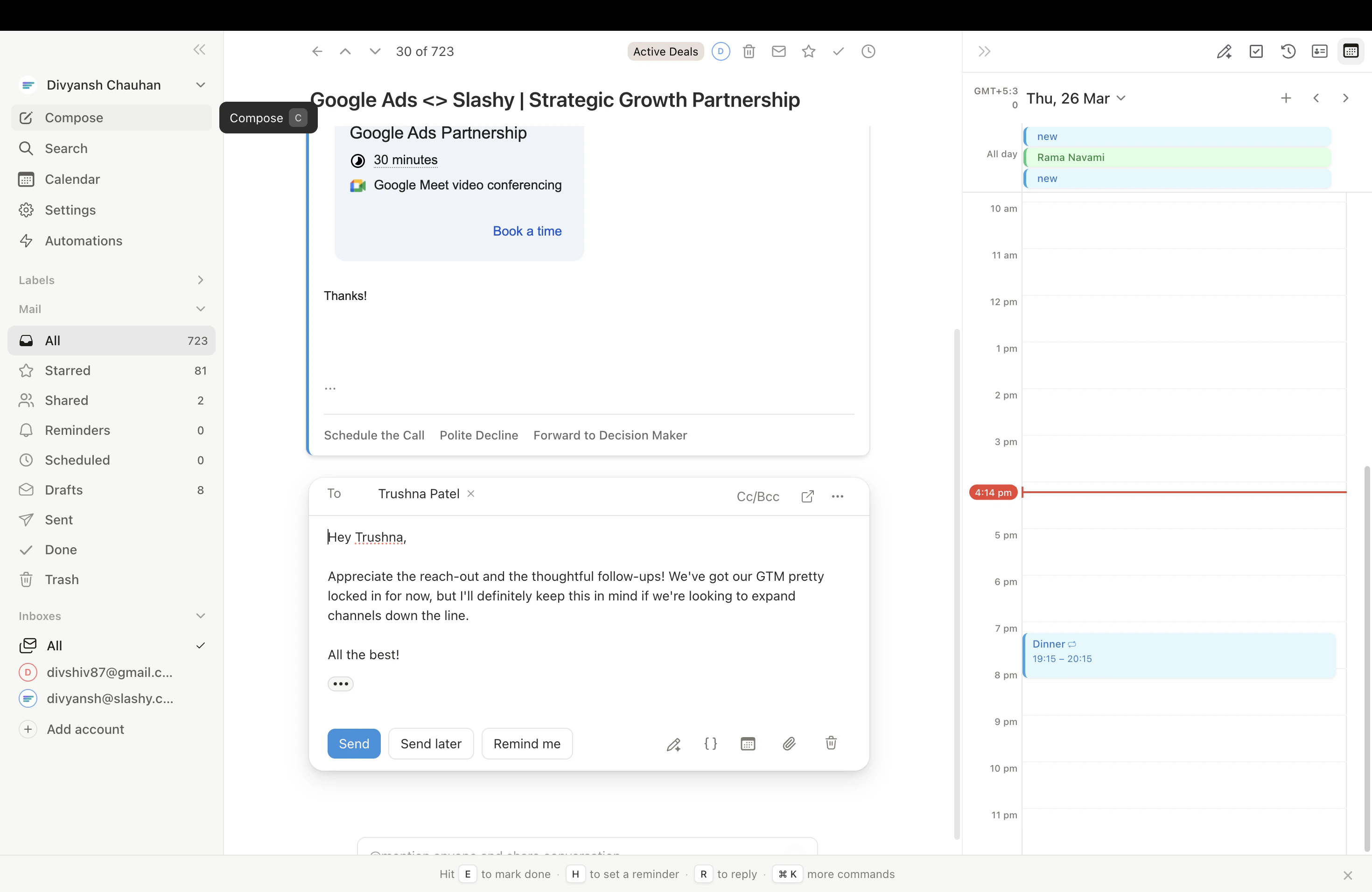 The AI skips drafts for: emails you sent, automated notifications, newsletters, threads with existing drafts, and no-reply addresses.
Toggle auto-suggestions in **Settings > Account** under **"AI Drafts."**
## Accepting and Dismissing
* **Accept** -- moves the suggestion into your compose window for review. Does not send.
* **Dismiss** -- removes the suggestion. The AI records this and improves.
* **Ignore** -- suggestion stays but has no effect. No learning signal.
Accepting a draft does **not** send the email. It moves the text into your compose window so you can review and edit before sending.
## Manual Drafts
Press `Cmd+Enter` while viewing a thread to generate a draft on demand. Or use the agent sidebar (`p a`): *"Draft a reply to this email saying..."*
Manual drafts are great for emails the AI didn't auto-suggest on -- cold outreach, complex threads, or emails you want a specific angle on.
## Tone Matching
The AI matches your voice using four sources:
1. **Your persona** — auto-detected from sent emails during setup
2. **Your greeting style** — how you open emails
3. **Your memories** — explicit style rules you've set
4. **Email history** — past conversations with the same recipient
Drafts to your team sound casual if your team emails are casual. Drafts to investors sound professional if those emails are professional. No configuration needed.
## Calendar Validation
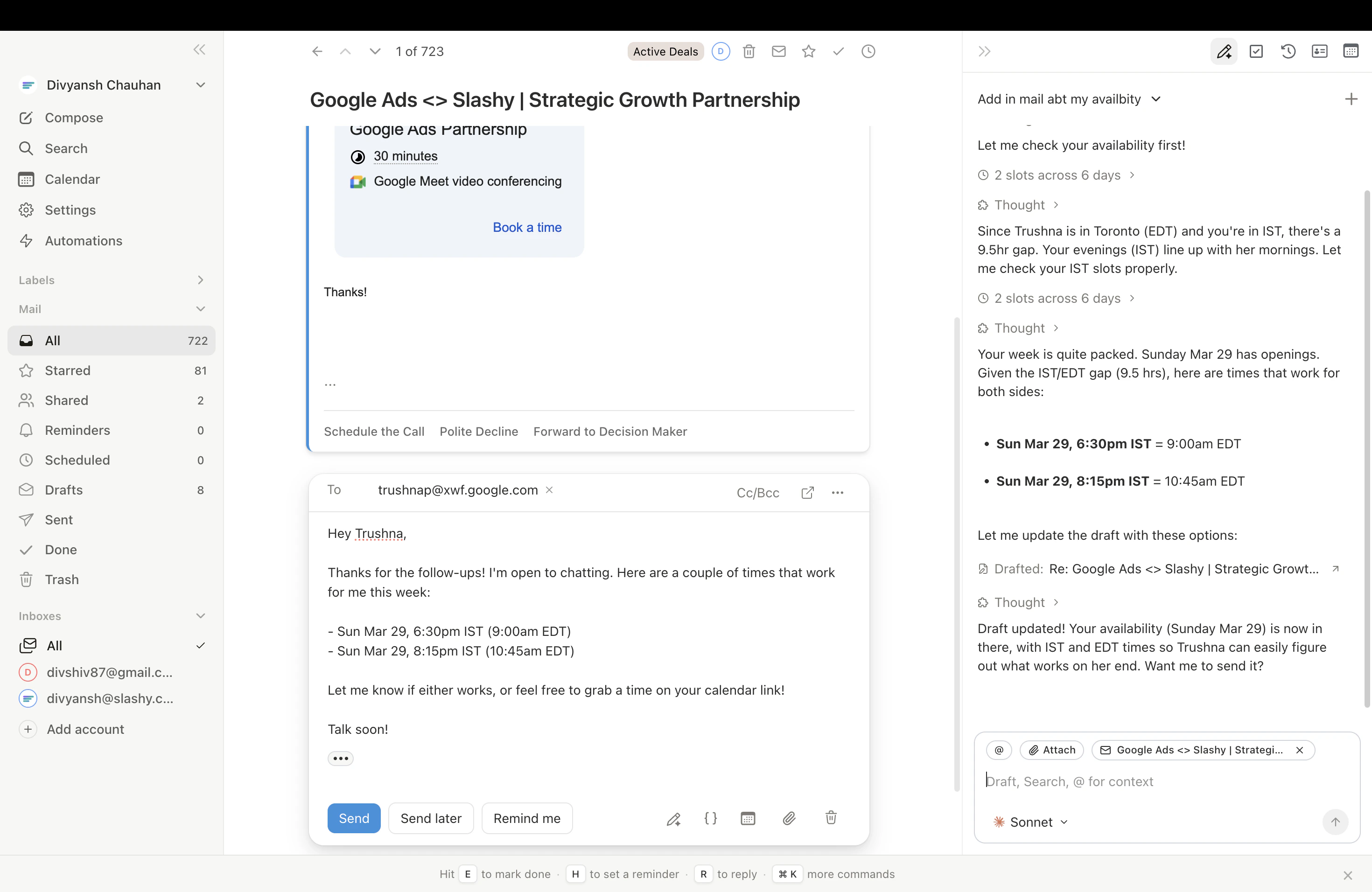
When a draft proposes meeting times, the AI checks your Google Calendar first and only offers conflict-free slots. No more proposing times you're already booked.
The AI skips drafts for: emails you sent, automated notifications, newsletters, threads with existing drafts, and no-reply addresses.
Toggle auto-suggestions in **Settings > Account** under **"AI Drafts."**
## Accepting and Dismissing
* **Accept** -- moves the suggestion into your compose window for review. Does not send.
* **Dismiss** -- removes the suggestion. The AI records this and improves.
* **Ignore** -- suggestion stays but has no effect. No learning signal.
Accepting a draft does **not** send the email. It moves the text into your compose window so you can review and edit before sending.
## Manual Drafts
Press `Cmd+Enter` while viewing a thread to generate a draft on demand. Or use the agent sidebar (`p a`): *"Draft a reply to this email saying..."*
Manual drafts are great for emails the AI didn't auto-suggest on -- cold outreach, complex threads, or emails you want a specific angle on.
## Tone Matching
The AI matches your voice using four sources:
1. **Your persona** — auto-detected from sent emails during setup
2. **Your greeting style** — how you open emails
3. **Your memories** — explicit style rules you've set
4. **Email history** — past conversations with the same recipient
Drafts to your team sound casual if your team emails are casual. Drafts to investors sound professional if those emails are professional. No configuration needed.
## Calendar Validation
When a draft proposes meeting times, the AI checks your Google Calendar first and only offers conflict-free slots. No more proposing times you're already booked.
 ## Override Learning
| Your Action | What the AI Learns |
| ----------------------------- | ------------------------------------------------------ |
| Accept and send without edits | Reinforces this approach |
| Accept, edit, then send | Learns from the diff between AI version and your final |
| Dismiss | Avoids similar drafts for this email type |
| Ignore | No signal |
Learning is contextual — editing a sales reply improves sales drafts only.
**First week:** Actively dismiss bad drafts and edit acceptable ones. Most users see improvement within 10-15 interactions.
## AI Editing
After accepting a draft, select text to see the AI edit toolbar: **Improve**, **Fix Grammar**, **Shorten**, **Lengthen**, and **Custom** (e.g., "make this more diplomatic").
## AI Email Rating
Press `Cmd+P` before sending to get an effectiveness rating with the inferred goal, score, and improvement suggestions.
## Override Learning
| Your Action | What the AI Learns |
| ----------------------------- | ------------------------------------------------------ |
| Accept and send without edits | Reinforces this approach |
| Accept, edit, then send | Learns from the diff between AI version and your final |
| Dismiss | Avoids similar drafts for this email type |
| Ignore | No signal |
Learning is contextual — editing a sales reply improves sales drafts only.
**First week:** Actively dismiss bad drafts and edit acceptable ones. Most users see improvement within 10-15 interactions.
## AI Editing
After accepting a draft, select text to see the AI edit toolbar: **Improve**, **Fix Grammar**, **Shorten**, **Lengthen**, and **Custom** (e.g., "make this more diplomatic").
## AI Email Rating
Press `Cmd+P` before sending to get an effectiveness rating with the inferred goal, score, and improvement suggestions.
 ## Model Options
| Model | Best For | Speed |
| ---------- | -------------------------------------- | --------------- |
| **Haiku** | Quick replies, simple confirmations | Fastest |
| **Sonnet** | Day-to-day business email (default) | Fast |
| **Opus** | Sensitive emails, complex negotiations | Highest quality |
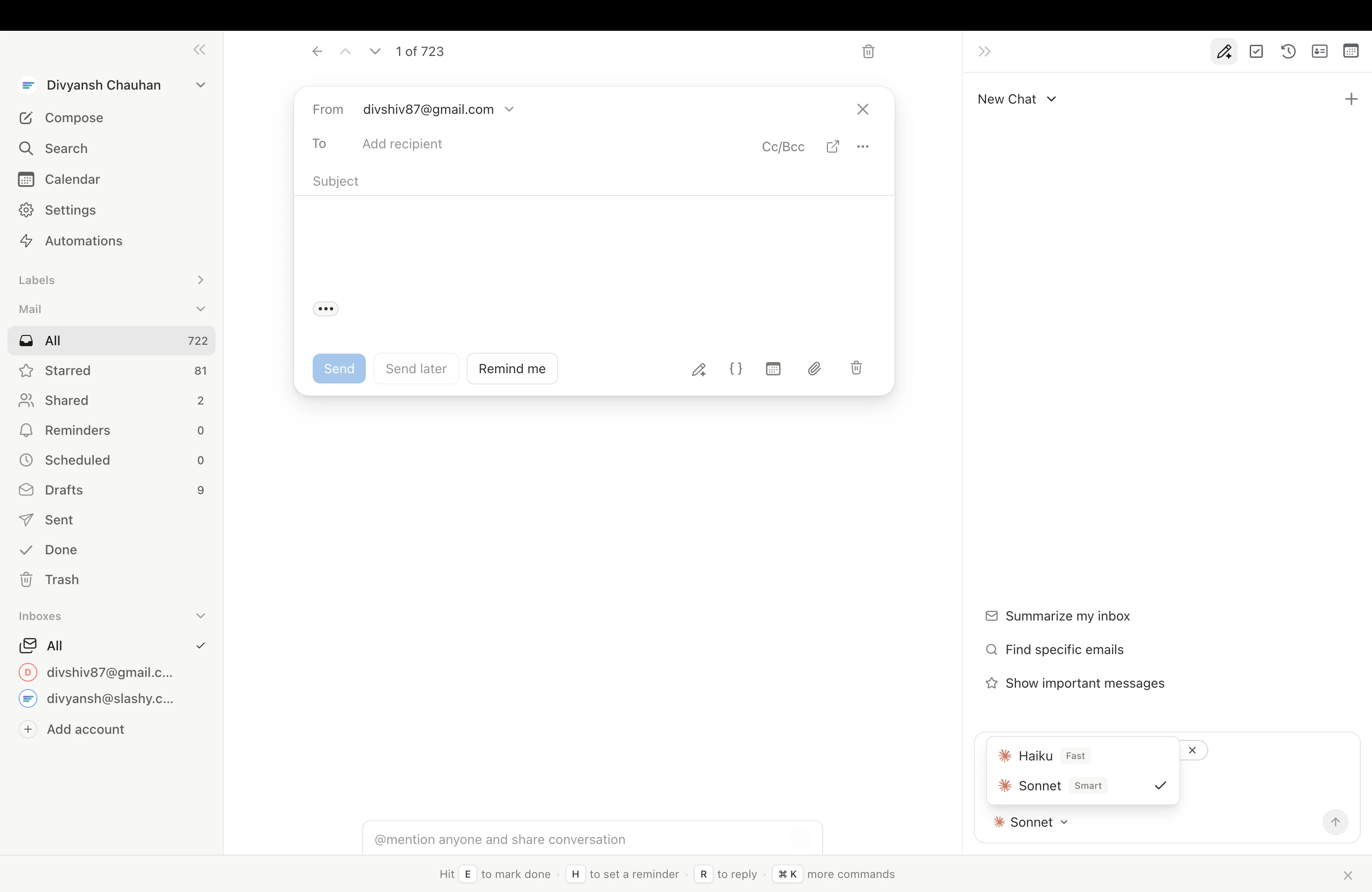
Switch models in the compose window or agent sidebar. Opus requires a compatible plan or your own [API key](/how-to-guides/customize-agent#bring-your-own-api-key).
Use Sonnet for day-to-day email. Switch to Opus for high-stakes messages like investor updates, board communications, or sensitive negotiations where nuance matters most.
***
## Related Articles
Set writing style, memories, and per-contact preferences
Four layers of automated follow-up protection
Configure signatures and branding
The most impactful automations to set up
## Model Options
| Model | Best For | Speed |
| ---------- | -------------------------------------- | --------------- |
| **Haiku** | Quick replies, simple confirmations | Fastest |
| **Sonnet** | Day-to-day business email (default) | Fast |
| **Opus** | Sensitive emails, complex negotiations | Highest quality |
Switch models in the compose window or agent sidebar. Opus requires a compatible plan or your own [API key](/how-to-guides/customize-agent#bring-your-own-api-key).
Use Sonnet for day-to-day email. Switch to Opus for high-stakes messages like investor updates, board communications, or sensitive negotiations where nuance matters most.
***
## Related Articles
Set writing style, memories, and per-contact preferences
Four layers of automated follow-up protection
Configure signatures and branding
The most impactful automations to set up