> ## Documentation Index
> Fetch the complete documentation index at: https://help.slashy.com/llms.txt
> Use this file to discover all available pages before exploring further.
# How AI drafts behave when you open an email
> When Slashy creates a draft, when it doesn't, and how to turn off auto-drafting.
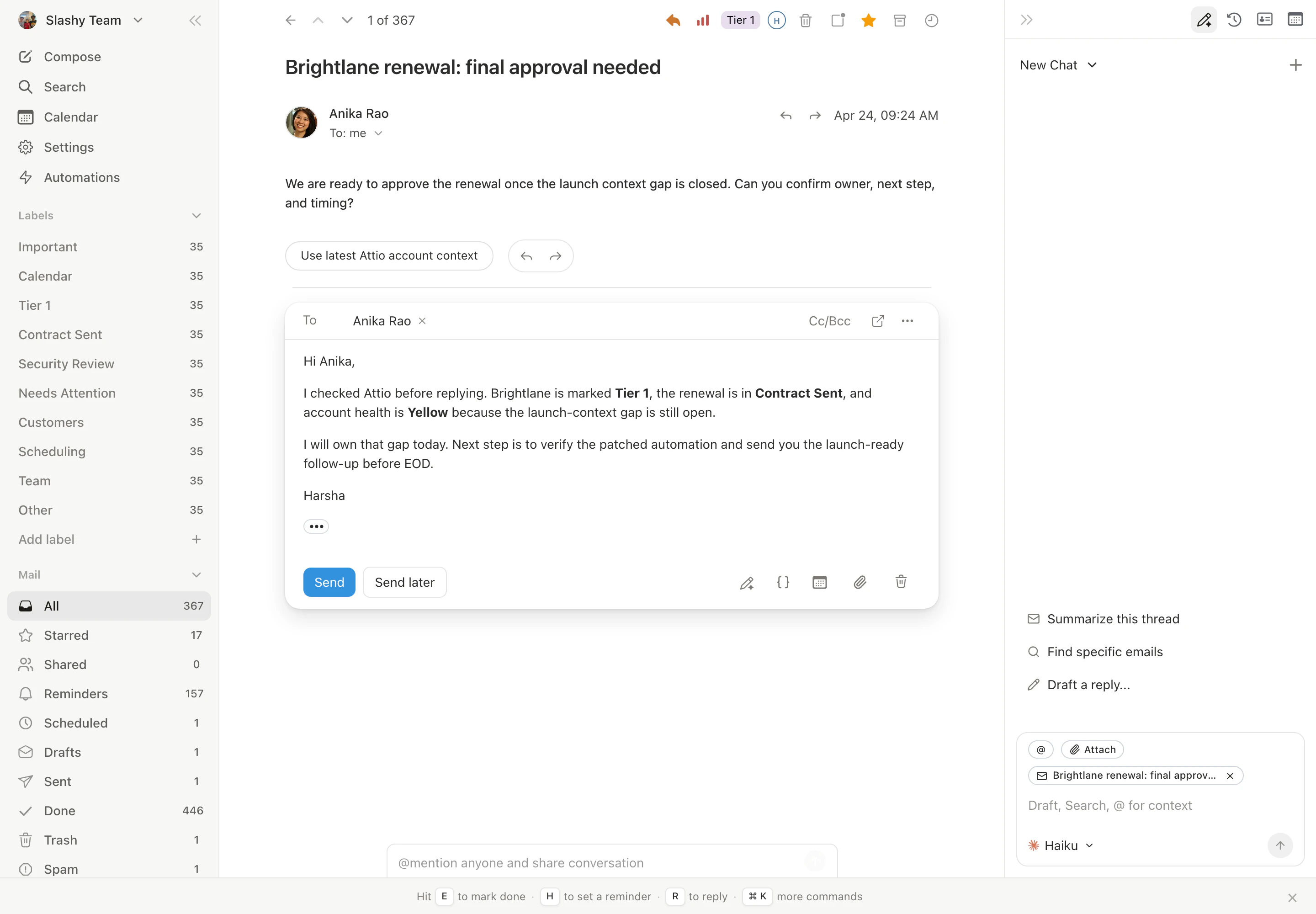
Slashy can pre-write a reply the moment you open a thread, so the draft is already there when you start reading. Here's exactly when that happens, what to do with the draft, and how to turn it off.
## When a draft is generated
Slashy generates a draft on open when the thread looks reply-worthy: a one-to-one message, a direct question, or a thread you've replied to before. Newsletters, automated notifications, billing receipts, and one-way announcements do not trigger a draft.
The draft generates in the background and slots into the thread as a draft message at the bottom. You'll see a draft chip on the thread row in the list view as soon as it's ready.
 ## Accepting a draft
Two ways to accept and send:
* Press `Tab` to drop into the draft and edit inline. Press `Cmd+Enter` to send.
* Press `Cmd+Enter` directly from the thread to send the draft as written.
If you start typing while the draft is showing, your text replaces the draft. You don't have to delete it first.
## Dismissing a draft
Press `Esc` to clear the draft from the thread. You can also just close the thread; drafts that you never interact with auto-clear after a short idle window, so untouched suggestions don't pile up.
A dismissed draft does not get re-generated automatically for the same view. Reopen the thread later and Slashy may regenerate if the conversation state has changed (for example, a new message arrived).
## Turning off auto-drafting
Settings → AI Drafts → Auto-draft on open. Toggle it off and Slashy will never pre-write a reply on thread open. You can still trigger generation manually with `Cmd+Enter` from any thread or compose window.
## Accepting a draft
Two ways to accept and send:
* Press `Tab` to drop into the draft and edit inline. Press `Cmd+Enter` to send.
* Press `Cmd+Enter` directly from the thread to send the draft as written.
If you start typing while the draft is showing, your text replaces the draft. You don't have to delete it first.
## Dismissing a draft
Press `Esc` to clear the draft from the thread. You can also just close the thread; drafts that you never interact with auto-clear after a short idle window, so untouched suggestions don't pile up.
A dismissed draft does not get re-generated automatically for the same view. Reopen the thread later and Slashy may regenerate if the conversation state has changed (for example, a new message arrived).
## Turning off auto-drafting
Settings → AI Drafts → Auto-draft on open. Toggle it off and Slashy will never pre-write a reply on thread open. You can still trigger generation manually with `Cmd+Enter` from any thread or compose window.
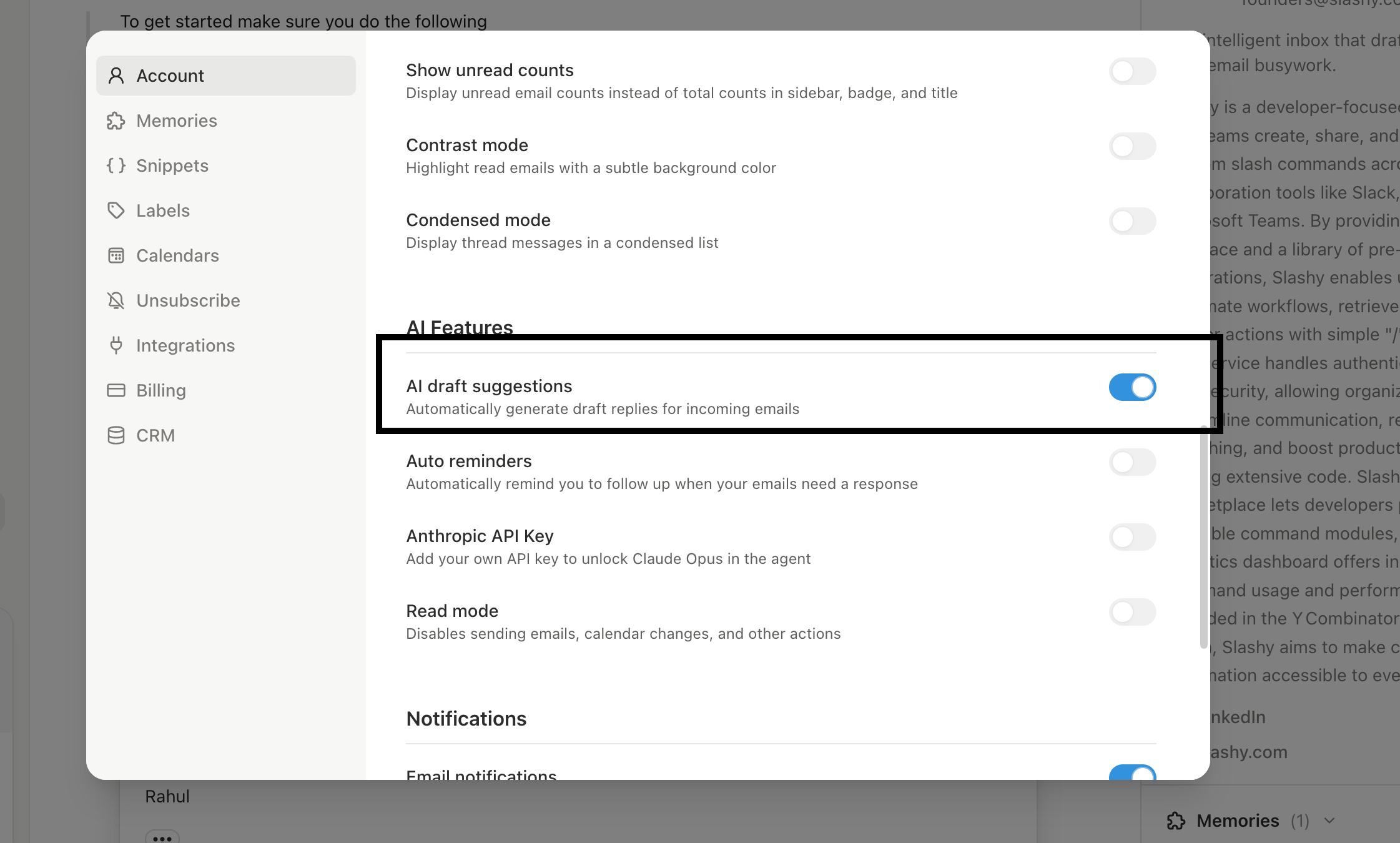 If you want drafts only for certain importance labels, leave auto-draft on and use per-label rules in the same settings panel.
## Inline rewrite vs generate from scratch
Two different gestures, two different behaviors:
* **Generate from scratch.** Empty compose, press `Cmd+Enter`. Slashy writes the whole reply based on the thread context and your style.
* **Inline rewrite.** Select text in the compose body, press `Tab`. Slashy rewrites just the selection (or the surrounding sentence) in your tone, preserving the rest of the draft.
Inline rewrite is the fastest way to fix a single awkward sentence without regenerating the entire email.
Slashy skipped it because the thread looked like a notification, a bulk email, or had no clear question to answer. Trigger one manually with `Cmd+Enter`.
Drafts that you accepted into a compose window stay in the thread until you delete or send them. Drafts that were never touched are not retained.
Tab-to-complete suggestions as you type.
Inline rewrite and tone adjustments.
Tone, signature, and style preferences.
Sonnet default and BYOK Opus.
What Slashy remembers between threads.
If you want drafts only for certain importance labels, leave auto-draft on and use per-label rules in the same settings panel.
## Inline rewrite vs generate from scratch
Two different gestures, two different behaviors:
* **Generate from scratch.** Empty compose, press `Cmd+Enter`. Slashy writes the whole reply based on the thread context and your style.
* **Inline rewrite.** Select text in the compose body, press `Tab`. Slashy rewrites just the selection (or the surrounding sentence) in your tone, preserving the rest of the draft.
Inline rewrite is the fastest way to fix a single awkward sentence without regenerating the entire email.
Slashy skipped it because the thread looked like a notification, a bulk email, or had no clear question to answer. Trigger one manually with `Cmd+Enter`.
Drafts that you accepted into a compose window stay in the thread until you delete or send them. Drafts that were never touched are not retained.
Tab-to-complete suggestions as you type.
Inline rewrite and tone adjustments.
Tone, signature, and style preferences.
Sonnet default and BYOK Opus.
What Slashy remembers between threads.