> ## Documentation Index
> Fetch the complete documentation index at: https://help.slashy.com/llms.txt
> Use this file to discover all available pages before exploring further.
# 10 Automations Every User Should Set Up
> The most impactful Slashy automations — from meeting follow-ups and receipt forwarding to daily dropped ball scanners and VIP alerts.
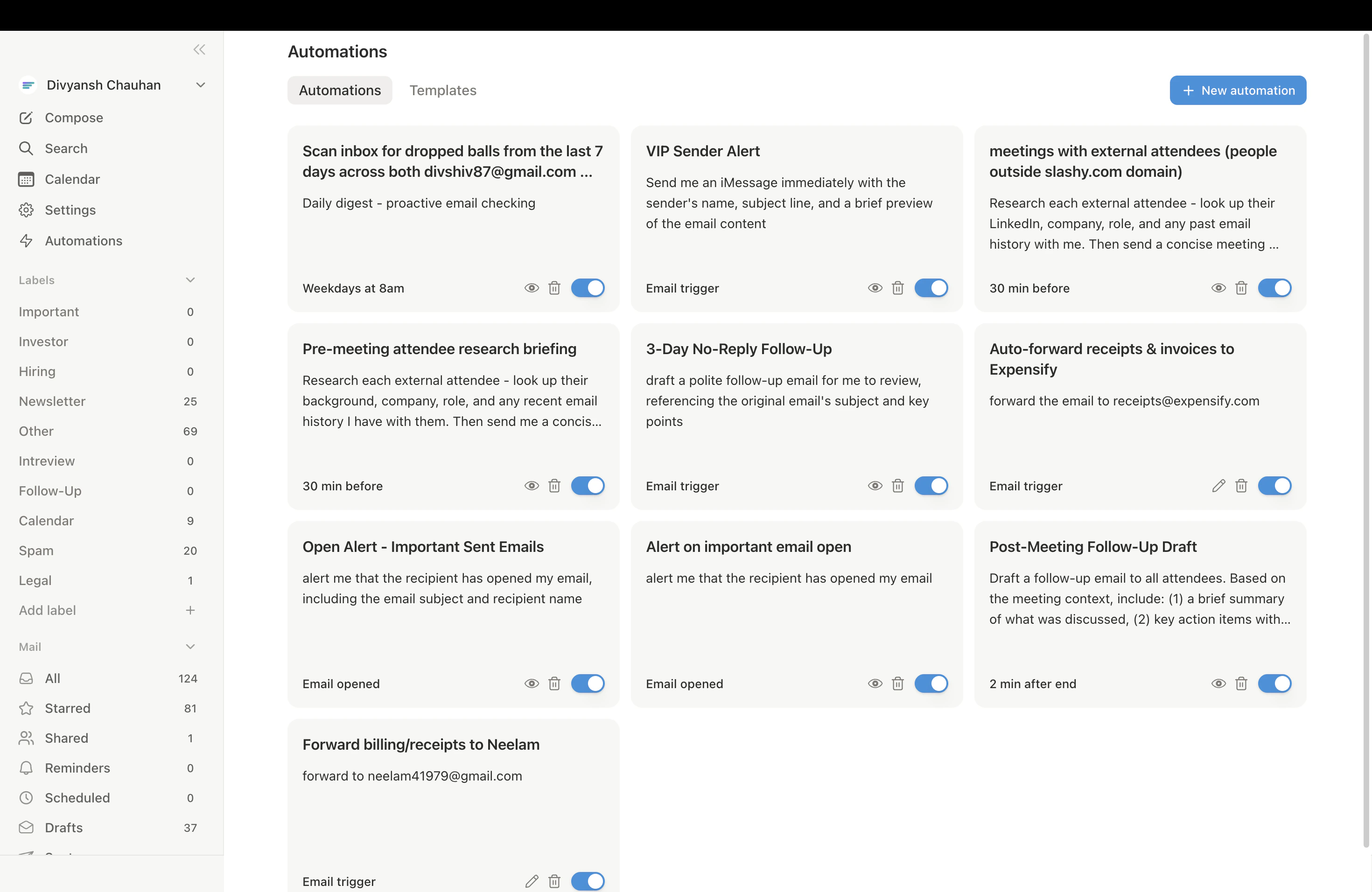
Automations turn your inbox from a to-do list into a system that handles itself. Each one takes under two minutes to set up, either through the AI agent sidebar (`p a`) or by activating a template directly from the Automations page (left sidebar lightning bolt, or `Cmd+K` → "Automations"). The Automations page has 50+ templates organized by category, including a personalized "Popular with \[your role]" section.
Auto-checks your calendar when someone confirms a meeting and drafts a confirmation or flags conflicts.
Open the agent sidebar and say: *"When someone confirms a meeting time, check my calendar for conflicts. If none, draft a short confirmation. If there's a conflict, message me on iMessage."*
**Tip:** Add *"only for meetings with external participants"* to skip internal confirmations.
Forwards receipt and payment confirmation emails to your expense tool automatically.
Tell the agent: *"When I receive a receipt or payment confirmation, forward it to [receipts@expensify.com](mailto:receipts@expensify.com)"*
Replace the address with your Expensify, Ramp, or Brex intake email.
**Tip:** Be specific — say *"receipts and invoices, but not subscription renewal notices"* to keep your expense tool clean.
Every morning, scans for emails you sent with no reply, emails you never responded to, and commitments you haven't fulfilled. Sends a summary via iMessage.
Tell the agent: *"Every weekday at 8am, scan my inbox for dropped balls — emails I sent with no reply in 7 days, emails I didn't respond to, and commitments I haven't followed up on. Send summary on iMessage."*
The agent creates a recurring reminder via AWS EventBridge.
**Tip:** Adjust the time to when you start your day. Say *"email me the summary"* if you prefer email over iMessage.
Instantly forwards verification codes from email to iMessage so you don't context-switch.
Requires the [iMessage agent](/how-to-guides/imessage-setup) to be connected.
Tell the agent: *"When I receive an email with a verification code or OTP, send me the code on iMessage immediately."*
The agent extracts just the code number, not the full email body.
Alerts you on iMessage with a visual preview when specific people email you.
Tell the agent: *"When I receive an email from [jane@bigclient.com](mailto:jane@bigclient.com) or anyone @investor-fund.com, message me on iMessage with a preview."*
**Tip:** You can also trigger on conditions like *"any email with 'urgent' in the subject."*
Before each meeting, researches attendees via LinkedIn and your email history, then sends a structured briefing on iMessage.
Tell the agent: *"10 minutes before any meeting with external attendees, prep me for the meeting and send the briefing on iMessage."*
The briefing includes attendee profiles, recent email threads, key topics, and suggested questions.
**Tip:** Narrow with *"only for meetings with people outside my company"* or *"only meetings with 'investor' in the title."*
Drafts a follow-up email to all attendees with action items after a meeting ends. Integrates with Granola notes if connected.
Tell the agent: *"5 minutes after any external meeting ends, draft a follow-up email to all attendees with a summary and next steps. Don't send — just draft."*
**Tip:** Connect Granola in **Settings > Integrations** for more accurate follow-ups.
Every Friday (or your preferred time), reviews your entire week of email and sends a categorized summary: resolved, pending, owed replies, and threads to watch.
Tell the agent: *"Every Friday at 3pm, review my email from this week. Summarize what's resolved, pending, who I owe replies to, and important threads. Send via iMessage."*
**Tip:** Change to Monday mornings for a "week ahead" view.
Monitors key customer threads and flags any where a customer is waiting on you for more than N days.
Tell the agent: *"Every weekday at 9am, check if any customers from @bigclient.com have emails waiting for my reply for more than 2 days. Message me on iMessage."*
**Tip:** Instead of listing domains, say *"any email from someone I've exchanged more than 10 emails with"* to use relationship data.
Alerts you when a recipient opens a tracked email. Filters out auto-opens from Gmail Image Proxy, Apple Mail Privacy Protection, and Microsoft SafeLinks.
Verify tracking is enabled in **Settings > Account** under "Email Tracking," then tell the agent: *"When a tracked email I sent to @investor-fund.com is opened for the first time, message me on iMessage."*
**Tip:** Press `p o` anytime to view the Recent Opens panel. See [Email Tracking](/how-to-guides/email-tracking) for details on tracking limitations.
## Managing Automations
All automations live in **Settings > Automations** (`Cmd+,`). You can toggle, delete, or check recent activity. The same page lists the full template library organized into "Meeting Prep & Scheduling," "Sales & Pipeline," "Real-time Alerts," and "Follow-up Tracking" tabs. You can also manage via the agent sidebar — ask it to *"list my automations"* or *"disable the receipt forwarding trigger."*
 ***
## Related Articles
Connect your phone to enable iMessage automations
How automations work under the hood
Match conditions in natural language and fire actions
Automate meeting prep and follow-ups
Control your agent's writing style
Four layers of automated follow-up protection
***
## Related Articles
Connect your phone to enable iMessage automations
How automations work under the hood
Match conditions in natural language and fire actions
Automate meeting prep and follow-ups
Control your agent's writing style
Four layers of automated follow-up protection