> ## Documentation Index
> Fetch the complete documentation index at: https://help.slashy.com/llms.txt
> Use this file to discover all available pages before exploring further.
# Trial and billing
> Start with a free trial, manage your plan, and see when payment is due.
Slashy starts with a 7 day free trial. You add a card during signup, use the full product for the trial window, and the card is charged when the trial ends unless you cancel first.
## How the trial works
Signup collects a card on file through Stripe. The card is not charged during the trial. You get full access to every paid feature for the trial period, including AI drafts, the agent, automations, and calendar.
Current pricing is shown in your account during checkout, so you always see the exact amount before the card is charged.
 ## Where to find billing
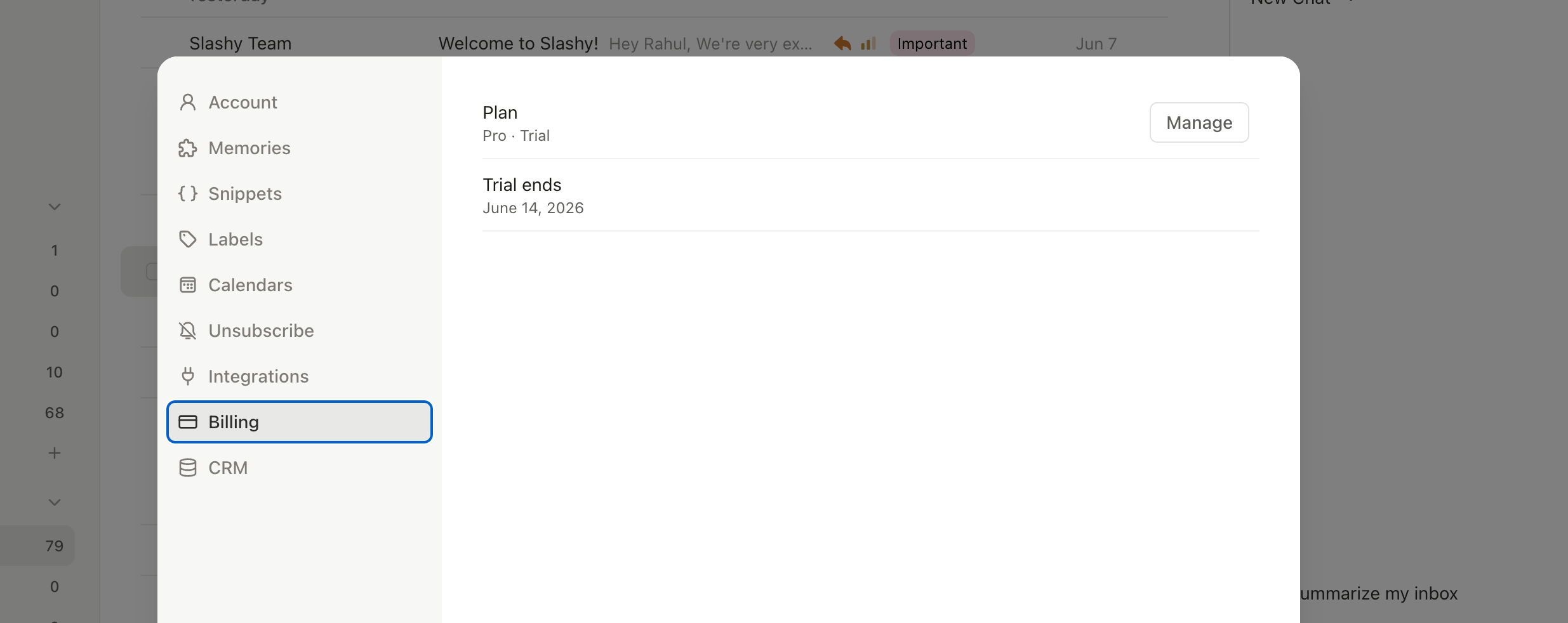
Open Settings, then choose the Billing tab. Everything related to your subscription lives there.
Press `Cmd+,` or click your avatar and choose Settings.
Select Billing from the left sidebar.
The page shows your current plan, status, trial end date, next billing date, and cancellation status.
## Where to find billing
Open Settings, then choose the Billing tab. Everything related to your subscription lives there.
Press `Cmd+,` or click your avatar and choose Settings.
Select Billing from the left sidebar.
The page shows your current plan, status, trial end date, next billing date, and cancellation status.
 ## What is in the Billing tab
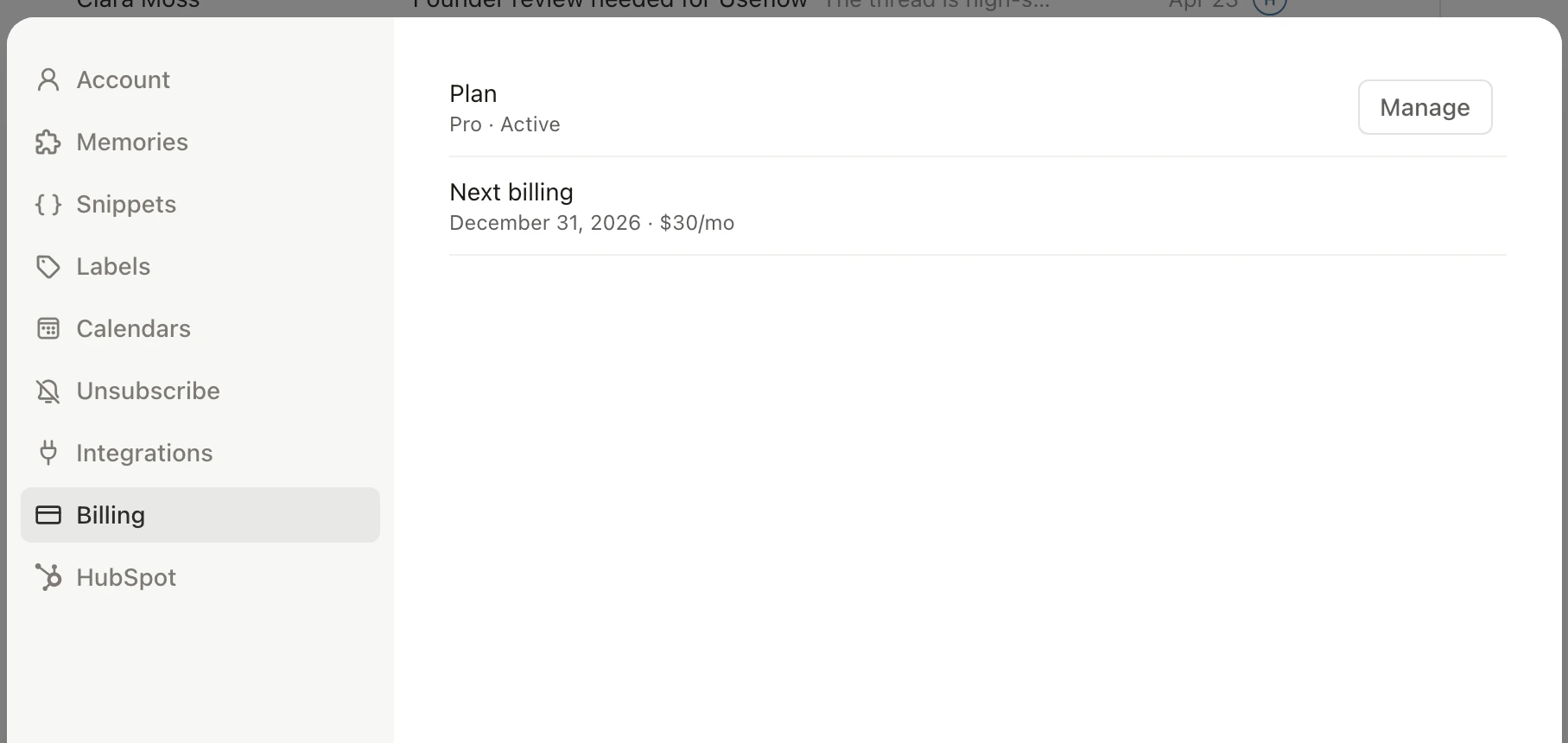
The Billing tab surfaces five fields you will reference most often.
| Field | What it means |
| ------------------- | ------------------------------------------------------------------- |
| Plan | The plan you are on. |
| Status | Trialing, active, past due, or cancelled. |
| Trial end | When the trial converts to a paid subscription. |
| Next billing date | The next date the card on file will be charged. |
| Cancellation status | Whether a cancellation is pending at the end of the current period. |
## Update payment or invoices
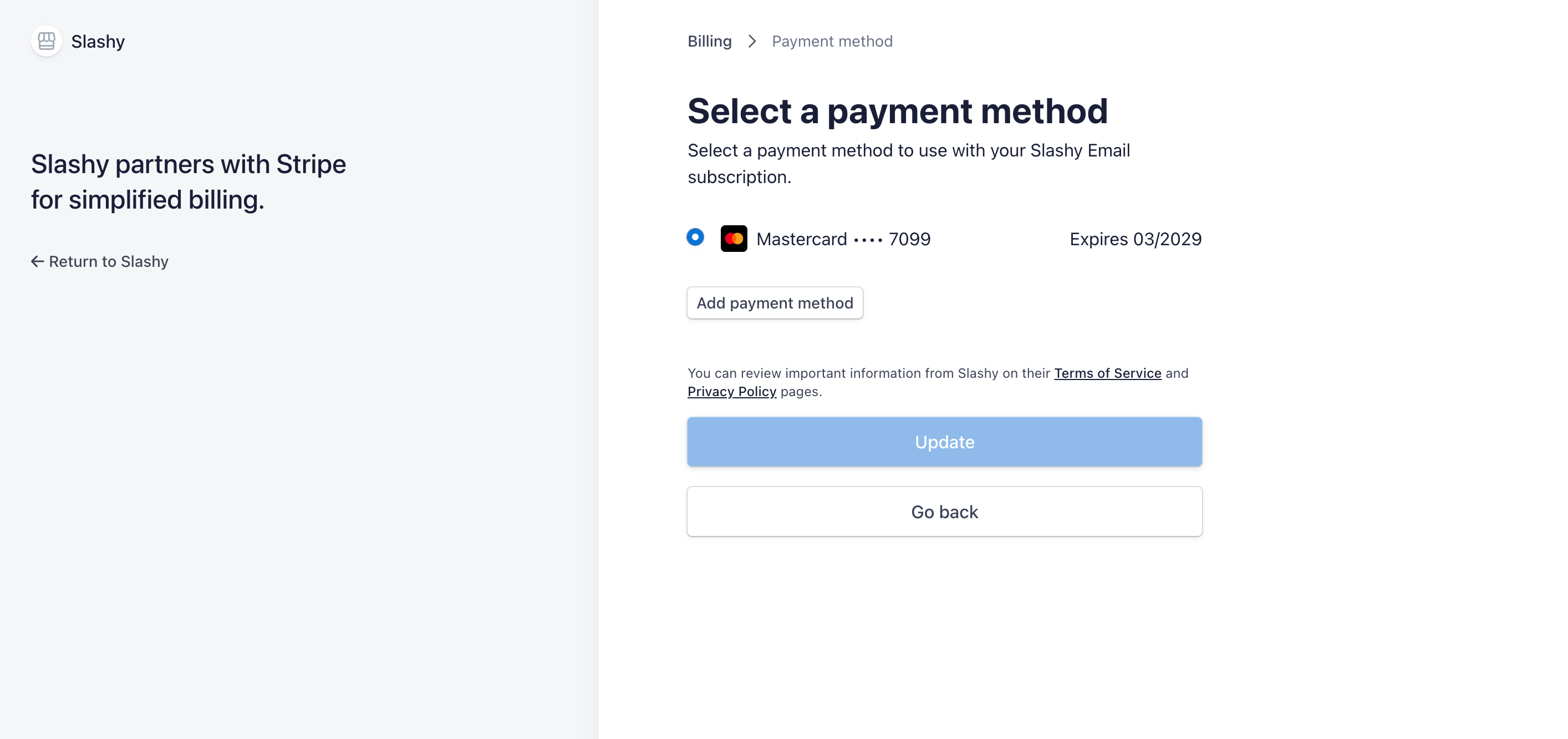
The Stripe customer portal handles card changes, invoice downloads, and address updates. Click Manage billing inside the Billing tab to open it in a new tab.
## What is in the Billing tab
The Billing tab surfaces five fields you will reference most often.
| Field | What it means |
| ------------------- | ------------------------------------------------------------------- |
| Plan | The plan you are on. |
| Status | Trialing, active, past due, or cancelled. |
| Trial end | When the trial converts to a paid subscription. |
| Next billing date | The next date the card on file will be charged. |
| Cancellation status | Whether a cancellation is pending at the end of the current period. |
## Update payment or invoices
The Stripe customer portal handles card changes, invoice downloads, and address updates. Click Manage billing inside the Billing tab to open it in a new tab.
 ## What happens when the trial ends
If the card is valid and you have not cancelled, your subscription becomes active and the card is charged. You keep access without interruption. The Billing tab status flips from Trialing to Active and the Next billing date moves forward by one billing cycle.
If you cancel before the trial ends, your account stays usable through the final trial day, then access ends. You can resubscribe later from the same Billing tab.
If a charge fails, the status changes to Past due. Update the card in the Stripe portal and the charge retries automatically.
Have an invite code? Apply it during signup to skip the payment step and start using Slashy without entering a card.
Get into your Slashy account.
Bring your inbox into Slashy.
Skip the payment step at signup.
Get the most out of the trial.
Remove an account from Slashy.
## What happens when the trial ends
If the card is valid and you have not cancelled, your subscription becomes active and the card is charged. You keep access without interruption. The Billing tab status flips from Trialing to Active and the Next billing date moves forward by one billing cycle.
If you cancel before the trial ends, your account stays usable through the final trial day, then access ends. You can resubscribe later from the same Billing tab.
If a charge fails, the status changes to Past due. Update the card in the Stripe portal and the charge retries automatically.
Have an invite code? Apply it during signup to skip the payment step and start using Slashy without entering a card.
Get into your Slashy account.
Bring your inbox into Slashy.
Skip the payment step at signup.
Get the most out of the trial.
Remove an account from Slashy.