> ## Documentation Index
> Fetch the complete documentation index at: https://help.slashy.com/llms.txt
> Use this file to discover all available pages before exploring further.
# Signing in to Slashy
> Open Slashy from the web, desktop, or mobile after you've been granted access.
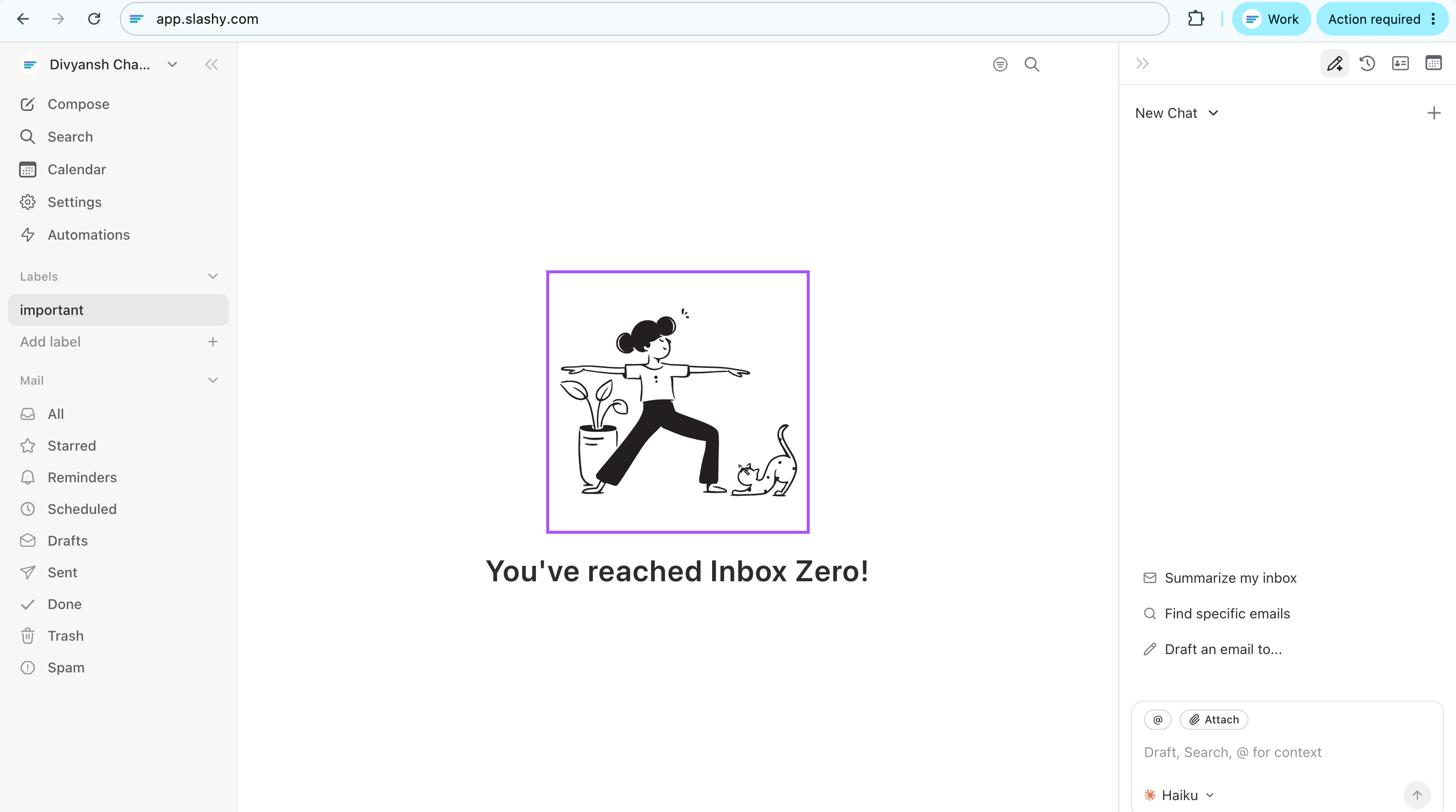
Slashy lives at `app.slashy.com`. If you have access, that's the URL to sign in. The marketing site at `slashy.com` is for visitors and shows a waitlist CTA, which is a different experience from the product itself.
## Where to go
Type `app.slashy.com` directly into your address bar. Bookmark it after the first sign-in so you don't end up on the marketing page.
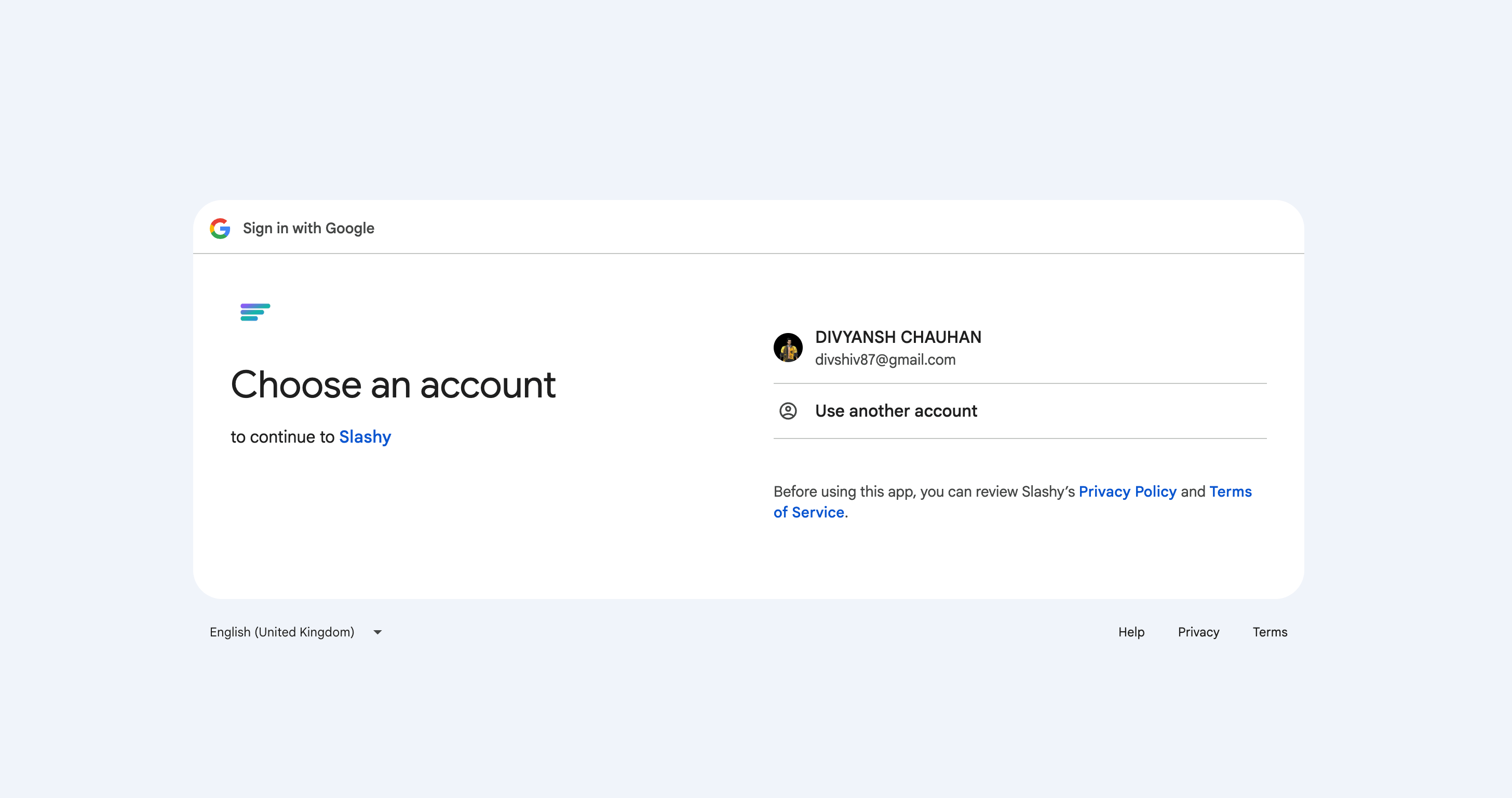
Slashy uses Google OAuth. Pick the Google account that was granted access to Slashy and approve the requested permissions.
First load runs a quick sync. After that, you can close the tab and reopen `app.slashy.com` anytime; you'll stay signed in.
 ## If you only see a waitlist CTA
A waitlist button means you landed on the marketing site, not the app. Two things to check:
* Your URL is `app.slashy.com`, not `slashy.com` or `www.slashy.com`.
* You're signed in with the Google account that has access. If you have multiple Google accounts in the same browser, switch profiles or use the account picker at `accounts.google.com`.
If you're at `app.slashy.com` with the right Google account and still see a waitlist message, your account hasn't been granted access yet. Reach out to whoever sent you the invite, or to `support@slashy.com`.
## Desktop app
The Slashy desktop app wraps the same web experience and adds native notifications and a dock icon. Download it from Settings → Desktop in the web app, then sign in once. The desktop app reuses your browser session for the first sign-in.
## Multi-device sign-in
Slashy keeps you signed in on every device until you sign out. You can use the web app, the desktop app, and mobile at the same time. Drafts, automations, and read state sync across all of them.
If you're getting kicked out repeatedly, your browser is likely clearing cookies on close. Allow cookies for `slashy.com` in your browser's privacy settings.
## Recovering an account
Slashy doesn't store its own password. Recovery is your Google account recovery. If you can sign in to Gmail, you can sign in to Slashy. If your Google account itself is locked, recover it through Google first, then return to `app.slashy.com`.
Authorize Gmail and add additional inboxes.
Install and set up the Mac and Windows apps.
How the 7-day trial works.
Use more than one inbox in the same workspace.
Sign out and remove access.
## If you only see a waitlist CTA
A waitlist button means you landed on the marketing site, not the app. Two things to check:
* Your URL is `app.slashy.com`, not `slashy.com` or `www.slashy.com`.
* You're signed in with the Google account that has access. If you have multiple Google accounts in the same browser, switch profiles or use the account picker at `accounts.google.com`.
If you're at `app.slashy.com` with the right Google account and still see a waitlist message, your account hasn't been granted access yet. Reach out to whoever sent you the invite, or to `support@slashy.com`.
## Desktop app
The Slashy desktop app wraps the same web experience and adds native notifications and a dock icon. Download it from Settings → Desktop in the web app, then sign in once. The desktop app reuses your browser session for the first sign-in.
## Multi-device sign-in
Slashy keeps you signed in on every device until you sign out. You can use the web app, the desktop app, and mobile at the same time. Drafts, automations, and read state sync across all of them.
If you're getting kicked out repeatedly, your browser is likely clearing cookies on close. Allow cookies for `slashy.com` in your browser's privacy settings.
## Recovering an account
Slashy doesn't store its own password. Recovery is your Google account recovery. If you can sign in to Gmail, you can sign in to Slashy. If your Google account itself is locked, recover it through Google first, then return to `app.slashy.com`.
Authorize Gmail and add additional inboxes.
Install and set up the Mac and Windows apps.
How the 7-day trial works.
Use more than one inbox in the same workspace.
Sign out and remove access.