> ## Documentation Index
> Fetch the complete documentation index at: https://help.slashy.com/llms.txt
> Use this file to discover all available pages before exploring further.
# Getting Started with Slashy Mobile
> Set up the iOS app -- sync, swipe gestures, voice compose, push notifications, and known limitations.
The Slashy iOS app gives you the full AI email experience on your phone -- swipe actions, voice-first compose, and the AI agent, optimized for one-handed use.
## Download and Sign In
Get Slashy from the [App Store](https://apps.apple.com/app/slashy-email/id6738646622).
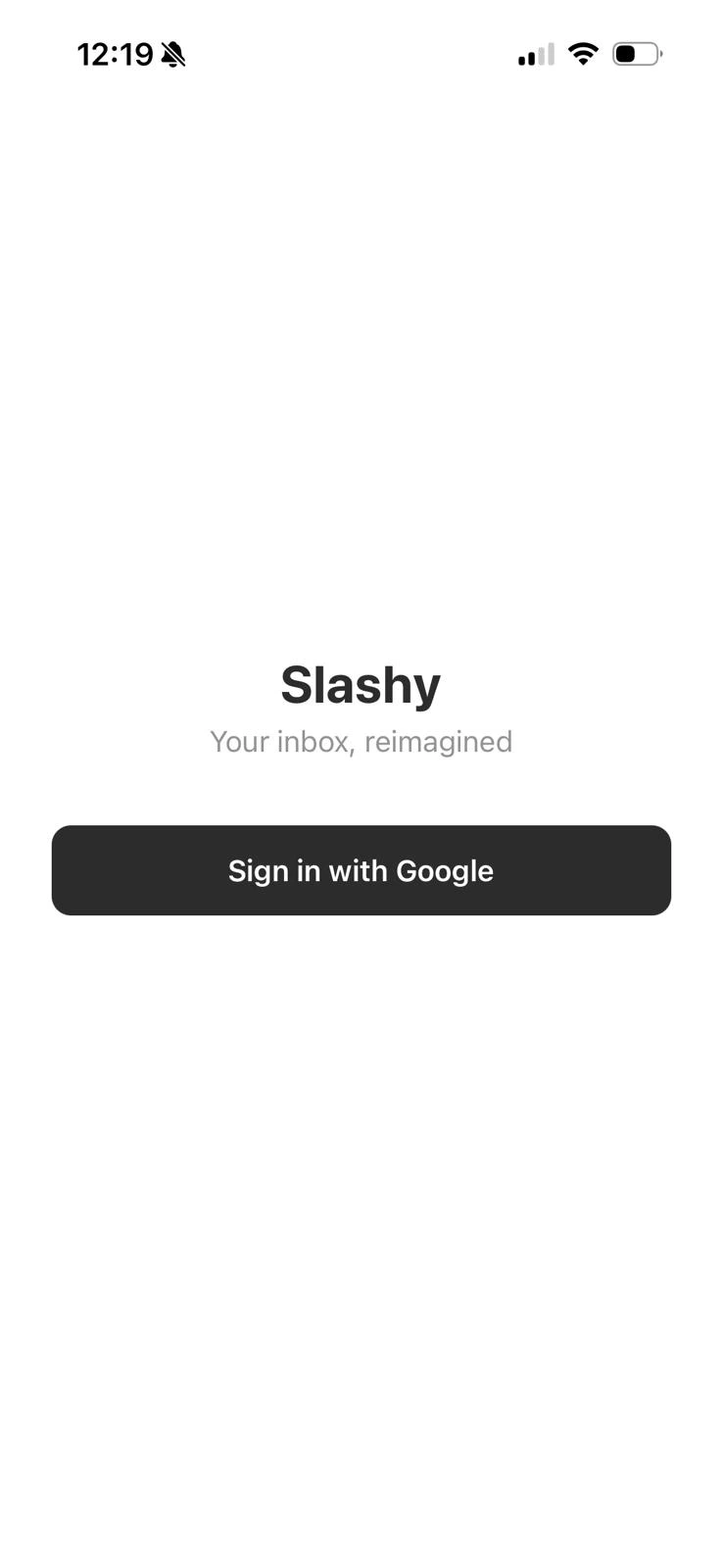
Tap **Sign in with Google** using the same account as Slashy web/desktop.
Your inbox syncs in 2-5 minutes. Labels, memories, and settings carry over automatically.
Use the same Google account as Slashy web/desktop. All your labels, memories, automations, and settings sync automatically -- no reconfiguration needed.
 ## Swipe Gestures
Each direction has two levels -- short swipe and long swipe -- giving you four actions total. Haptic feedback confirms which action you are about to trigger.
| Direction | Short Swipe | Long Swipe |
| --------- | ------------------ | ------------ |
| Right | Toggle Read/Unread | Set Reminder |
| Left | Archive | Trash |
**Customize swipes:** Sidebar > Settings > Swipe Settings. Drag to reorder actions with a live preview.
## Voice Transcription
On-device speech recognition (whisper-small). No audio sent to the cloud.
1. Open any compose window.
2. Hold the **"Hold to speak"** button and talk.
3. Release. Speech transcribes instantly into the compose field.
Voice also works in the AI agent chat.
## Bulk Actions
Long-press any thread to enter multi-select mode (haptic pulse confirms). Tap additional threads to add them to the selection, or tap **Select All** to grab every thread in the current view. A bottom action bar appears with:
| Action | What it does |
| -------------- | ----------------------------------------------------------------------------------------- |
| **Mark Read** | Marks all selected threads as read |
| **Done** | Archives all selected threads |
| **Remind** | Sets a reminder on every selected thread. Choose Tomorrow, Next Monday, or a custom time. |
| **Trash** | Moves selected threads to Trash |
| **More (...)** | Mark Unread, Set Label, Unsubscribe |
## Swipe Gestures
Each direction has two levels -- short swipe and long swipe -- giving you four actions total. Haptic feedback confirms which action you are about to trigger.
| Direction | Short Swipe | Long Swipe |
| --------- | ------------------ | ------------ |
| Right | Toggle Read/Unread | Set Reminder |
| Left | Archive | Trash |
**Customize swipes:** Sidebar > Settings > Swipe Settings. Drag to reorder actions with a live preview.
## Voice Transcription
On-device speech recognition (whisper-small). No audio sent to the cloud.
1. Open any compose window.
2. Hold the **"Hold to speak"** button and talk.
3. Release. Speech transcribes instantly into the compose field.
Voice also works in the AI agent chat.
## Bulk Actions
Long-press any thread to enter multi-select mode (haptic pulse confirms). Tap additional threads to add them to the selection, or tap **Select All** to grab every thread in the current view. A bottom action bar appears with:
| Action | What it does |
| -------------- | ----------------------------------------------------------------------------------------- |
| **Mark Read** | Marks all selected threads as read |
| **Done** | Archives all selected threads |
| **Remind** | Sets a reminder on every selected thread. Choose Tomorrow, Next Monday, or a custom time. |
| **Trash** | Moves selected threads to Trash |
| **More (...)** | Mark Unread, Set Label, Unsubscribe |
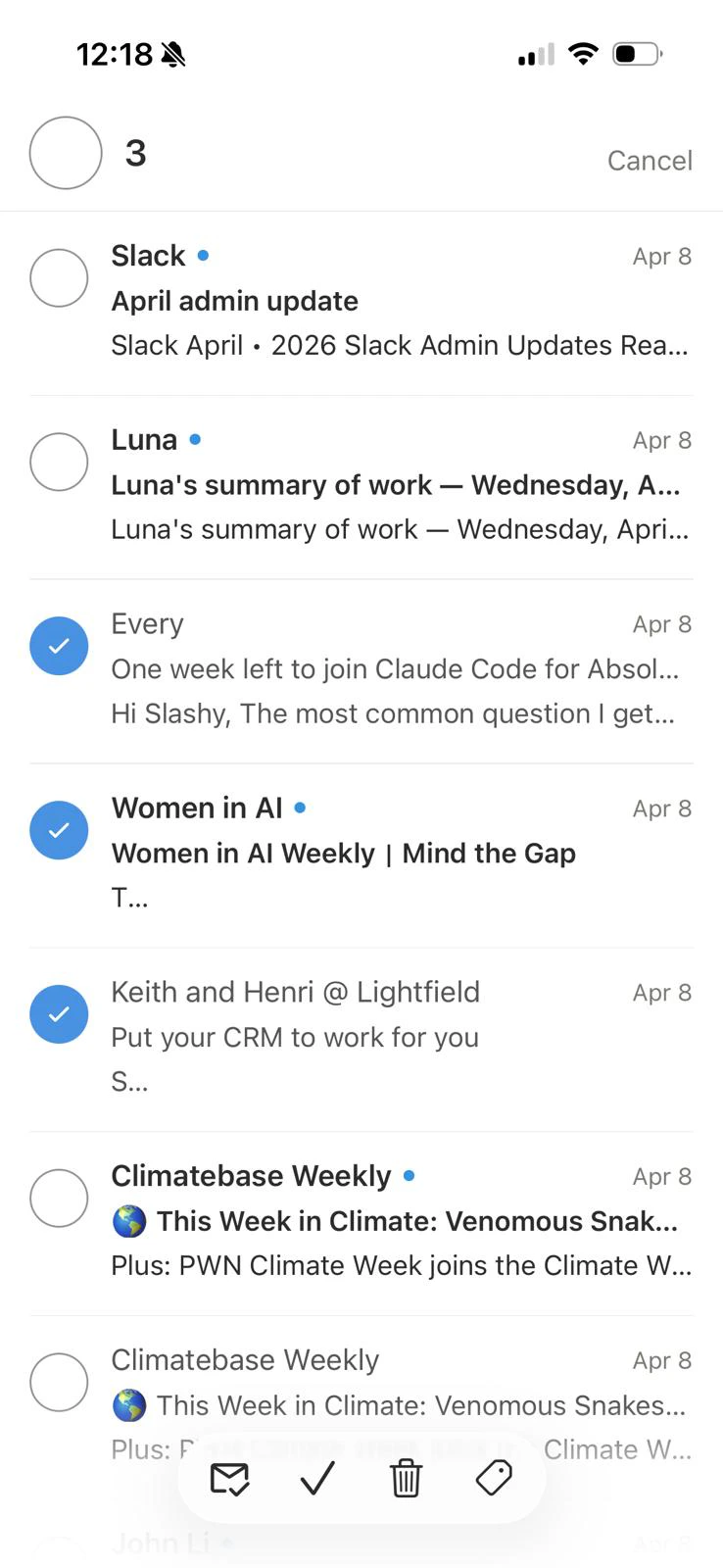 Use bulk Remind to snooze a batch of threads to the same time, such as everything that came in over the weekend deferred to Monday morning.
## Sidebar Navigation
Open via the menu icon or swipe right from the left edge.
* **Labels** -- importance labels with unread counts
* **Views** -- All Mail, Starred, Reminders, Scheduled, Drafts, Sent, Done, Trash
* **Account switcher** -- tap your avatar to switch accounts or view unified inbox
## Push Notifications
Enabled by default. If not working:
1. iPhone **Settings > Notifications > Slashy** -- confirm allowed.
2. In-app **Settings > Notifications** -- confirm toggle is on.
3. Force-quit and reopen to re-register the notification token.
Slashy suppresses notifications for threads you are currently viewing.
## Multiple Accounts
Sidebar > tap avatar > **Connect another address** > complete OAuth. Switch accounts from the same menu, or select **All** for a unified inbox.
## TestFlight Migration
If migrating from the beta: download the App Store version, sign in with the same account, then delete the TestFlight build. Data syncs from the server.
## Known Limitations
| Feature | Status |
| --------------------- | ----------------------------------------------------------------------------- |
| Calendar view | Web/desktop only. Mobile agent can still create and check events via AI chat. |
| Newline in AI compose | Not available. Use voice dictation or full compose screen. |
| Snippets (templates) | Coming soon. Use the AI agent for templated replies. |
For issues not listed here, email [founders@slashy.com](mailto:founders@slashy.com) or use **Settings > Support** in the app.
***
## Related Articles
Day-by-day onboarding guide.
Sync, timezones, and availability sharing.
Install the macOS desktop app.
Troubleshoot common mobile issues.
Use bulk Remind to snooze a batch of threads to the same time, such as everything that came in over the weekend deferred to Monday morning.
## Sidebar Navigation
Open via the menu icon or swipe right from the left edge.
* **Labels** -- importance labels with unread counts
* **Views** -- All Mail, Starred, Reminders, Scheduled, Drafts, Sent, Done, Trash
* **Account switcher** -- tap your avatar to switch accounts or view unified inbox
## Push Notifications
Enabled by default. If not working:
1. iPhone **Settings > Notifications > Slashy** -- confirm allowed.
2. In-app **Settings > Notifications** -- confirm toggle is on.
3. Force-quit and reopen to re-register the notification token.
Slashy suppresses notifications for threads you are currently viewing.
## Multiple Accounts
Sidebar > tap avatar > **Connect another address** > complete OAuth. Switch accounts from the same menu, or select **All** for a unified inbox.
## TestFlight Migration
If migrating from the beta: download the App Store version, sign in with the same account, then delete the TestFlight build. Data syncs from the server.
## Known Limitations
| Feature | Status |
| --------------------- | ----------------------------------------------------------------------------- |
| Calendar view | Web/desktop only. Mobile agent can still create and check events via AI chat. |
| Newline in AI compose | Not available. Use voice dictation or full compose screen. |
| Snippets (templates) | Coming soon. Use the AI agent for templated replies. |
For issues not listed here, email [founders@slashy.com](mailto:founders@slashy.com) or use **Settings > Support** in the app.
***
## Related Articles
Day-by-day onboarding guide.
Sync, timezones, and availability sharing.
Install the macOS desktop app.
Troubleshoot common mobile issues.