> ## Documentation Index
> Fetch the complete documentation index at: https://help.slashy.com/llms.txt
> Use this file to discover all available pages before exploring further.
# Importance Labels & AI Classification
> How Slashy's AI sorts your inbox, the 10 default labels, custom labels, training examples, and the feedback loop.
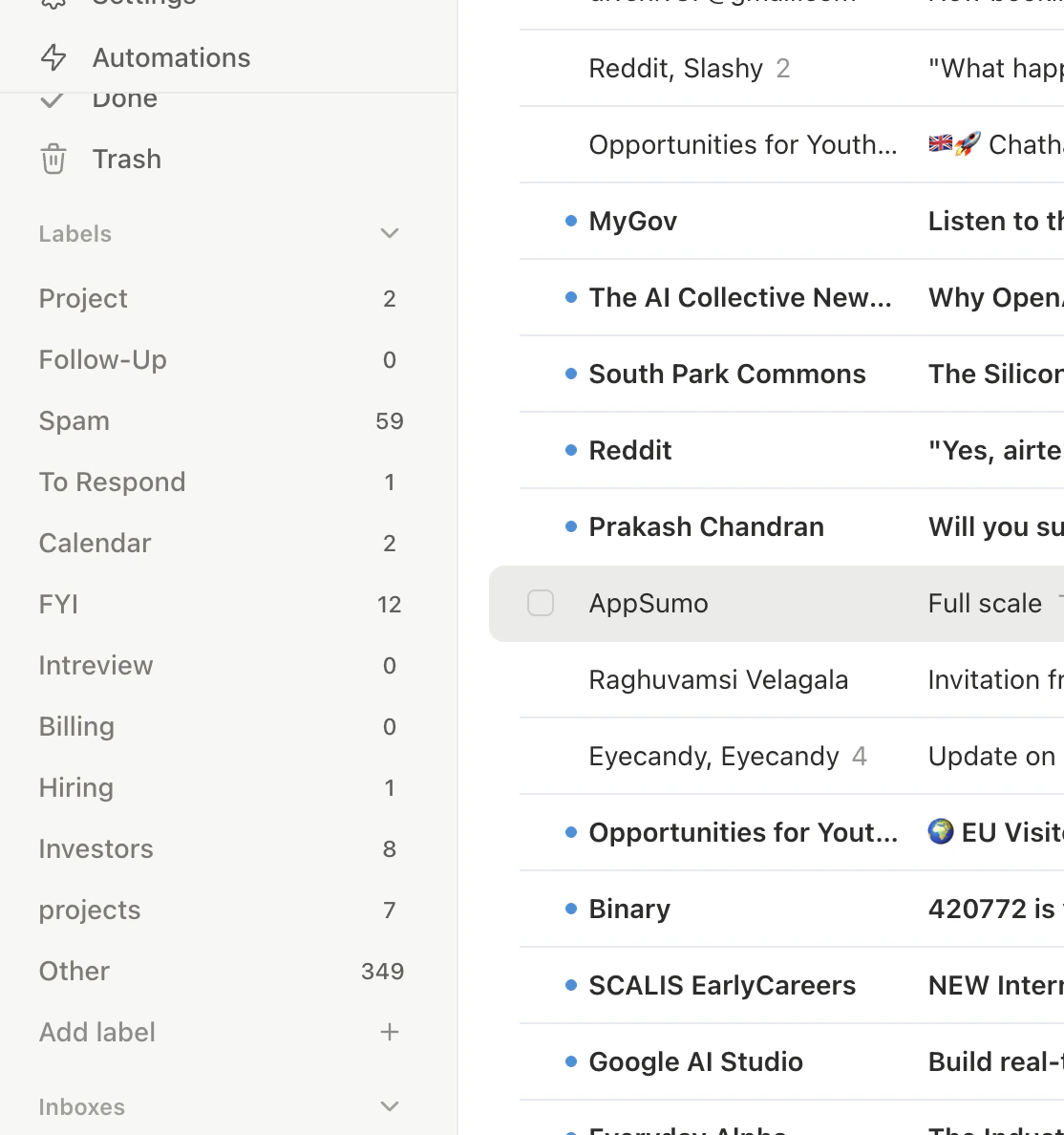
Importance labels replace Gmail's tabs with something smarter. Every incoming email is auto-classified by AI into categories like Important, Newsletter, or Billing -- fully customizable, no rules or filters needed.
## How Classification Works
The AI reads sender, subject, and body, then assigns the most relevant label using:
* **Sender identity** and your relationship
* **Email content** and whether it requires action
* **Label descriptions** you define
* **Training examples** you provide
* **Feedback history** from past corrections
Accuracy improves over time as you correct misclassifications.
## Default Labels
| Label | Catches | Default On | Notifications |
| --------------- | ------------------------------------------ | ---------- | ------------- |
| **Important** | Emails requiring response or action | Yes | On |
| **Calendar** | Meeting invites and calendar notifications | Yes | On |
| **Billing** | Payments, invoices, receipts | Yes | Off |
| **Newsletter** | Informational newsletters | Yes | Off |
| **Hiring** | Recruitment communications | No | Off |
| **Investors** | VC and investor communications | No | Off |
| **To Respond** | Emails needing personal reply | No | Off |
| **To Delegate** | Emails for someone else on your team | No | Off |
| **FYI** | Informational, no response needed | No | Off |
| **Other** | Everything else | Yes | Off |
Most users enable 3-5 labels that match their workflow.
 ## Creating a Custom Label
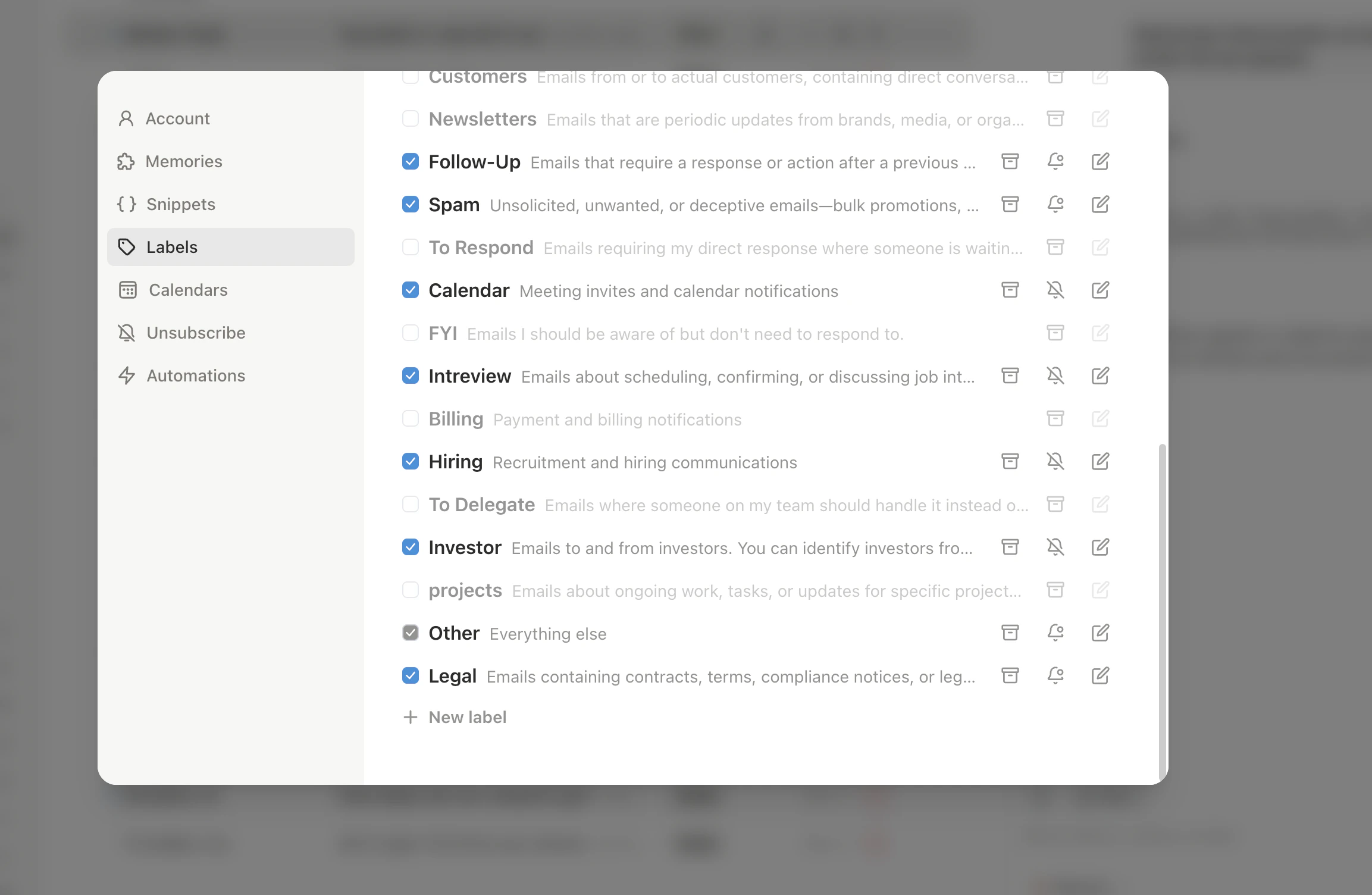
Go to **Settings > Labels** (`Cmd+,`) and click **Create Label** (or press `n l`).
Give it a name and write a specific description: *"Emails from current paying customers about product issues or feature requests. Excludes sales prospects."*
Optionally enable notifications and auto-archive.
Good descriptions include what the label should **and should not** contain. "Investor stuff" is weak. "Emails from investors or board members about fundraising, board meetings, or financial updates -- excludes cold outreach" is strong.
## Training Examples
The most powerful accuracy tool. In **Settings > Labels**, click a label and add **matched** examples (emails that belong) and **unmatched** examples (emails that don't). A few well-chosen examples outperform long descriptions.
## Creating a Custom Label
Go to **Settings > Labels** (`Cmd+,`) and click **Create Label** (or press `n l`).
Give it a name and write a specific description: *"Emails from current paying customers about product issues or feature requests. Excludes sales prospects."*
Optionally enable notifications and auto-archive.
Good descriptions include what the label should **and should not** contain. "Investor stuff" is weak. "Emails from investors or board members about fundraising, board meetings, or financial updates -- excludes cold outreach" is strong.
## Training Examples
The most powerful accuracy tool. In **Settings > Labels**, click a label and add **matched** examples (emails that belong) and **unmatched** examples (emails that don't). A few well-chosen examples outperform long descriptions.
 ## The Feedback Loop
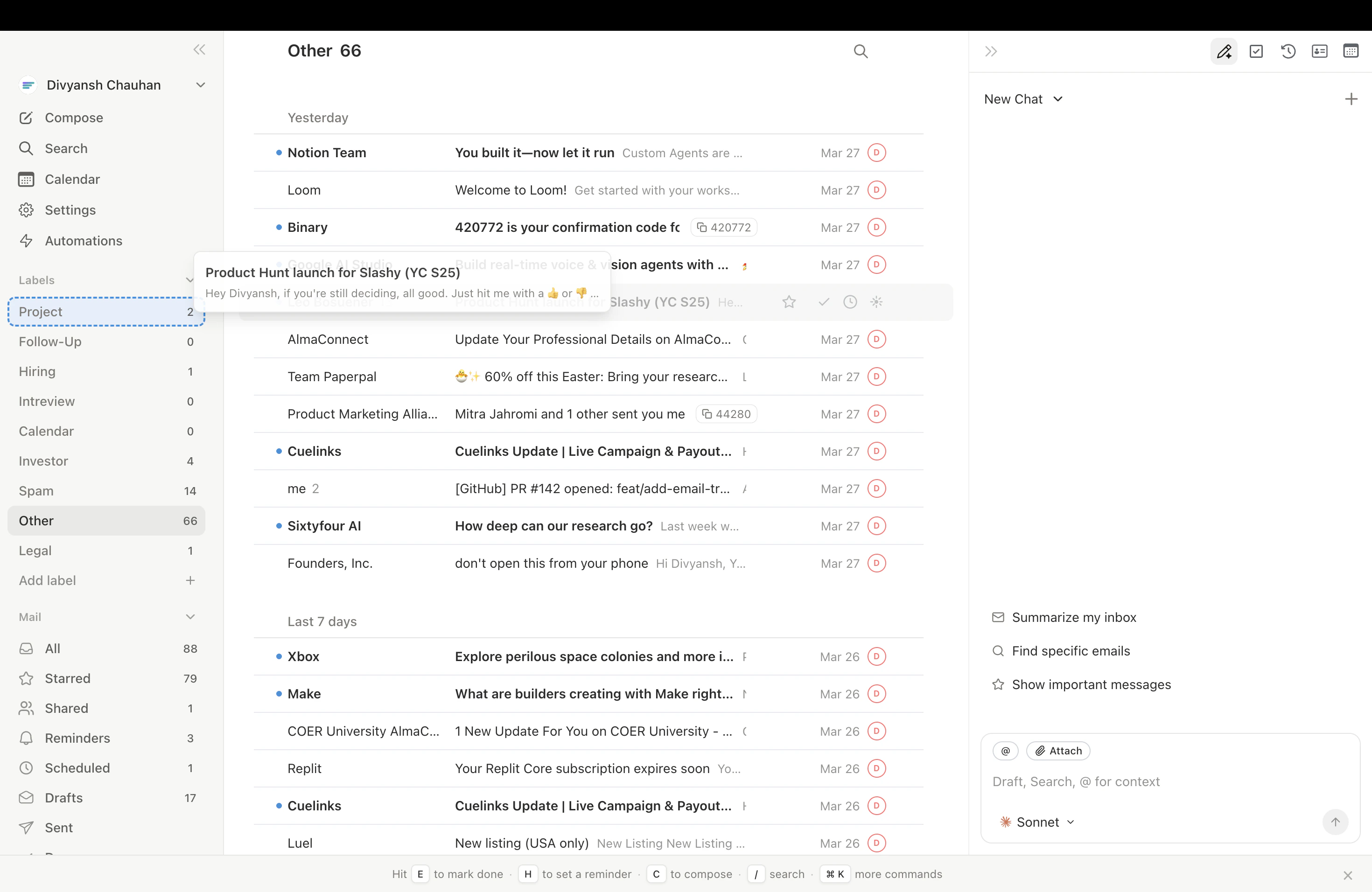
Every time you move an email between labels, the AI treats it as a correction. Drag the email to the correct tab, or press `l`/`v` to reassign. After a few corrections, the same misclassification rarely recurs.
## Per-Label Settings
| Setting | What It Does |
| --------------------- | -------------------------------------------- |
| **Notifications** | Push notification on new email in this label |
| **Auto-archive** | Auto-archive emails (useful for receipts) |
| **Description** | AI classification criteria |
| **Training examples** | Specific emails that should/shouldn't match |
## The Feedback Loop
Every time you move an email between labels, the AI treats it as a correction. Drag the email to the correct tab, or press `l`/`v` to reassign. After a few corrections, the same misclassification rarely recurs.
## Per-Label Settings
| Setting | What It Does |
| --------------------- | -------------------------------------------- |
| **Notifications** | Push notification on new email in this label |
| **Auto-archive** | Auto-archive emails (useful for receipts) |
| **Description** | AI classification criteria |
| **Training examples** | Specific emails that should/shouldn't match |
 ***
## Related Articles
Teach the AI about your preferences and contacts.
How using Slashy full-time accelerates AI learning.
Reach inbox zero using labels and AI.
Navigate views, filters, and multi-inbox switching.
***
## Related Articles
Teach the AI about your preferences and contacts.
How using Slashy full-time accelerates AI learning.
Reach inbox zero using labels and AI.
Navigate views, filters, and multi-inbox switching.