> ## Documentation Index
> Fetch the complete documentation index at: https://help.slashy.com/llms.txt
> Use this file to discover all available pages before exploring further.
# Your first week with Slashy
> A day-by-day walkthrough from connecting Gmail to running automations.
Slashy replaces your Gmail tab with an AI email client that learns how you write, drafts replies, and runs automations in the background. Here is how to spend your first week, one focused step at a time.
## The onboarding tour
After you sign in with Google, Slashy walks you through a short guided tour. A progress bar at the top tracks where you are, so you can step away and come back without losing your place. Move forward with `Enter` or `j`, go back with `Escape` or `k`.
 A trial card appears at the start so you know how long you have to explore. Keep it visible, you can revisit it any time from Settings.
## Day 1: Connect Gmail and take the tour
Sign in with Google. New accounts authorize Gmail in the same flow, so you only see one consent screen. Existing users land directly in the app.
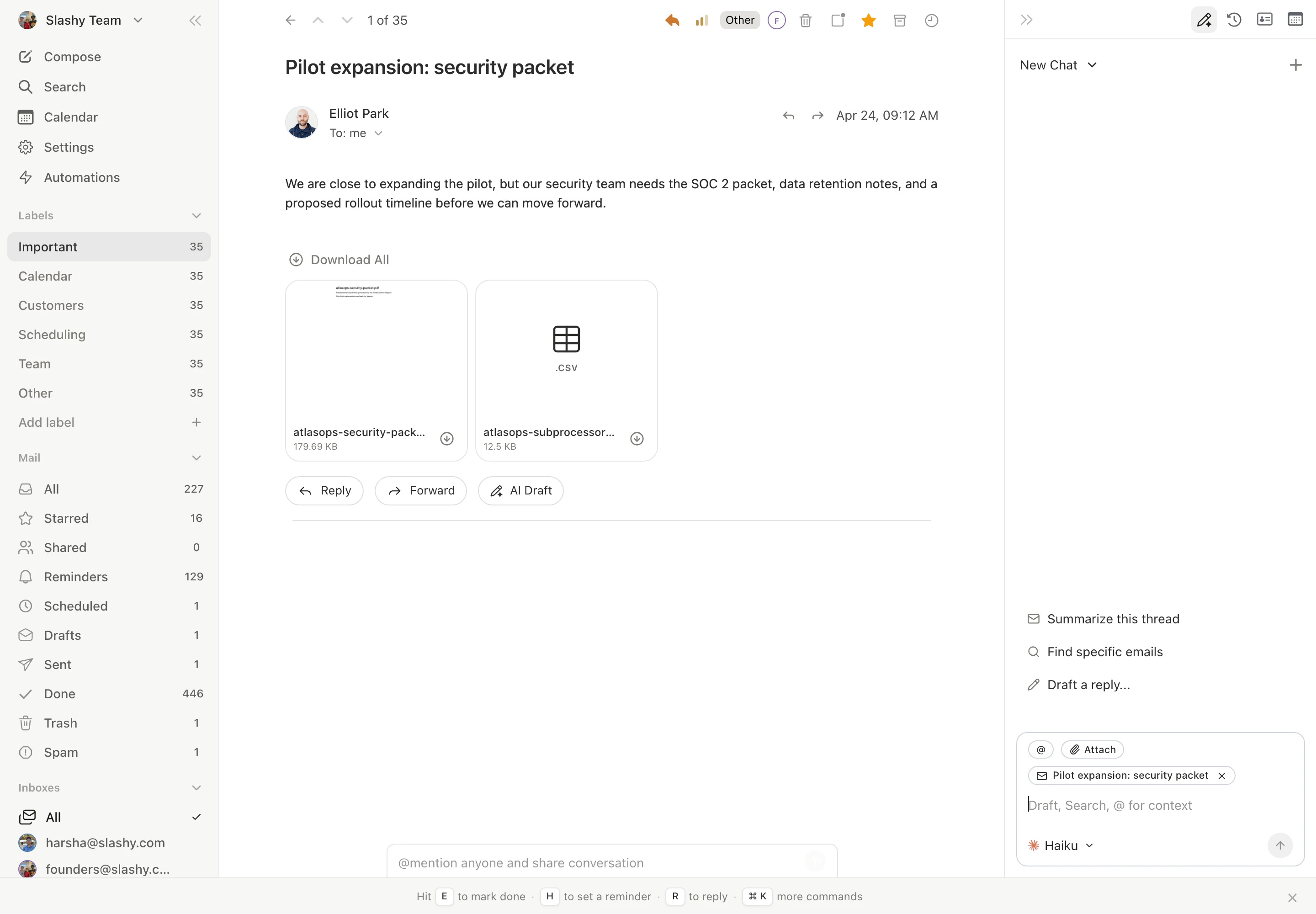
The tour previews your inbox with importance labels already applied, then walks you through:
* The inbox preview, so you can see what sorted mail looks like before anything is touched
* iMessage setup, for daily briefings and on-the-go agent commands
* Automations, to turn on your first background workflows
* Memories, to teach Slashy about you in plain language
Spend ten minutes reading mail in Slashy. Use `j` and `k` to move between threads, `Enter` to open, and `e` to archive. Press `Shift+?` any time for the full shortcut overlay.
## Day 2: Set up the iMessage agent
In the tour, connect your phone number and verify with the code Slashy texts you. Once connected, you can text the agent for daily briefings, OTP forwarding, and full inbox commands from anywhere.
A trial card appears at the start so you know how long you have to explore. Keep it visible, you can revisit it any time from Settings.
## Day 1: Connect Gmail and take the tour
Sign in with Google. New accounts authorize Gmail in the same flow, so you only see one consent screen. Existing users land directly in the app.
The tour previews your inbox with importance labels already applied, then walks you through:
* The inbox preview, so you can see what sorted mail looks like before anything is touched
* iMessage setup, for daily briefings and on-the-go agent commands
* Automations, to turn on your first background workflows
* Memories, to teach Slashy about you in plain language
Spend ten minutes reading mail in Slashy. Use `j` and `k` to move between threads, `Enter` to open, and `e` to archive. Press `Shift+?` any time for the full shortcut overlay.
## Day 2: Set up the iMessage agent
In the tour, connect your phone number and verify with the code Slashy texts you. Once connected, you can text the agent for daily briefings, OTP forwarding, and full inbox commands from anywhere.
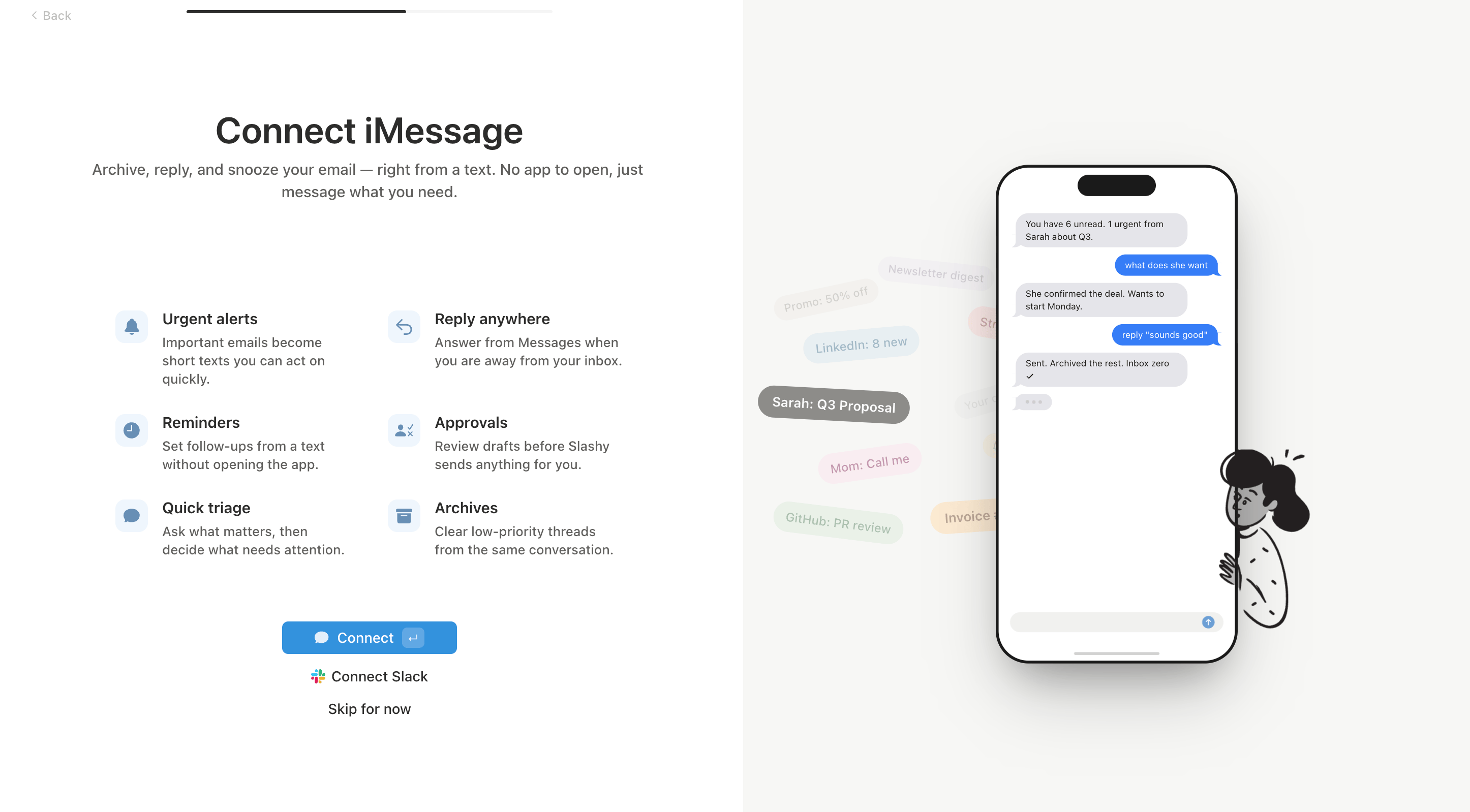 If you skipped this step, you can finish it later in Settings → Integrations → iMessage.
## Day 3: Turn on your first automations
The automations step suggests a starter set. Good first picks:
| Automation | Best for |
| ----------------------- | ---------------------------------------- |
| Daily dropped ball scan | Catching unanswered threads each morning |
| Receipt forwarding | Anyone on a corporate card |
| VIP alerts | Contacts you cannot miss |
| OTP forwarding | Email-based two-factor codes |
If you skipped this step, you can finish it later in Settings → Integrations → iMessage.
## Day 3: Turn on your first automations
The automations step suggests a starter set. Good first picks:
| Automation | Best for |
| ----------------------- | ---------------------------------------- |
| Daily dropped ball scan | Catching unanswered threads each morning |
| Receipt forwarding | Anyone on a corporate card |
| VIP alerts | Contacts you cannot miss |
| OTP forwarding | Email-based two-factor codes |
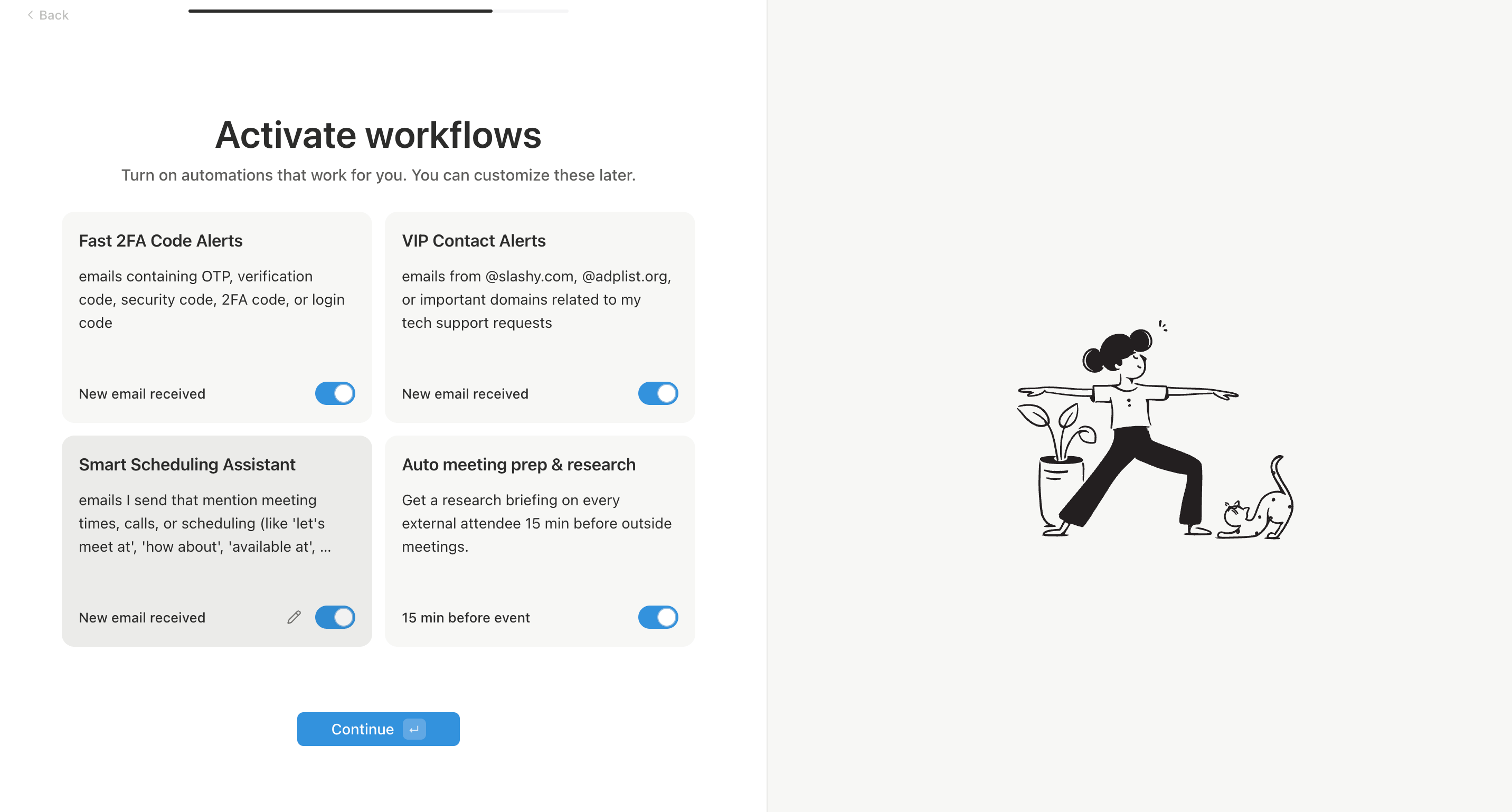 You can write your own in plain English later from the agent sidebar (`Cmd+Shift+L`).
## Day 4: Teach Slashy memories
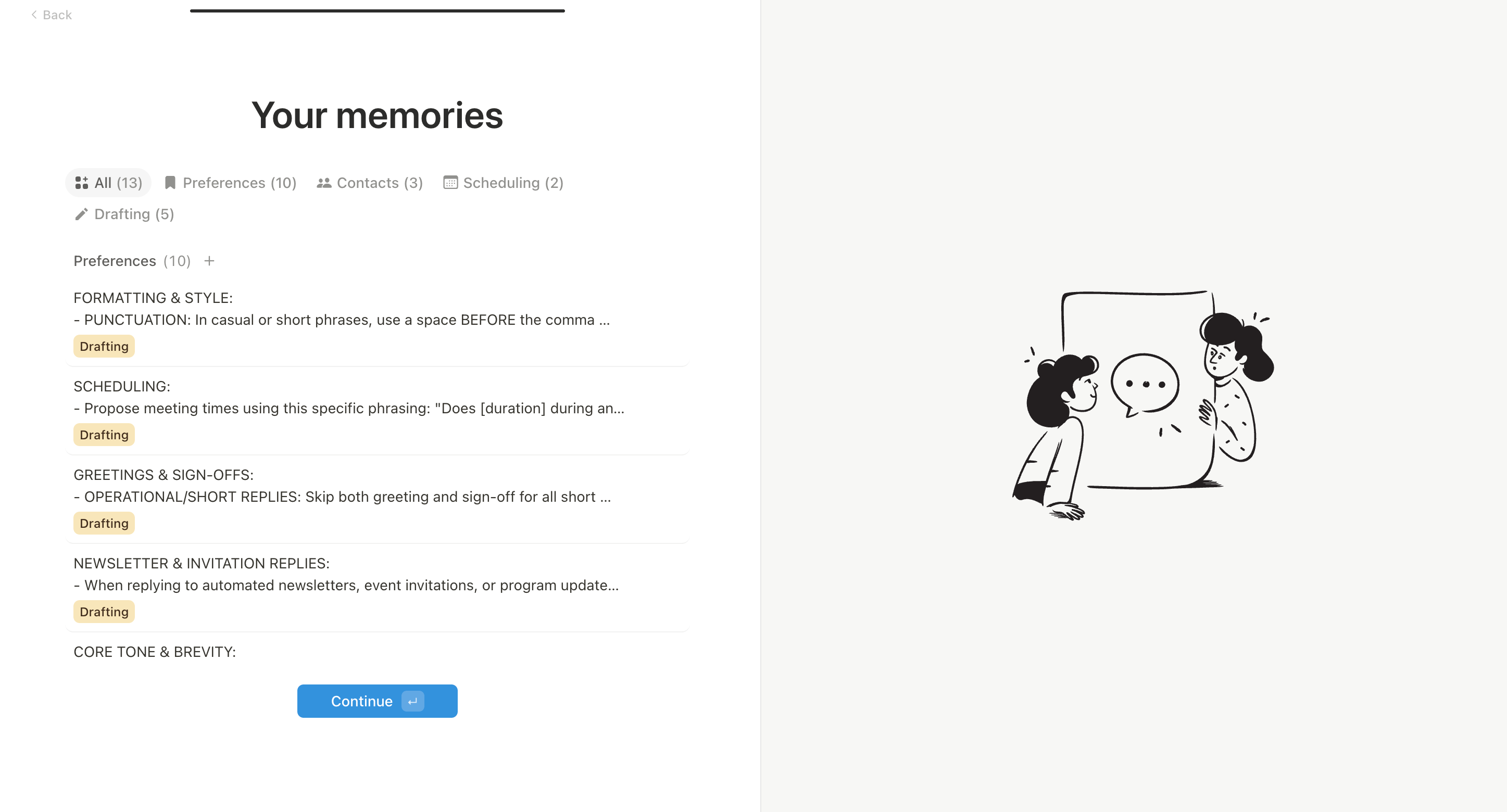
Memories are short facts the AI uses when drafting and scheduling. Slashy auto-generates a starter set from your sent mail, and you edit them inline during onboarding. Add things like your role, your team, the way you sign off, or a project you are running.
You can write your own in plain English later from the agent sidebar (`Cmd+Shift+L`).
## Day 4: Teach Slashy memories
Memories are short facts the AI uses when drafting and scheduling. Slashy auto-generates a starter set from your sent mail, and you edit them inline during onboarding. Add things like your role, your team, the way you sign off, or a project you are running.
 ## Day 5 to 7: Settle into your daily flow
You are now in your main inbox. Build the habits that compound:
* Generate drafts with `Cmd+Enter` and edit them before sending. Your edits train the style model.
* Accept ghost text with `Tab` while composing.
* Create snippets with `n s` for replies you send often, and insert them with `Cmd+Shift+S`.
* Press `2` for the calendar, `Shift+Cmd+A` to insert open time slots in a reply.
* Ask the agent for "my dropped balls right now" whenever the daily scan is not enough.
By the end of the week, drafts need lighter edits, importance sorting matches your taste, and automations are surfacing the things that matter.
Permissions and what Slashy reads from your account.
Teach Slashy who you are and how you write.
How Slashy sorts mail into Important, Newsletter, and more.
What Slashy adds on top of your inbox.
Connect your phone for briefings and commands.
The most useful automations for week two.
## Day 5 to 7: Settle into your daily flow
You are now in your main inbox. Build the habits that compound:
* Generate drafts with `Cmd+Enter` and edit them before sending. Your edits train the style model.
* Accept ghost text with `Tab` while composing.
* Create snippets with `n s` for replies you send often, and insert them with `Cmd+Shift+S`.
* Press `2` for the calendar, `Shift+Cmd+A` to insert open time slots in a reply.
* Ask the agent for "my dropped balls right now" whenever the daily scan is not enough.
By the end of the week, drafts need lighter edits, importance sorting matches your taste, and automations are surfacing the things that matter.
Permissions and what Slashy reads from your account.
Teach Slashy who you are and how you write.
How Slashy sorts mail into Important, Newsletter, and more.
What Slashy adds on top of your inbox.
Connect your phone for briefings and commands.
The most useful automations for week two.