> ## Documentation Index
> Fetch the complete documentation index at: https://help.slashy.com/llms.txt
> Use this file to discover all available pages before exploring further.
# Installing the Desktop App
> Download the macOS app for global shortcuts, dock badges, native notifications, and system tray background running.
The desktop app gives you a native macOS experience: a global shortcut to summon Slashy from any app, dock badge counts, system tray background running, and native notifications. Everything else works identically to the web app.
## Download and Install
Go to [slashy.com/download](https://slashy.com/download) or open the command palette (`Cmd+K`) and type "Download desktop app."
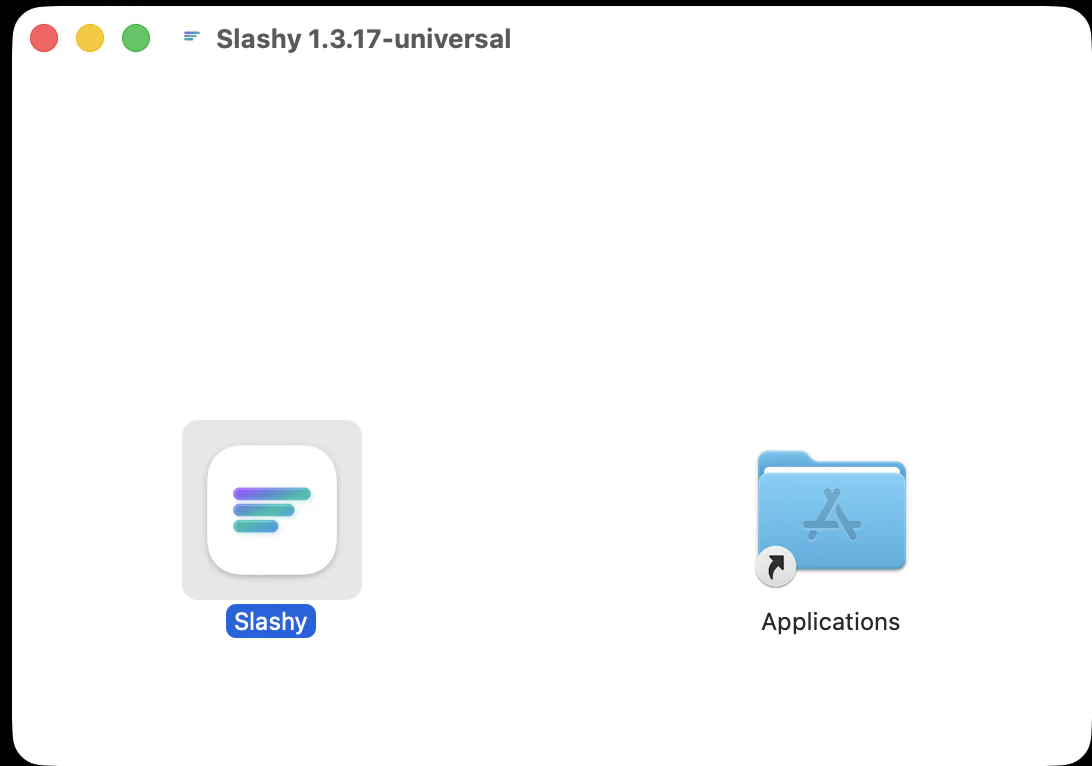
Open the `.dmg` and drag Slashy into Applications.
Open Slashy from Applications. Sign in with the same Google account you use on the web. Your inbox, labels, memories, and settings sync immediately.
Already using Slashy on the web? The desktop app syncs everything automatically -- inbox, labels, memories, and settings. No reconfiguration needed.
 ## Key Features
Press `Cmd+/` from any application to bring Slashy to the front. Press again to hide it. Works system-wide, even when minimized. Change it in **Settings > Account > Global Shortcut**.
Slashy downloads updates in the background. A toast notification appears when an update is ready -- it applies on next restart. No prompts, no progress bars.
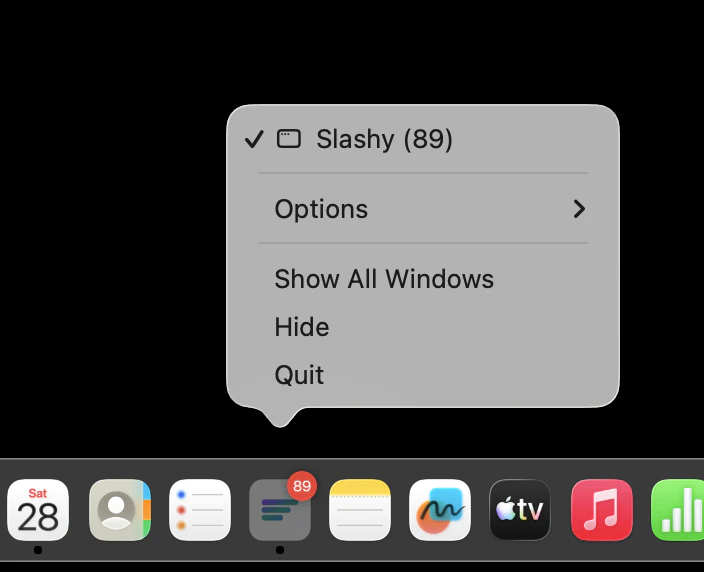
Slashy runs in the menu bar background, keeping email synced, notifications firing, and the global shortcut active. Closing the window with `Cmd+W` hides to tray (use `Cmd+Q` to fully quit).
Real-time unread count on the dock icon. Disable in **Settings > Account > Show Unread Counts**.
Uses macOS Notification Center. Respects Do Not Disturb. Control which labels trigger notifications in **Settings > Labels**.
`Cmd+F` searches text on the current screen -- email threads, compose window, and settings.
## Key Features
Press `Cmd+/` from any application to bring Slashy to the front. Press again to hide it. Works system-wide, even when minimized. Change it in **Settings > Account > Global Shortcut**.
Slashy downloads updates in the background. A toast notification appears when an update is ready -- it applies on next restart. No prompts, no progress bars.
Slashy runs in the menu bar background, keeping email synced, notifications firing, and the global shortcut active. Closing the window with `Cmd+W` hides to tray (use `Cmd+Q` to fully quit).
Real-time unread count on the dock icon. Disable in **Settings > Account > Show Unread Counts**.
Uses macOS Notification Center. Respects Do Not Disturb. Control which labels trigger notifications in **Settings > Labels**.
`Cmd+F` searches text on the current screen -- email threads, compose window, and settings.
 ## Troubleshooting
| Issue | Fix |
| ----------------------------- | ------------------------------------------------------------------------------------------------ |
| Global shortcut not working | **System Settings > Privacy & Security > Accessibility** -- ensure Slashy is listed and enabled. |
| App won't open after download | Right-click in Finder and select **Open** (Gatekeeper first-launch block). |
| No dock badge | **System Settings > Notifications > Slashy** -- enable badge notifications. |
| Update seems stuck | Quit with `Cmd+Q` and relaunch. Update applies on restart. |
***
## Related Articles
Set up AI-powered inbox sorting.
Add work and personal inboxes.
Every shortcut for power-user navigation.
Set up Slashy on your iPhone.
## Troubleshooting
| Issue | Fix |
| ----------------------------- | ------------------------------------------------------------------------------------------------ |
| Global shortcut not working | **System Settings > Privacy & Security > Accessibility** -- ensure Slashy is listed and enabled. |
| App won't open after download | Right-click in Finder and select **Open** (Gatekeeper first-launch block). |
| No dock badge | **System Settings > Notifications > Slashy** -- enable badge notifications. |
| Update seems stuck | Quit with `Cmd+Q` and relaunch. Update applies on restart. |
***
## Related Articles
Set up AI-powered inbox sorting.
Add work and personal inboxes.
Every shortcut for power-user navigation.
Set up Slashy on your iPhone.