> ## Documentation Index
> Fetch the complete documentation index at: https://help.slashy.com/llms.txt
> Use this file to discover all available pages before exploring further.
# How do I connect Outlook or Microsoft 365 to Slashy?
> Sign in with Microsoft or add an Outlook.com or Microsoft 365 account, and learn what syncs and what works differently from Gmail.
Outlook and Microsoft 365 support is in beta. You can sign in to Slashy with a Microsoft account, or add an Outlook.com or Microsoft 365 mailbox next to your Gmail accounts.
## Sign in with Microsoft
On the sign-in page at `slashy.com/login`, choose **Sign in with Microsoft**. New accounts see **Continue with Microsoft** during onboarding. The desktop app and the iOS app offer the same option on their sign-in screens. Team invite links also let you accept with a Microsoft account.
## Add an Outlook account to an existing Slashy account
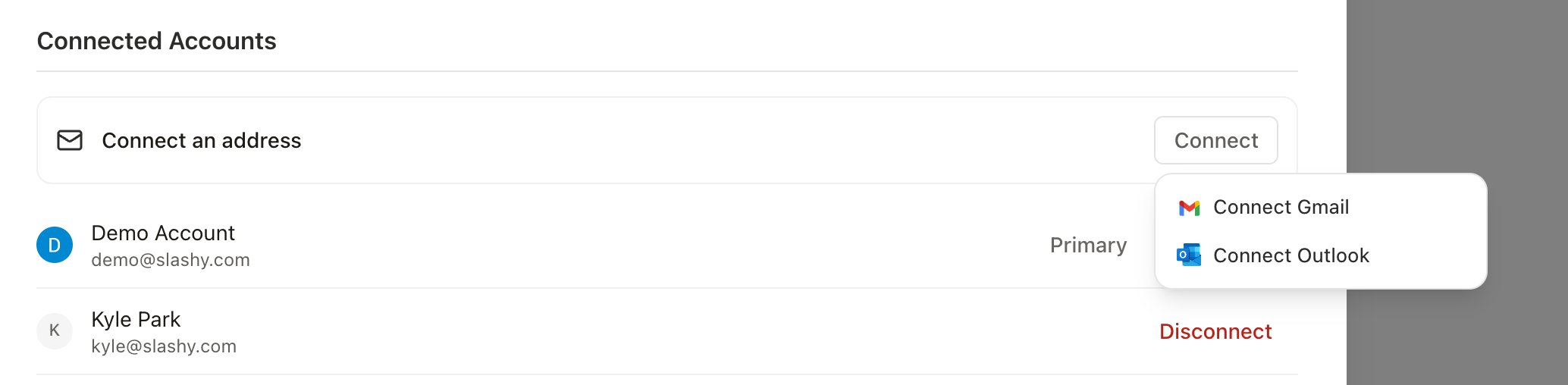
Go to **Settings > Account** (`Cmd+,`) and scroll to **Connected Accounts**. You can also click **Add account** at the bottom of the sidebar.
Click **Connect**, then choose **Connect Outlook**. On iOS, choose Outlook from the Add account options.
Sign in with Microsoft and approve the permissions. On desktop, the sign-in opens in your browser and returns you to Slashy.
Your history downloads in the background, the same as a Gmail account. See [Email and Calendar Sync Issues](/troubleshooting/sync-issues).
 An Outlook mailbox can belong to only one Slashy account. If you see "That Outlook mailbox belongs to another Slashy account," sign in with the account that originally added it.
If Microsoft sign-in tells you Outlook is not enabled for your address yet, email [support@slashy.com](mailto:support@slashy.com).
## What syncs
| Item | How it appears in Slashy |
| - | - |
| Mail | Inbox, sent mail, drafts, search, and importance labels work like they do for Gmail |
| Folders and categories | Shown as labels in the sidebar |
| Archive | Archiving moves a message to your Outlook Archive folder, and Done shows what is in that folder |
| Calendar | Events, invitations, and RSVP status, including native meeting requests |
| Meetings | Outlook calendars use native Microsoft Teams links |
Outlook accounts appear next to your Gmail accounts in the sidebar and in All mode. See [Manage Multiple Email Accounts](/how-to-guides/multiple-accounts) for how accounts share and separate settings.
## What works differently from Gmail
Microsoft does not share your Outlook signature with other apps, so Slashy does not detect it. Add one yourself in **Settings > Account > Signature**. The row appears once an Outlook account is connected. **Include signature in replies** controls whether it is added when you reply or forward. See [Signatures](/how-to-guides/signatures).
Attachments that are cloud links, not files, cannot be downloaded inside Slashy. They show as **Cloud link**. Open the original message in Outlook to reach the file. Slashy warns you about these when you forward.
When you send a tracked email to several recipients from an Outlook account, opens are recorded without naming which recipient opened it. Emails to a single recipient show who opened them. See [Email tracking](/how-to-guides/email-tracking).
## Reconnect an Outlook account
When an Outlook account goes inactive, reconnect it from the inactive-account prompt on web, desktop, or iOS. Slashy sends you through Microsoft sign-in, and you choose the same Microsoft account you originally added.
Use Gmail and Outlook inboxes together.
Add and control your signature.
Answer invitations from your inbox.
What to do when mail or events are missing.
Google, Microsoft, and SSO sign-in.
An Outlook mailbox can belong to only one Slashy account. If you see "That Outlook mailbox belongs to another Slashy account," sign in with the account that originally added it.
If Microsoft sign-in tells you Outlook is not enabled for your address yet, email [support@slashy.com](mailto:support@slashy.com).
## What syncs
| Item | How it appears in Slashy |
| - | - |
| Mail | Inbox, sent mail, drafts, search, and importance labels work like they do for Gmail |
| Folders and categories | Shown as labels in the sidebar |
| Archive | Archiving moves a message to your Outlook Archive folder, and Done shows what is in that folder |
| Calendar | Events, invitations, and RSVP status, including native meeting requests |
| Meetings | Outlook calendars use native Microsoft Teams links |
Outlook accounts appear next to your Gmail accounts in the sidebar and in All mode. See [Manage Multiple Email Accounts](/how-to-guides/multiple-accounts) for how accounts share and separate settings.
## What works differently from Gmail
Microsoft does not share your Outlook signature with other apps, so Slashy does not detect it. Add one yourself in **Settings > Account > Signature**. The row appears once an Outlook account is connected. **Include signature in replies** controls whether it is added when you reply or forward. See [Signatures](/how-to-guides/signatures).
Attachments that are cloud links, not files, cannot be downloaded inside Slashy. They show as **Cloud link**. Open the original message in Outlook to reach the file. Slashy warns you about these when you forward.
When you send a tracked email to several recipients from an Outlook account, opens are recorded without naming which recipient opened it. Emails to a single recipient show who opened them. See [Email tracking](/how-to-guides/email-tracking).
## Reconnect an Outlook account
When an Outlook account goes inactive, reconnect it from the inactive-account prompt on web, desktop, or iOS. Slashy sends you through Microsoft sign-in, and you choose the same Microsoft account you originally added.
Use Gmail and Outlook inboxes together.
Add and control your signature.
Answer invitations from your inbox.
What to do when mail or events are missing.
Google, Microsoft, and SSO sign-in.