> ## Documentation Index
> Fetch the complete documentation index at: https://help.slashy.com/llms.txt
> Use this file to discover all available pages before exploring further.
# Connecting Gmail
> OAuth 2.0 permissions explained, what Slashy can and cannot access, and how to verify sync or revoke access.
Connecting Gmail is the most important step in Slashy setup. Here is exactly what you are granting and how it works.
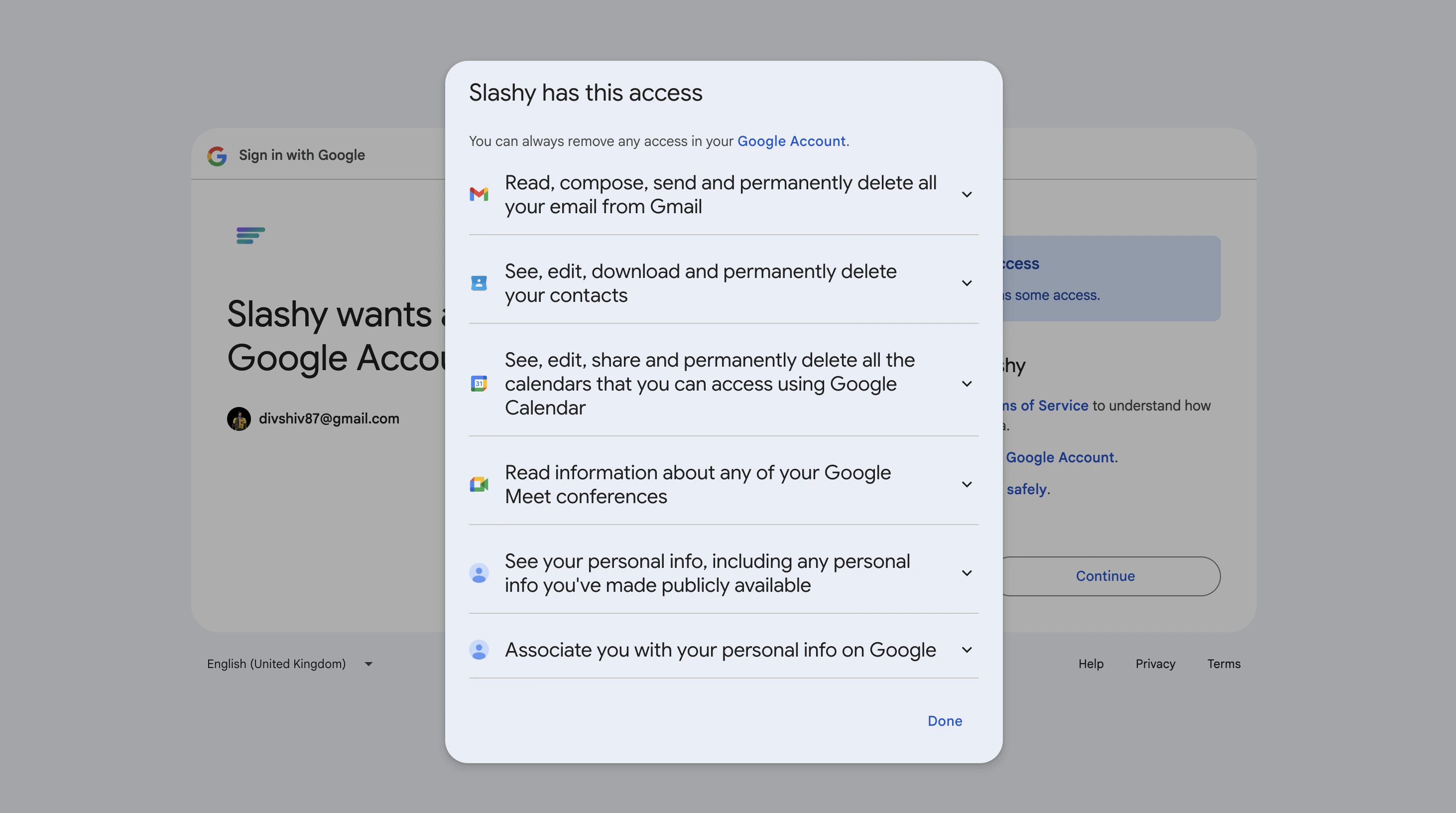 ## How It Works (OAuth 2.0)
Slashy uses **OAuth 2.0** -- the same standard used by Slack, Notion, Zoom, and Superhuman.
* **Slashy never sees your Google password.** You sign in on Google's login page. Google gives Slashy a scoped token.
* **Revoke anytime.** Delete the token from your Google account settings to instantly cut off access.
* **Tokens auto-expire.** Even if intercepted, tokens stop working within an hour.
## Permissions Requested
| Permission | What It Allows | Why Slashy Needs It |
| ------------------------- | --------------------------------- | ------------------------------------------------------------------ |
| Read your email | View messages and metadata | Display inbox, power AI features, sort into labels |
| Send email on your behalf | Send new emails and replies | Send emails you compose or accept from AI drafts |
| Manage your email | Archive, label, star, trash | Perform inbox actions you trigger in Slashy |
| View and edit calendar | Read/write Google Calendar events | Show calendar, create events, check availability for AI scheduling |
Slashy does **not** request access to Google Drive, Contacts, Photos, or any other Google service.
## What Slashy Cannot Do
* Access your Google password
* Access Drive, Docs, Sheets, or non-email/calendar services
* Send email without your action (every send is composed, accepted, or triggered by you)
* Permanently delete email (requires a separate permission Slashy does not request)
* Share your data with third parties or use it for advertising
## Google Workspace vs. Personal Gmail
| Feature | Personal Gmail | Google Workspace |
| ----------------- | ----------------- | -------------------------------------------------------------------- |
| OAuth connection | Works immediately | May require IT admin approval |
| Admin approval | N/A | Allowlist Slashy in **Security > API Controls > App Access Control** |
| Multiple accounts | Unlimited | Mix personal and Workspace accounts freely |
If you see "Access blocked," your Workspace admin needs to allowlist Slashy. Send them our [Security FAQ](https://slashy.com/security) and [DPA](https://slashy.com/dpa).
## CASA Tier 2 Compliance
Slashy has completed Google's **CASA Tier 2** security audit -- the same tier required of Superhuman, Streak, and other Gmail clients. An independent assessor reviewed code, infrastructure, and data handling. Verified apps show a badge on the OAuth consent screen instead of "Google hasn't verified this app."
## How It Works (OAuth 2.0)
Slashy uses **OAuth 2.0** -- the same standard used by Slack, Notion, Zoom, and Superhuman.
* **Slashy never sees your Google password.** You sign in on Google's login page. Google gives Slashy a scoped token.
* **Revoke anytime.** Delete the token from your Google account settings to instantly cut off access.
* **Tokens auto-expire.** Even if intercepted, tokens stop working within an hour.
## Permissions Requested
| Permission | What It Allows | Why Slashy Needs It |
| ------------------------- | --------------------------------- | ------------------------------------------------------------------ |
| Read your email | View messages and metadata | Display inbox, power AI features, sort into labels |
| Send email on your behalf | Send new emails and replies | Send emails you compose or accept from AI drafts |
| Manage your email | Archive, label, star, trash | Perform inbox actions you trigger in Slashy |
| View and edit calendar | Read/write Google Calendar events | Show calendar, create events, check availability for AI scheduling |
Slashy does **not** request access to Google Drive, Contacts, Photos, or any other Google service.
## What Slashy Cannot Do
* Access your Google password
* Access Drive, Docs, Sheets, or non-email/calendar services
* Send email without your action (every send is composed, accepted, or triggered by you)
* Permanently delete email (requires a separate permission Slashy does not request)
* Share your data with third parties or use it for advertising
## Google Workspace vs. Personal Gmail
| Feature | Personal Gmail | Google Workspace |
| ----------------- | ----------------- | -------------------------------------------------------------------- |
| OAuth connection | Works immediately | May require IT admin approval |
| Admin approval | N/A | Allowlist Slashy in **Security > API Controls > App Access Control** |
| Multiple accounts | Unlimited | Mix personal and Workspace accounts freely |
If you see "Access blocked," your Workspace admin needs to allowlist Slashy. Send them our [Security FAQ](https://slashy.com/security) and [DPA](https://slashy.com/dpa).
## CASA Tier 2 Compliance
Slashy has completed Google's **CASA Tier 2** security audit -- the same tier required of Superhuman, Streak, and other Gmail clients. An independent assessor reviewed code, infrastructure, and data handling. Verified apps show a badge on the OAuth consent screen instead of "Google hasn't verified this app."
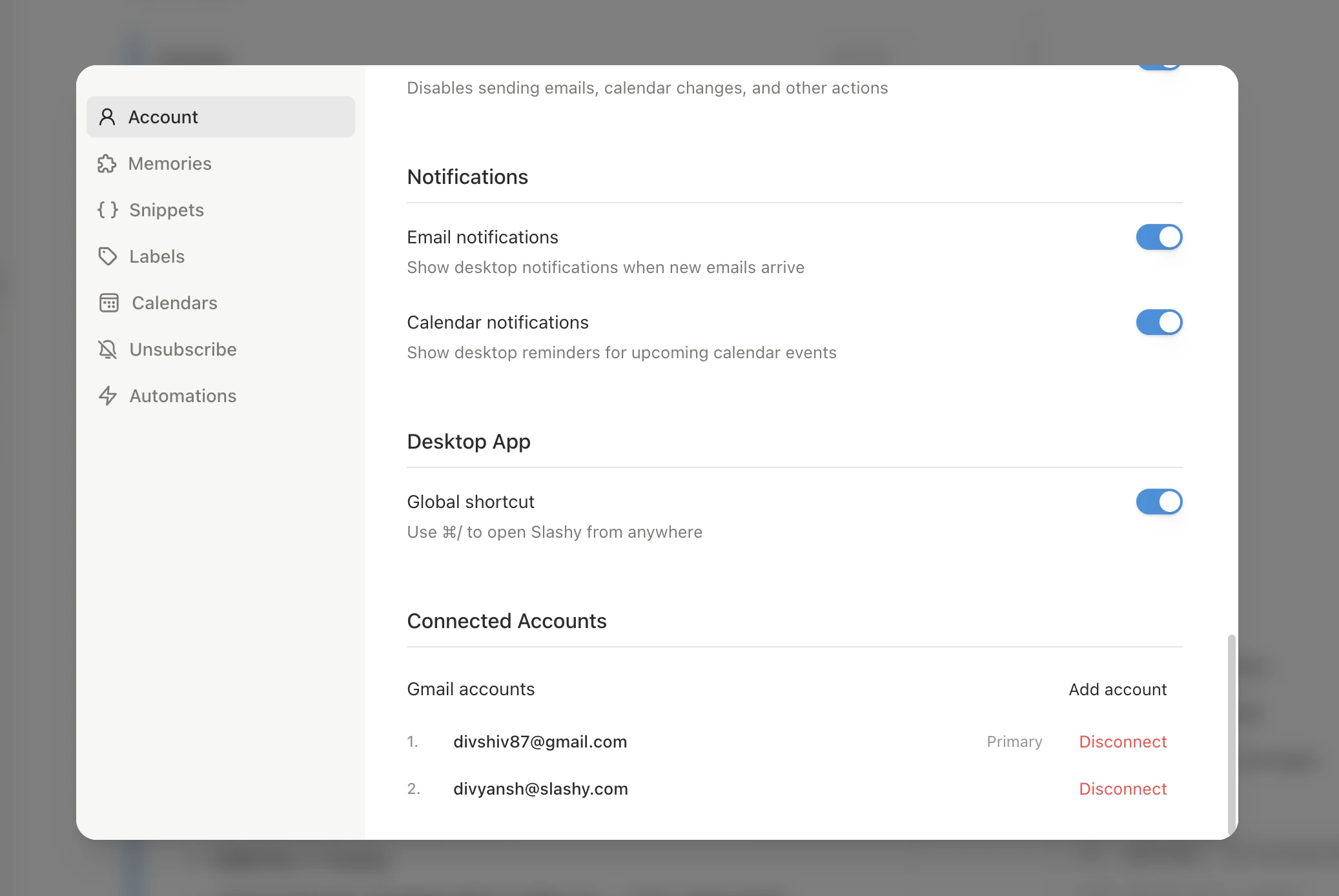 ## Verify Your Sync
Open Slashy and look for recent messages. They should appear within minutes of connecting.
Go to **Settings > Account** (`Cmd+,`). Your account shows a green status indicator when sync is healthy.
Send a test email from Slashy to confirm sending works.
Press `2` for Calendar view. Events should appear from all connected calendars.
Large inboxes (50,000+ emails) can take up to an hour for initial sync. New emails arrive in real-time during this process.
## Verify Your Sync
Open Slashy and look for recent messages. They should appear within minutes of connecting.
Go to **Settings > Account** (`Cmd+,`). Your account shows a green status indicator when sync is healthy.
Send a test email from Slashy to confirm sending works.
Press `2` for Calendar view. Events should appear from all connected calendars.
Large inboxes (50,000+ emails) can take up to an hour for initial sync. New emails arrive in real-time during this process.
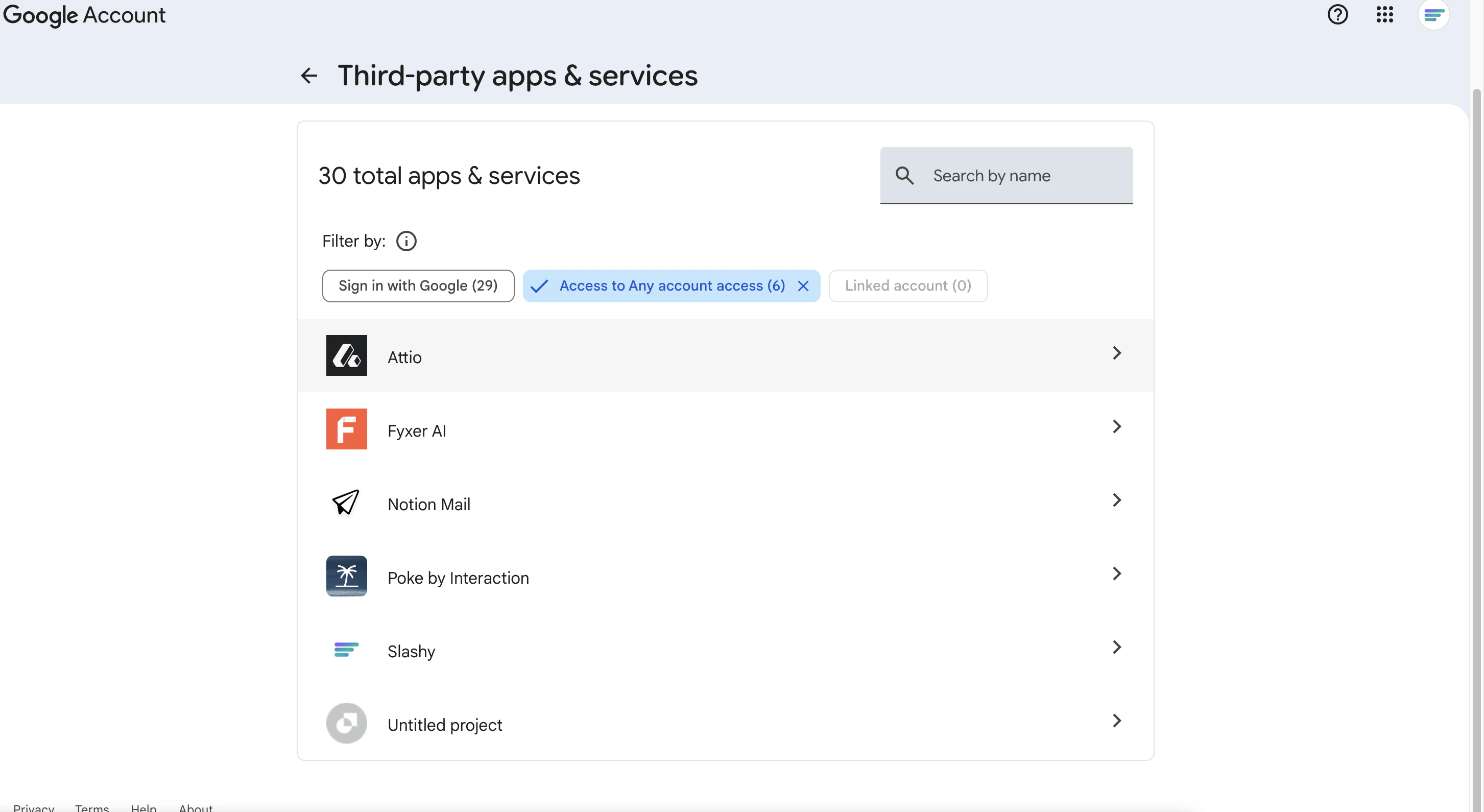
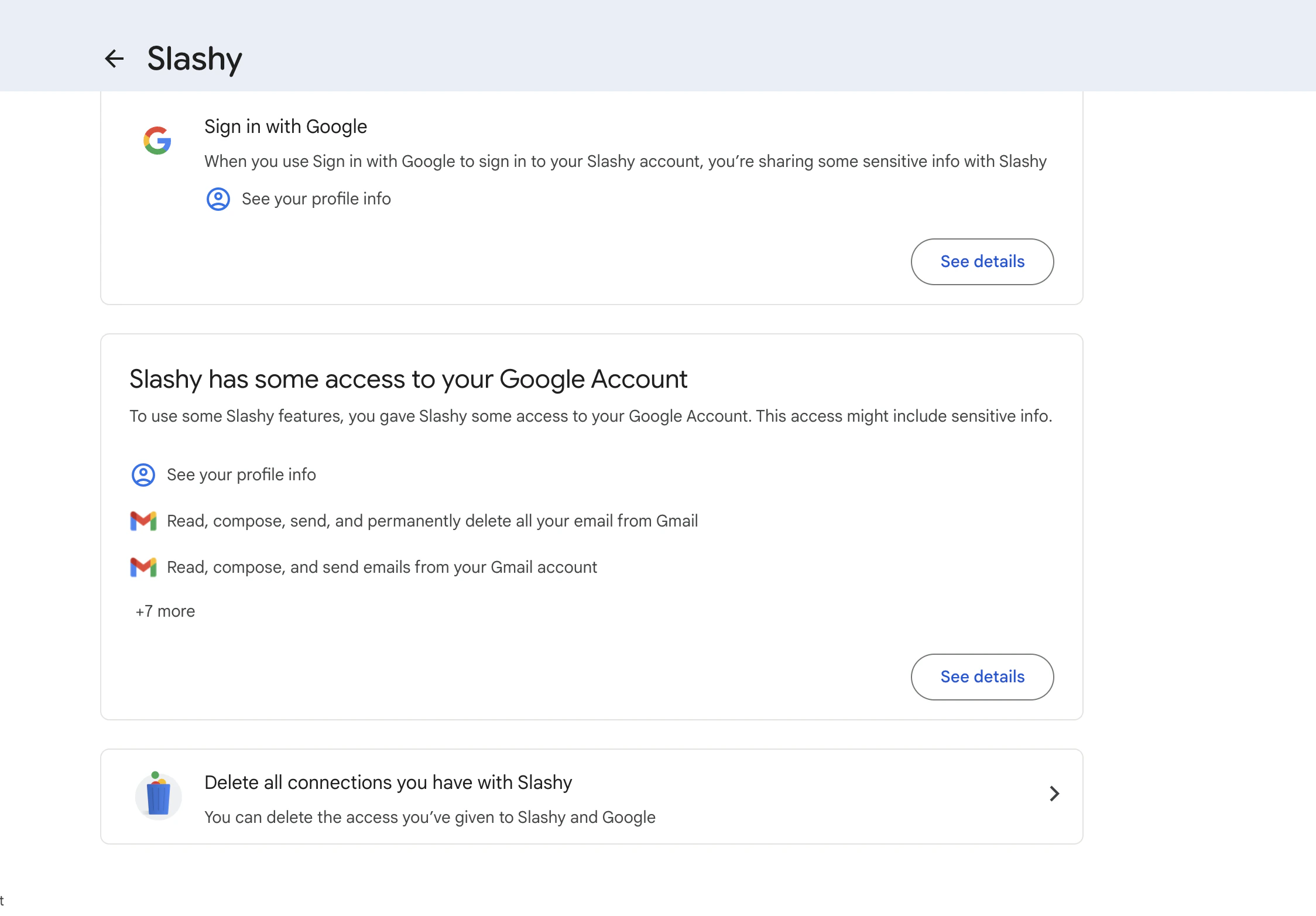 ## Revoke Access
**From Slashy:** Settings > Account > Connected Accounts > remove the account.
**From Google:** Go to [myaccount.google.com/permissions](https://myaccount.google.com/permissions), find Slashy, click **Remove Access**. Tokens are invalidated immediately.
## Common Questions
Slashy caches email metadata and content for display and AI processing. Content is processed by Anthropic's Claude models. All cached data is encrypted at rest and in transit. Revoking access deletes cached data.
Yes -- background access powers automations and real-time sync. This is the same model every email client with push notifications uses. Revoking access stops all background processing immediately.
No. Your data powers your personal AI features only. Anthropic's API policy explicitly prohibits using API inputs for model training.
OAuth tokens are stored in encrypted server-side storage. Tokens can be mass-revoked by Google, and you can individually revoke at [myaccount.google.com/permissions](https://myaccount.google.com/permissions). Slashy never has your password, so a breach cannot compromise your Google credentials.
The production version of Slashy is verified and CASA Tier 2 compliant. If you see this on the main app, contact [support@slashy.com](mailto:support@slashy.com).
***
## Related Articles
Day-by-day guide to getting up and running.
Certifications, encryption, and data handling.
How two-way sync works and what stays untouched.
Sync your calendar after connecting Gmail.
Add and manage multiple Gmail accounts.
## Revoke Access
**From Slashy:** Settings > Account > Connected Accounts > remove the account.
**From Google:** Go to [myaccount.google.com/permissions](https://myaccount.google.com/permissions), find Slashy, click **Remove Access**. Tokens are invalidated immediately.
## Common Questions
Slashy caches email metadata and content for display and AI processing. Content is processed by Anthropic's Claude models. All cached data is encrypted at rest and in transit. Revoking access deletes cached data.
Yes -- background access powers automations and real-time sync. This is the same model every email client with push notifications uses. Revoking access stops all background processing immediately.
No. Your data powers your personal AI features only. Anthropic's API policy explicitly prohibits using API inputs for model training.
OAuth tokens are stored in encrypted server-side storage. Tokens can be mass-revoked by Google, and you can individually revoke at [myaccount.google.com/permissions](https://myaccount.google.com/permissions). Slashy never has your password, so a breach cannot compromise your Google credentials.
The production version of Slashy is verified and CASA Tier 2 compliant. If you see this on the main app, contact [support@slashy.com](mailto:support@slashy.com).
***
## Related Articles
Day-by-day guide to getting up and running.
Certifications, encryption, and data handling.
How two-way sync works and what stays untouched.
Sync your calendar after connecting Gmail.
Add and manage multiple Gmail accounts.