> ## Documentation Index
> Fetch the complete documentation index at: https://help.slashy.com/llms.txt
> Use this file to discover all available pages before exploring further.
# Calendar Setup & Timezone Tips
> Google Calendar sync, timezone display, RSVP from email, availability sharing, and multi-person scheduling.
Slashy includes a full calendar built into your email client. Your Google Calendar syncs automatically when you connect Gmail -- no separate setup.
## Google Calendar Sync
Two-way, continuous sync. Changes in Slashy sync to Google Calendar and vice versa. Multiple Gmail accounts sync independently.
 ## Choose Which Calendars to Show
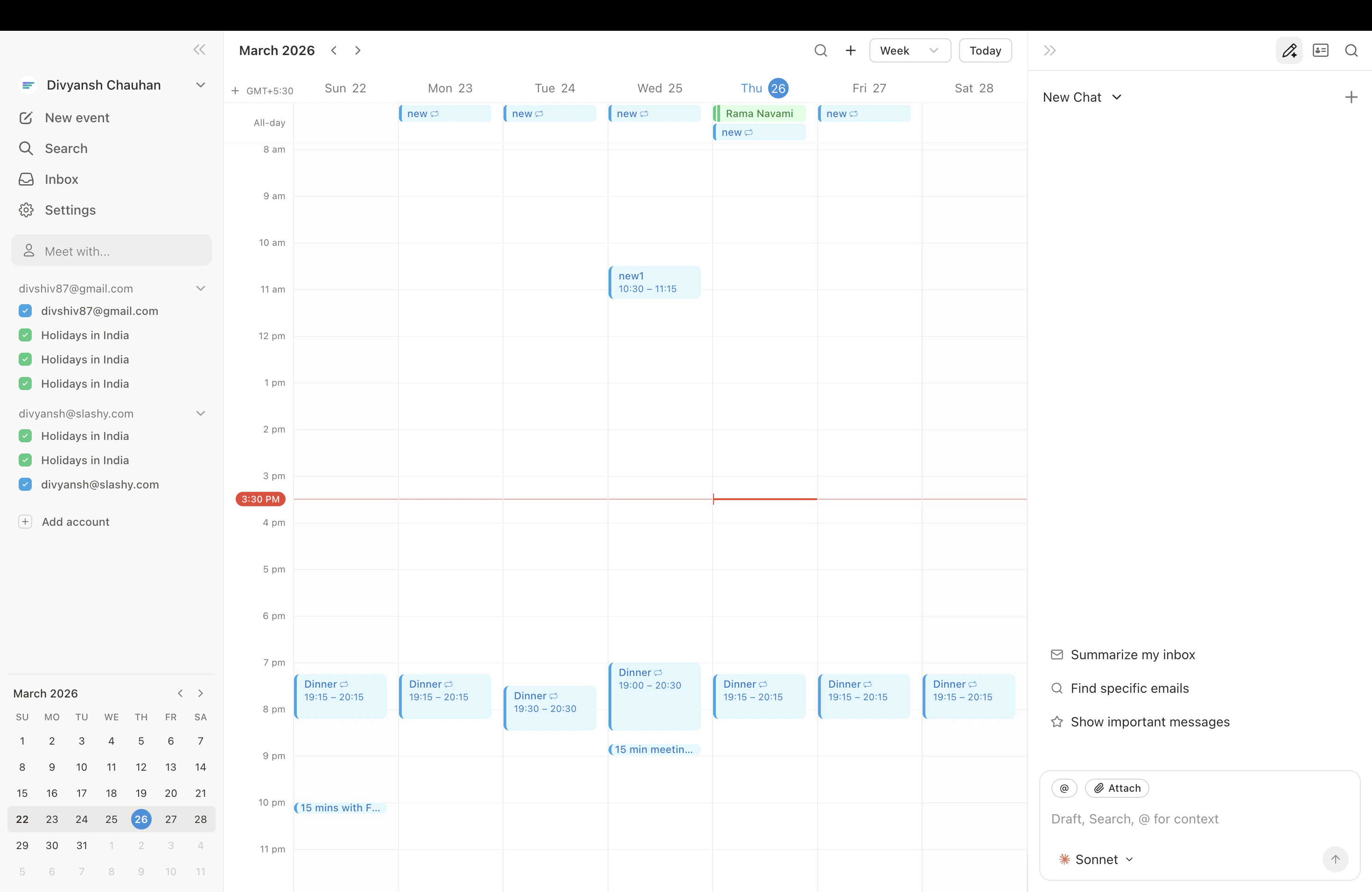
Go to **Settings** (`Cmd+,`) > **Calendars**.
Only enabled calendars appear in the calendar view. Disable calendars you don't need to see.
Choose distinct colors to distinguish work from personal events. Changes take effect immediately.
## Choose Which Calendars to Show
Go to **Settings** (`Cmd+,`) > **Calendars**.
Only enabled calendars appear in the calendar view. Disable calendars you don't need to see.
Choose distinct colors to distinguish work from personal events. Changes take effect immediately.
 ## Timezone Display
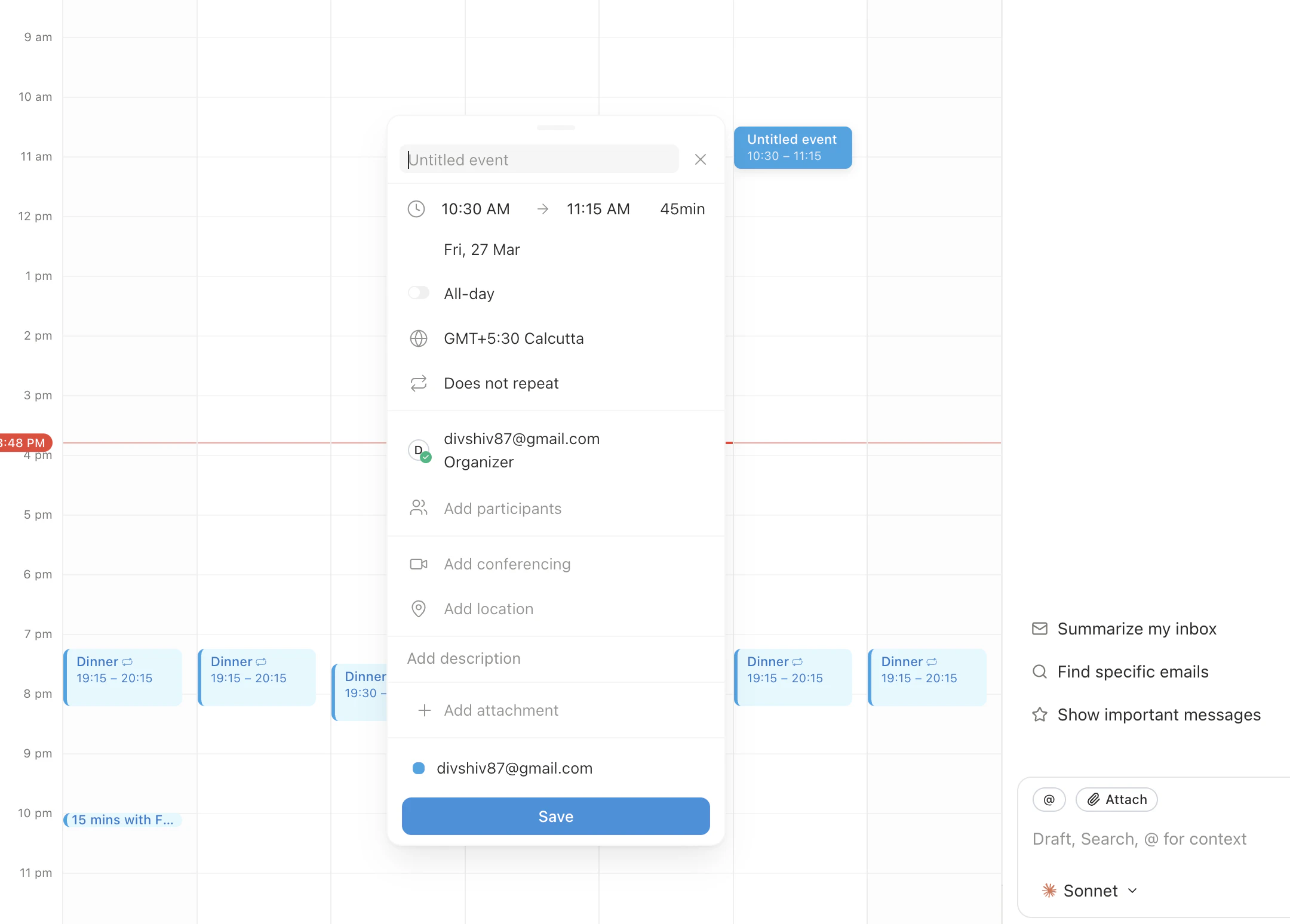
Slashy uses your system timezone. Incoming invites auto-convert to your local time. When creating events with remote attendees, times display in your timezone -- attendees see their own.
## RSVP from Email
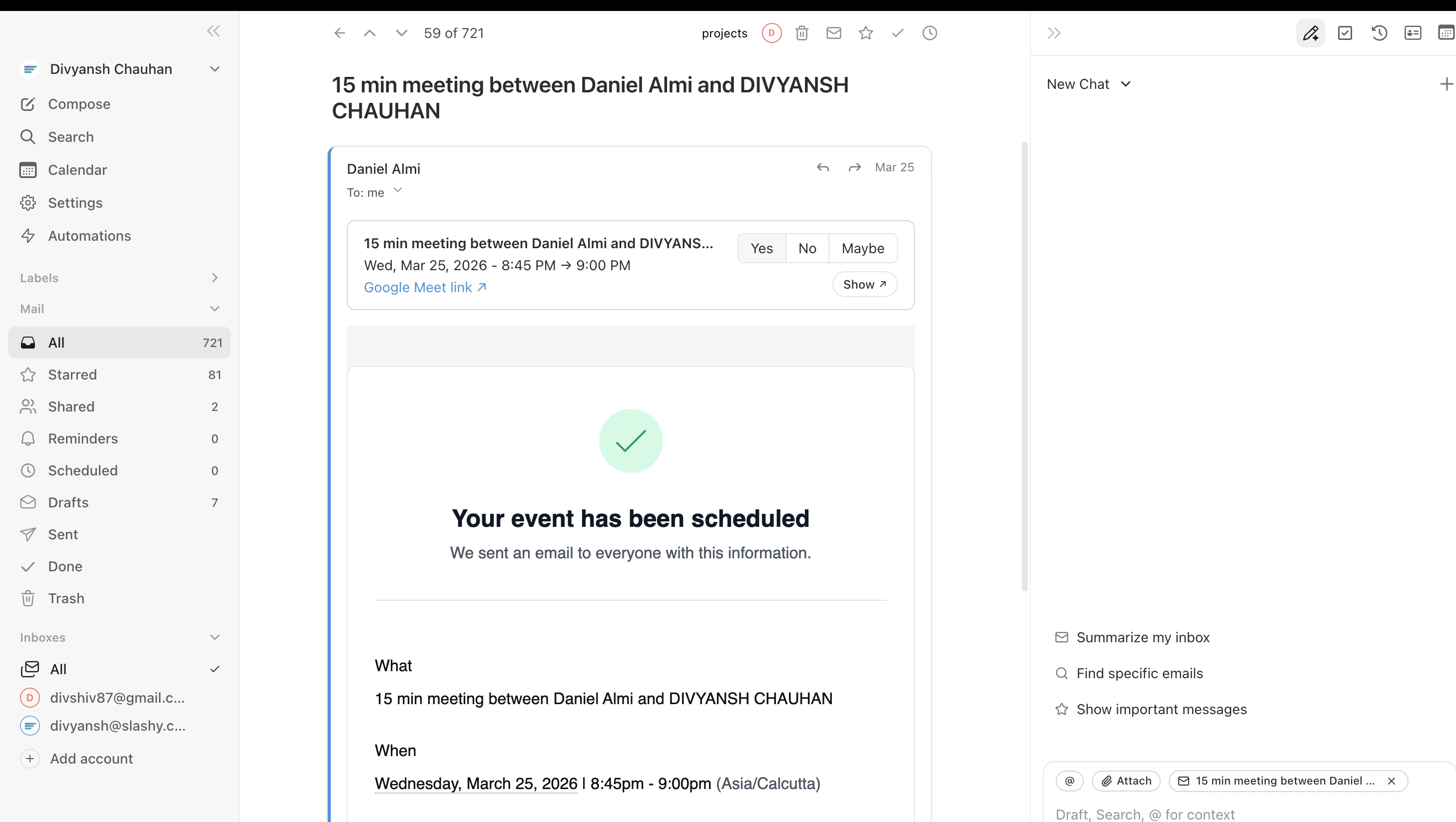
Calendar invites show **Accept**, **Maybe**, and **Decline** buttons directly in the email thread. No need to open Google Calendar.
Press `Tab` on a calendar invite email to accept and archive in one action.
## Timezone Display
Slashy uses your system timezone. Incoming invites auto-convert to your local time. When creating events with remote attendees, times display in your timezone -- attendees see their own.
## RSVP from Email
Calendar invites show **Accept**, **Maybe**, and **Decline** buttons directly in the email thread. No need to open Google Calendar.
Press `Tab` on a calendar invite email to accept and archive in one action.
 ## Creating Events
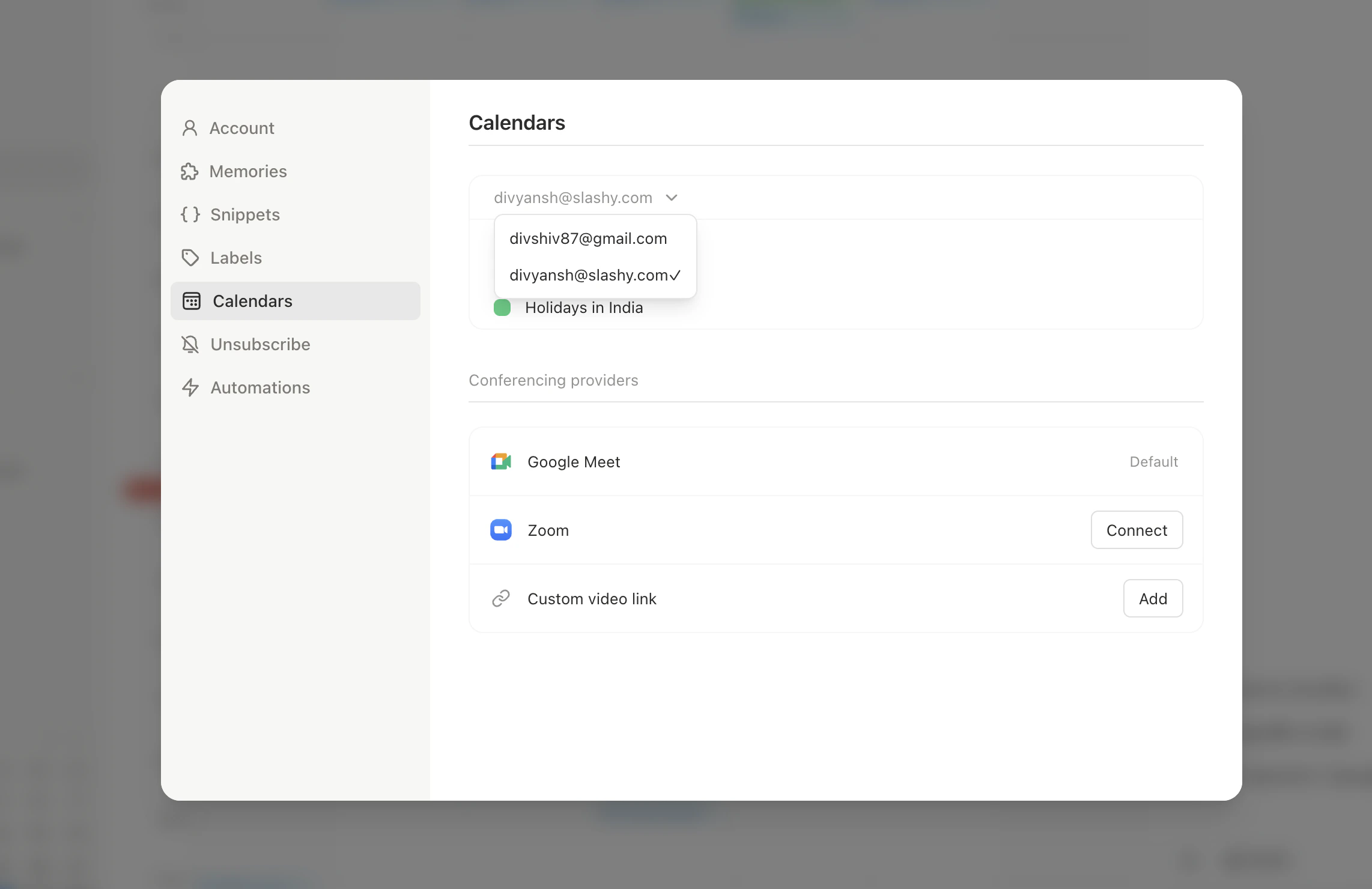
In calendar view, click a time slot and drag to set duration. The event editor opens with time pre-filled.
Press `c` in calendar view or click the create button. Set date and time in the editor.
### Event Editor Fields
| Field | Details |
| ---------------- | ------------------------------------------------ |
| **Title** | Event name |
| **Time** | Start/end. Drag on calendar to reschedule later. |
| **Location** | Address or room name |
| **Attendees** | Add by email with autocomplete |
| **Conferencing** | Google Meet, Zoom, Teams, Webex, or custom link |
| **Recurrence** | Daily, weekly, monthly, or custom pattern |
Delete with `Backspace`. Undo with `z`.
## Share Your Availability
Instead of listing free times manually:
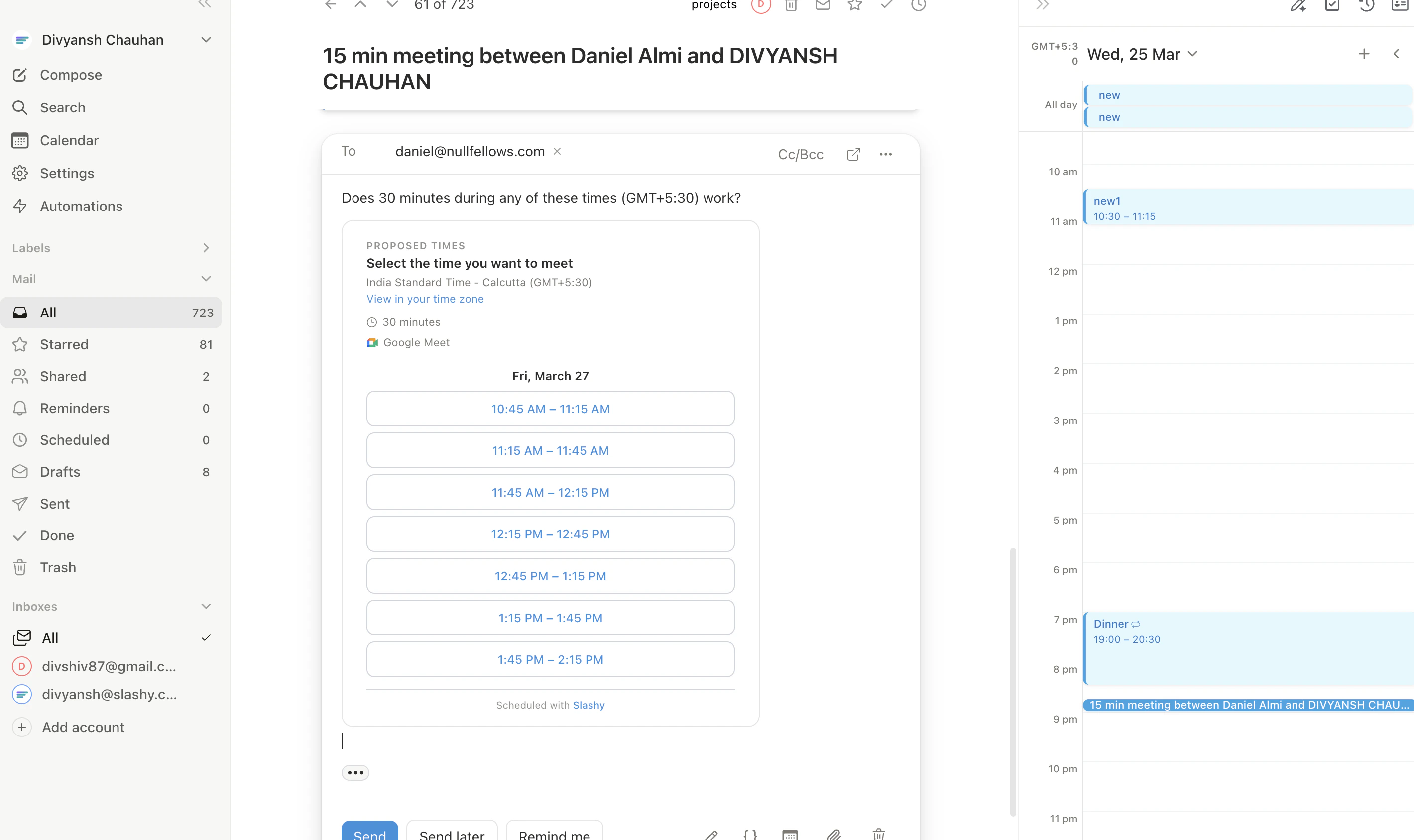
Press `Shift+Cmd+A` in the compose window.
Pick available times on the calendar overlay. Conflicts are visible.
Slashy inserts formatted availability into your email. Recipients see times in their timezone.
## Creating Events
In calendar view, click a time slot and drag to set duration. The event editor opens with time pre-filled.
Press `c` in calendar view or click the create button. Set date and time in the editor.
### Event Editor Fields
| Field | Details |
| ---------------- | ------------------------------------------------ |
| **Title** | Event name |
| **Time** | Start/end. Drag on calendar to reschedule later. |
| **Location** | Address or room name |
| **Attendees** | Add by email with autocomplete |
| **Conferencing** | Google Meet, Zoom, Teams, Webex, or custom link |
| **Recurrence** | Daily, weekly, monthly, or custom pattern |
Delete with `Backspace`. Undo with `z`.
## Share Your Availability
Instead of listing free times manually:
Press `Shift+Cmd+A` in the compose window.
Pick available times on the calendar overlay. Conflicts are visible.
Slashy inserts formatted availability into your email. Recipients see times in their timezone.
 ## Meet With (Busy Time Overlay)
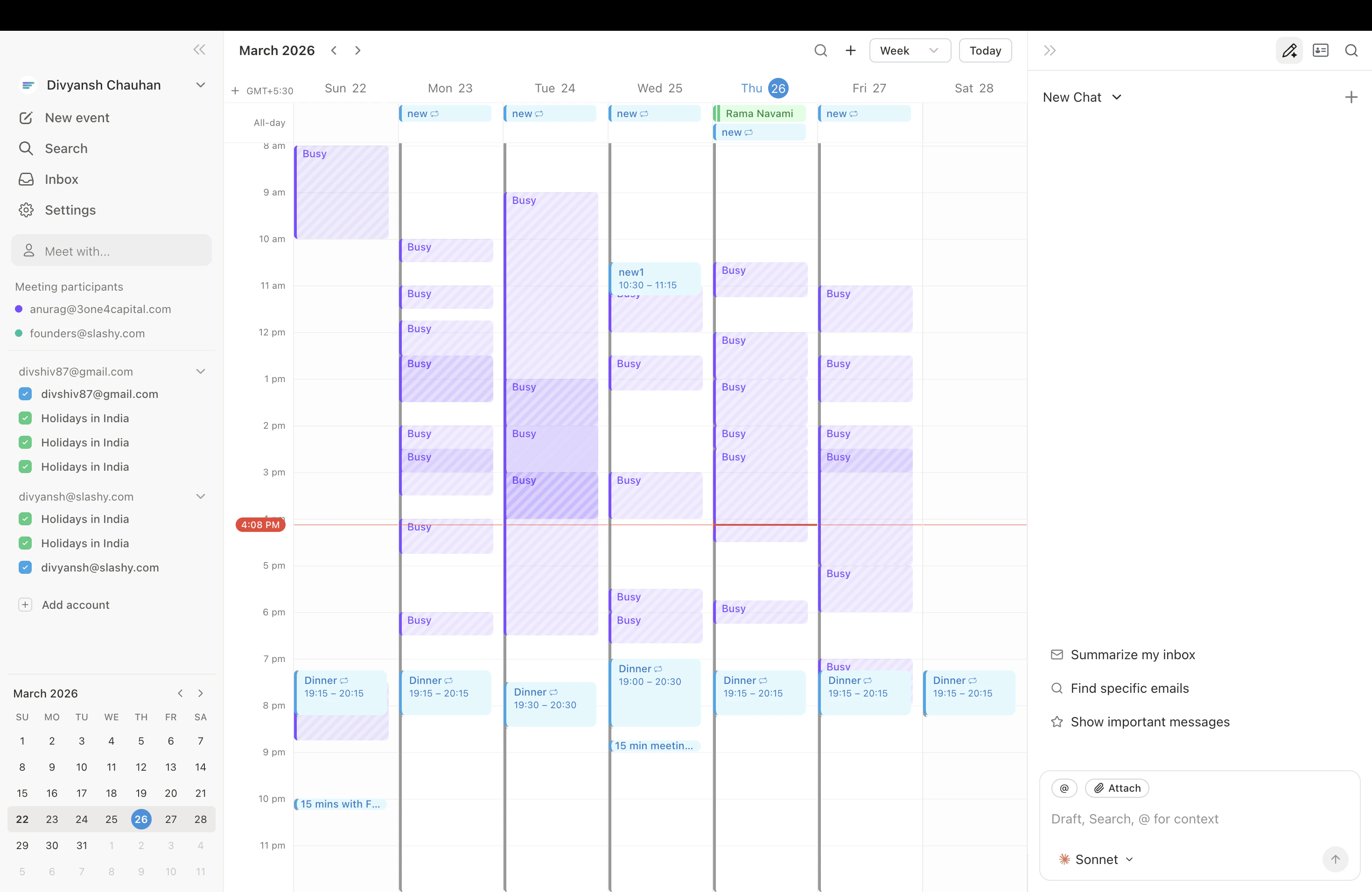
Find times that work for multiple people:
Press `2` to switch to the calendar.
Use the **Meet With** feature and add the people you want to meet.
Their busy times appear as shaded blocks alongside your events. Click any open gap to create an event.
Works for anyone in your org or who has shared their calendar with you.
## Meet With (Busy Time Overlay)
Find times that work for multiple people:
Press `2` to switch to the calendar.
Use the **Meet With** feature and add the people you want to meet.
Their busy times appear as shaded blocks alongside your events. Click any open gap to create an event.
Works for anyone in your org or who has shared their calendar with you.
 ## Keyboard Shortcuts
| Shortcut | Action |
| ------------- | -------------------------------- |
| `2` | Switch to calendar |
| `1` | Switch to email |
| `t` | Jump to today |
| `c` | Create event |
| `Backspace` | Delete event |
| `Shift+Cmd+A` | Insert availability (in compose) |
***
## Related Articles
Day-by-day onboarding guide.
Auto-generate attendee briefings before every meeting.
iOS app setup and features.
## Keyboard Shortcuts
| Shortcut | Action |
| ------------- | -------------------------------- |
| `2` | Switch to calendar |
| `1` | Switch to email |
| `t` | Jump to today |
| `c` | Create event |
| `Backspace` | Delete event |
| `Shift+Cmd+A` | Insert availability (in compose) |
***
## Related Articles
Day-by-day onboarding guide.
Auto-generate attendee briefings before every meeting.
iOS app setup and features.