> ## Documentation Index
> Fetch the complete documentation index at: https://help.slashy.com/llms.txt
> Use this file to discover all available pages before exploring further.
# Search operators and filters
> Find any email by sender, recipient, content, or person, across one inbox or all of them.
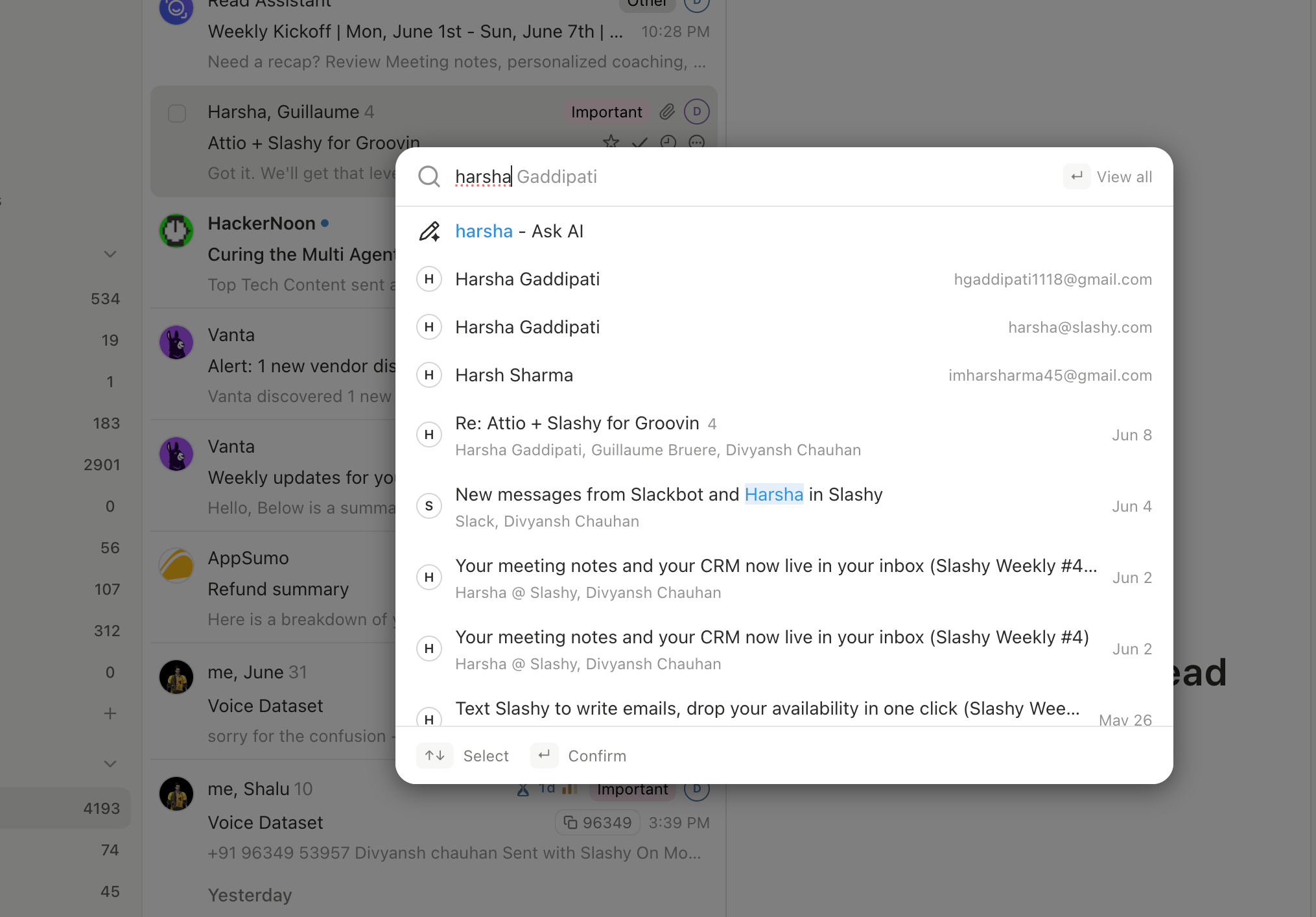
Press `/` from anywhere in Slashy to open search. Results stream as you type. Use `j` and `k` to move between hits and `Enter` to open the thread.
 ## One inbox or all inboxes
Search scope is the most common source of confusion, so it is worth being explicit.
* If you are inside one connected account, search returns matches from that inbox only.
* Switch to the unified All Inboxes view first if you want to search across every connected account at once.
* The current scope is shown next to the search field so you always know what you are searching.
## One inbox or all inboxes
Search scope is the most common source of confusion, so it is worth being explicit.
* If you are inside one connected account, search returns matches from that inbox only.
* Switch to the unified All Inboxes view first if you want to search across every connected account at once.
* The current scope is shown next to the search field so you always know what you are searching.
 ## Cross-participant people search
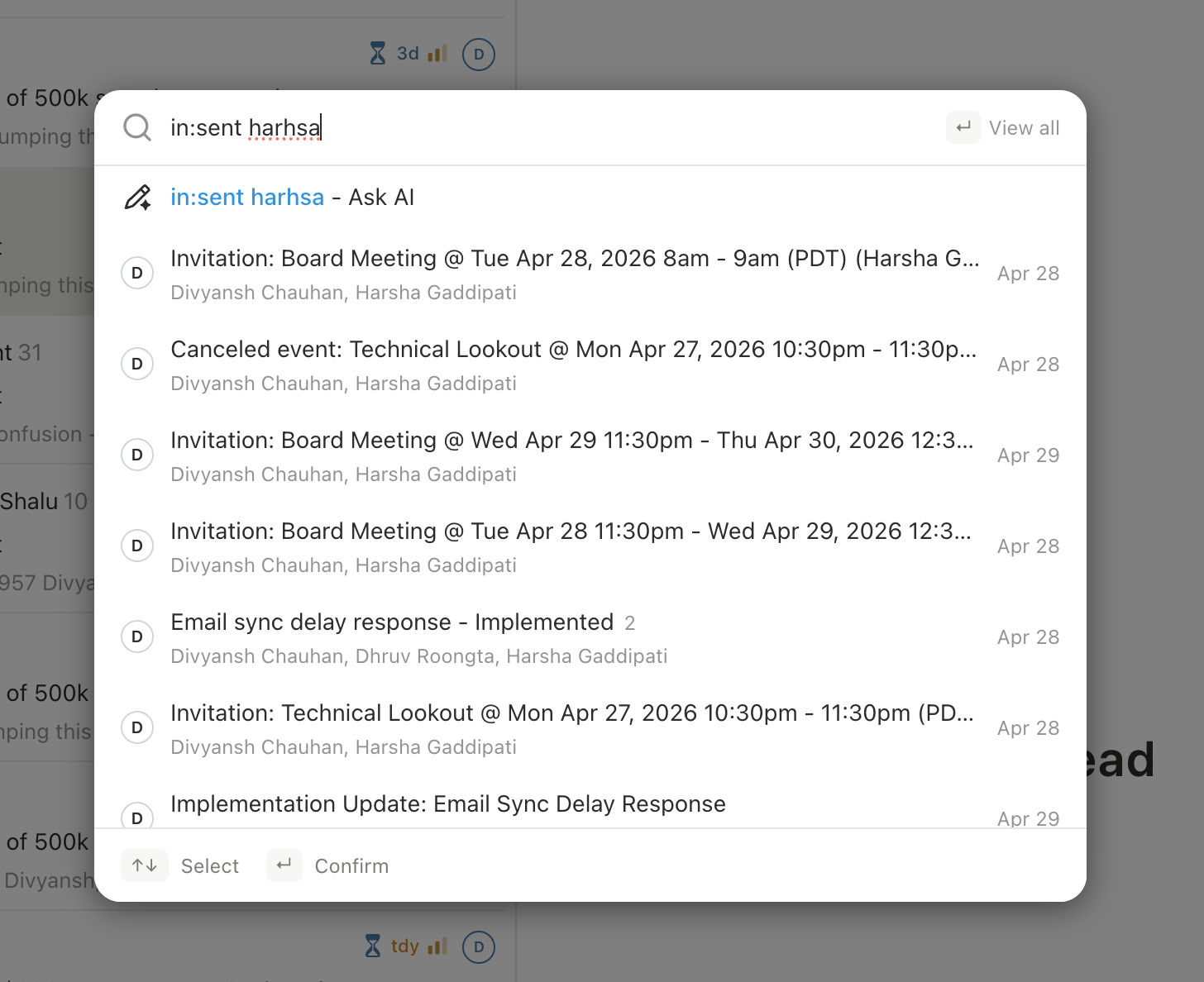
Typing a person's name finds threads where they were the sender, a recipient, or on CC. You do not need to remember which direction the conversation went. Domain and prefix matches work too, so `acme.com` returns every thread that touched anyone at Acme.
Very short queries (two characters or fewer) match on full name fields only, not on partial substrings. This stops `jo` from pulling in every "join" and "John" in your archive.
## Operators
| Operator | Example | Finds |
| -------- | ------------------------ | ---------------------------------------- |
| `from:` | `from:sarah@acme.com` | Threads where this person sent a message |
| `to:` | `to:team@company.com` | Threads addressed to this recipient |
| `cc:` | `cc:manager@company.com` | Threads where this address was on CC |
Partial matches work: `to:acme` matches anyone at acme.com.
| Operator | Example | Finds |
| ----------- | ------------------- | --------------------------------- |
| `subject:` | `subject:quarterly` | Word in the subject line |
| (free text) | `budget proposal` | Words anywhere in subject or body |
| `"quoted"` | `"action items"` | Exact phrase match |
| Operator | Finds |
| ---------------- | ------------------------------------------------------------------------------ |
| `is:unread` | Unread threads |
| `is:starred` | Starred threads |
| `is:important` | Threads in the Important label |
| `has:attachment` | Messages with at least one attachment |
| `label:` | Threads carrying a specific label |
| `in:` | A specific location: `in:inbox`, `in:sent`, `in:trash`, `in:spam`, `in:drafts` |
| `in:anywhere` | Every location at once, including trash and spam |
| Operator | Example |
| --------- | ------------------- |
| `before:` | `before:2026-05-01` |
| `after:` | `after:2026-04-01` |
Combine for a range: `after:2026-01-01 before:2026-02-01`.
## Cross-participant people search
Typing a person's name finds threads where they were the sender, a recipient, or on CC. You do not need to remember which direction the conversation went. Domain and prefix matches work too, so `acme.com` returns every thread that touched anyone at Acme.
Very short queries (two characters or fewer) match on full name fields only, not on partial substrings. This stops `jo` from pulling in every "join" and "John" in your archive.
## Operators
| Operator | Example | Finds |
| -------- | ------------------------ | ---------------------------------------- |
| `from:` | `from:sarah@acme.com` | Threads where this person sent a message |
| `to:` | `to:team@company.com` | Threads addressed to this recipient |
| `cc:` | `cc:manager@company.com` | Threads where this address was on CC |
Partial matches work: `to:acme` matches anyone at acme.com.
| Operator | Example | Finds |
| ----------- | ------------------- | --------------------------------- |
| `subject:` | `subject:quarterly` | Word in the subject line |
| (free text) | `budget proposal` | Words anywhere in subject or body |
| `"quoted"` | `"action items"` | Exact phrase match |
| Operator | Finds |
| ---------------- | ------------------------------------------------------------------------------ |
| `is:unread` | Unread threads |
| `is:starred` | Starred threads |
| `is:important` | Threads in the Important label |
| `has:attachment` | Messages with at least one attachment |
| `label:` | Threads carrying a specific label |
| `in:` | A specific location: `in:inbox`, `in:sent`, `in:trash`, `in:spam`, `in:drafts` |
| `in:anywhere` | Every location at once, including trash and spam |
| Operator | Example |
| --------- | ------------------- |
| `before:` | `before:2026-05-01` |
| `after:` | `after:2026-04-01` |
Combine for a range: `after:2026-01-01 before:2026-02-01`.
 ## Combining operators
Terms are joined with AND by default. Use `OR` for either condition and `-` to exclude.
```
from:sarah budget implicit AND
from:sarah OR from:mike either sender
from:sarah -subject:newsletter exclude newsletters
(from:sarah OR from:mike) is:unread grouped logic
```
## Keyboard navigation
| Action | Shortcut |
| --------------------------- | -------- |
| Open search | `/` |
| Next result | `j` |
| Previous result | `k` |
| Open the highlighted thread | `Enter` |
| Close search | `Esc` |
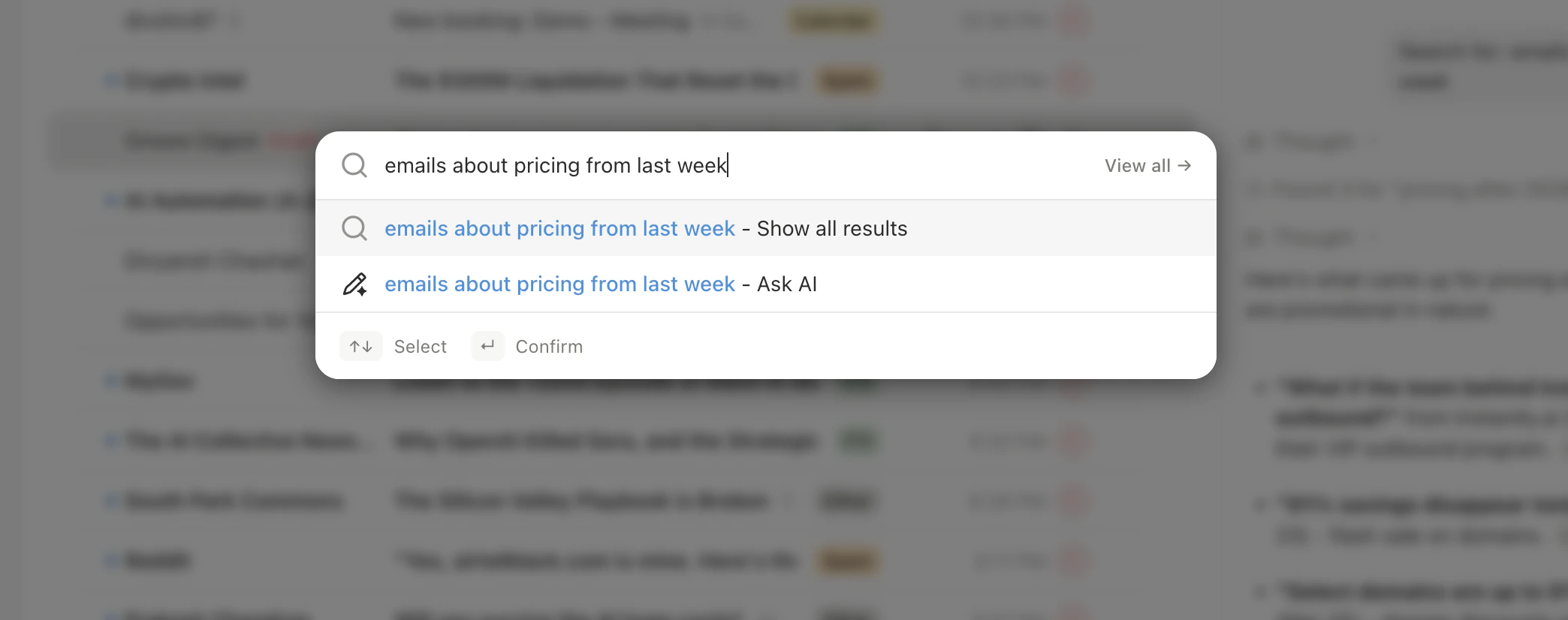
For natural language, open the command palette with `Cmd+K` and type a sentence like "unread emails from investors about term sheets." The palette translates it into a search query for you.
The full reference for navigating Slashy.
Filtered views you can scope search inside.
Multi-select results to archive or label in one pass.
Pivot from any thread to the contact profile.
Natural language search and actions with `Cmd+K`.
## Combining operators
Terms are joined with AND by default. Use `OR` for either condition and `-` to exclude.
```
from:sarah budget implicit AND
from:sarah OR from:mike either sender
from:sarah -subject:newsletter exclude newsletters
(from:sarah OR from:mike) is:unread grouped logic
```
## Keyboard navigation
| Action | Shortcut |
| --------------------------- | -------- |
| Open search | `/` |
| Next result | `j` |
| Previous result | `k` |
| Open the highlighted thread | `Enter` |
| Close search | `Esc` |
For natural language, open the command palette with `Cmd+K` and type a sentence like "unread emails from investors about term sheets." The palette translates it into a search query for you.
The full reference for navigating Slashy.
Filtered views you can scope search inside.
Multi-select results to archive or label in one pass.
Pivot from any thread to the contact profile.
Natural language search and actions with `Cmd+K`.