> ## Documentation Index
> Fetch the complete documentation index at: https://help.slashy.com/llms.txt
> Use this file to discover all available pages before exploring further.
# Slack bot
> Connect Slashy to Slack for two-way agent control: DM the bot to draft emails, manage your calendar, and run automations, plus channel notifications for your team.
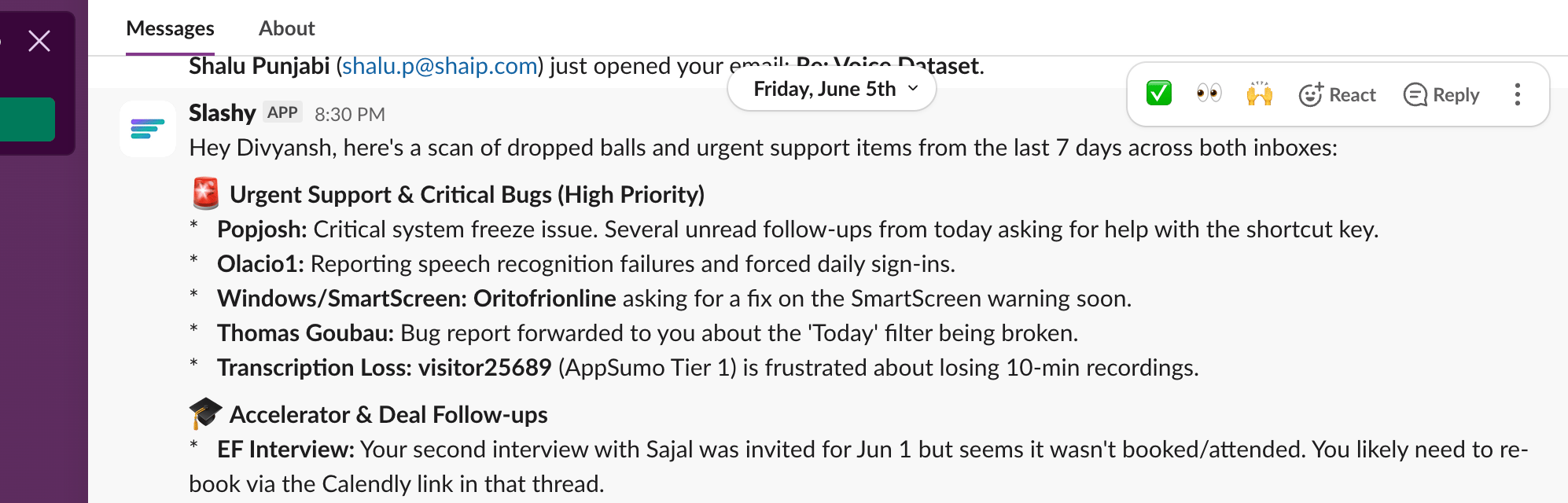
The Slashy Slack integration works in both directions. You can DM the Slashy bot to manage your email, calendar, and reminders using natural language, exactly like the iMessage agent. You can also have the bot post automation results, daily briefings, and VIP email alerts to any channel your team uses.
## Connect Slack
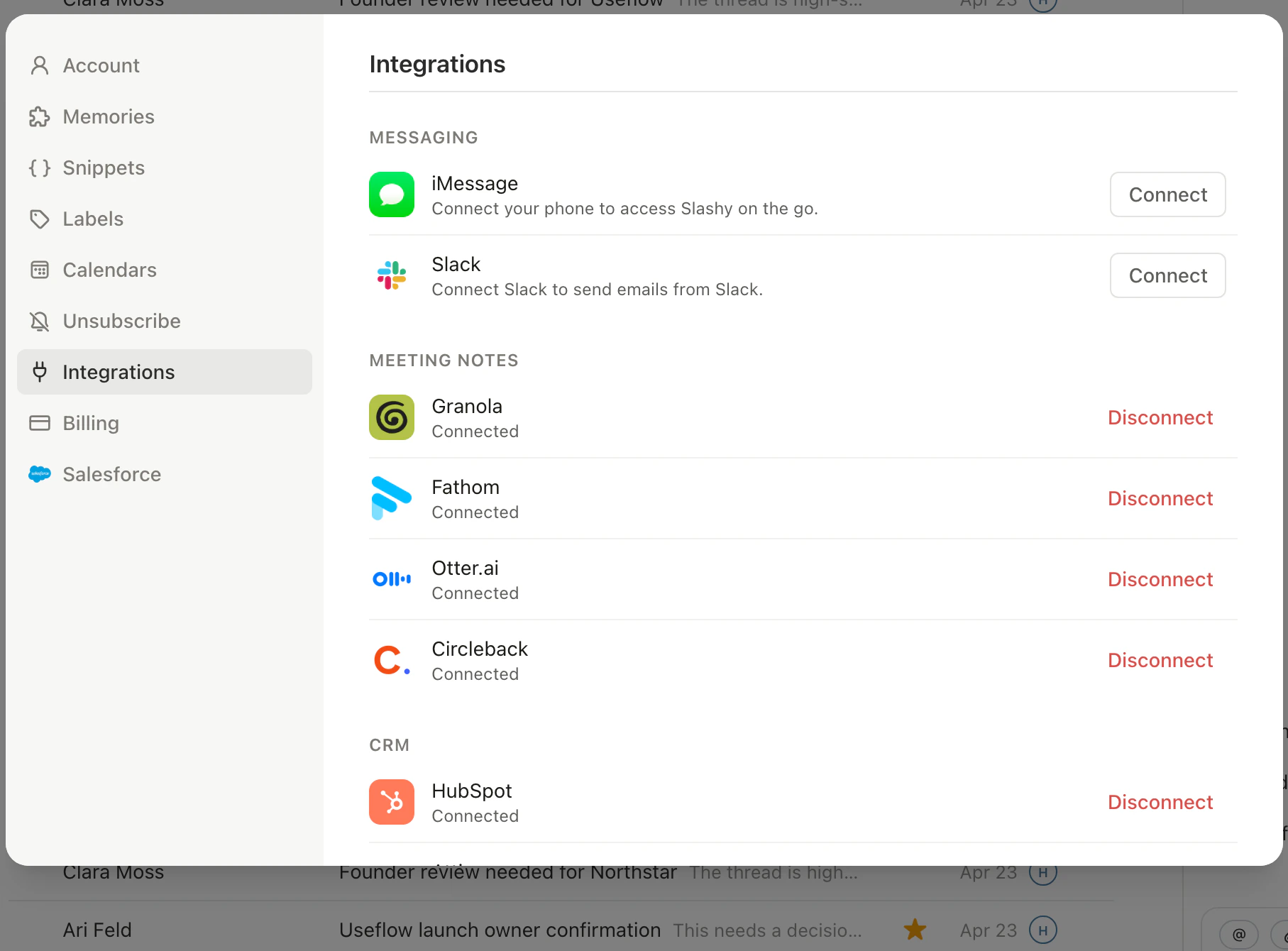
Go to Settings, Integrations, Slack.
Click Connect Slack. Sign in with the Slack workspace you want Slashy to post into, then approve the requested scopes.
Choose a default channel for general notifications. You can route specific event types to different channels later on the same screen.
 ## Use the agent from Slack
Once connected, you have full two-way control over Slashy directly from Slack.
### DM the bot
Open a direct message with the Slashy bot and send any instruction in plain English. The bot handles the same actions available in the iMessage agent:
* "Draft a reply to the last email from [sarah@acme.com](mailto:sarah@acme.com) and tell her Thursday works"
* "What's on my calendar tomorrow?"
* "Remind me to follow up with Alex on Friday at 9am"
* "Search my inbox for emails from investors this week"
* "Label everything from [noreply@notion.so](mailto:noreply@notion.so) as Newsletter"
The bot sends results back in the DM thread, including links you can click to open threads or drafts in the Slashy app.
### @mention in a channel
Tag the Slashy bot in any public or private channel and it replies in-thread. This lets your team trigger Slashy actions in context, such as asking for a quick email summary during a standup or pulling meeting prep into a deal channel.
Only the account owner's messages are treated as instructions. Messages from other channel members are treated as context, not commands, so teammates cannot act on your email or calendar.
### Proactive messages
When iMessage is unavailable, reminders, daily digests, and trigger notifications fall back to Slack automatically.
## What the bot can post
Once connected, the bot posts:
* **Automation results.** Every time an email or calendar trigger fires, Slashy can post a short summary to a channel. Useful for sales teams that want to see new replies, or ops teams that want to see when scheduled outreach lands.
* **Daily briefings.** The same morning briefing the iMessage agent delivers can be mirrored to a Slack channel. Helpful for shared accounts or team standups.
* **VIP email alerts.** When mail from a contact you've flagged as VIP arrives, the bot pings a channel so the thread doesn't sit in the inbox unread.
## Use the agent from Slack
Once connected, you have full two-way control over Slashy directly from Slack.
### DM the bot
Open a direct message with the Slashy bot and send any instruction in plain English. The bot handles the same actions available in the iMessage agent:
* "Draft a reply to the last email from [sarah@acme.com](mailto:sarah@acme.com) and tell her Thursday works"
* "What's on my calendar tomorrow?"
* "Remind me to follow up with Alex on Friday at 9am"
* "Search my inbox for emails from investors this week"
* "Label everything from [noreply@notion.so](mailto:noreply@notion.so) as Newsletter"
The bot sends results back in the DM thread, including links you can click to open threads or drafts in the Slashy app.
### @mention in a channel
Tag the Slashy bot in any public or private channel and it replies in-thread. This lets your team trigger Slashy actions in context, such as asking for a quick email summary during a standup or pulling meeting prep into a deal channel.
Only the account owner's messages are treated as instructions. Messages from other channel members are treated as context, not commands, so teammates cannot act on your email or calendar.
### Proactive messages
When iMessage is unavailable, reminders, daily digests, and trigger notifications fall back to Slack automatically.
## What the bot can post
Once connected, the bot posts:
* **Automation results.** Every time an email or calendar trigger fires, Slashy can post a short summary to a channel. Useful for sales teams that want to see new replies, or ops teams that want to see when scheduled outreach lands.
* **Daily briefings.** The same morning briefing the iMessage agent delivers can be mirrored to a Slack channel. Helpful for shared accounts or team standups.
* **VIP email alerts.** When mail from a contact you've flagged as VIP arrives, the bot pings a channel so the thread doesn't sit in the inbox unread.
 ## Choose channels per event
Each notification category has its own channel selector. A common setup:
* `#slashy-replies` for reply notifications and VIP alerts
* `#ops-automations` for automation runs and scheduled sends
* A DM with yourself for the daily briefing
Slashy only posts to channels the bot has been invited to. If a channel is private, run `/invite @Slashy` in that channel first.
## Disconnect
To stop posting, open Settings, Integrations, Slack and click Disconnect. The Slack app stays installed in your workspace until a workspace admin removes it from the Slack app directory, but Slashy will stop sending messages immediately.
Disconnecting does not delete past Slack messages. Channel history is owned by Slack.
Log emails to HubSpot contacts automatically.
Sync contacts and email activity with Attio.
Run Slashy from text messages.
Triggers that post to Slack on every run.
Connect Slashy to other tools over MCP.
## Choose channels per event
Each notification category has its own channel selector. A common setup:
* `#slashy-replies` for reply notifications and VIP alerts
* `#ops-automations` for automation runs and scheduled sends
* A DM with yourself for the daily briefing
Slashy only posts to channels the bot has been invited to. If a channel is private, run `/invite @Slashy` in that channel first.
## Disconnect
To stop posting, open Settings, Integrations, Slack and click Disconnect. The Slack app stays installed in your workspace until a workspace admin removes it from the Slack app directory, but Slashy will stop sending messages immediately.
Disconnecting does not delete past Slack messages. Channel history is owned by Slack.
Log emails to HubSpot contacts automatically.
Sync contacts and email activity with Attio.
Run Slashy from text messages.
Triggers that post to Slack on every run.
Connect Slashy to other tools over MCP.