> ## Documentation Index
> Fetch the complete documentation index at: https://help.slashy.com/llms.txt
> Use this file to discover all available pages before exploring further.
# Salesforce integration
> Connect Salesforce to see account context in the sidebar, log emails, and let the agent read and update records.
The Salesforce integration brings your CRM into the inbox. Connect once and Slashy surfaces the matching Salesforce records beside any email, logs outbound mail to the timeline, and lets the agent look up, update, and add notes to records in plain English.
## Connect Salesforce
Press `Cmd+,`.
Choose Integrations in the sidebar, then CRM, then Salesforce.
Click Connect and sign in with the Salesforce org that owns your CRM data. Approve the access prompt.
Slashy shows Connected once authorization completes.
## Account context in the sidebar
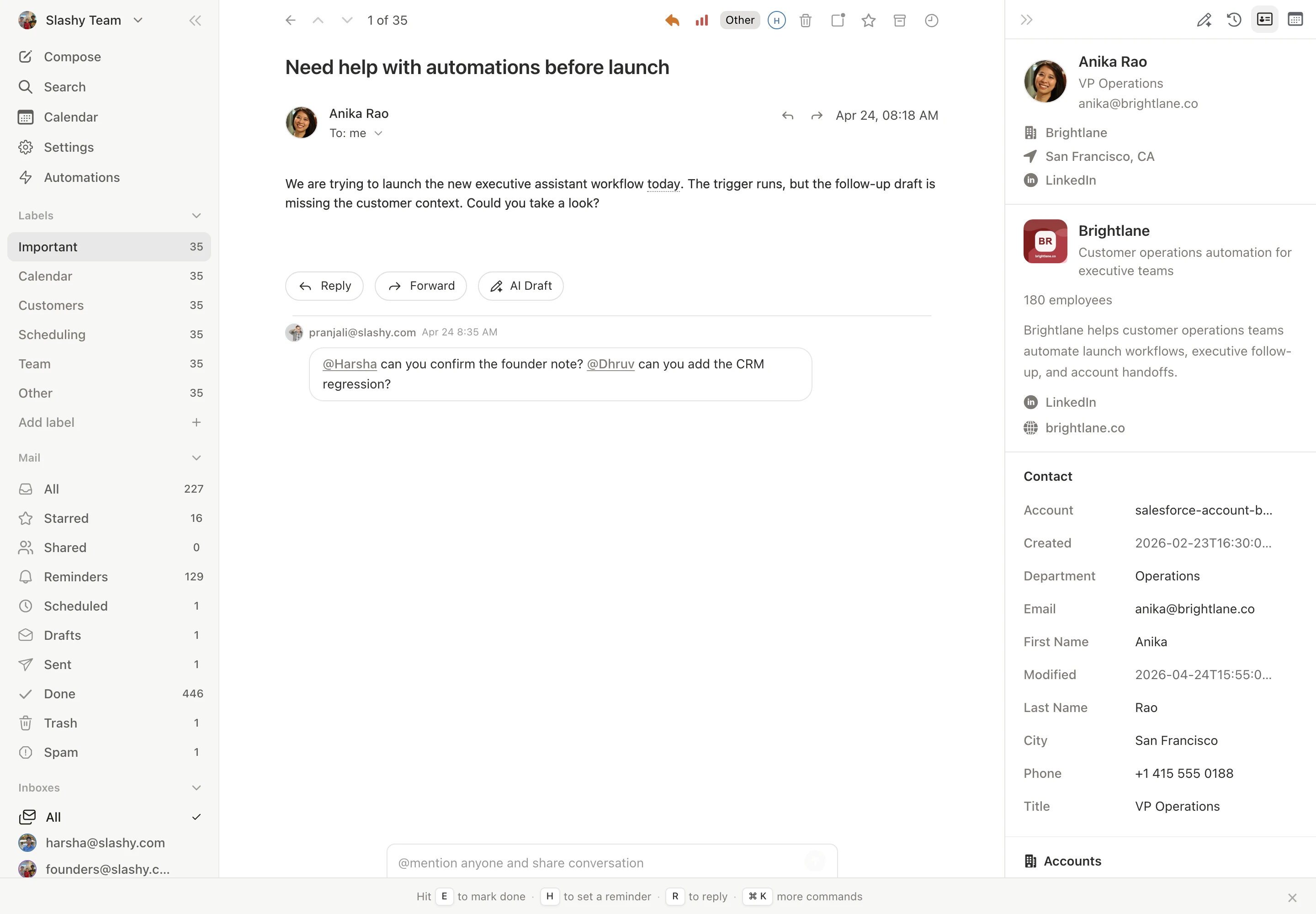
Open any email and the contact sidebar shows the matching Salesforce records for that person, using the field labels from your org so the data reads the way your team already names it. You get the record at a glance without leaving the thread.
 ## What the agent can do
Ask the agent (`Cmd+Shift+L`) about a record and it works directly against Salesforce:
| Ask | What happens |
| ----------------------------------------------------- | ------------------------------------------------------------ |
| "Who is this contact in Salesforce?" | Looks up the Contact or Lead by email and returns the record |
| "Find the Acme account" | Searches Salesforce by name or field |
| "Update the stage on this opportunity to Negotiation" | Updates the record |
| "Log a note on this contact summarizing the call" | Adds a note to the record timeline |
The agent looks up both Contacts and Leads, so it finds the right record whether or not the person has been converted yet.
Write actions (updating records, adding notes) are blocked when Read Mode is on, so the agent can still read and draft without changing anything in your CRM. See [Agent autonomy](/features/ai-agent/autonomy).
## Log outbound emails with auto BCC
Slashy can log every outbound email to Salesforce by adding a hidden BCC to your CRM logging address.
Settings, then CRM.
Scroll to the Email Logging section.
Flip the auto BCC toggle. Slashy adds your Salesforce logging address to every outbound message.
When auto BCC is on, every compose window shows a CRM badge near the send button. Click the badge to skip logging for a single email.
Log emails and enrich contacts with HubSpot.
Connect Attio CRM.
See who you are emailing at a glance.
Control what the agent can do on its own.
## What the agent can do
Ask the agent (`Cmd+Shift+L`) about a record and it works directly against Salesforce:
| Ask | What happens |
| ----------------------------------------------------- | ------------------------------------------------------------ |
| "Who is this contact in Salesforce?" | Looks up the Contact or Lead by email and returns the record |
| "Find the Acme account" | Searches Salesforce by name or field |
| "Update the stage on this opportunity to Negotiation" | Updates the record |
| "Log a note on this contact summarizing the call" | Adds a note to the record timeline |
The agent looks up both Contacts and Leads, so it finds the right record whether or not the person has been converted yet.
Write actions (updating records, adding notes) are blocked when Read Mode is on, so the agent can still read and draft without changing anything in your CRM. See [Agent autonomy](/features/ai-agent/autonomy).
## Log outbound emails with auto BCC
Slashy can log every outbound email to Salesforce by adding a hidden BCC to your CRM logging address.
Settings, then CRM.
Scroll to the Email Logging section.
Flip the auto BCC toggle. Slashy adds your Salesforce logging address to every outbound message.
When auto BCC is on, every compose window shows a CRM badge near the send button. Click the badge to skip logging for a single email.
Log emails and enrich contacts with HubSpot.
Connect Attio CRM.
See who you are emailing at a glance.
Control what the agent can do on its own.