> ## Documentation Index
> Fetch the complete documentation index at: https://help.slashy.com/llms.txt
> Use this file to discover all available pages before exploring further.
# Notion integration
> Connect Notion to save email threads, summaries, and action items to your workspace without leaving the inbox.
The Notion integration turns email into a knowledge base. Connect once and Slashy can save threads, summaries, and action items to the Notion pages and databases you already use, so the context lives where your team works instead of trapped in an inbox.
## Connect Notion
Press `Cmd+,`.
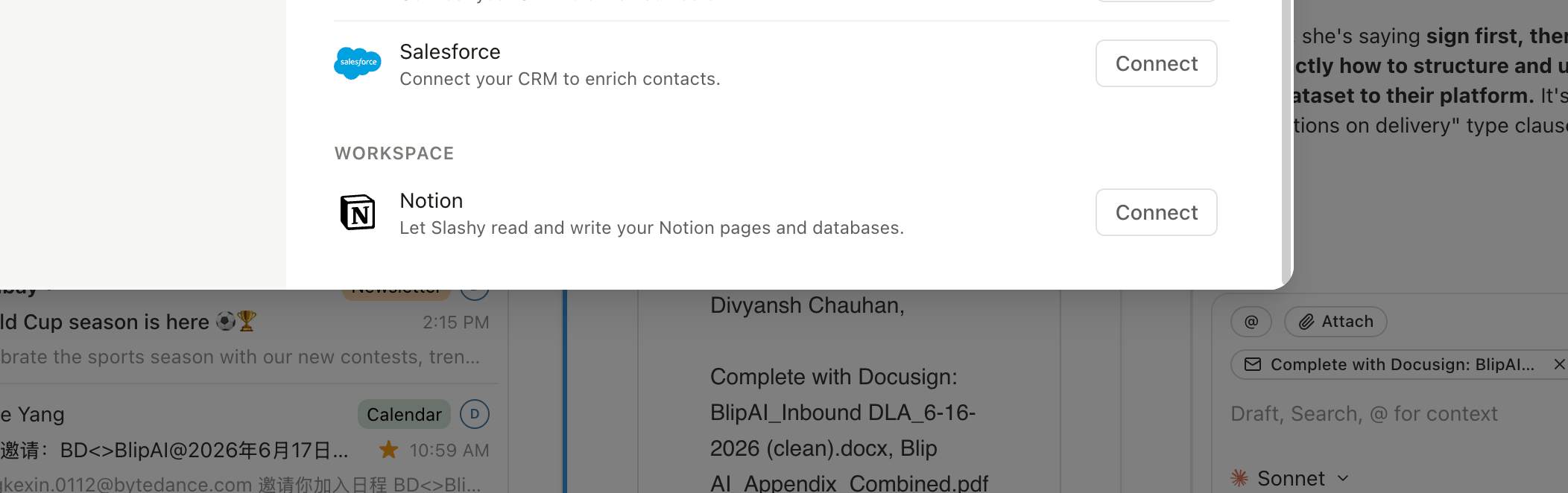
Choose Integrations in the sidebar, then click Connect next to Notion under Workspace.
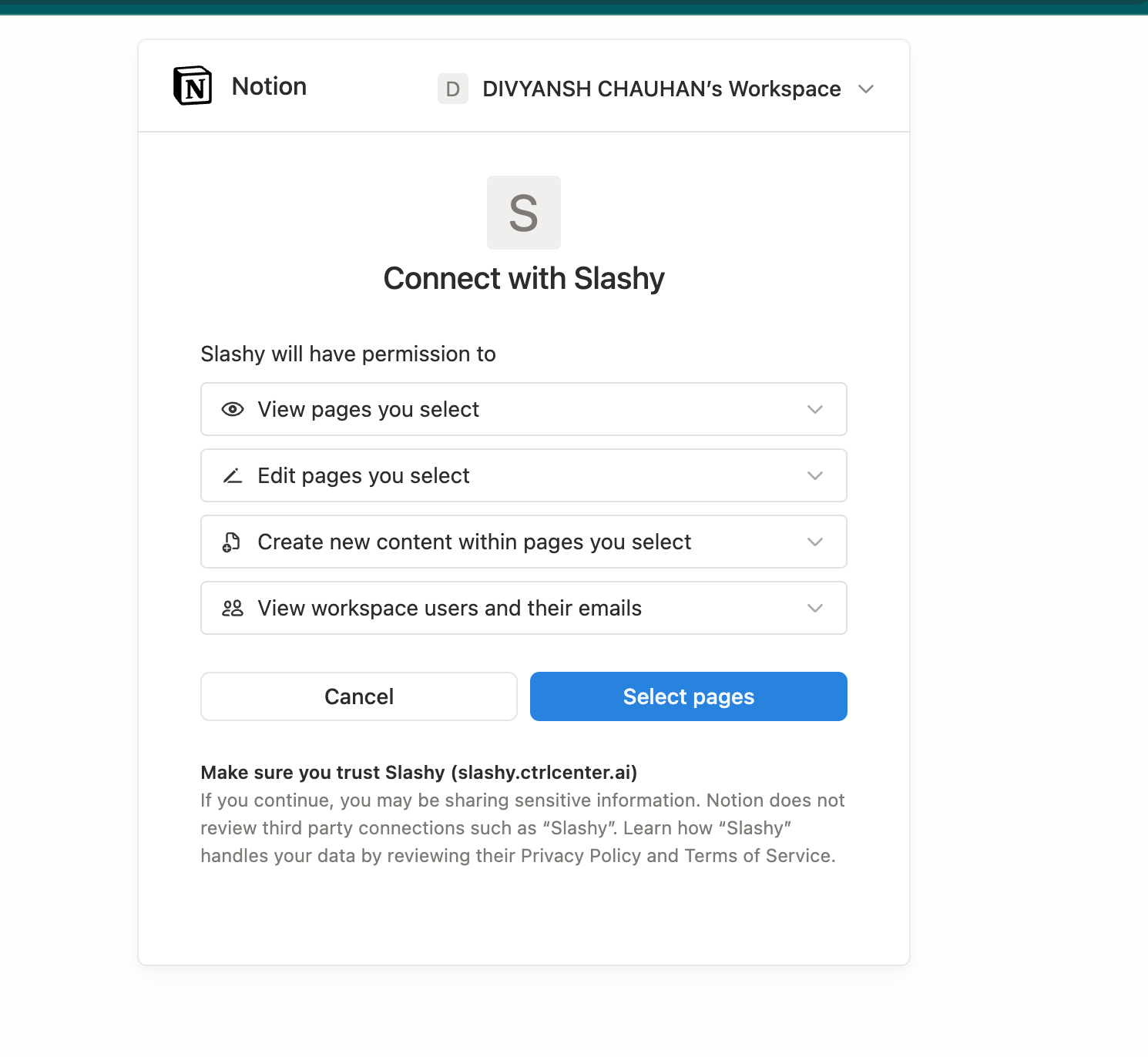
 Sign in to Notion and review the access Slashy is requesting — viewing, editing, and creating content in the pages you select, plus workspace member details. Click Select pages to continue.
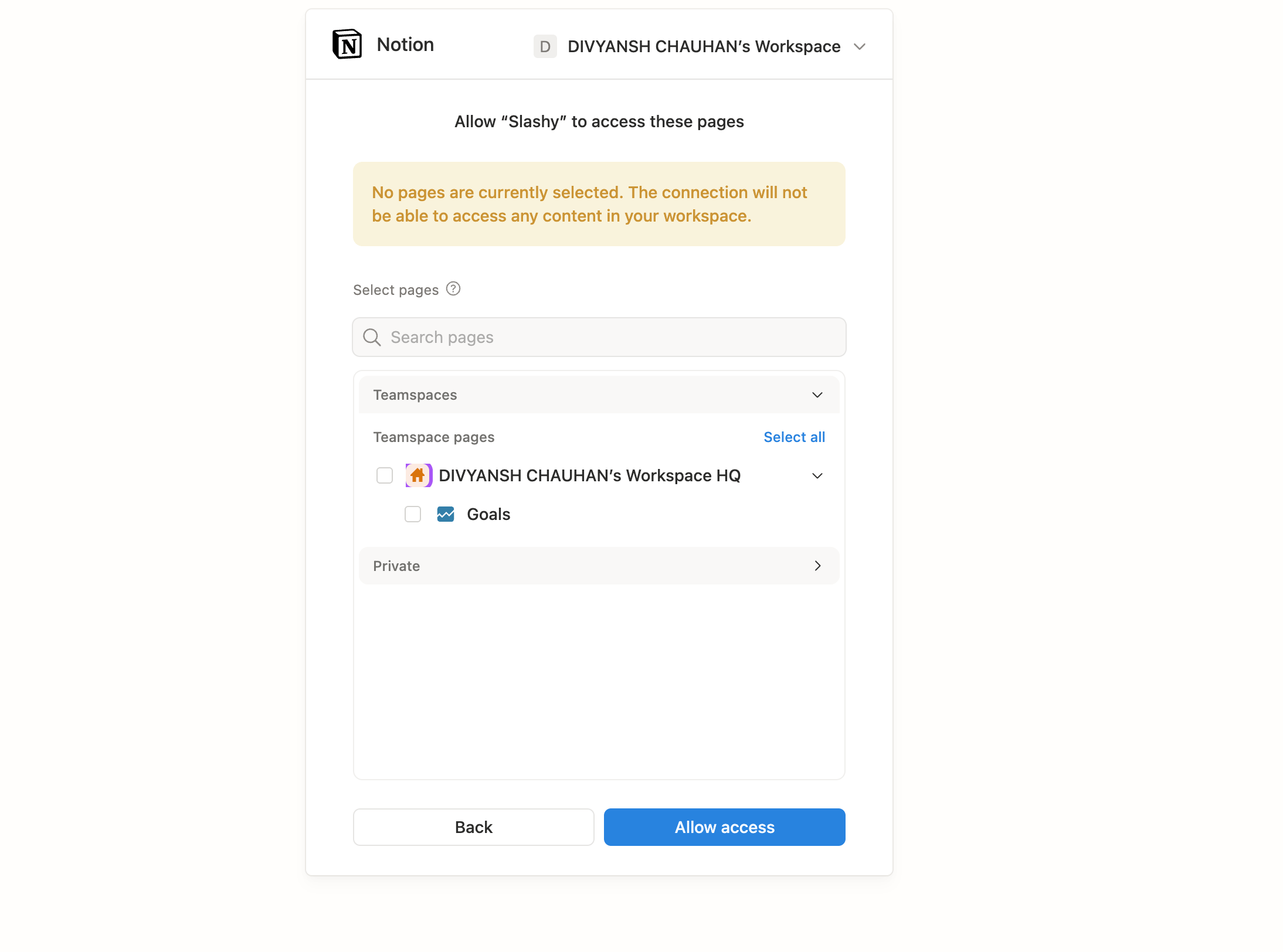
 Pick the pages and databases to share. Slashy can only read and write the pages you grant here — leave everything unselected and the connection can't touch your workspace. Click Allow access when you're done.
 Slashy shows Connected once authorization completes.
## Pick a destination
After connecting, choose where saved items land:
* **A page.** Slashy appends each saved thread or summary as a new block on the page you pick.
* **A database.** Slashy creates a new entry per save and maps email fields (subject, sender, date) to your database properties. This is the better choice if you want to filter and sort what you save.
You can change the destination any time from Settings, Integrations, Notion.
## What you can save
| From Slashy | What lands in Notion |
| ---------------- | ------------------------------------------------------------------------------ |
| A full thread | A page (or database entry) with the subject, participants, and message history |
| A thread summary | The AI summary plus a link back to the original thread |
| Action items | A checklist of the tasks Slashy extracted from the conversation |
To save, open a thread and choose **Save to Notion** from the thread menu. Slashy writes to your chosen destination and confirms with a link to the new page.
Slashy only writes to the pages and databases you shared during setup. To give it access to more, reopen the Notion approval screen from Settings, Integrations, Notion and update the selection.
## Keep formatting clean
Slashy maps email content to native Notion blocks rather than pasting raw text:
* **Headings and lists** carry over as Notion headings, bullets, and to-dos.
* **Links** stay clickable.
* **Attachments** are listed with their filenames and a link back to the source thread in Slashy.
## Disconnect
Open Settings, Integrations, Notion and click Disconnect. Slashy stops writing immediately. Pages and entries already saved to Notion stay there.
Disconnecting does not revoke the Slashy app from your Notion workspace. To fully remove access, also revoke the connection from your Notion workspace settings under Connections.
Log emails and sync contacts with Attio.
Auto-BCC HubSpot for CRM logging.
Connect Slashy to other tools over MCP.
Control what the agent can do on its own.
Slashy shows Connected once authorization completes.
## Pick a destination
After connecting, choose where saved items land:
* **A page.** Slashy appends each saved thread or summary as a new block on the page you pick.
* **A database.** Slashy creates a new entry per save and maps email fields (subject, sender, date) to your database properties. This is the better choice if you want to filter and sort what you save.
You can change the destination any time from Settings, Integrations, Notion.
## What you can save
| From Slashy | What lands in Notion |
| ---------------- | ------------------------------------------------------------------------------ |
| A full thread | A page (or database entry) with the subject, participants, and message history |
| A thread summary | The AI summary plus a link back to the original thread |
| Action items | A checklist of the tasks Slashy extracted from the conversation |
To save, open a thread and choose **Save to Notion** from the thread menu. Slashy writes to your chosen destination and confirms with a link to the new page.
Slashy only writes to the pages and databases you shared during setup. To give it access to more, reopen the Notion approval screen from Settings, Integrations, Notion and update the selection.
## Keep formatting clean
Slashy maps email content to native Notion blocks rather than pasting raw text:
* **Headings and lists** carry over as Notion headings, bullets, and to-dos.
* **Links** stay clickable.
* **Attachments** are listed with their filenames and a link back to the source thread in Slashy.
## Disconnect
Open Settings, Integrations, Notion and click Disconnect. Slashy stops writing immediately. Pages and entries already saved to Notion stay there.
Disconnecting does not revoke the Slashy app from your Notion workspace. To fully remove access, also revoke the connection from your Notion workspace settings under Connections.
Log emails and sync contacts with Attio.
Auto-BCC HubSpot for CRM logging.
Connect Slashy to other tools over MCP.
Control what the agent can do on its own.