> ## Documentation Index
> Fetch the complete documentation index at: https://help.slashy.com/llms.txt
> Use this file to discover all available pages before exploring further.
# Slashy MCP
> Bring Slashy's email, calendar, and research tools into Claude, Cursor, and Codex via Model Context Protocol.
Slashy MCP is the bridge between Slashy and your AI tools. Once connected, Claude Code, Claude Desktop, Cursor, and Codex CLI can use Slashy's tools directly - sending email, prepping meetings, enriching contacts, and scheduling - without switching apps.
 ## How it works
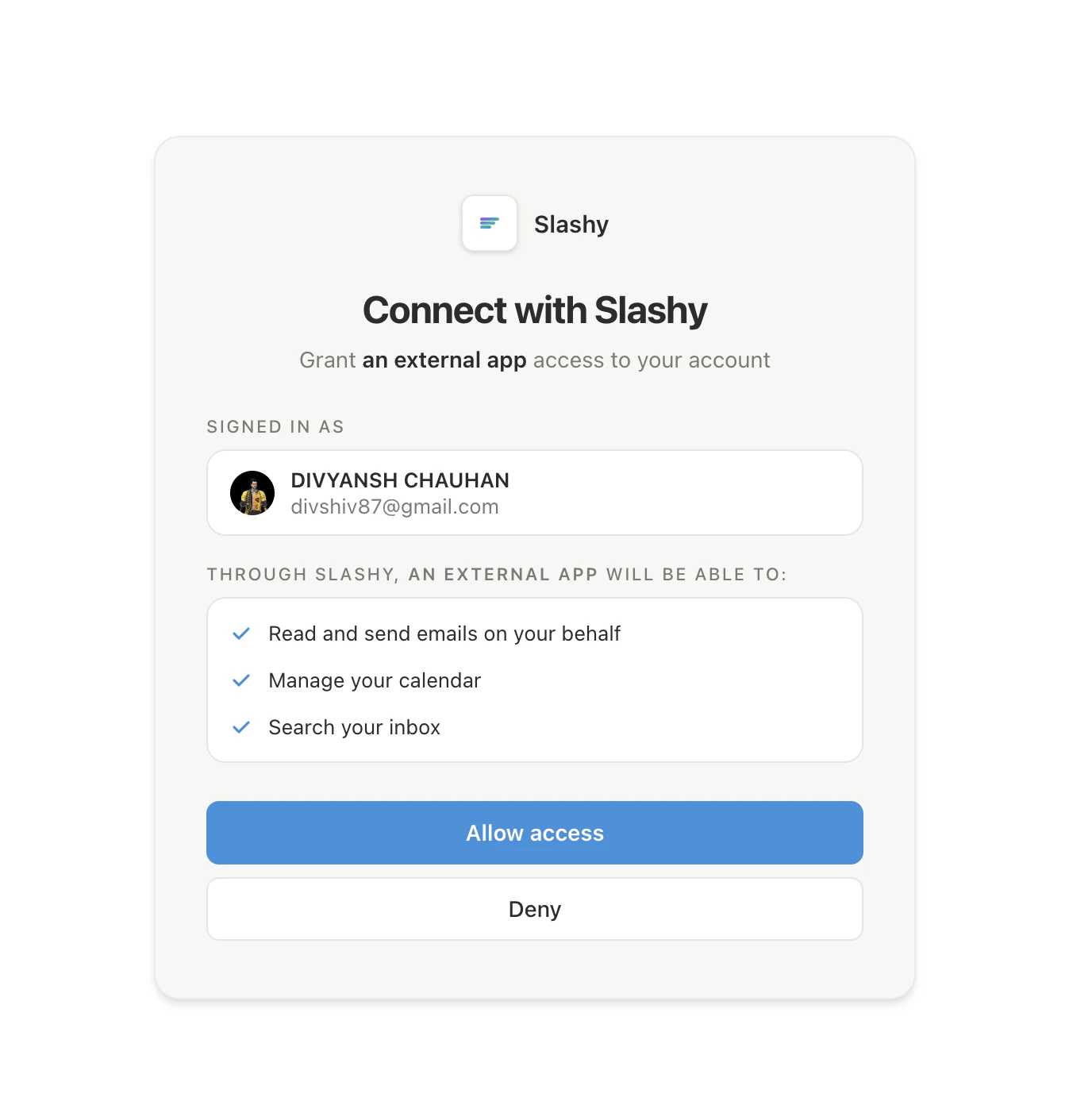
**Model Context Protocol (MCP)** is an open standard for connecting AI assistants to external tools. Slashy runs an MCP server; your AI client talks to it over HTTP with OAuth 2.1 + PKCE. You log in once through your browser - no API keys, no config files with secrets.
```
┌─────────────┐ MCP over HTTP ┌──────────────┐
│ Claude / │ ◀────────────────▶│ Slashy MCP │
│ Cursor / │ │ server │
│ Codex │ │ │
└─────────────┘ └──────┬───────┘
│
┌──────▼──────┐
│ Slashy │
│ (your acct)│
└─────────────┘
```
## What you can do
* **Email** - draft, send, reply, schedule, label, attach files from Drive
* **Calendar** - create events, check availability, propose meeting times
* **Research** - enrich contacts with LinkedIn, company news, email history
* **Meeting prep** - pull attendee profiles + past thread context
* **Automations** - create reminders, triggers, scheduled workflows
## Supported clients
Terminal CLI. One `claude mcp add` command.
Mac/Windows app. Visual Connectors panel.
AI code editor. JSON config.
OpenAI's CLI. TOML config.
Notion custom agent. Custom connector.
## Security
* **OAuth 2.1 with PKCE** - industry standard, no static tokens
* **Short-lived access tokens** - refresh automatically in the background
* **Scoped to your Slashy account** - tools respect the same permissions as Slashy itself
* **Revoke any time** - disconnect from your Slashy account settings
## Learn more
What Slashy MCP is and what you need before setup.
Ready-made prompts for email, calendar, and research.
Turn Slashy workflows into one-word triggers.
Fixes for OAuth, missing tools, and wrong accounts.
## How it works
**Model Context Protocol (MCP)** is an open standard for connecting AI assistants to external tools. Slashy runs an MCP server; your AI client talks to it over HTTP with OAuth 2.1 + PKCE. You log in once through your browser - no API keys, no config files with secrets.
```
┌─────────────┐ MCP over HTTP ┌──────────────┐
│ Claude / │ ◀────────────────▶│ Slashy MCP │
│ Cursor / │ │ server │
│ Codex │ │ │
└─────────────┘ └──────┬───────┘
│
┌──────▼──────┐
│ Slashy │
│ (your acct)│
└─────────────┘
```
## What you can do
* **Email** - draft, send, reply, schedule, label, attach files from Drive
* **Calendar** - create events, check availability, propose meeting times
* **Research** - enrich contacts with LinkedIn, company news, email history
* **Meeting prep** - pull attendee profiles + past thread context
* **Automations** - create reminders, triggers, scheduled workflows
## Supported clients
Terminal CLI. One `claude mcp add` command.
Mac/Windows app. Visual Connectors panel.
AI code editor. JSON config.
OpenAI's CLI. TOML config.
Notion custom agent. Custom connector.
## Security
* **OAuth 2.1 with PKCE** - industry standard, no static tokens
* **Short-lived access tokens** - refresh automatically in the background
* **Scoped to your Slashy account** - tools respect the same permissions as Slashy itself
* **Revoke any time** - disconnect from your Slashy account settings
## Learn more
What Slashy MCP is and what you need before setup.
Ready-made prompts for email, calendar, and research.
Turn Slashy workflows into one-word triggers.
Fixes for OAuth, missing tools, and wrong accounts.