> ## Documentation Index
> Fetch the complete documentation index at: https://help.slashy.com/llms.txt
> Use this file to discover all available pages before exploring further.
# HubSpot integration
> Connect HubSpot to log outbound emails to CRM contacts automatically.
The HubSpot integration logs your outbound emails to the matching HubSpot contact, so every reply you send is reflected on the contact timeline without copying anything by hand.
## Connect HubSpot
Press `Cmd+,`.
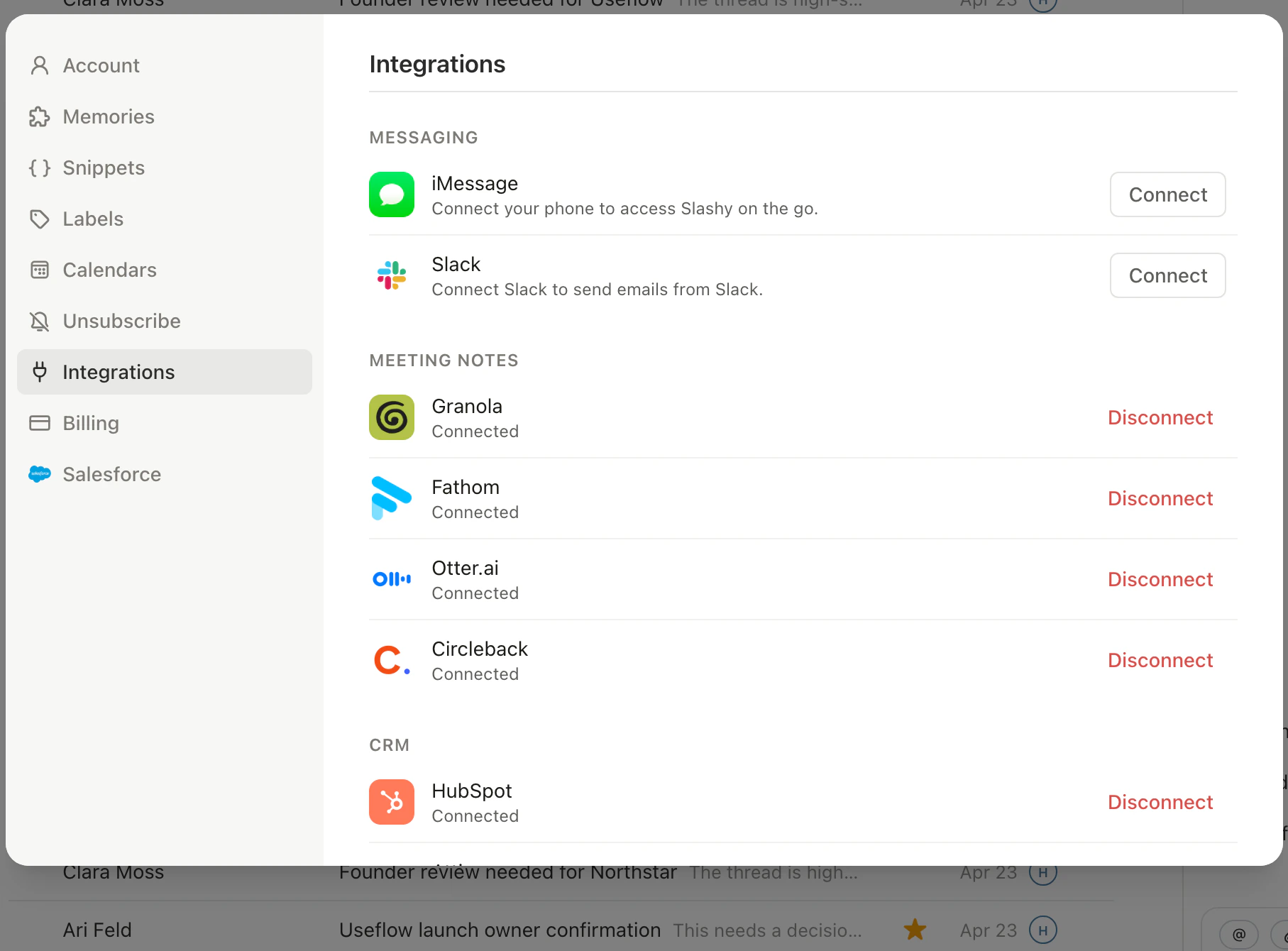
Choose Integrations in the sidebar, then CRM, then click HubSpot.
Click Connect HubSpot and sign in with the HubSpot account that owns the CRM data.
Slashy shows Connected with the HubSpot portal name once authorization completes.
 ## What gets logged
Outbound emails you send from Slashy are logged to the HubSpot contact whose email matches the recipient. The log captures the subject, the body, and the sent timestamp, and lands on the contact timeline within a few seconds.
Inbound emails are not logged automatically. HubSpot handles inbound logging through its own connected inbox if you have that set up separately.
## What the agent can do
With HubSpot connected, ask the agent (`Cmd+Shift+L`) to work with your CRM in plain English:
| Ask | What happens |
| ----------------------------------------------- | ---------------------------------------------------- |
| "Who is this contact in HubSpot?" | Looks up the contact by email and returns the record |
| "Find the Acme company record" | Searches HubSpot by name or property |
| "Log a note on this contact" | Adds a note to the contact timeline |
| "What was discussed on the last call with Sam?" | Surfaces recent HubSpot call logs and summaries |
Write actions are blocked when Read Mode is on, so the agent can still look things up and draft without changing your CRM. See [Agent autonomy](/features/ai-agent/autonomy).
## Turn on auto BCC
Slashy logs outbound by sending a hidden BCC to the address HubSpot assigns to your portal. You turn this on once and forget about it.
Settings, then CRM.
Scroll to the Email Logging section.
Flip the auto BCC toggle. Slashy populates the BCC field with your HubSpot logging address for every outbound message.
The BCC address is the one HubSpot generated for your portal. You can view it on the same Email Logging panel. If HubSpot rotates the address, paste the new value into the same field.
## Opt in or out per email
When auto BCC is on, every compose window shows a CRM badge near the send button so you know logging is active. Click the badge to skip logging for that single email. Send normally and the badge stays on for the next compose.
## Where logged emails appear
In HubSpot, open the contact whose address you sent to. The email shows up on the contact timeline with the same subject and body you sent. Engagements like opens and replies are tracked through HubSpot's normal pipeline once the email lands.
If the recipient does not have a HubSpot contact, HubSpot creates one when the BCC arrives, using the recipient address.
Write and send from Slashy.
Log emails to Attio CRM.
Account context and agent read/write.
Bring Slashy into Slack.
Connect tools via MCP.
Configure per-account signatures.
## What gets logged
Outbound emails you send from Slashy are logged to the HubSpot contact whose email matches the recipient. The log captures the subject, the body, and the sent timestamp, and lands on the contact timeline within a few seconds.
Inbound emails are not logged automatically. HubSpot handles inbound logging through its own connected inbox if you have that set up separately.
## What the agent can do
With HubSpot connected, ask the agent (`Cmd+Shift+L`) to work with your CRM in plain English:
| Ask | What happens |
| ----------------------------------------------- | ---------------------------------------------------- |
| "Who is this contact in HubSpot?" | Looks up the contact by email and returns the record |
| "Find the Acme company record" | Searches HubSpot by name or property |
| "Log a note on this contact" | Adds a note to the contact timeline |
| "What was discussed on the last call with Sam?" | Surfaces recent HubSpot call logs and summaries |
Write actions are blocked when Read Mode is on, so the agent can still look things up and draft without changing your CRM. See [Agent autonomy](/features/ai-agent/autonomy).
## Turn on auto BCC
Slashy logs outbound by sending a hidden BCC to the address HubSpot assigns to your portal. You turn this on once and forget about it.
Settings, then CRM.
Scroll to the Email Logging section.
Flip the auto BCC toggle. Slashy populates the BCC field with your HubSpot logging address for every outbound message.
The BCC address is the one HubSpot generated for your portal. You can view it on the same Email Logging panel. If HubSpot rotates the address, paste the new value into the same field.
## Opt in or out per email
When auto BCC is on, every compose window shows a CRM badge near the send button so you know logging is active. Click the badge to skip logging for that single email. Send normally and the badge stays on for the next compose.
## Where logged emails appear
In HubSpot, open the contact whose address you sent to. The email shows up on the contact timeline with the same subject and body you sent. Engagements like opens and replies are tracked through HubSpot's normal pipeline once the email lands.
If the recipient does not have a HubSpot contact, HubSpot creates one when the BCC arrives, using the recipient address.
Write and send from Slashy.
Log emails to Attio CRM.
Account context and agent read/write.
Bring Slashy into Slack.
Connect tools via MCP.
Configure per-account signatures.