> ## Documentation Index
> Fetch the complete documentation index at: https://help.slashy.com/llms.txt
> Use this file to discover all available pages before exploring further.
# Google Docs, Sheets & Drive
> Connect Google Drive, Docs, and Sheets so the agent can search your files and create or edit documents and spreadsheets from your inbox.
Connect Google Drive, Docs, and Sheets separately from your Gmail connection to let the Slashy agent search your files, read documents faithfully, and create or edit Docs and Sheets without leaving your inbox.
## Connect
Press `Cmd+,`, then choose Integrations in the sidebar.
Scroll to Workspace and click Connect next to Google Drive, Google Docs, or Google Sheets. Connect any combination -- each is independent.
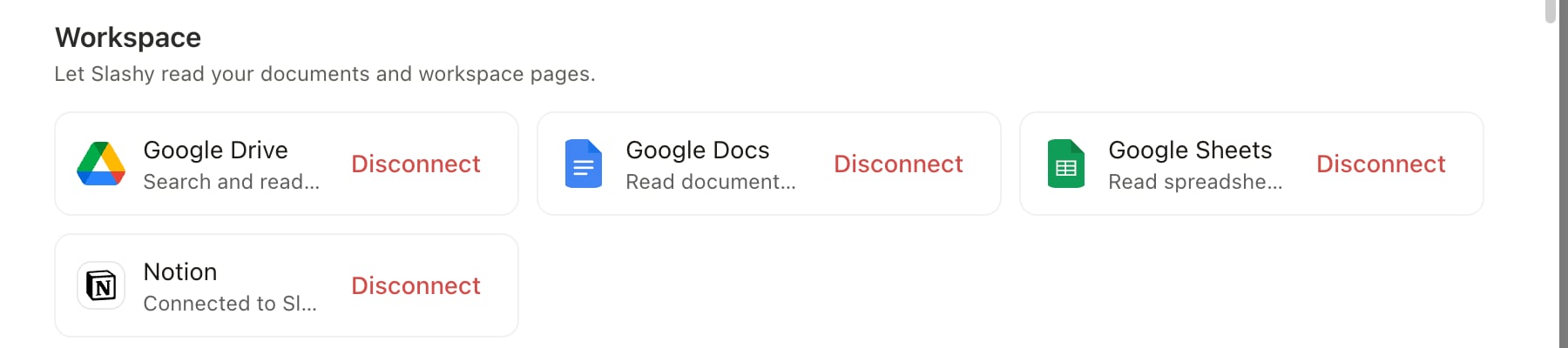 Sign in to Google and approve the request. You land back in Slashy with the integration connected.
## What each one does
| Integration | What the agent can do |
| ----------------- | ------------------------------------------------------------------------------------------------------------------------------------------- |
| **Google Drive** | Search your files by name or content, and read the text of any file, including Docs, Sheets, and Slides |
| **Google Docs** | Read a document faithfully, including tables, images, headers, footers, and multiple tabs, plus create new documents and edit existing ones |
| **Google Sheets** | Read a spreadsheet's values, create new sheets, and write values into existing ones, including formulas |
Drive itself is search and read only. Creating or editing files is available for Docs and Sheets specifically.
## What the agent can do
With these connected, ask the agent (`Cmd+/`) in plain language:
| Ask | What happens |
| ------------------------------------------------- | ------------------------------------------------------------------- |
| "Find my Q3 planning doc" | Searches Drive by name and content, returns matching files |
| "Summarize the proposal Sarah shared" | Reads the document and summarizes it inline |
| "Make a doc with notes from this thread" | Creates a new Google Doc and fills it in |
| "Add a row to my expenses sheet for this receipt" | Reads the sheet to find the next empty row, then writes the new row |
| "Create a tracking sheet for these leads" | Creates a new Google Sheet with a header row and the data filled in |
Edits preserve formatting: tables, images, and styling in a Doc stay intact, and formulas in a Sheet are entered as real formulas, not text.
Sheet edits target the range you ask for and overwrite what's there, so ask the agent to add to the end rather than a fixed range if you want to keep existing rows. It reads the sheet first to find the next empty row when you ask it to append.
Write actions are blocked when Read Mode is on, so the agent can still search and read without changing anything in Drive, Docs, or Sheets. See [Agent autonomy](/features/ai-agent/autonomy).
## Disconnect
Open Settings, Integrations, Workspace and click Disconnect next to any of the three. Slashy stops using that access immediately; files already created or edited stay as they are.
Save threads and summaries to Notion.
Connect Slashy to other tools over MCP.
Control what the agent can do on its own.
What the base Gmail connection grants.
Sign in to Google and approve the request. You land back in Slashy with the integration connected.
## What each one does
| Integration | What the agent can do |
| ----------------- | ------------------------------------------------------------------------------------------------------------------------------------------- |
| **Google Drive** | Search your files by name or content, and read the text of any file, including Docs, Sheets, and Slides |
| **Google Docs** | Read a document faithfully, including tables, images, headers, footers, and multiple tabs, plus create new documents and edit existing ones |
| **Google Sheets** | Read a spreadsheet's values, create new sheets, and write values into existing ones, including formulas |
Drive itself is search and read only. Creating or editing files is available for Docs and Sheets specifically.
## What the agent can do
With these connected, ask the agent (`Cmd+/`) in plain language:
| Ask | What happens |
| ------------------------------------------------- | ------------------------------------------------------------------- |
| "Find my Q3 planning doc" | Searches Drive by name and content, returns matching files |
| "Summarize the proposal Sarah shared" | Reads the document and summarizes it inline |
| "Make a doc with notes from this thread" | Creates a new Google Doc and fills it in |
| "Add a row to my expenses sheet for this receipt" | Reads the sheet to find the next empty row, then writes the new row |
| "Create a tracking sheet for these leads" | Creates a new Google Sheet with a header row and the data filled in |
Edits preserve formatting: tables, images, and styling in a Doc stay intact, and formulas in a Sheet are entered as real formulas, not text.
Sheet edits target the range you ask for and overwrite what's there, so ask the agent to add to the end rather than a fixed range if you want to keep existing rows. It reads the sheet first to find the next empty row when you ask it to append.
Write actions are blocked when Read Mode is on, so the agent can still search and read without changing anything in Drive, Docs, or Sheets. See [Agent autonomy](/features/ai-agent/autonomy).
## Disconnect
Open Settings, Integrations, Workspace and click Disconnect next to any of the three. Slashy stops using that access immediately; files already created or edited stay as they are.
Save threads and summaries to Notion.
Connect Slashy to other tools over MCP.
Control what the agent can do on its own.
What the base Gmail connection grants.