> ## Documentation Index
> Fetch the complete documentation index at: https://help.slashy.com/llms.txt
> Use this file to discover all available pages before exploring further.
# Fathom integration
> Sync Fathom meeting recordings, transcripts, and action items onto your calendar events.
The Fathom integration brings recordings, transcripts, and action items from your Fathom calls onto the matching event in your Slashy calendar, so the context lives right next to the meeting.
## Connect Fathom
Authorization runs through OAuth, so you sign in with your Fathom account and Slashy receives read access to your meetings.
Press `Cmd+,`.
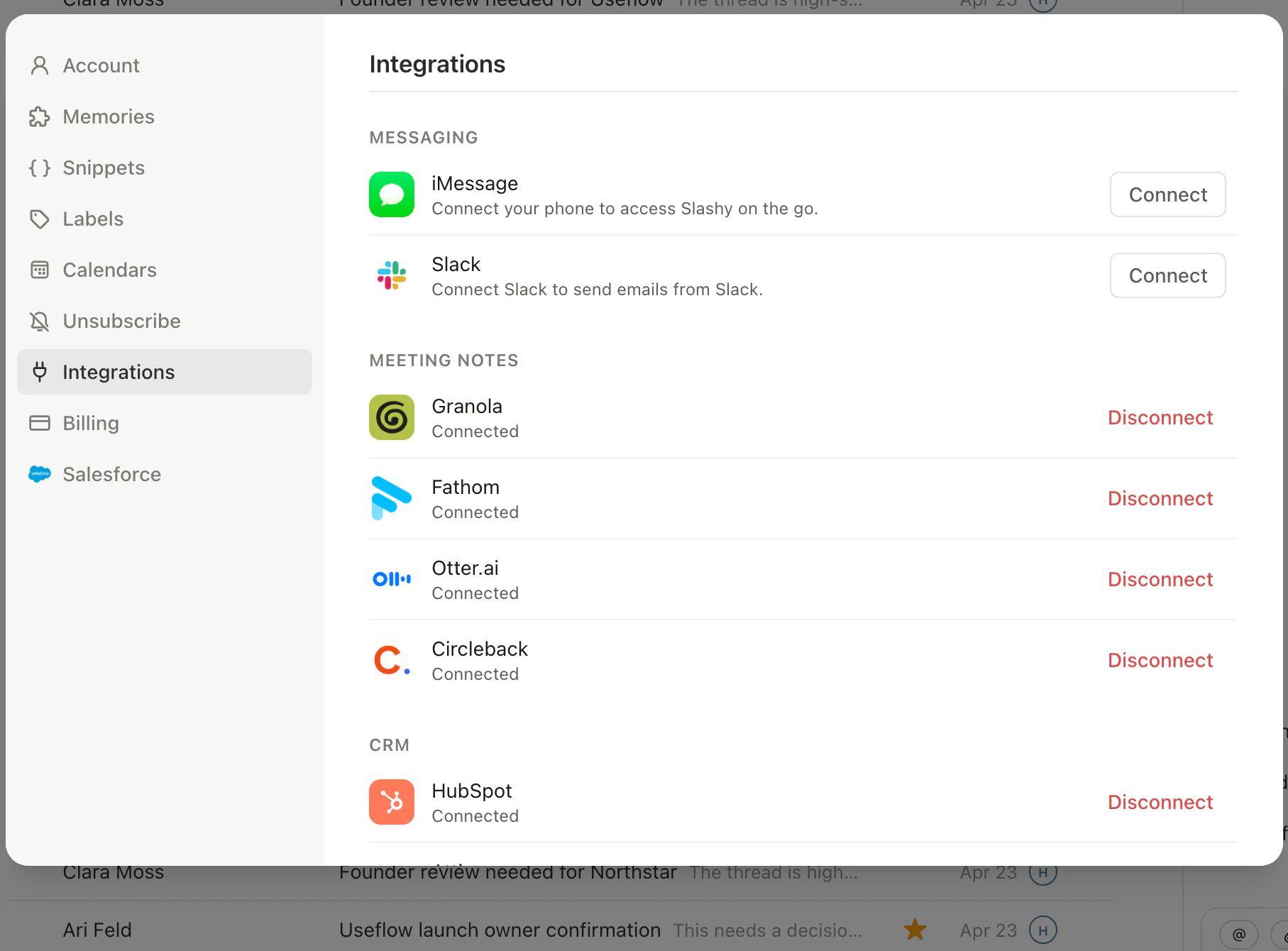
Choose Integrations in the sidebar, then Meeting Notes, then click Fathom.
Click Connect Fathom. Sign in with the Fathom account that records your meetings.
After Fathom confirms access, you are redirected back. The integration page shows Connected.
 ## What syncs
Once connected, Slashy pulls the meeting summary, the transcript, and any action items Fathom captured, and attaches them to the matching calendar event. The data appears in the event detail panel under a Fathom section that expands to the full transcript and action item list.
## How matching works
Slashy matches a Fathom recording to a calendar event when both fall in a similar start window. If you record a session with no calendar invite, Slashy keeps it in your Fathom list but does not attach it to an event. If you see a mismatch, open the event, click the Fathom section, and reassign from the dropdown of nearby recordings.
## Ask the agent about a meeting
Once notes are syncing, ask the agent (`Cmd+Shift+L`) about a past call, such as "What did we agree with Acme last week?" The agent searches your connected meeting notes and returns an inline card with the meeting, date, participants, and a link to the recording.
## Disconnect
To remove the integration, open Settings, then Integrations, then Meeting Notes, then Fathom, and click Disconnect. Slashy stops pulling new recordings and removes existing Fathom data from your events. Your data in Fathom itself is untouched.
Sync Granola notes to events.
Sync Otter transcripts to events.
Pull Circleback notes to events.
Prep briefings before each meeting.
## What syncs
Once connected, Slashy pulls the meeting summary, the transcript, and any action items Fathom captured, and attaches them to the matching calendar event. The data appears in the event detail panel under a Fathom section that expands to the full transcript and action item list.
## How matching works
Slashy matches a Fathom recording to a calendar event when both fall in a similar start window. If you record a session with no calendar invite, Slashy keeps it in your Fathom list but does not attach it to an event. If you see a mismatch, open the event, click the Fathom section, and reassign from the dropdown of nearby recordings.
## Ask the agent about a meeting
Once notes are syncing, ask the agent (`Cmd+Shift+L`) about a past call, such as "What did we agree with Acme last week?" The agent searches your connected meeting notes and returns an inline card with the meeting, date, participants, and a link to the recording.
## Disconnect
To remove the integration, open Settings, then Integrations, then Meeting Notes, then Fathom, and click Disconnect. Slashy stops pulling new recordings and removes existing Fathom data from your events. Your data in Fathom itself is untouched.
Sync Granola notes to events.
Sync Otter transcripts to events.
Pull Circleback notes to events.
Prep briefings before each meeting.