> ## Documentation Index
> Fetch the complete documentation index at: https://help.slashy.com/llms.txt
> Use this file to discover all available pages before exploring further.
# Attio integration
> Log emails and sync contacts between Slashy and Attio.
The Attio integration keeps your CRM in step with the email you're actually sending. Connect once and Slashy will log outbound and inbound messages on the matching contact, sync attribute changes, and create records for new contacts you reach out to.
## Connect Attio
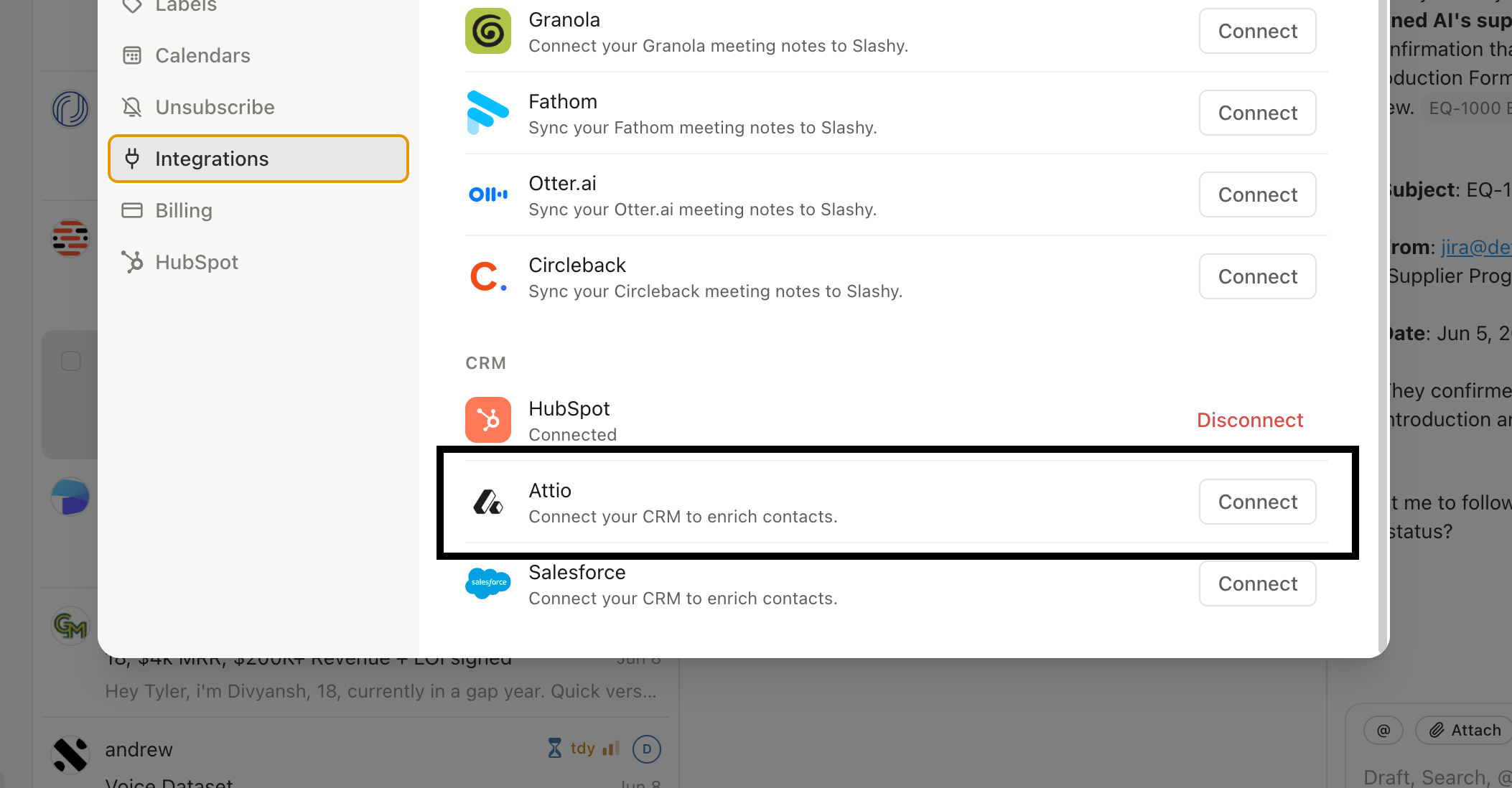
Go to Settings, Integrations, CRM, Attio.
Click Connect Attio. Sign in and pick the workspace you want Slashy to read and write.
Most teams sync to the People object. If you use a custom object for contacts, choose it here.
 ## What syncs
* **Contacts.** When you email someone whose address isn't already in Attio, Slashy creates a record on the chosen object.
* **Email activity.** Every sent and received message is logged as an activity on the matching record, with subject, snippet, and timestamp.
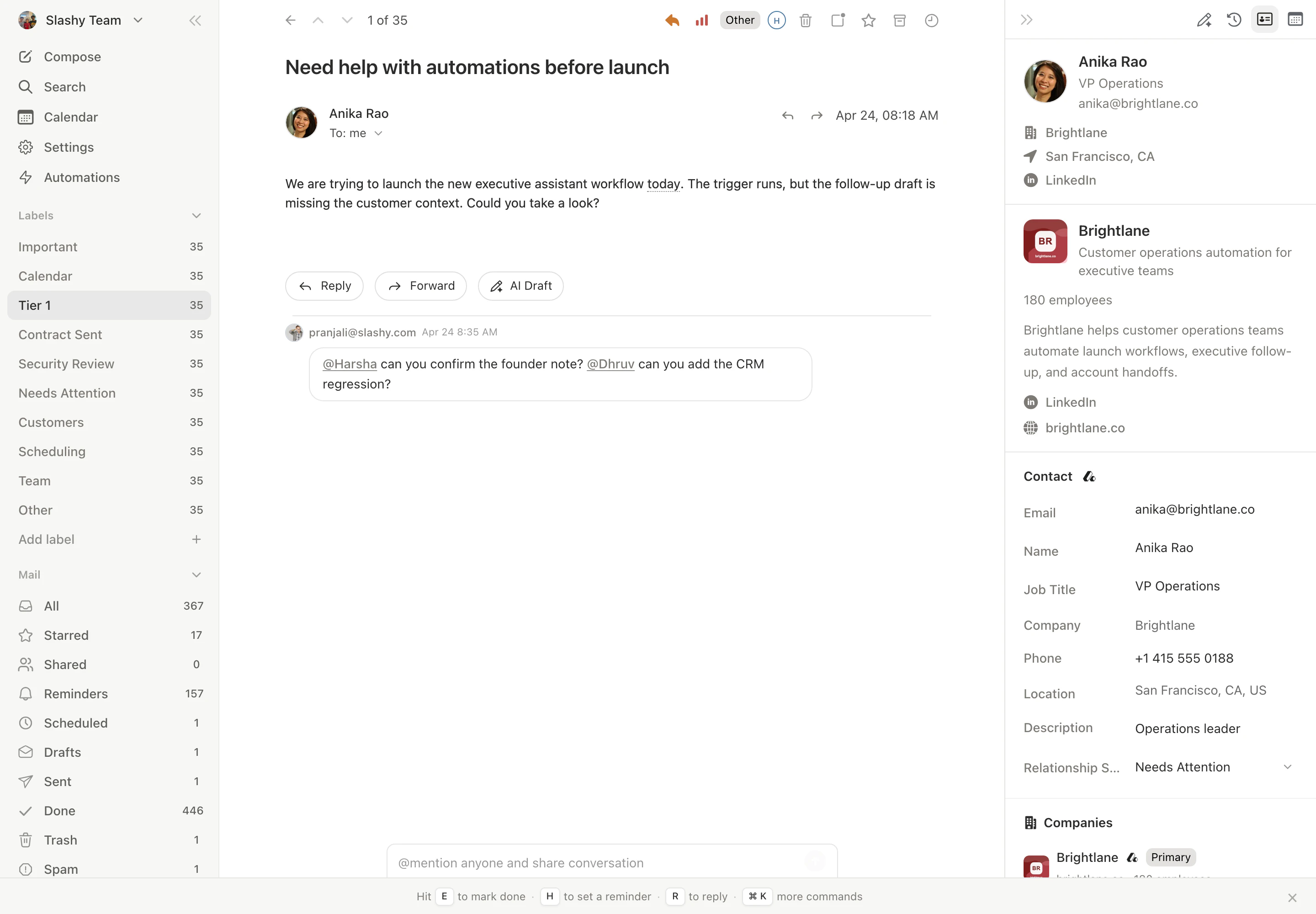
* **Attribute fields.** Editable attributes on the contact (job title, company, location, custom fields) flow both ways. Edits in Slashy push to Attio; edits in Attio show up in the Slashy contact card on next sync.
## What syncs
* **Contacts.** When you email someone whose address isn't already in Attio, Slashy creates a record on the chosen object.
* **Email activity.** Every sent and received message is logged as an activity on the matching record, with subject, snippet, and timestamp.
* **Attribute fields.** Editable attributes on the contact (job title, company, location, custom fields) flow both ways. Edits in Slashy push to Attio; edits in Attio show up in the Slashy contact card on next sync.
 ## How Slashy handles Attio field types
Attio supports several attribute shapes. Slashy maps each one cleanly:
* **Text and number.** Written as plain values.
* **References.** Fields like Company, Owner, or Location resolve to the linked record. If you type a company name that already exists in Attio, Slashy links to it; if it doesn't, Slashy creates the linked record and points to it.
* **Multi-select.** Tag-style fields accept multiple values. Slashy preserves the existing selections and appends new ones rather than replacing.
* **Date and status.** Written in Attio's expected formats so workflows downstream still fire.
If you have a custom attribute Slashy hasn't seen before, open the mapping screen and add it. New attributes show up automatically the next time you connect.
## Disconnect
Open Settings, Integrations, CRM, Attio and click Disconnect. Slashy stops syncing immediately. Records and activities already written to Attio stay there.
Disconnecting does not revoke the Attio app from your workspace. To fully remove access, also revoke the connection from Attio's app settings.
Auto-BCC HubSpot for CRM logging.
Account context and agent read/write.
Post Slashy activity to Slack channels.
Write and send mail from Slashy.
Connect Slashy to other tools over MCP.
Manage people across inboxes.
## How Slashy handles Attio field types
Attio supports several attribute shapes. Slashy maps each one cleanly:
* **Text and number.** Written as plain values.
* **References.** Fields like Company, Owner, or Location resolve to the linked record. If you type a company name that already exists in Attio, Slashy links to it; if it doesn't, Slashy creates the linked record and points to it.
* **Multi-select.** Tag-style fields accept multiple values. Slashy preserves the existing selections and appends new ones rather than replacing.
* **Date and status.** Written in Attio's expected formats so workflows downstream still fire.
If you have a custom attribute Slashy hasn't seen before, open the mapping screen and add it. New attributes show up automatically the next time you connect.
## Disconnect
Open Settings, Integrations, CRM, Attio and click Disconnect. Slashy stops syncing immediately. Records and activities already written to Attio stay there.
Disconnecting does not revoke the Attio app from your workspace. To fully remove access, also revoke the connection from Attio's app settings.
Auto-BCC HubSpot for CRM logging.
Account context and agent read/write.
Post Slashy activity to Slack channels.
Write and send mail from Slashy.
Connect Slashy to other tools over MCP.
Manage people across inboxes.