> ## Documentation Index
> Fetch the complete documentation index at: https://help.slashy.com/llms.txt
> Use this file to discover all available pages before exploring further.
# Block, unsubscribe, or bulk unsubscribe
> Three ways to stop unwanted email and when to use each.
There are three ways to stop unwanted email in Slashy. They look similar, but they do very different things. Pick the right one for the situation.
## Comparison
| Action | What happens | Sender notified? | Future emails | Best for |
| ---------------- | ------------------------------------------------ | ----------------- | ------------------------------------------- | --------------------------------------------------------------------- |
| Block sender | Move existing and future messages to spam | No | Sent to spam | Spam, harassment, or any sender with no real list to unsubscribe from |
| Unsubscribe | Send an unsubscribe request to the sender's list | Yes | Should stop arriving once they process it | Legitimate newsletters you signed up for |
| Bulk unsubscribe | Run unsubscribe across many newsletters at once | Yes, for each one | Bulk effect across the senders you selected | Cleaning out an inbox quickly |
## Block a sender
Use this when there is nothing to politely unsubscribe from. Block moves the current message and every future message from that address to spam without notifying the sender.
From the inbox, hit `Enter` to open the message.
Press `Cmd+U`. Past and future mail from this address goes to spam.
Press `z` or `Cmd+Z` on the confirmation toast to reverse the block.
Blocking is per-address. If a sender uses multiple addresses, block each one.
## Unsubscribe from a mailing list
Use this for newsletters and product updates you actually signed up for. Slashy reads the list's unsubscribe headers and sends the right request on your behalf.
Open the most recent message from the list.
Press `Cmd+Shift+U`. Slashy detects the list's unsubscribe method and runs it.
A toast shows the request was sent. Reputable senders will stop within a few days.
If the message has no unsubscribe header at all, Slashy offers to block the sender instead, since there is no list to leave.
## Bulk unsubscribe
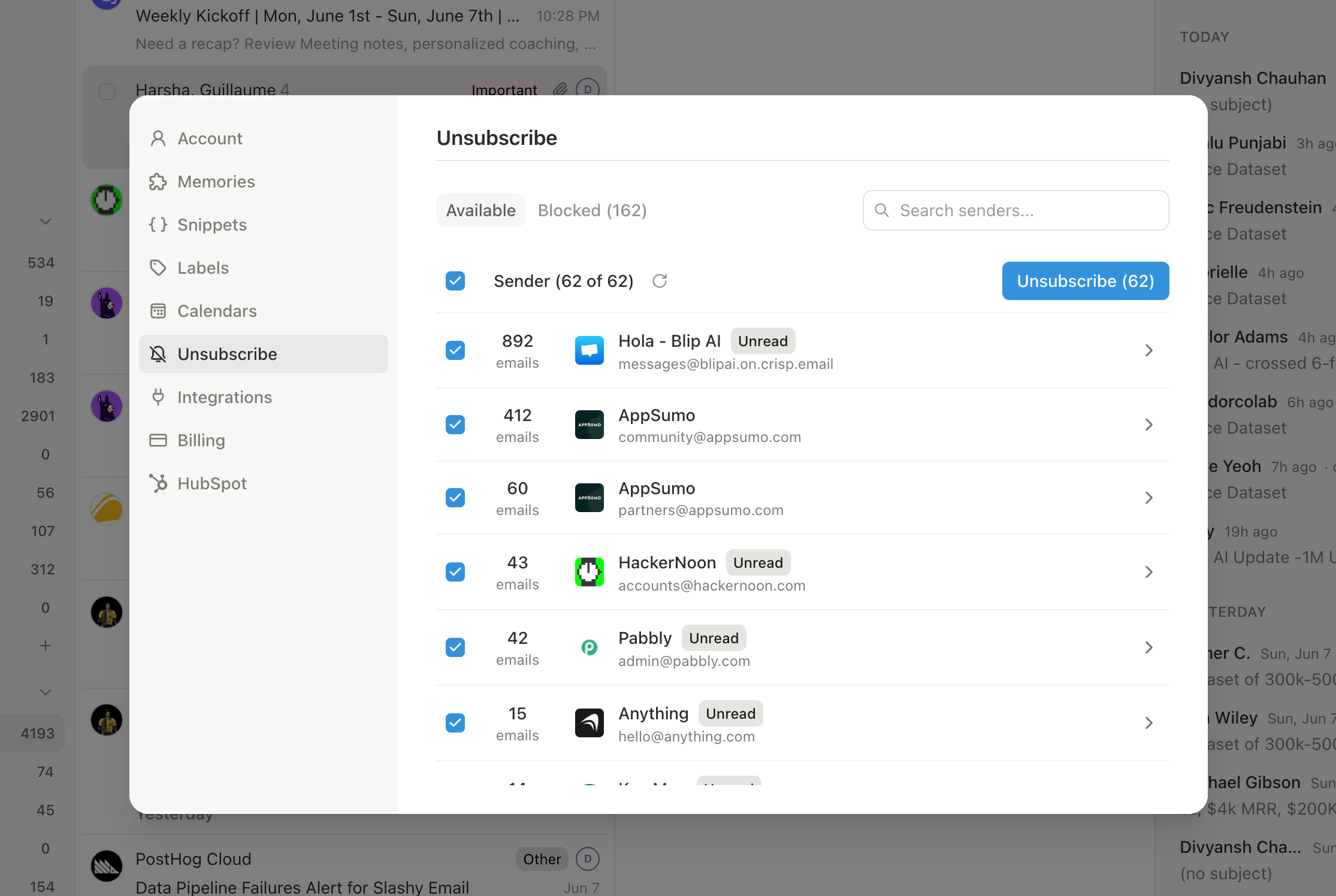
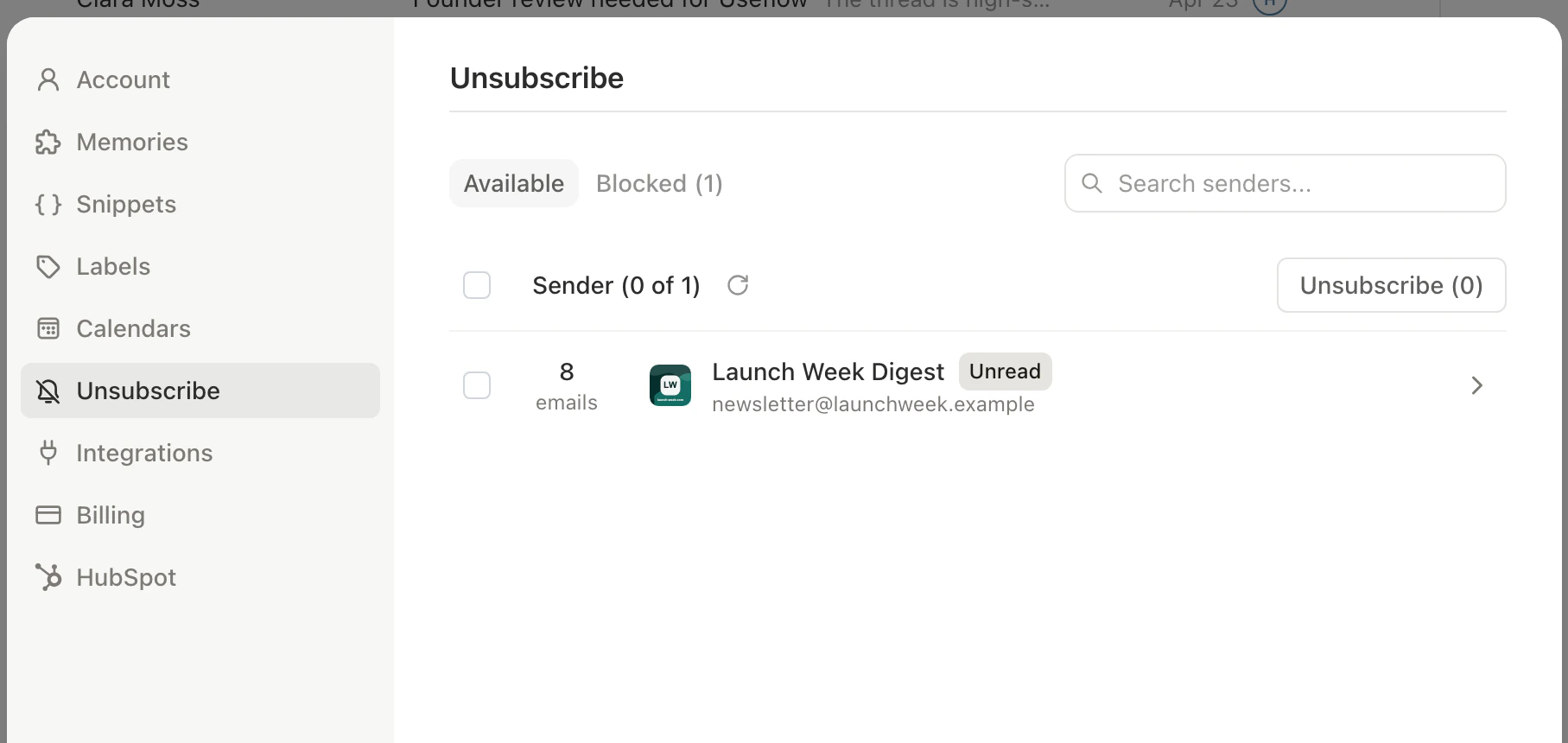
When you want to clean house, run bulk unsubscribe from Settings → Inbox → Unsubscribe. Slashy ranks senders by volume and shows the detected unsubscribe method for each one.
Go to Settings → Inbox → Unsubscribe.
Scroll the list and check the senders you want gone.
Click Unsubscribe. Slashy processes each sender in the background.
 ## Choosing the right action
* If you are angry at the message: block.
* If you actually subscribed at some point: unsubscribe.
* If your inbox is full of years of newsletters: bulk unsubscribe.
A block is appropriate even for technically legitimate senders, for example a vendor that keeps re-adding you to lists after you leave them. The sender does not know you blocked them, and the mail stops landing in your inbox.
## Managing blocked senders
Your full blocked list lives in Settings → Inbox → Blocked senders. Each row shows the address, the date blocked, and an Unblock button. Unblocking restores normal delivery, it does not re-subscribe you to any list.
## Choosing the right action
* If you are angry at the message: block.
* If you actually subscribed at some point: unsubscribe.
* If your inbox is full of years of newsletters: bulk unsubscribe.
A block is appropriate even for technically legitimate senders, for example a vendor that keeps re-adding you to lists after you leave them. The sender does not know you blocked them, and the mail stops landing in your inbox.
## Managing blocked senders
Your full blocked list lives in Settings → Inbox → Blocked senders. Each row shows the address, the date blocked, and an Unblock button. Unblocking restores normal delivery, it does not re-subscribe you to any list.
 Sort what is left into the right tabs.
Filtered views once your inbox is quieter.
Quick answers about how Slashy handles your mail.
The end-to-end approach to inbox zero.
Handle large groups of threads at once.
Sort what is left into the right tabs.
Filtered views once your inbox is quieter.
Quick answers about how Slashy handles your mail.
The end-to-end approach to inbox zero.
Handle large groups of threads at once.