> ## Documentation Index
> Fetch the complete documentation index at: https://help.slashy.com/llms.txt
> Use this file to discover all available pages before exploring further.
# Scheduled Send & Undo Send
> Schedule emails for future delivery with presets or custom times, and configure undo send with a 5-300 second cancellation window.
Schedule a Monday morning email on Friday night, or give yourself 30 seconds to catch a mistake after hitting Send. Slashy supports both scheduled delivery and a configurable undo window.
 ## Scheduling an Email
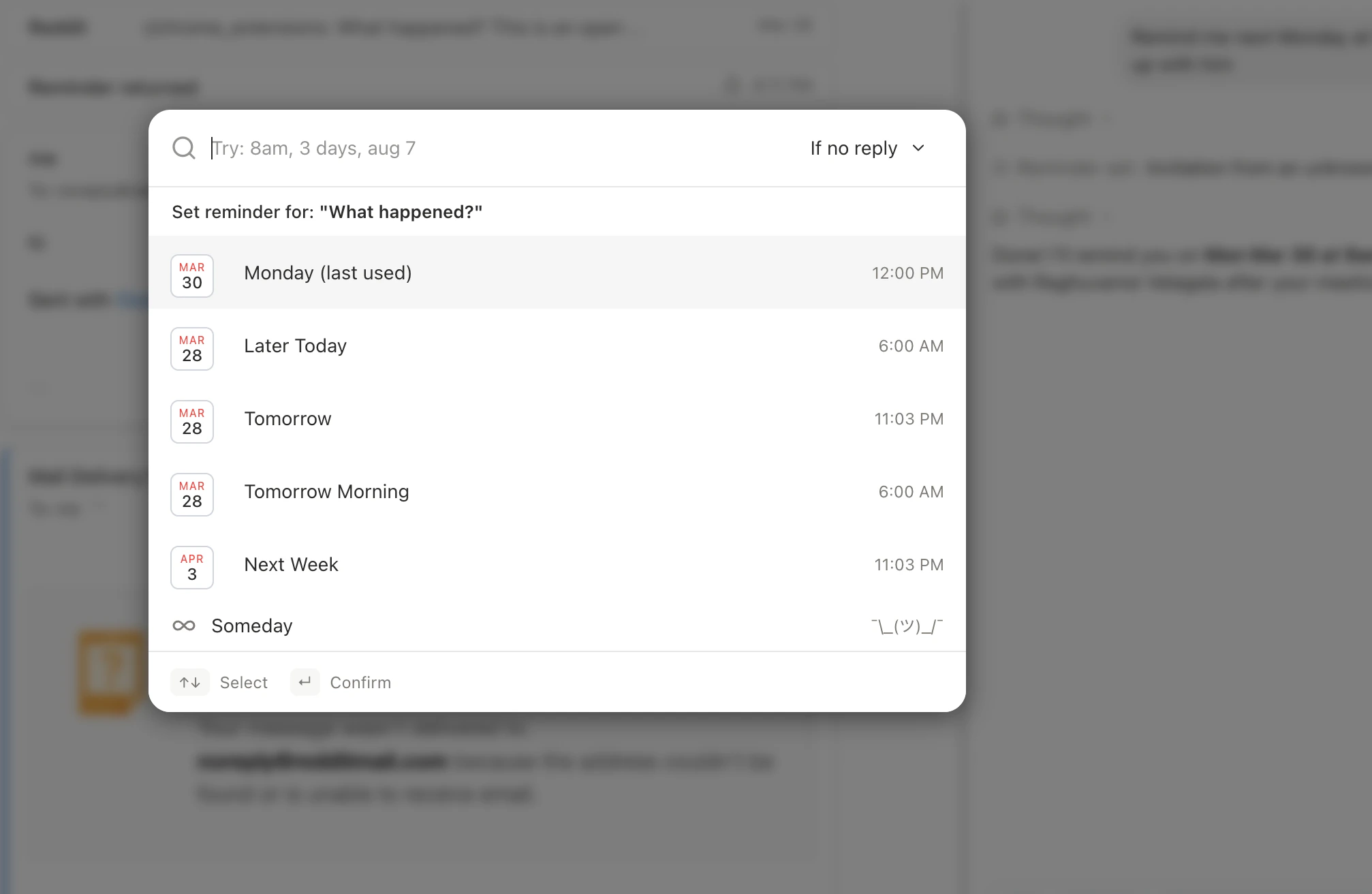
Press `Cmd+Shift+Enter` after composing to open the schedule picker.
| Preset | When It Sends |
| ---------------------- | ---------------------------- |
| **Later today** | A few hours from now |
| **Tomorrow morning** | Next business day at 8am |
| **Tomorrow afternoon** | Next business day at 1pm |
| **Next week** | Following Monday at 8am |
| **Custom** | Any date and time you choose |
## Managing Scheduled Emails
Navigate to the **Scheduled** view (`g l`) to see all pending emails. For each one:
* **Cancel** — reverts to a draft
* **Reschedule** — pick a new send time
* **Send now** — skip the schedule and send immediately
## Scheduling an Email
Press `Cmd+Shift+Enter` after composing to open the schedule picker.
| Preset | When It Sends |
| ---------------------- | ---------------------------- |
| **Later today** | A few hours from now |
| **Tomorrow morning** | Next business day at 8am |
| **Tomorrow afternoon** | Next business day at 1pm |
| **Next week** | Following Monday at 8am |
| **Custom** | Any date and time you choose |
## Managing Scheduled Emails
Navigate to the **Scheduled** view (`g l`) to see all pending emails. For each one:
* **Cancel** — reverts to a draft
* **Reschedule** — pick a new send time
* **Send now** — skip the schedule and send immediately
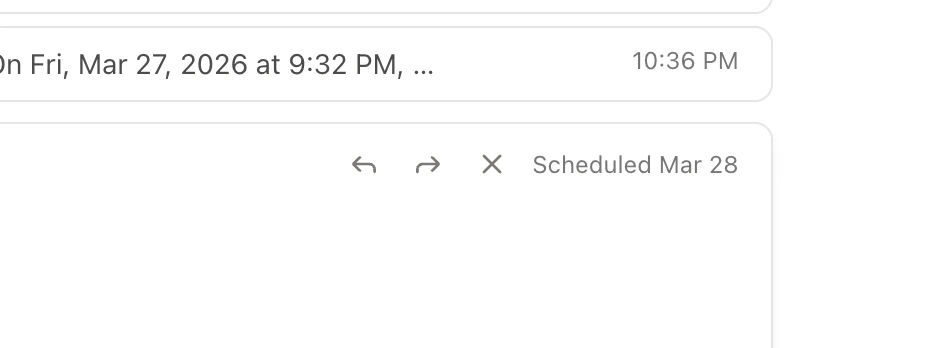 You can schedule emails through the AI agent: *"Draft a follow-up to Sarah and schedule it for Monday at 9am."*
## Undo Send
Every email has an undo window. After pressing `Cmd+Enter` to send, a toast appears with an **Undo** button and countdown. Click Undo or press `z` to cancel before it expires.
You can schedule emails through the AI agent: *"Draft a follow-up to Sarah and schedule it for Monday at 9am."*
## Undo Send
Every email has an undo window. After pressing `Cmd+Enter` to send, a toast appears with an **Undo** button and countdown. Click Undo or press `z` to cancel before it expires.
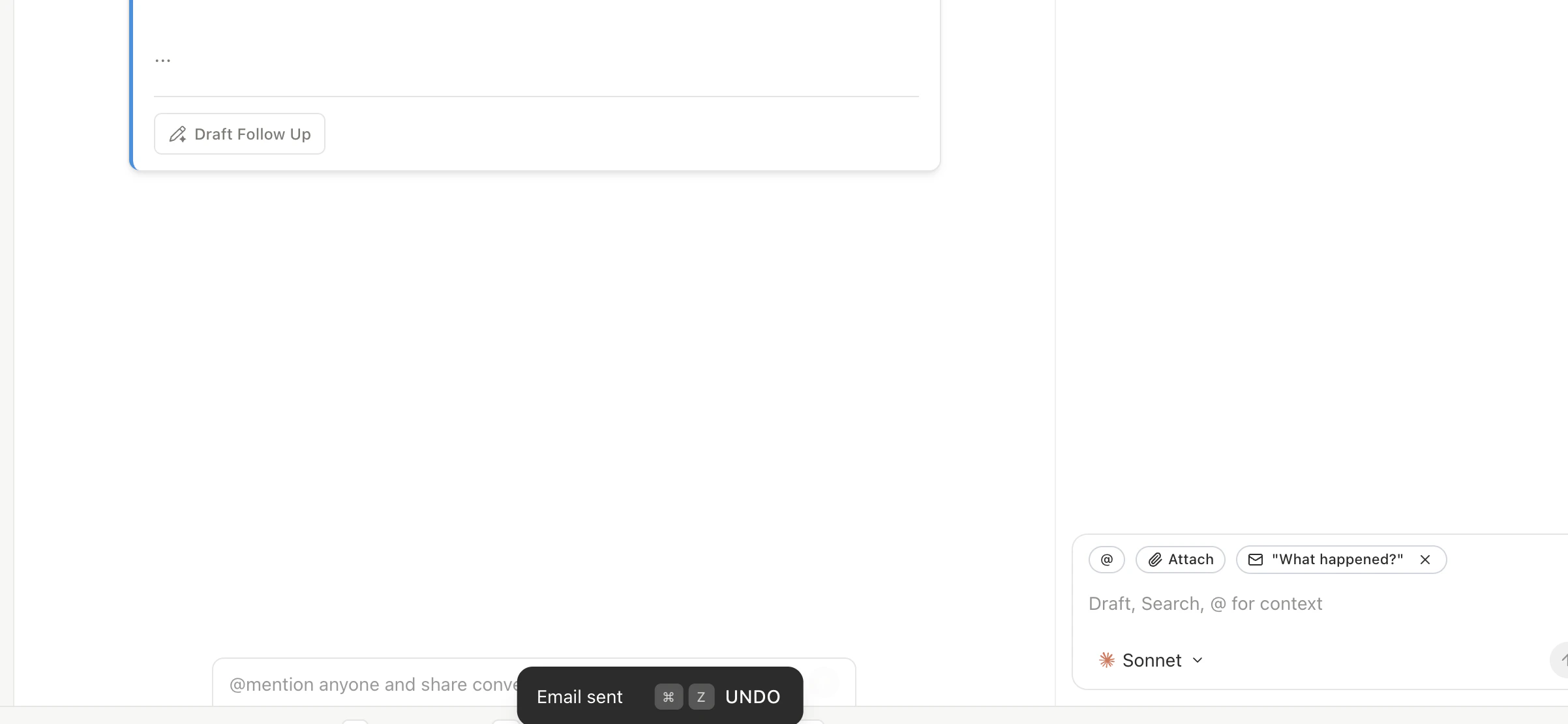 During the undo window, the email has **not** been delivered. If you undo, it reverts to a draft and the recipient never sees it. This is a true cancel, not a recall.
## Configuring the Undo Delay
Go to **Settings > Account** (`Cmd+,`).
Set your preferred delay between 5 and 300 seconds.
| Delay | Good For |
| -------------- | ----------------------------------------------- |
| 5 seconds | Fast delivery, rarely undo |
| 10-15 seconds | Quick safety net for typos and wrong recipients |
| 30 seconds | Standard — enough time to re-read |
| 60-300 seconds | Maximum safety for high-stakes emails |
## Undo Send vs. Scheduled Send
| | Undo Send | Scheduled Send |
| ----------- | ---------------------------- | ---------------------------- |
| **Purpose** | Catch mistakes after sending | Deliver at a future time |
| **Delay** | 5-300 seconds | Minutes to days |
| **Trigger** | Automatic on every send | Explicit (`Cmd+Shift+Enter`) |
| **Cancel** | `z` or click Undo | From Scheduled view |
Both work together. A scheduled email triggers undo send after its scheduled time arrives.
Reply, reply all, and forward with proper threading.
Navigate all inbox views and filters.
During the undo window, the email has **not** been delivered. If you undo, it reverts to a draft and the recipient never sees it. This is a true cancel, not a recall.
## Configuring the Undo Delay
Go to **Settings > Account** (`Cmd+,`).
Set your preferred delay between 5 and 300 seconds.
| Delay | Good For |
| -------------- | ----------------------------------------------- |
| 5 seconds | Fast delivery, rarely undo |
| 10-15 seconds | Quick safety net for typos and wrong recipients |
| 30 seconds | Standard — enough time to re-read |
| 60-300 seconds | Maximum safety for high-stakes emails |
## Undo Send vs. Scheduled Send
| | Undo Send | Scheduled Send |
| ----------- | ---------------------------- | ---------------------------- |
| **Purpose** | Catch mistakes after sending | Deliver at a future time |
| **Delay** | 5-300 seconds | Minutes to days |
| **Trigger** | Automatic on every send | Explicit (`Cmd+Shift+Enter`) |
| **Cancel** | `z` or click Undo | From Scheduled view |
Both work together. A scheduled email triggers undo send after its scheduled time arrives.
Reply, reply all, and forward with proper threading.
Navigate all inbox views and filters.