> ## Documentation Index
> Fetch the complete documentation index at: https://help.slashy.com/llms.txt
> Use this file to discover all available pages before exploring further.
# Replying & Forwarding
> Reply, reply all, and forward emails with proper threading, quoted content controls, inline reply, and AI draft support.
Slashy handles replies and forwards with proper email threading, correct headers, and smart quoting. Reply from keyboard shortcuts or inline from the thread detail view.
 ## Reply, Reply All, and Forward
| Action | Shortcut | Behavior |
| --------- | -------- | ------------------------------------------------------ |
| Reply | `r` | Reply to sender of the last message |
| Reply All | `a` | Reply to all recipients (sender + To + CC) |
| Forward | `f` | Forward thread to new recipients with original content |
These shortcuts work from both the inbox list and thread detail view. The compose editor opens with correct recipients, subject line, and quoted content pre-filled.
## Inline Reply
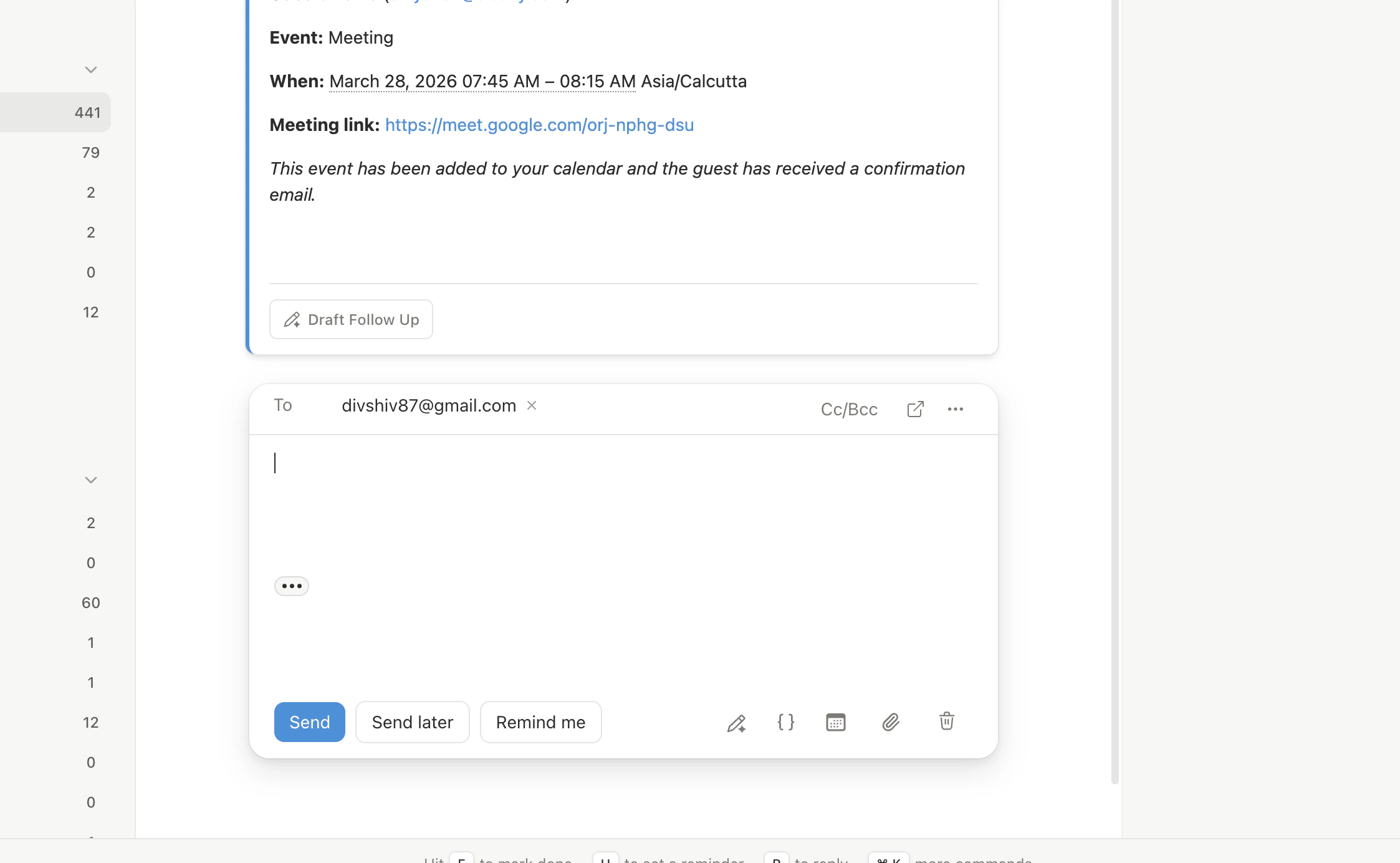
When viewing a thread, press `r` to open the inline reply editor at the bottom. It includes:
* Pre-filled recipients based on the last message
* Subject carried over with "Re:" prefix
* Your signature auto-appended
* Full compose features (formatting, attachments, AI tools)
To reply to a specific message in a multi-message thread, hover over that message and click the reply icon.
## Quoted Content
Original email content is included as quoted text below your reply. Quoted content is **collapsed by default** behind a "..." indicator — click to expand. You can edit or delete quoted text before sending.
In received messages, quoted content is also collapsed to keep long threads readable.
## Forwarding
Press `f` to forward. The editor opens with:
* Empty To field (you choose recipients)
* Subject prefixed with "Fwd:"
* Original message content included
* All original attachments carried over
Add your message above the forwarded content.
## AI Draft Reply
Press `Cmd+Enter` while in a reply to generate an AI-drafted response. The agent reads the full thread context, your memories, and sender profile to match your writing style.
## Threading
Slashy sets `References` and `In-Reply-To` headers automatically. Your replies appear in the correct thread in Gmail, Outlook, Apple Mail, and every other client.
If a thread appears broken (messages not grouped correctly), check whether the subject line was modified. Changing the subject creates a new thread in most email clients.
## Reply Shortcuts at a Glance
| Action | Shortcut | Context |
| -------------- | ----------------- | ----------------------------- |
| Reply | `r` | Inbox list or thread view |
| Reply All | `a` | Inbox list or thread view |
| Forward | `f` | Inbox list or thread view |
| Send | `Cmd+Enter` | Compose window |
| AI Draft Reply | `Cmd+Enter` | Thread view (no compose open) |
| Undo Send | Click toast | After sending |
| Schedule Send | `Cmd+Shift+Enter` | Compose window |
## Reply Compose Features
The reply editor has everything the new-email composer has:
* Rich text formatting with keyboard shortcuts
* To/CC/BCC with autocomplete and drag-and-drop
* File attachments (shortcut, drag-and-drop, or paste)
* AI autocomplete, AI edit, and AI rating
* Snippets, scheduled send, undo send, forgotten attachment detection
Schedule emails for later or undo after sending.
Automatic draft suggestions and tone matching.
## Reply, Reply All, and Forward
| Action | Shortcut | Behavior |
| --------- | -------- | ------------------------------------------------------ |
| Reply | `r` | Reply to sender of the last message |
| Reply All | `a` | Reply to all recipients (sender + To + CC) |
| Forward | `f` | Forward thread to new recipients with original content |
These shortcuts work from both the inbox list and thread detail view. The compose editor opens with correct recipients, subject line, and quoted content pre-filled.
## Inline Reply
When viewing a thread, press `r` to open the inline reply editor at the bottom. It includes:
* Pre-filled recipients based on the last message
* Subject carried over with "Re:" prefix
* Your signature auto-appended
* Full compose features (formatting, attachments, AI tools)
To reply to a specific message in a multi-message thread, hover over that message and click the reply icon.
## Quoted Content
Original email content is included as quoted text below your reply. Quoted content is **collapsed by default** behind a "..." indicator — click to expand. You can edit or delete quoted text before sending.
In received messages, quoted content is also collapsed to keep long threads readable.
## Forwarding
Press `f` to forward. The editor opens with:
* Empty To field (you choose recipients)
* Subject prefixed with "Fwd:"
* Original message content included
* All original attachments carried over
Add your message above the forwarded content.
## AI Draft Reply
Press `Cmd+Enter` while in a reply to generate an AI-drafted response. The agent reads the full thread context, your memories, and sender profile to match your writing style.
## Threading
Slashy sets `References` and `In-Reply-To` headers automatically. Your replies appear in the correct thread in Gmail, Outlook, Apple Mail, and every other client.
If a thread appears broken (messages not grouped correctly), check whether the subject line was modified. Changing the subject creates a new thread in most email clients.
## Reply Shortcuts at a Glance
| Action | Shortcut | Context |
| -------------- | ----------------- | ----------------------------- |
| Reply | `r` | Inbox list or thread view |
| Reply All | `a` | Inbox list or thread view |
| Forward | `f` | Inbox list or thread view |
| Send | `Cmd+Enter` | Compose window |
| AI Draft Reply | `Cmd+Enter` | Thread view (no compose open) |
| Undo Send | Click toast | After sending |
| Schedule Send | `Cmd+Shift+Enter` | Compose window |
## Reply Compose Features
The reply editor has everything the new-email composer has:
* Rich text formatting with keyboard shortcuts
* To/CC/BCC with autocomplete and drag-and-drop
* File attachments (shortcut, drag-and-drop, or paste)
* AI autocomplete, AI edit, and AI rating
* Snippets, scheduled send, undo send, forgotten attachment detection
Schedule emails for later or undo after sending.
Automatic draft suggestions and tone matching.