> ## Documentation Index
> Fetch the complete documentation index at: https://help.slashy.com/llms.txt
> Use this file to discover all available pages before exploring further.
# Importance Labels & AI Classification
> How Slashy's AI classifies incoming email into importance labels, default labels, custom labels, per-label notifications, auto-archive, training examples, and the feedback loop.
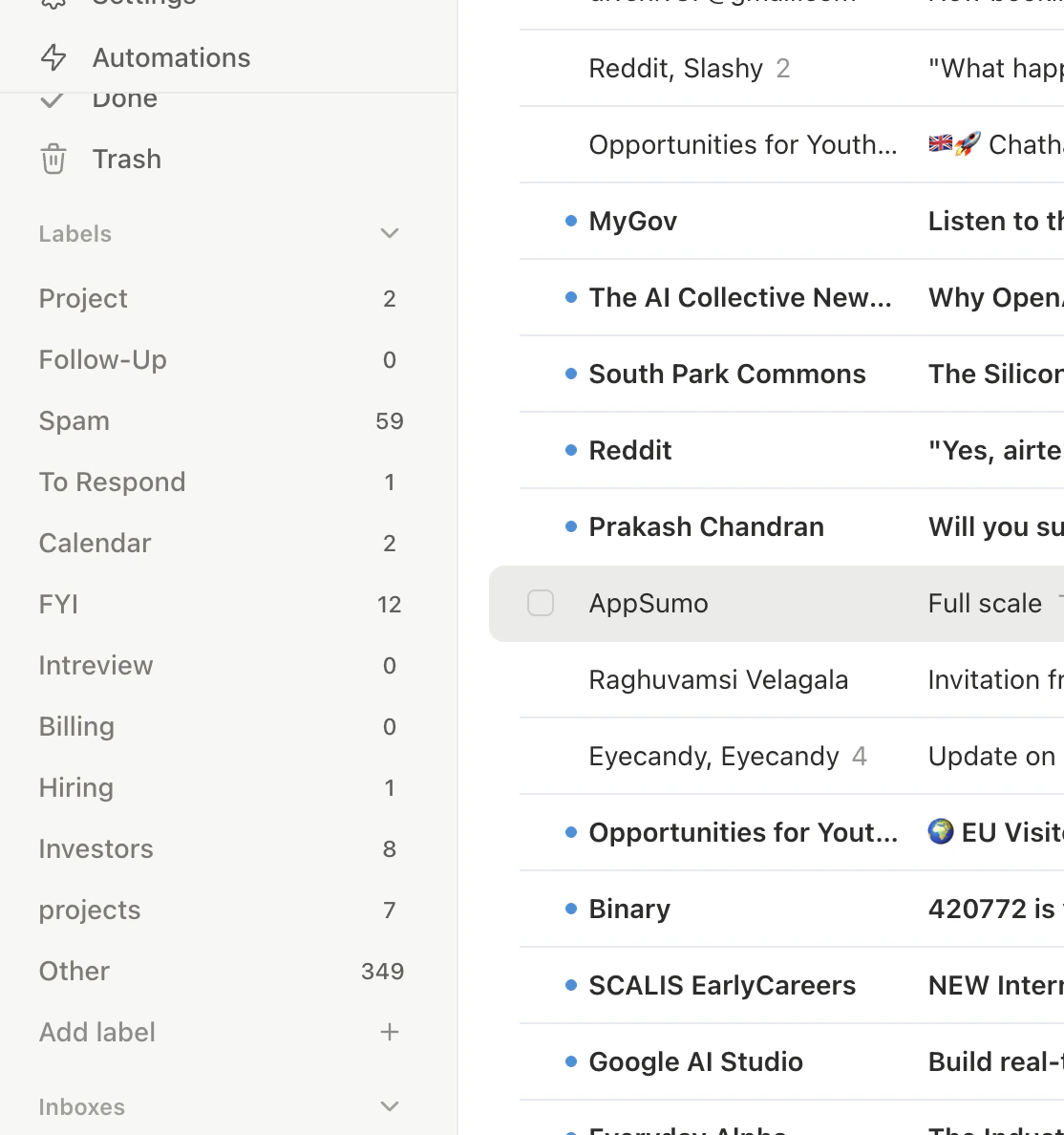
Slashy uses AI to classify every incoming email into an importance label. Instead of one giant inbox, your email is sorted into focused tabs like Important, Calendar, Billing, and Newsletter. You control which labels exist, what they mean, and how each one behaves.
 ## How Classification Works
When a new email arrives, the AI reads message content, sender info, and your contact history to assign a label. It considers:
* **Sender identity** — real person vs. automated notification
* **Message content** — does it require a response?
* **Thread history** — part of an ongoing conversation?
* **Label descriptions** — your instructions guide the AI
* **Deterministic filters** — `from:`, `to:`, `subject:` rules bypass AI entirely
* **Training examples** — your past corrections improve accuracy
## Default Labels
| Label | What Goes Here | Notifications |
| -------------- | ------------------------------------------------------------------- | ------------------------- |
| **Important** | Emails requiring your response — real people, customers, colleagues | On |
| **Calendar** | Meeting invites, reminders, calendar notifications | On |
| **Billing** | Payments, invoices, receipts | Off |
| **Newsletter** | Subscribed content, digests, industry news | Off |
| **Hiring** | Recruiter and candidate communications | Off (disabled by default) |
| **Investors** | Investor communications | Off (disabled by default) |
| **Other** | Everything else — the catch-all | Off |
## Creating Custom Labels
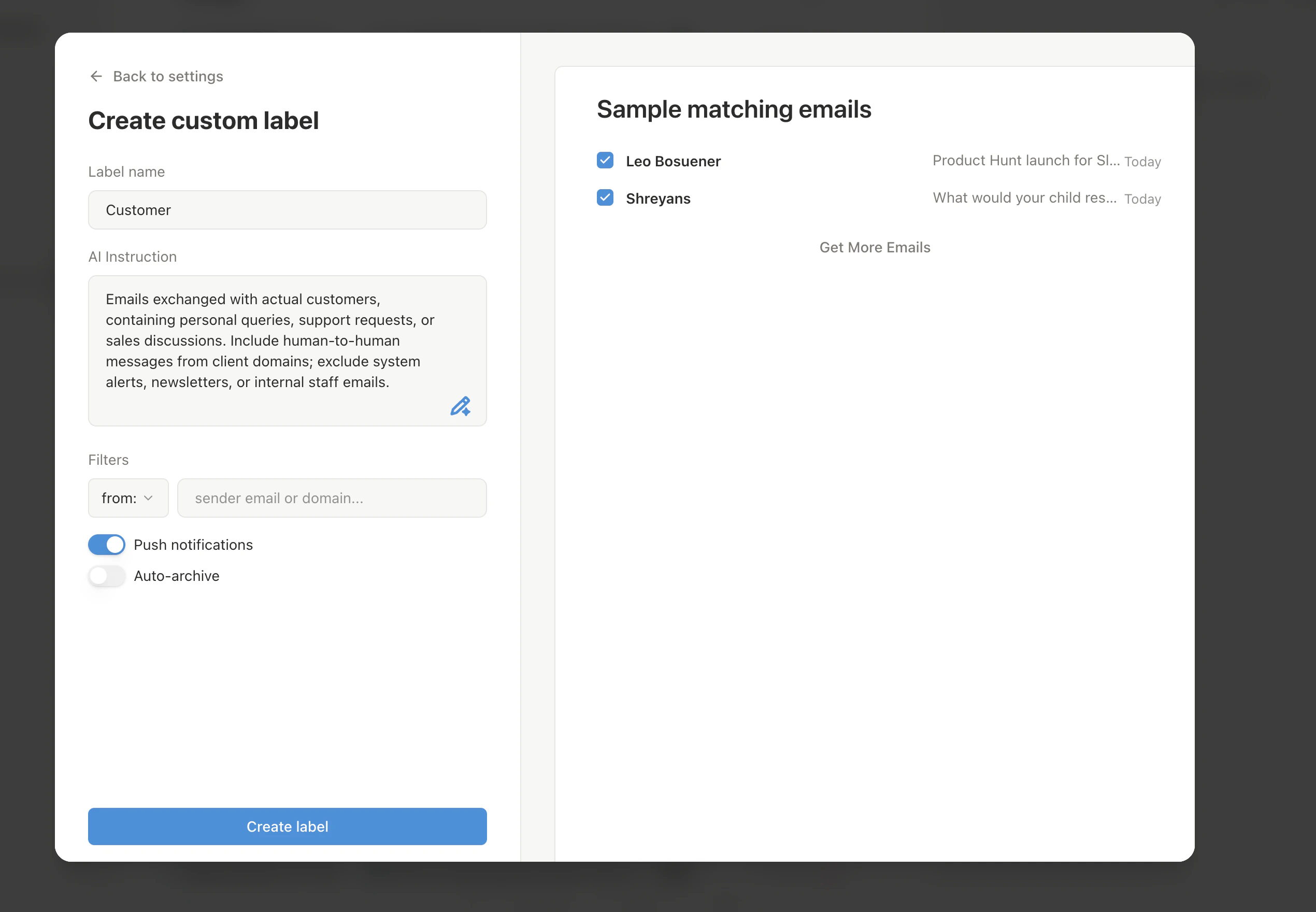
Press `n l` from anywhere, or go to **Settings > Labels > New Label**.
Provide a **name**, **description** (natural language instructions for the AI), and optional **filters** (`from:`, `to:`, `subject:` rules). Slashy can generate an AI-assisted description to improve accuracy.
## How Classification Works
When a new email arrives, the AI reads message content, sender info, and your contact history to assign a label. It considers:
* **Sender identity** — real person vs. automated notification
* **Message content** — does it require a response?
* **Thread history** — part of an ongoing conversation?
* **Label descriptions** — your instructions guide the AI
* **Deterministic filters** — `from:`, `to:`, `subject:` rules bypass AI entirely
* **Training examples** — your past corrections improve accuracy
## Default Labels
| Label | What Goes Here | Notifications |
| -------------- | ------------------------------------------------------------------- | ------------------------- |
| **Important** | Emails requiring your response — real people, customers, colleagues | On |
| **Calendar** | Meeting invites, reminders, calendar notifications | On |
| **Billing** | Payments, invoices, receipts | Off |
| **Newsletter** | Subscribed content, digests, industry news | Off |
| **Hiring** | Recruiter and candidate communications | Off (disabled by default) |
| **Investors** | Investor communications | Off (disabled by default) |
| **Other** | Everything else — the catch-all | Off |
## Creating Custom Labels
Press `n l` from anywhere, or go to **Settings > Labels > New Label**.
Provide a **name**, **description** (natural language instructions for the AI), and optional **filters** (`from:`, `to:`, `subject:` rules). Slashy can generate an AI-assisted description to improve accuracy.
 ## Per-Label Behaviors
Each label has a **Triggers Notification** toggle. Enable it for labels that matter (Important, VIP Clients). Disable for quiet categories (Newsletter, Billing). Configure in **Settings > Labels**.
Disable **Show in All Mail** for a label to auto-archive its emails. They appear only when you navigate to that label tab.
Enable reminders per label. Set timing with natural language (e.g., "2 days"). Reminders auto-dismiss if you reply or archive before they fire.
## Training the AI
When you reclassify a thread (using `l` or `v`, or drag-and-drop), Slashy asks why the classification was wrong. Your feedback becomes a training example that prevents the same mistake.
## Per-Label Behaviors
Each label has a **Triggers Notification** toggle. Enable it for labels that matter (Important, VIP Clients). Disable for quiet categories (Newsletter, Billing). Configure in **Settings > Labels**.
Disable **Show in All Mail** for a label to auto-archive its emails. They appear only when you navigate to that label tab.
Enable reminders per label. Set timing with natural language (e.g., "2 days"). Reminders auto-dismiss if you reply or archive before they fire.
## Training the AI
When you reclassify a thread (using `l` or `v`, or drag-and-drop), Slashy asks why the classification was wrong. Your feedback becomes a training example that prevents the same mistake.
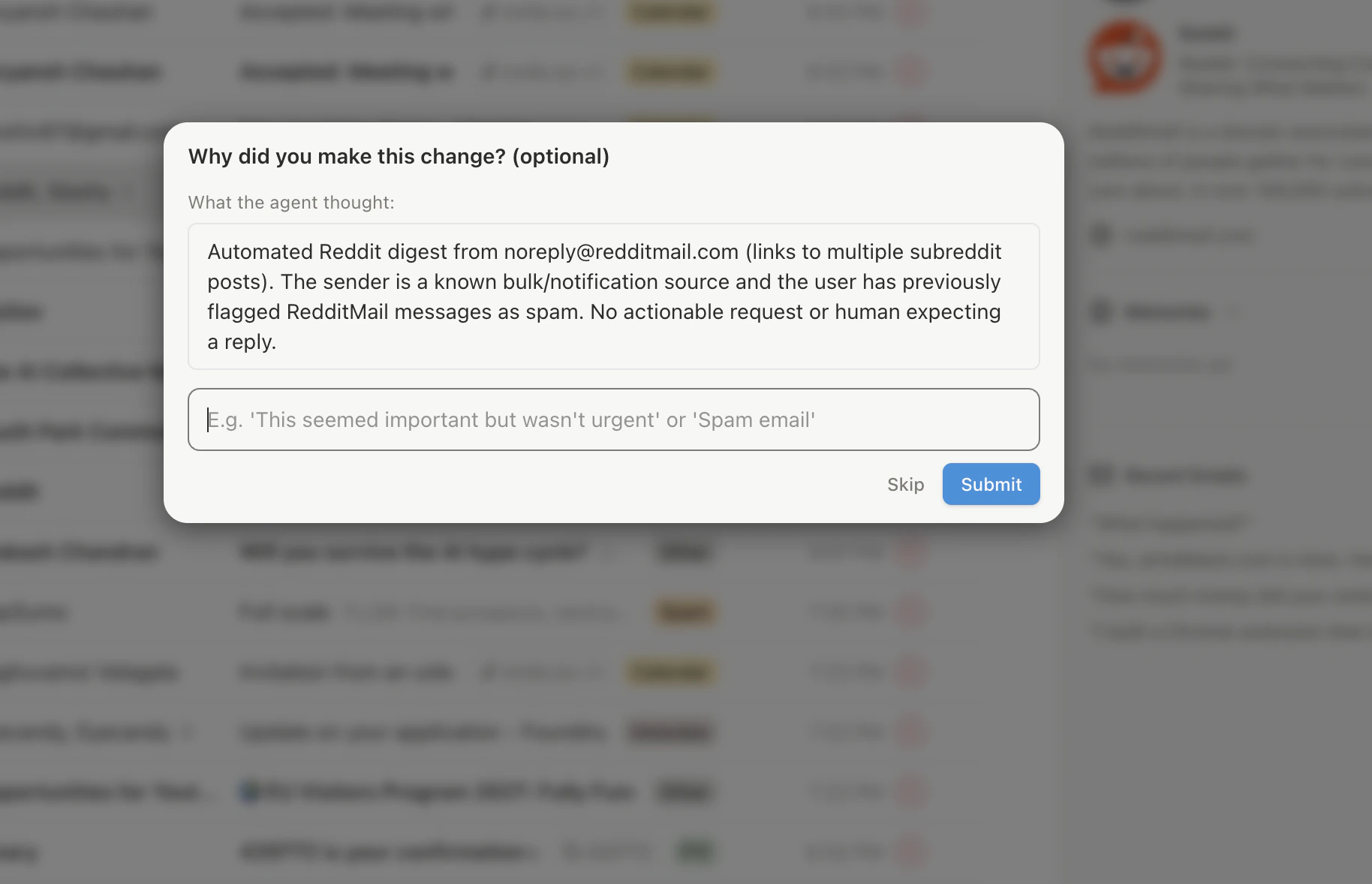 When creating or editing a label, Slashy shows a **batch preview** of matching emails. Approve or reject threads as training data before going live.
## Quick Reference
| Action | Shortcut |
| ------------------ | ------------------- |
| Create label | `n l` |
| Assign label | `l` or `v` |
| Next label tab | `Tab` |
| Previous label tab | `Shift+Tab` |
| Label settings | `Cmd+,` then Labels |
## Related Articles
Navigate all views, filters, and multi-inbox switching.
Control desktop, mobile, and per-label notifications.
Reach inbox zero using labels and AI triage.
Getting started guide for label setup.
When creating or editing a label, Slashy shows a **batch preview** of matching emails. Approve or reject threads as training data before going live.
## Quick Reference
| Action | Shortcut |
| ------------------ | ------------------- |
| Create label | `n l` |
| Assign label | `l` or `v` |
| Next label tab | `Tab` |
| Previous label tab | `Shift+Tab` |
| Label settings | `Cmd+,` then Labels |
## Related Articles
Navigate all views, filters, and multi-inbox switching.
Control desktop, mobile, and per-label notifications.
Reach inbox zero using labels and AI triage.
Getting started guide for label setup.