> ## Documentation Index
> Fetch the complete documentation index at: https://help.slashy.com/llms.txt
> Use this file to discover all available pages before exploring further.
# Inbox Views
> Navigate All Mail, Starred, Reminders, Scheduled, Drafts, Sent, Done, and Trash with keyboard shortcuts, top section grouping, filters, and multi-inbox switching.
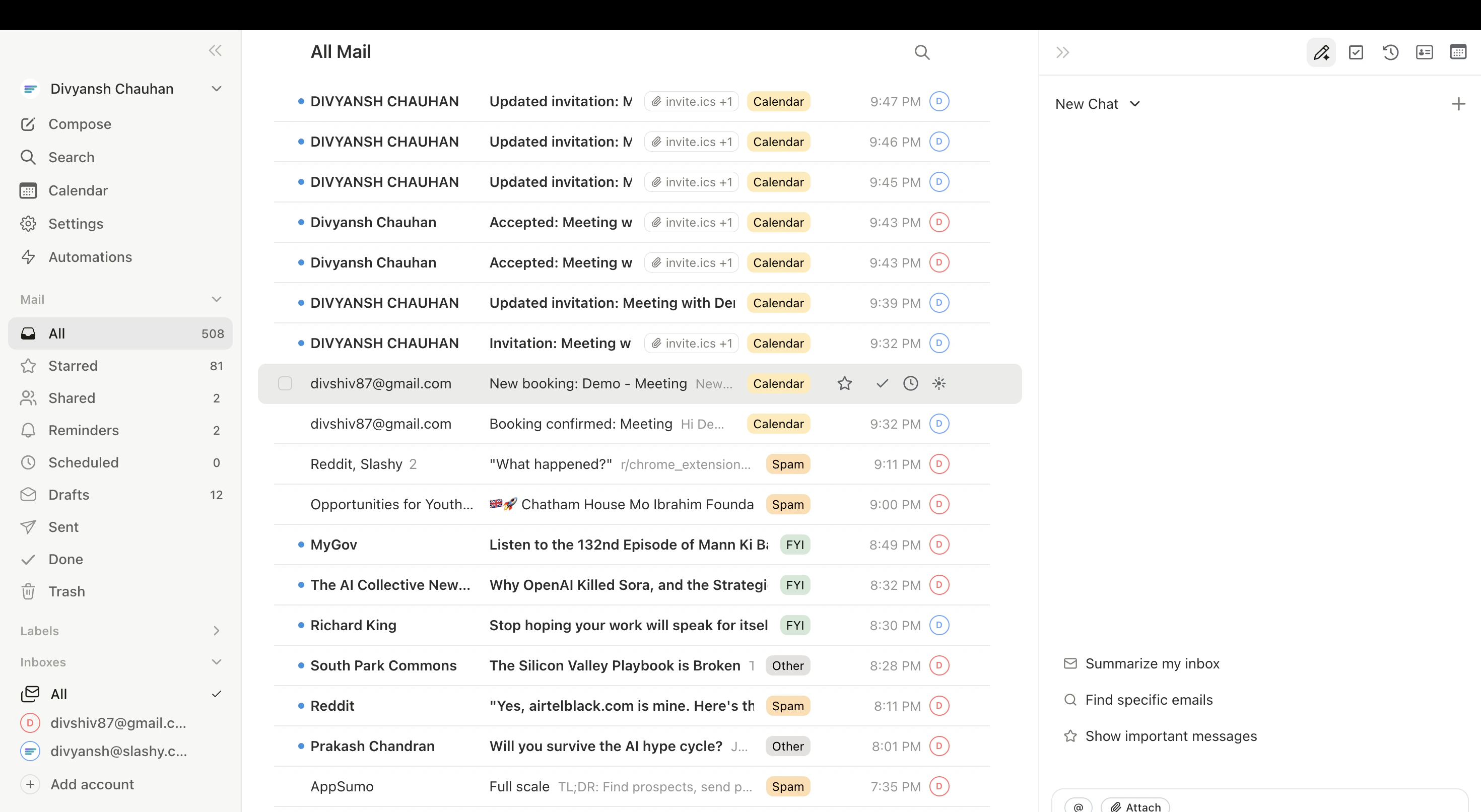
Slashy organizes email across several views, each accessible from the sidebar and via keyboard shortcuts. Combined with label tabs, filters, and multi-inbox switching, you reach any email in one or two keystrokes.
 ## Sidebar Views
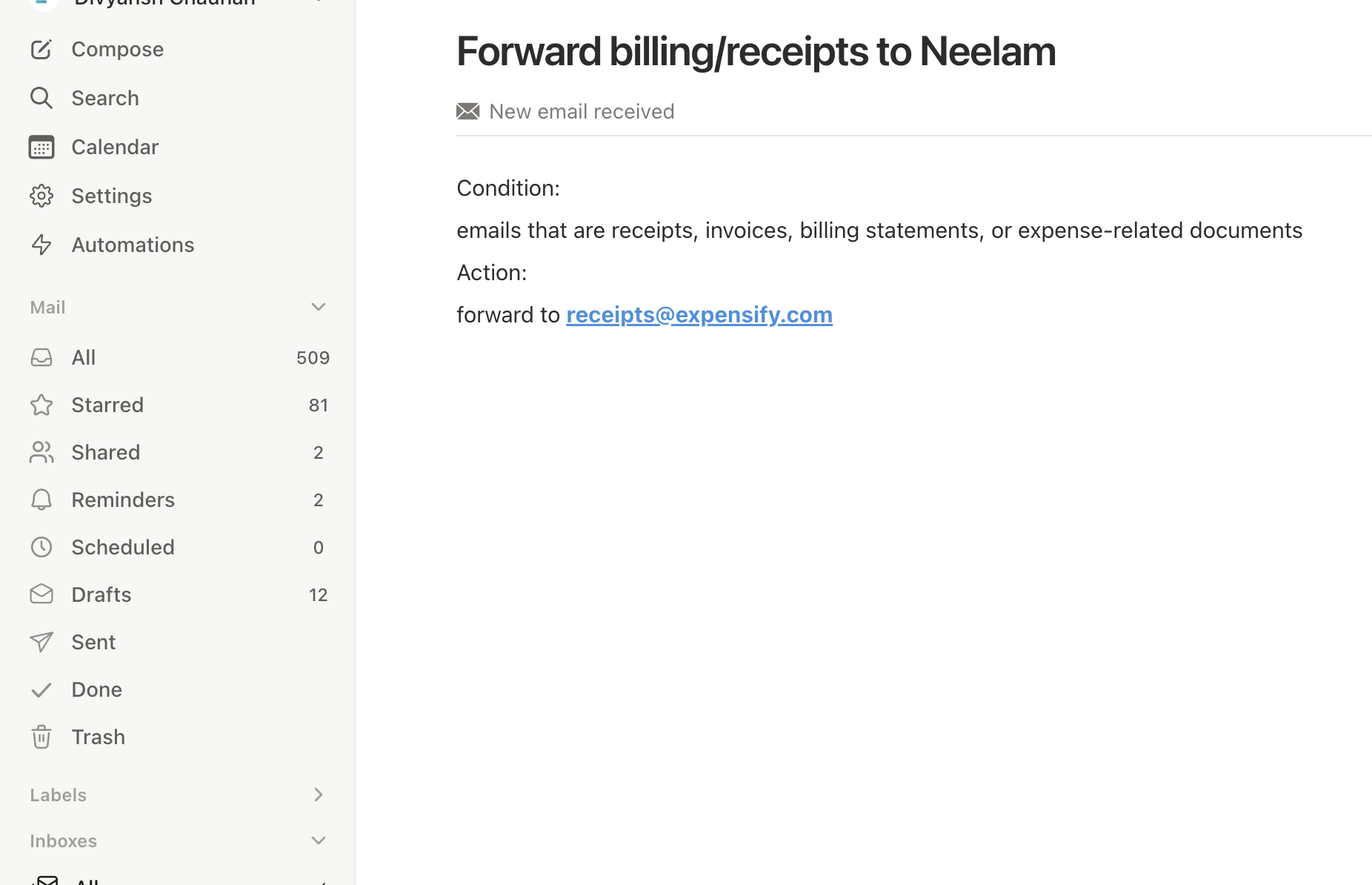
| View | Shortcut | What It Shows |
| ------------- | -------- | -------------------------------------------- |
| **All Mail** | `g a` | Every email across all labels |
| **Starred** | `g s` | Threads you have starred |
| **Reminders** | `g h` | Threads with active reminders |
| **Scheduled** | `g l` | Emails scheduled to send later |
| **Drafts** | `g d` | Unsent drafts |
| **Sent** | `g t` | Emails you have sent |
| **Done** | `g e` | Archived threads |
| **Trash** | `g #` | Deleted threads (auto-removed after 30 days) |
Additional shortcuts: `g i` for Important, `g o` for Other.
## Importance Label Tabs
At the top of your inbox, labels appear as tabs with unread counts. Navigate with `Tab` / `Shift+Tab`. Drag tabs to reorder, or drag threads onto a tab to reclassify.
## Top Section Grouping
Pin a subset of threads to the top of your inbox for a two-tier layout.
| Mode | Top Section Shows |
| ----------- | ----------------------------- |
| **None** | Single chronological list |
| **Unread** | Unread threads pinned at top |
| **Starred** | Starred threads pinned at top |
Configure in **Settings > Account** or via command palette (`Cmd+K`, search "top section").
## Sidebar Views
| View | Shortcut | What It Shows |
| ------------- | -------- | -------------------------------------------- |
| **All Mail** | `g a` | Every email across all labels |
| **Starred** | `g s` | Threads you have starred |
| **Reminders** | `g h` | Threads with active reminders |
| **Scheduled** | `g l` | Emails scheduled to send later |
| **Drafts** | `g d` | Unsent drafts |
| **Sent** | `g t` | Emails you have sent |
| **Done** | `g e` | Archived threads |
| **Trash** | `g #` | Deleted threads (auto-removed after 30 days) |
Additional shortcuts: `g i` for Important, `g o` for Other.
## Importance Label Tabs
At the top of your inbox, labels appear as tabs with unread counts. Navigate with `Tab` / `Shift+Tab`. Drag tabs to reorder, or drag threads onto a tab to reclassify.
## Top Section Grouping
Pin a subset of threads to the top of your inbox for a two-tier layout.
| Mode | Top Section Shows |
| ----------- | ----------------------------- |
| **None** | Single chronological list |
| **Unread** | Unread threads pinned at top |
| **Starred** | Starred threads pinned at top |
Configure in **Settings > Account** or via command palette (`Cmd+K`, search "top section").
 ## Inbox Filters
Toggle filters to narrow your current view. Active filters stack with your view and label.
| Filter | Shortcut | Shows Only |
| ------------- | --------- | --------------------------------------------- |
| **Unread** | `Shift+U` | Threads with unread messages |
| **Starred** | `Shift+S` | Starred threads |
| **Important** | `Shift+I` | AI-classified Important threads |
| **No Reply** | `Shift+R` | Threads awaiting a reply to your last message |
Press the shortcut once to activate, again to deactivate.
## Multi-Inbox Switching
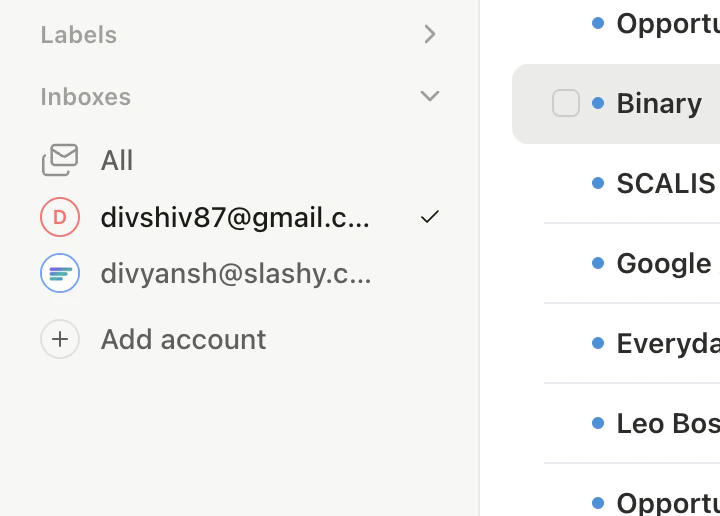
Switch between connected Gmail accounts instantly with `Alt+1` through `Alt+9` (and `Alt+0` for the tenth). Each inbox has its own labels, threads, and settings.
## Inbox Filters
Toggle filters to narrow your current view. Active filters stack with your view and label.
| Filter | Shortcut | Shows Only |
| ------------- | --------- | --------------------------------------------- |
| **Unread** | `Shift+U` | Threads with unread messages |
| **Starred** | `Shift+S` | Starred threads |
| **Important** | `Shift+I` | AI-classified Important threads |
| **No Reply** | `Shift+R` | Threads awaiting a reply to your last message |
Press the shortcut once to activate, again to deactivate.
## Multi-Inbox Switching
Switch between connected Gmail accounts instantly with `Alt+1` through `Alt+9` (and `Alt+0` for the tenth). Each inbox has its own labels, threads, and settings.
 ## Common View Workflows
Start with `g i` (Inbox), work through threads top to bottom with `j`/`k`. Archive with `e`, star important items with `s`, snooze non-urgent with `h`. End with **Done** view (`g e`) to confirm everything is handled.
Go to **Sent** (`g t`), then filter with `Shift+R` (No Reply) to see threads where you are waiting for a response. Star ones that need a nudge, then batch-follow-up.
Check **Reminders** (`g h`) for snoozed items that came back. Review **Drafts** (`g d`) for anything unsent. Check **Scheduled** (`g l`) to confirm tomorrow's sends look right.
## Navigation Shortcuts
| Action | Shortcut |
| -------------------- | ------------------- |
| Move down | `j` or `Down Arrow` |
| Move up | `k` or `Up Arrow` |
| Open thread | `Enter` |
| Select all | `Cmd+A` |
| Toggle sidebar | `Cmd+B` |
| Toggle right sidebar | `Cmd+.` |
**Keyboard shortcuts cheatsheet** -- press `Shift+?` anytime to see every shortcut in Slashy, or visit the [full cheatsheet](/how-to-guides/keyboard-shortcuts).
How AI sorts your email into importance labels.
Control what triggers notifications and where they appear.
## Common View Workflows
Start with `g i` (Inbox), work through threads top to bottom with `j`/`k`. Archive with `e`, star important items with `s`, snooze non-urgent with `h`. End with **Done** view (`g e`) to confirm everything is handled.
Go to **Sent** (`g t`), then filter with `Shift+R` (No Reply) to see threads where you are waiting for a response. Star ones that need a nudge, then batch-follow-up.
Check **Reminders** (`g h`) for snoozed items that came back. Review **Drafts** (`g d`) for anything unsent. Check **Scheduled** (`g l`) to confirm tomorrow's sends look right.
## Navigation Shortcuts
| Action | Shortcut |
| -------------------- | ------------------- |
| Move down | `j` or `Down Arrow` |
| Move up | `k` or `Up Arrow` |
| Open thread | `Enter` |
| Select all | `Cmd+A` |
| Toggle sidebar | `Cmd+B` |
| Toggle right sidebar | `Cmd+.` |
**Keyboard shortcuts cheatsheet** -- press `Shift+?` anytime to see every shortcut in Slashy, or visit the [full cheatsheet](/how-to-guides/keyboard-shortcuts).
How AI sorts your email into importance labels.
Control what triggers notifications and where they appear.