> ## Documentation Index
> Fetch the complete documentation index at: https://help.slashy.com/llms.txt
> Use this file to discover all available pages before exploring further.
# Composing New Emails
> Write emails with full-screen or pop-up mode, rich text formatting, drag-and-drop recipients, multi-account sending, and forgotten attachment detection.
Press `c` to compose a new email. Slashy gives you a rich text editor with autocomplete recipients, formatting shortcuts, file attachments, and multi-account sending.
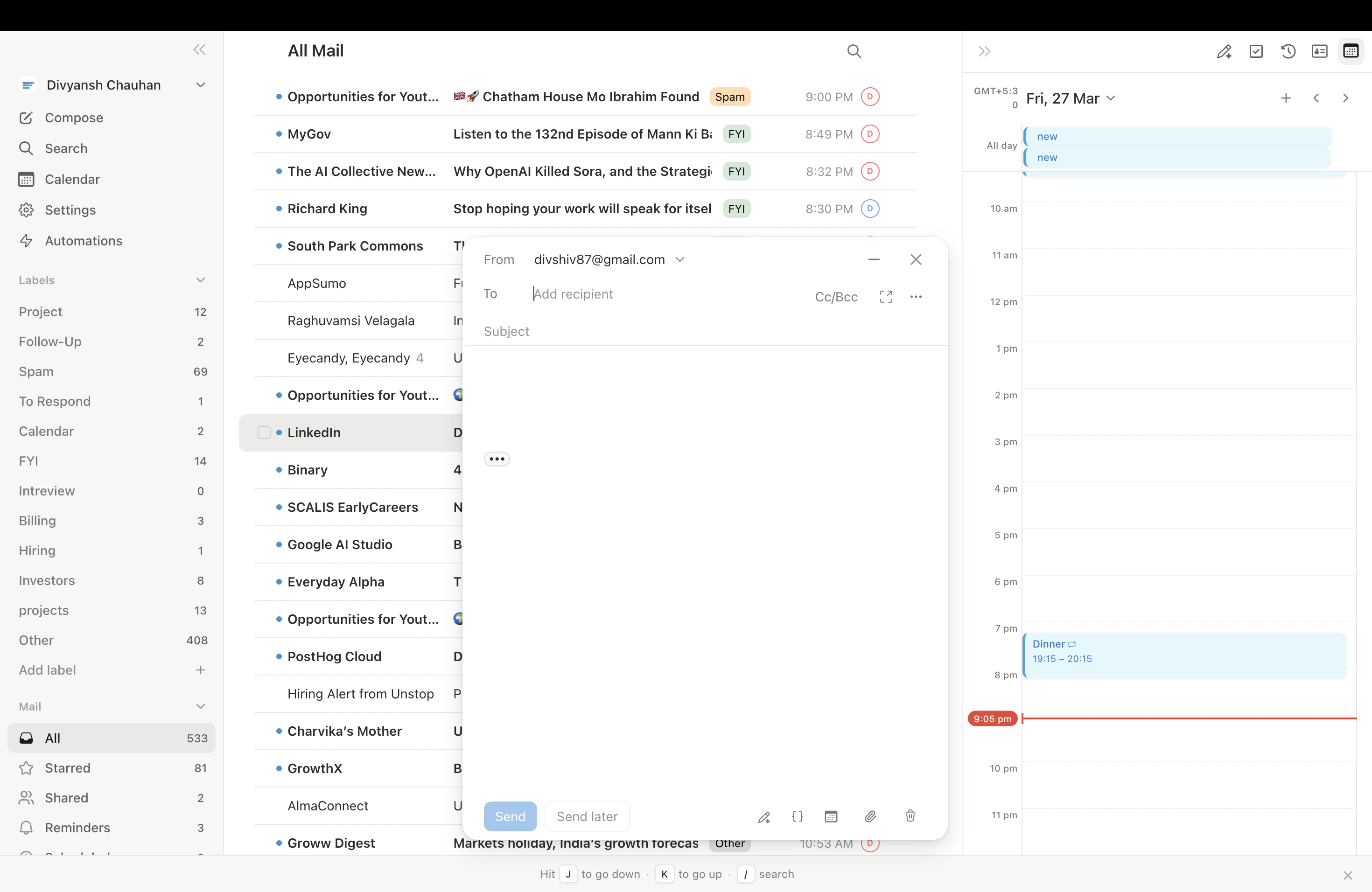
 ## Full-Screen vs. Pop-Up Mode
| Mode | Description |
| --------------- | ---------------------------------------------------------------------- |
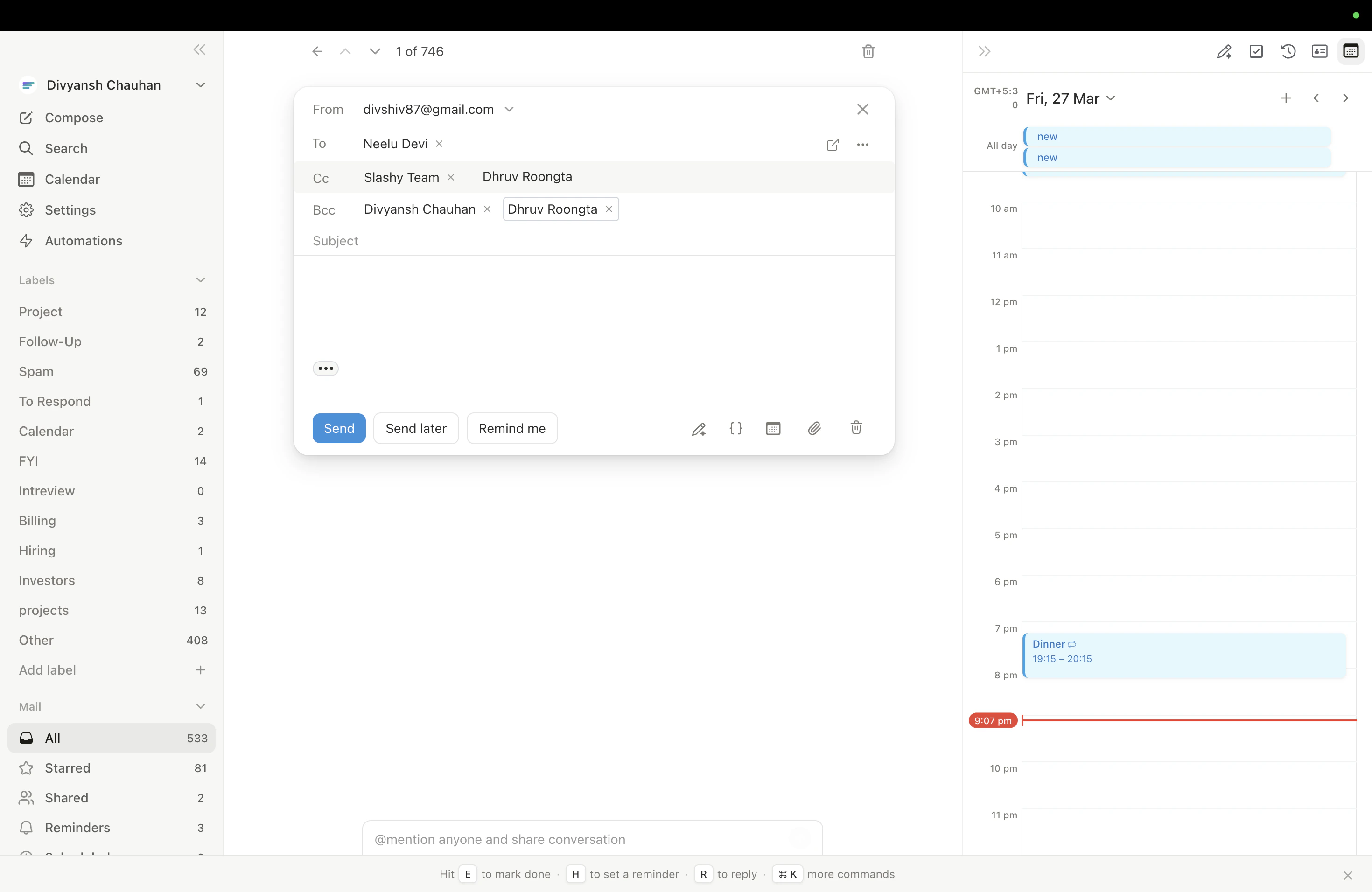
| **Full-screen** | Compose takes over the main area (default) |
| **Pop-up** | Floating window -- reference inbox while writing, open multiple drafts |
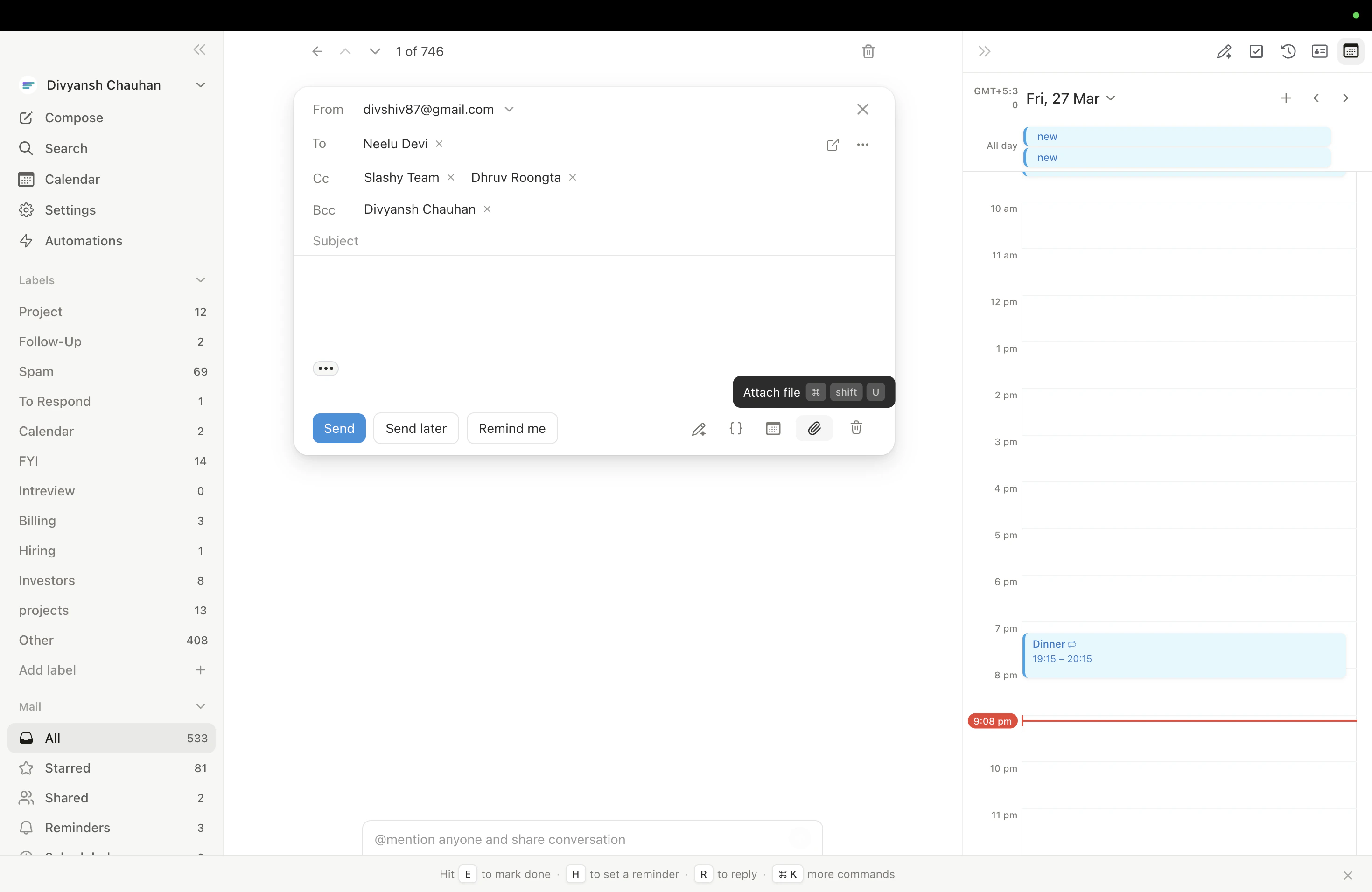
Toggle with `Cmd+Shift+P`. Set your default in **Settings > Account > Compose Mode**.
## Recipients
Type a name or email in the **To** field -- Slashy autocompletes from your contact history with fuzzy search. Press `Tab` to cycle between To, CC, and BCC.
**Drag and drop** recipient chips between fields (To to CC, CC to BCC, etc.). Remove chips with the X button or `Backspace`.
## From Selector
With multiple Gmail accounts connected, the **From** dropdown lets you choose which account to send from. Defaults to the account you're currently viewing.
## Full-Screen vs. Pop-Up Mode
| Mode | Description |
| --------------- | ---------------------------------------------------------------------- |
| **Full-screen** | Compose takes over the main area (default) |
| **Pop-up** | Floating window -- reference inbox while writing, open multiple drafts |
Toggle with `Cmd+Shift+P`. Set your default in **Settings > Account > Compose Mode**.
## Recipients
Type a name or email in the **To** field -- Slashy autocompletes from your contact history with fuzzy search. Press `Tab` to cycle between To, CC, and BCC.
**Drag and drop** recipient chips between fields (To to CC, CC to BCC, etc.). Remove chips with the X button or `Backspace`.
## From Selector
With multiple Gmail accounts connected, the **From** dropdown lets you choose which account to send from. Defaults to the account you're currently viewing.
 ## Rich Text Editor
| Format | Shortcut |
| ------------- | ------------- |
| Bold | `Cmd+B` |
| Italic | `Cmd+I` |
| Underline | `Cmd+U` |
| Strikethrough | `Cmd+Shift+X` |
| Highlight | `Cmd+Shift+H` |
| Bulleted list | `Cmd+Shift+8` |
| Numbered list | `Cmd+Shift+7` |
| Blockquote | `Cmd+Shift+9` |
| Insert link | `Cmd+K` |
## Attachments
`Cmd+Shift+U` opens the file picker
Drag files onto the compose window
Copy an image and paste directly into the editor body
**Forgotten attachment detection** -- if your email mentions an attachment but none is attached, Slashy warns you before sending. You can add the file or send anyway.
## AI Features While Composing
* **AI Autocomplete** -- ghost text appears as you type; press `Tab` to accept
* **AI Draft Reply** -- `Cmd+Enter` in a reply to generate a full draft
* **AI Edit** -- select text and invoke the AI editor to improve, shorten, or fix grammar
* **AI Email Rating** -- `Cmd+P` to score your draft with specific suggestions
## Sending
* **Send now:** `Cmd+Enter` (with undo send delay)
* **Schedule send:** `Cmd+Shift+Enter` to pick a future time
* **Send and Snooze:** `Cmd+Option+H` (Mac) / `Ctrl+Alt+H` (Win/Linux) sends the email immediately and opens the snooze picker so you can set a follow-up reminder in the same step. Archive-on-send follows your Done-on-Send setting.
**Undo send** -- after pressing `Cmd+Enter`, a toast appears with an undo option. Configure the delay window (5-30 seconds) in **Settings > Account > Undo Send Delay**.
## "Sent with Slashy" Footer
Outgoing emails include a small "Sent with Slashy" footer by default. To remove it, go to **Settings > Account > Compose & Reply** and turn off the **Sent with Slashy** toggle.
## Rich Text Editor
| Format | Shortcut |
| ------------- | ------------- |
| Bold | `Cmd+B` |
| Italic | `Cmd+I` |
| Underline | `Cmd+U` |
| Strikethrough | `Cmd+Shift+X` |
| Highlight | `Cmd+Shift+H` |
| Bulleted list | `Cmd+Shift+8` |
| Numbered list | `Cmd+Shift+7` |
| Blockquote | `Cmd+Shift+9` |
| Insert link | `Cmd+K` |
## Attachments
`Cmd+Shift+U` opens the file picker
Drag files onto the compose window
Copy an image and paste directly into the editor body
**Forgotten attachment detection** -- if your email mentions an attachment but none is attached, Slashy warns you before sending. You can add the file or send anyway.
## AI Features While Composing
* **AI Autocomplete** -- ghost text appears as you type; press `Tab` to accept
* **AI Draft Reply** -- `Cmd+Enter` in a reply to generate a full draft
* **AI Edit** -- select text and invoke the AI editor to improve, shorten, or fix grammar
* **AI Email Rating** -- `Cmd+P` to score your draft with specific suggestions
## Sending
* **Send now:** `Cmd+Enter` (with undo send delay)
* **Schedule send:** `Cmd+Shift+Enter` to pick a future time
* **Send and Snooze:** `Cmd+Option+H` (Mac) / `Ctrl+Alt+H` (Win/Linux) sends the email immediately and opens the snooze picker so you can set a follow-up reminder in the same step. Archive-on-send follows your Done-on-Send setting.
**Undo send** -- after pressing `Cmd+Enter`, a toast appears with an undo option. Configure the delay window (5-30 seconds) in **Settings > Account > Undo Send Delay**.
## "Sent with Slashy" Footer
Outgoing emails include a small "Sent with Slashy" footer by default. To remove it, go to **Settings > Account > Compose & Reply** and turn off the **Sent with Slashy** toggle.
 **Keyboard shortcuts cheatsheet** -- press `Shift+?` anytime to see every shortcut in Slashy, or visit the [full cheatsheet](/how-to-guides/keyboard-shortcuts).
***
Reusable email templates with AI variables
Configure and manage email signatures
Block senders and bulk unsubscribe
**Keyboard shortcuts cheatsheet** -- press `Shift+?` anytime to see every shortcut in Slashy, or visit the [full cheatsheet](/how-to-guides/keyboard-shortcuts).
***
Reusable email templates with AI variables
Configure and manage email signatures
Block senders and bulk unsubscribe