> ## Documentation Index
> Fetch the complete documentation index at: https://help.slashy.com/llms.txt
> Use this file to discover all available pages before exploring further.
# How do I assign an email to a teammate?
> Give a team conversation one owner, see who owns it, and see when they've marked it done.
Assigning gives a team conversation one owner, so everyone knows who is handling it. The owner shows on the thread and in your thread list, and a green check appears once they've marked it done.
## Assign a thread
Open the thread, or focus it in the list, and press `i`. You can also press `Cmd+K` and choose **Assign to...**, or click the assign icon in the thread toolbar.
Choose a teammate, or yourself. Type to search by name. To take a thread yourself in one step, press `Cmd+K` and choose **Assign to me**.
You don't need to open the thread. In your inbox, hover or move to a conversation with `j` and `k`, then press `i`.
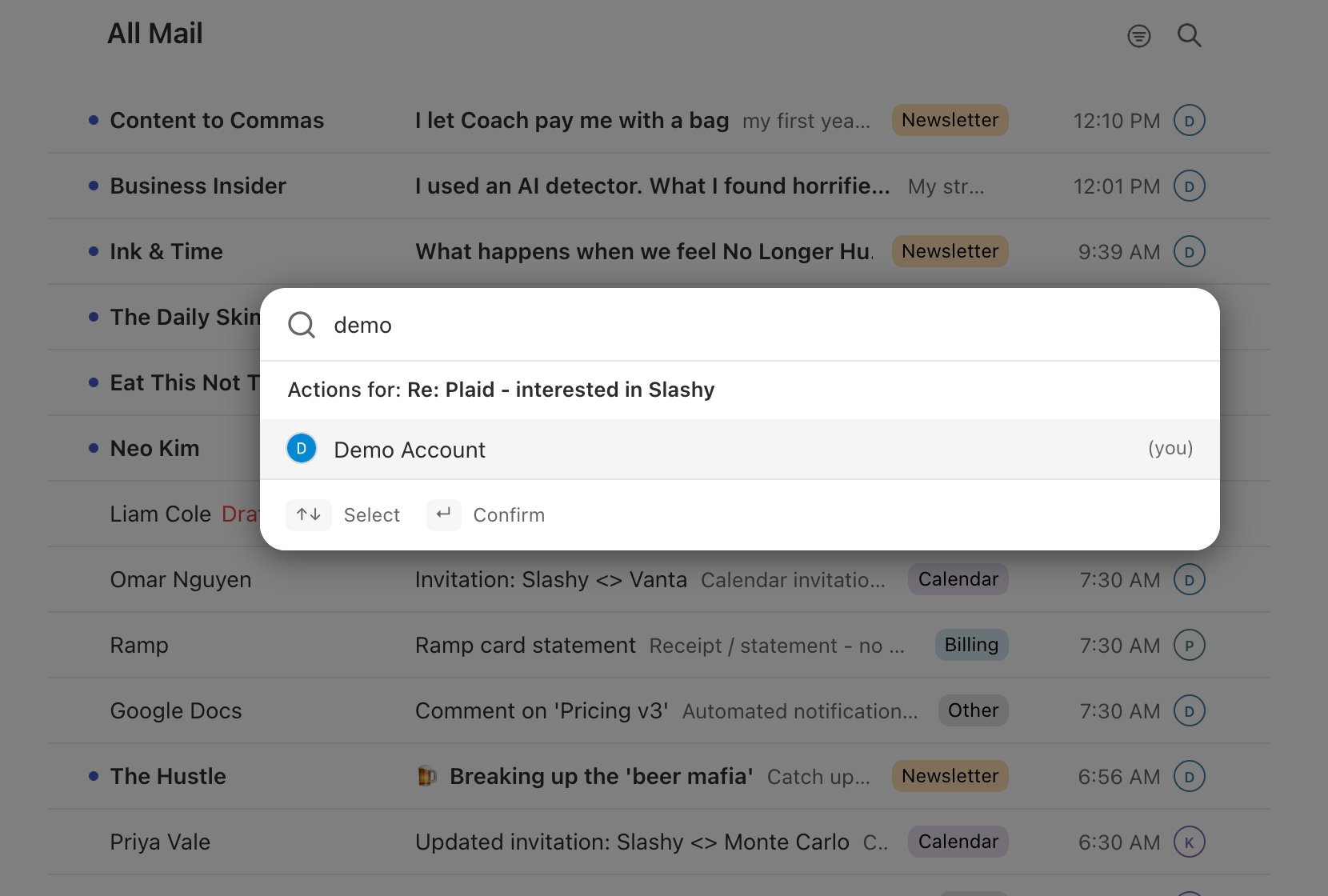
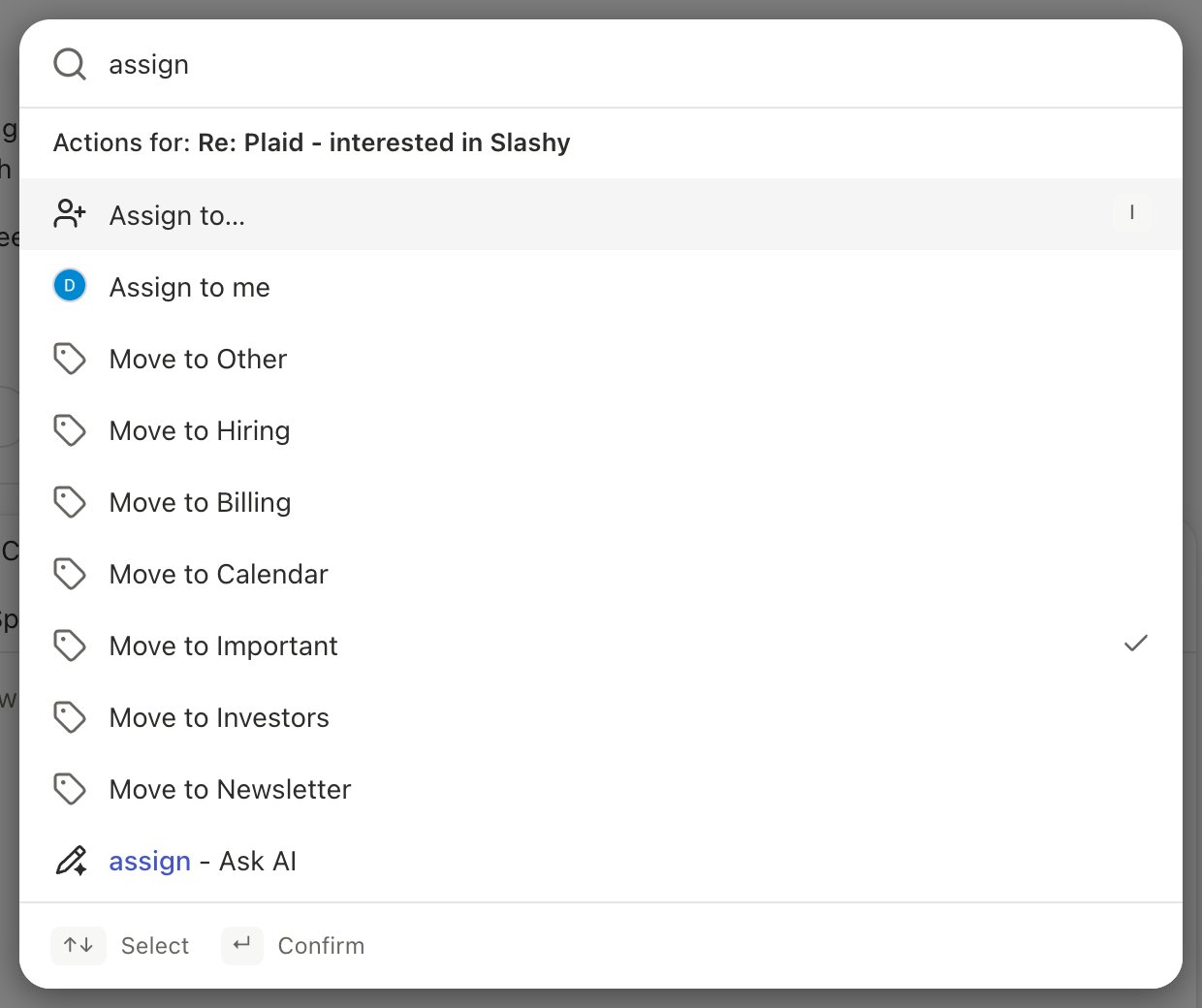 A toast confirms the change, such as "Assigned to Dhruv" or "Reassigned to you". Click **Undo** on it to put the previous owner back.
The thread lands in the new owner's inbox, even if it was already done, and appears in their **Assigned** view. If they allow notifications from the Slashy mobile app, they also get a push notification.
## See who owns a thread
The owner's avatar and first name sit at the front of the thread toolbar ("You" when it's yours). Hover it to see the full name. In a narrow window it shrinks to the avatar alone.
A toast confirms the change, such as "Assigned to Dhruv" or "Reassigned to you". Click **Undo** on it to put the previous owner back.
The thread lands in the new owner's inbox, even if it was already done, and appears in their **Assigned** view. If they allow notifications from the Slashy mobile app, they also get a push notification.
## See who owns a thread
The owner's avatar and first name sit at the front of the thread toolbar ("You" when it's yours). Hover it to see the full name. In a narrow window it shrinks to the avatar alone.
 In your inbox and other thread lists, an assigned conversation shows its owner's avatar next to the sender. Hover it to see "Assigned to" and the owner's name.
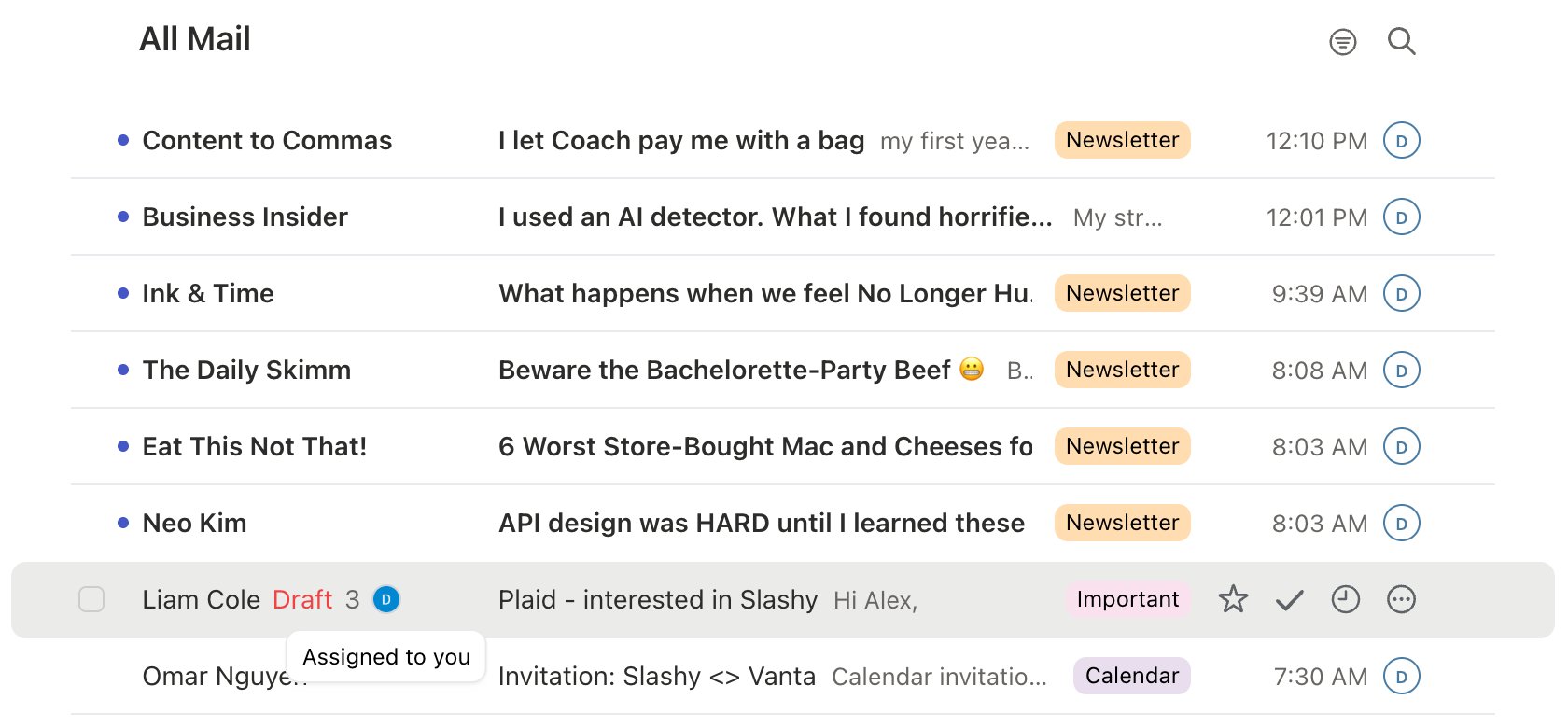 The **Assigned** view in the left sidebar lists conversations assigned to you that are still in your inbox, with a count beside it.
## Mark an assigned thread done
When you finish an assigned thread, mark it done the usual way: press `e`, or click the check in the toolbar. A green check then appears on your avatar everywhere the owner shows, and the tooltip reads "Done by" with your name. Your teammates can see at a glance that it's handled.
The **Assigned** view in the left sidebar lists conversations assigned to you that are still in your inbox, with a count beside it.
## Mark an assigned thread done
When you finish an assigned thread, mark it done the usual way: press `e`, or click the check in the toolbar. A green check then appears on your avatar everywhere the owner shows, and the tooltip reads "Done by" with your name. Your teammates can see at a glance that it's handled.

 To reopen it, press `Shift+E` or choose **Mark not done**. The check goes away and the thread is back in your inbox. Reassigning a done thread also reopens it for the new owner.
## Change or clear the owner
Open the same menu with `i`. The current owner has a check next to their name. Pick someone else to reassign, or choose **No assignee** at the top to clear the owner.
## On mobile
* **Assigned view.** Open the mail menu and choose **Assigned**, right after Shared.
* **Owner pill.** An assigned thread shows "Assigned to" and the owner's name under the subject, or "Done by" with a green check once it's done. Tap it to change the owner.
* **Assign sheet.** Assign from the thread's More menu or its actions sheet. You're listed first, then your teammates, with **Unassign** at the bottom.
* **From a comment.** When your comment @-mentions a teammate, an "Also assign to" pill appears in the comment composer. Leave it on to assign the thread to them when you post.
Anyone on your team who signs in to Slashy. Shared inbox seats don't appear in the list. Manage your team in [Settings → Team](/features/settings/team).
Yes. Assigning shares the conversation with your team the same way a comment does, and the owner gets access to it. People on the email itself never see who owns it.
Comment on the thread first so Slashy knows which team it belongs to, then assign it. See [Comments and @-mentions](/features/email/comments-and-mentions).
Discuss a thread privately with your team.
Invite the teammates you'll assign to.
Find the Shared and Assigned views.
`i` to assign, `e` to mark done.
Clear your inbox, assigned work included.
This documentation is built and hosted on [Mintlify](https://mintlify.com), a developer documentation platform.
To reopen it, press `Shift+E` or choose **Mark not done**. The check goes away and the thread is back in your inbox. Reassigning a done thread also reopens it for the new owner.
## Change or clear the owner
Open the same menu with `i`. The current owner has a check next to their name. Pick someone else to reassign, or choose **No assignee** at the top to clear the owner.
## On mobile
* **Assigned view.** Open the mail menu and choose **Assigned**, right after Shared.
* **Owner pill.** An assigned thread shows "Assigned to" and the owner's name under the subject, or "Done by" with a green check once it's done. Tap it to change the owner.
* **Assign sheet.** Assign from the thread's More menu or its actions sheet. You're listed first, then your teammates, with **Unassign** at the bottom.
* **From a comment.** When your comment @-mentions a teammate, an "Also assign to" pill appears in the comment composer. Leave it on to assign the thread to them when you post.
Anyone on your team who signs in to Slashy. Shared inbox seats don't appear in the list. Manage your team in [Settings → Team](/features/settings/team).
Yes. Assigning shares the conversation with your team the same way a comment does, and the owner gets access to it. People on the email itself never see who owns it.
Comment on the thread first so Slashy knows which team it belongs to, then assign it. See [Comments and @-mentions](/features/email/comments-and-mentions).
Discuss a thread privately with your team.
Invite the teammates you'll assign to.
Find the Shared and Assigned views.
`i` to assign, `e` to mark done.
Clear your inbox, assigned work included.
This documentation is built and hosted on [Mintlify](https://mintlify.com), a developer documentation platform.