> ## Documentation Index
> Fetch the complete documentation index at: https://help.slashy.com/llms.txt
> Use this file to discover all available pages before exploring further.
# Contacts and the contact sidebar
> A live profile for every person you email, with company, LinkedIn, meeting history, recent threads, and AI memories.
Every person you email has a contact profile in Slashy. The contact sidebar is the fastest way to see who you're talking to, what you've discussed, and what the AI remembers about them.
 ## What's in the sidebar
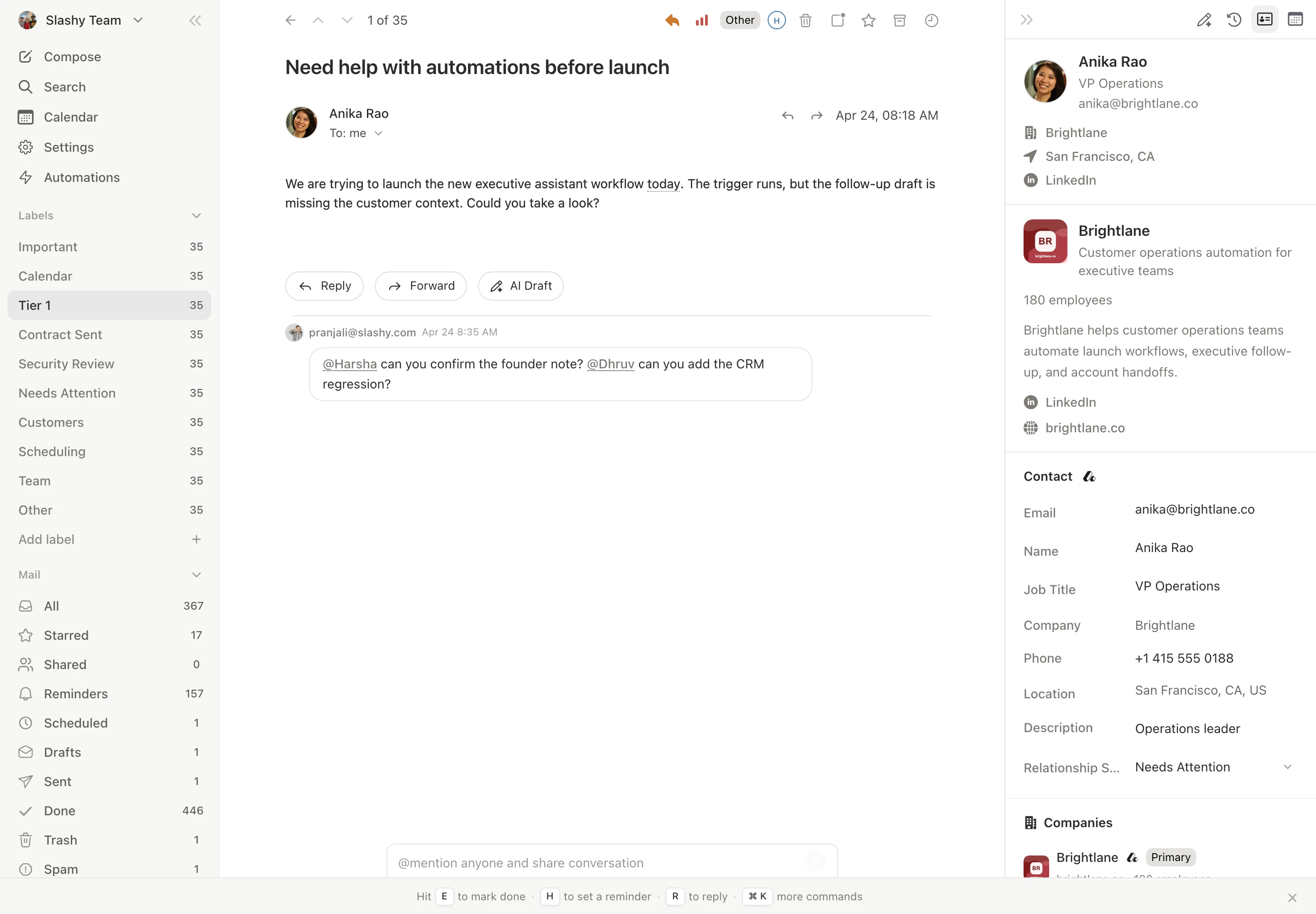
The contact sidebar shows everything Slashy knows about a person on one panel:
* **Identity.** Full name, title, company, and LinkedIn link.
* **Company.** Industry, size, website, and one-line description.
* **Meeting history.** Past and upcoming calendar events with this contact, with date, title, and a link into the event.
* **Recent emails.** Latest threads with this contact, clickable to jump to the thread.
* **AI memories.** Facts Slashy has stored about them, anything from "Prefers email over Slack" to "Co-founder at Acme; we discussed the Series B in March."
## Opening the sidebar
You have two paths:
Open any thread and the contact panel appears on the right by default. Use `Cmd+.` to toggle the right sidebar if it's hidden.
Press `p c` to open the contact panel directly. Search for any person you have emailed or met with.
The sidebar updates as you navigate between threads, so it always reflects the person you are looking at.
## Editing contact info
Click any field on the contact card to edit it inline. Name, title, company, and LinkedIn URL are all editable. Edits persist across sessions and feed back into AI drafts and meeting prep.
## Adding a memory
Inside the sidebar, click **Add memory** to write something Slashy should remember about this contact. Memories are scoped to the person, picked up in every AI draft addressed to them, and surfaced again in meeting prep.
Good memories are short and factual:
* "Prefers Loom walkthroughs over written specs."
* "CTO at Acme, technical evaluator on the deal."
* "Met at YC W24 demo day, introduced by Sam."
## How it powers AI features
The contact profile is the context layer for almost everything the agent does:
* **AI drafts** pull in title, company, recent threads, and memories so replies sound informed rather than generic.
* **Meeting prep** uses the profile to brief you before calls, including who the attendees are, what you last discussed, and any memories you have stored.
* **Search** ranks people who appear here higher when you query for a name.
## Related
What memories are and how to write good ones.
Find any thread by participant, content, or label.
Walk through a full meeting prep using the sidebar.
How the agent uses contact data when acting on your behalf.
Sync contacts and activity with HubSpot.
## What's in the sidebar
The contact sidebar shows everything Slashy knows about a person on one panel:
* **Identity.** Full name, title, company, and LinkedIn link.
* **Company.** Industry, size, website, and one-line description.
* **Meeting history.** Past and upcoming calendar events with this contact, with date, title, and a link into the event.
* **Recent emails.** Latest threads with this contact, clickable to jump to the thread.
* **AI memories.** Facts Slashy has stored about them, anything from "Prefers email over Slack" to "Co-founder at Acme; we discussed the Series B in March."
## Opening the sidebar
You have two paths:
Open any thread and the contact panel appears on the right by default. Use `Cmd+.` to toggle the right sidebar if it's hidden.
Press `p c` to open the contact panel directly. Search for any person you have emailed or met with.
The sidebar updates as you navigate between threads, so it always reflects the person you are looking at.
## Editing contact info
Click any field on the contact card to edit it inline. Name, title, company, and LinkedIn URL are all editable. Edits persist across sessions and feed back into AI drafts and meeting prep.
## Adding a memory
Inside the sidebar, click **Add memory** to write something Slashy should remember about this contact. Memories are scoped to the person, picked up in every AI draft addressed to them, and surfaced again in meeting prep.
Good memories are short and factual:
* "Prefers Loom walkthroughs over written specs."
* "CTO at Acme, technical evaluator on the deal."
* "Met at YC W24 demo day, introduced by Sam."
## How it powers AI features
The contact profile is the context layer for almost everything the agent does:
* **AI drafts** pull in title, company, recent threads, and memories so replies sound informed rather than generic.
* **Meeting prep** uses the profile to brief you before calls, including who the attendees are, what you last discussed, and any memories you have stored.
* **Search** ranks people who appear here higher when you query for a name.
## Related
What memories are and how to write good ones.
Find any thread by participant, content, or label.
Walk through a full meeting prep using the sidebar.
How the agent uses contact data when acting on your behalf.
Sync contacts and activity with HubSpot.