> ## Documentation Index
> Fetch the complete documentation index at: https://help.slashy.com/llms.txt
> Use this file to discover all available pages before exploring further.
# RSVP from Email
> Respond to calendar invites directly from your inbox — accept, decline, maybe, or propose a new time without opening a separate calendar app.
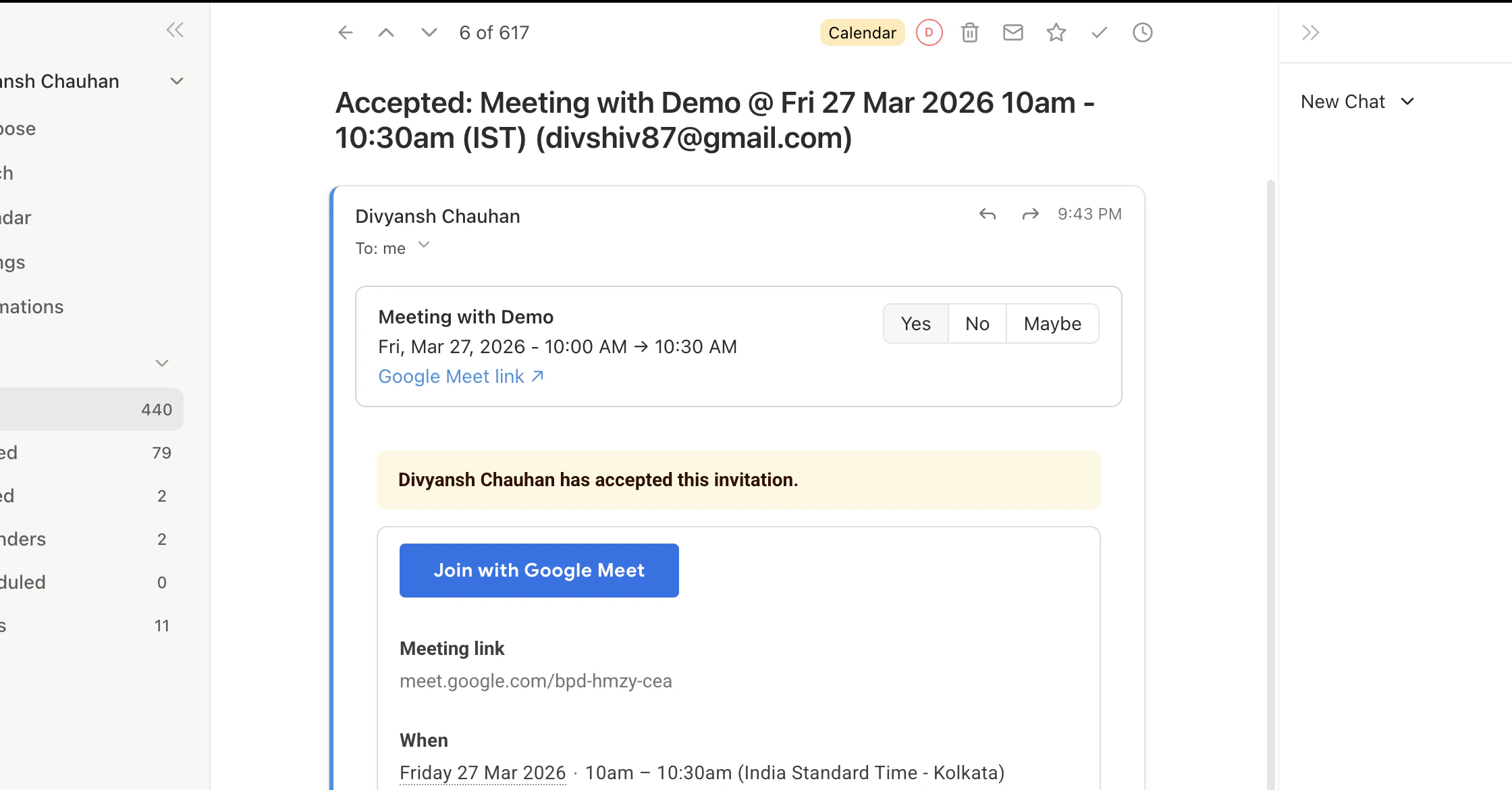
When you receive a calendar invite, respond directly from the email thread. Accept, decline, mark as tentative, or propose a new time — all without leaving your inbox. Press `Tab` to accept and archive in one step.
 ## Response Options
| Response | What Happens |
| -------------------- | -------------------------------------------------------------------------------- |
| **Accept** | Confirms attendance. Event added to your calendar. Organizer notified. |
| **Decline** | Declines the invite. Event removed or marked declined. Organizer notified. |
| **Maybe** | Marks attendance as tentative. Event stays on calendar. Organizer notified. |
| **Propose New Time** | Suggests an alternative. Original invite stays pending until organizer responds. |
## Quick Accept with Tab
Press `Tab` while viewing an invite to accept and archive in a single action. Your calendar updates, the organizer is notified, and the email moves out of your inbox. Ideal for routine meeting invites that do not need a reply.
## Supported Invite Types
Slashy communicates directly with the Google Calendar API. Your response syncs immediately. Change your mind anytime — the latest RSVP takes effect.
Slashy parses Outlook-style invites (ICS attachments or embedded calendar data) and shows the same RSVP controls. Your response follows standard calendar protocols, so it works regardless of the organizer's calendar provider.
## Propose a New Time
If the proposed time does not work, click **Propose New Time** to suggest an alternative. The organizer can accept (rescheduling for all attendees) or keep the original time. Your status remains pending until they respond.
## How It Works
Everything happens inside the email thread. You do not need to:
* Switch to a calendar app
* Click through to a Google Calendar or Outlook event page
* Search for the invite in your calendar
The invite arrives as an email, you respond from that email, and your calendar updates in the background.
After responding, the RSVP controls update to show your current status. Open the event in calendar view to see all attendees' RSVP statuses.
## Calendar Label
Slashy's AI classification includes a **Calendar** label that catches meeting invites and calendar notifications. Notifications are enabled by default. Customize in **Settings > Labels**.
## Quick Reference
| Action | How |
| ------------------ | --------------------------------- |
| Accept and archive | `Tab` while viewing invite |
| Accept | Click **Accept** in RSVP controls |
| Decline | Click **Decline** |
| Tentative | Click **Maybe** |
| Propose new time | Click **Propose New Time** |
| Switch to calendar | `2` or `p c` |
Create and manage calendar events in Slashy.
How AI classifies your email into importance labels.
## Response Options
| Response | What Happens |
| -------------------- | -------------------------------------------------------------------------------- |
| **Accept** | Confirms attendance. Event added to your calendar. Organizer notified. |
| **Decline** | Declines the invite. Event removed or marked declined. Organizer notified. |
| **Maybe** | Marks attendance as tentative. Event stays on calendar. Organizer notified. |
| **Propose New Time** | Suggests an alternative. Original invite stays pending until organizer responds. |
## Quick Accept with Tab
Press `Tab` while viewing an invite to accept and archive in a single action. Your calendar updates, the organizer is notified, and the email moves out of your inbox. Ideal for routine meeting invites that do not need a reply.
## Supported Invite Types
Slashy communicates directly with the Google Calendar API. Your response syncs immediately. Change your mind anytime — the latest RSVP takes effect.
Slashy parses Outlook-style invites (ICS attachments or embedded calendar data) and shows the same RSVP controls. Your response follows standard calendar protocols, so it works regardless of the organizer's calendar provider.
## Propose a New Time
If the proposed time does not work, click **Propose New Time** to suggest an alternative. The organizer can accept (rescheduling for all attendees) or keep the original time. Your status remains pending until they respond.
## How It Works
Everything happens inside the email thread. You do not need to:
* Switch to a calendar app
* Click through to a Google Calendar or Outlook event page
* Search for the invite in your calendar
The invite arrives as an email, you respond from that email, and your calendar updates in the background.
After responding, the RSVP controls update to show your current status. Open the event in calendar view to see all attendees' RSVP statuses.
## Calendar Label
Slashy's AI classification includes a **Calendar** label that catches meeting invites and calendar notifications. Notifications are enabled by default. Customize in **Settings > Labels**.
## Quick Reference
| Action | How |
| ------------------ | --------------------------------- |
| Accept and archive | `Tab` while viewing invite |
| Accept | Click **Accept** in RSVP controls |
| Decline | Click **Decline** |
| Tentative | Click **Maybe** |
| Propose new time | Click **Propose New Time** |
| Switch to calendar | `2` or `p c` |
Create and manage calendar events in Slashy.
How AI classifies your email into importance labels.