> ## Documentation Index
> Fetch the complete documentation index at: https://help.slashy.com/llms.txt
> Use this file to discover all available pages before exploring further.
# Private notes on calendar events
> Slashy-only notes on events. Rich text, autosave, never synced to Google Calendar.
Private notes are a Slashy only layer on top of any calendar event. They are visible to you inside Slashy and nowhere else. They never sync back to Google Calendar, and other attendees on a shared event never see them, even when the calendar itself is shared.
## What private notes are for
Use them for prep, post-meeting notes, talking points, links to internal docs, customer context, anything you would not want pasted into the actual invite. Because they live only in Slashy, you can be specific without worrying about who is on the invite.
Slashy may also add private notes to events the agent creates on your behalf. Those notes follow the same rules: visible only to you, never synced out.
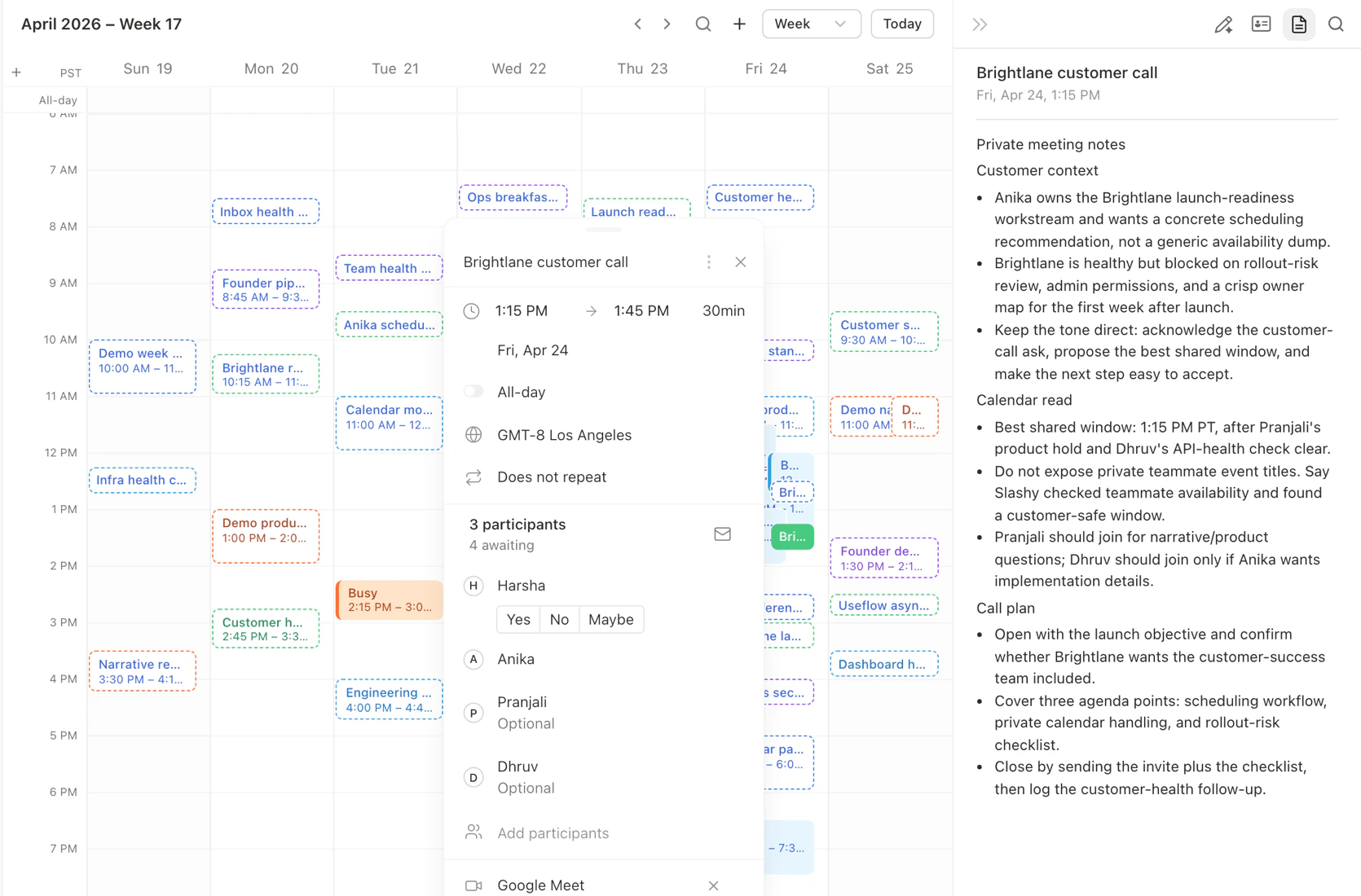 ## Opening the notes panel
Two ways to get there:
Select an event, then press `D` to open event details, then `N` to focus the notes panel.
Click an event. In the event sidebar, click the notes icon to expand the panel.
## Writing notes
The notes editor supports rich text. Bold, italics, lists, links, and headings all work, plus inline code. You can paste rich content from other docs and the formatting comes with it.
## Opening the notes panel
Two ways to get there:
Select an event, then press `D` to open event details, then `N` to focus the notes panel.
Click an event. In the event sidebar, click the notes icon to expand the panel.
## Writing notes
The notes editor supports rich text. Bold, italics, lists, links, and headings all work, plus inline code. You can paste rich content from other docs and the formatting comes with it.
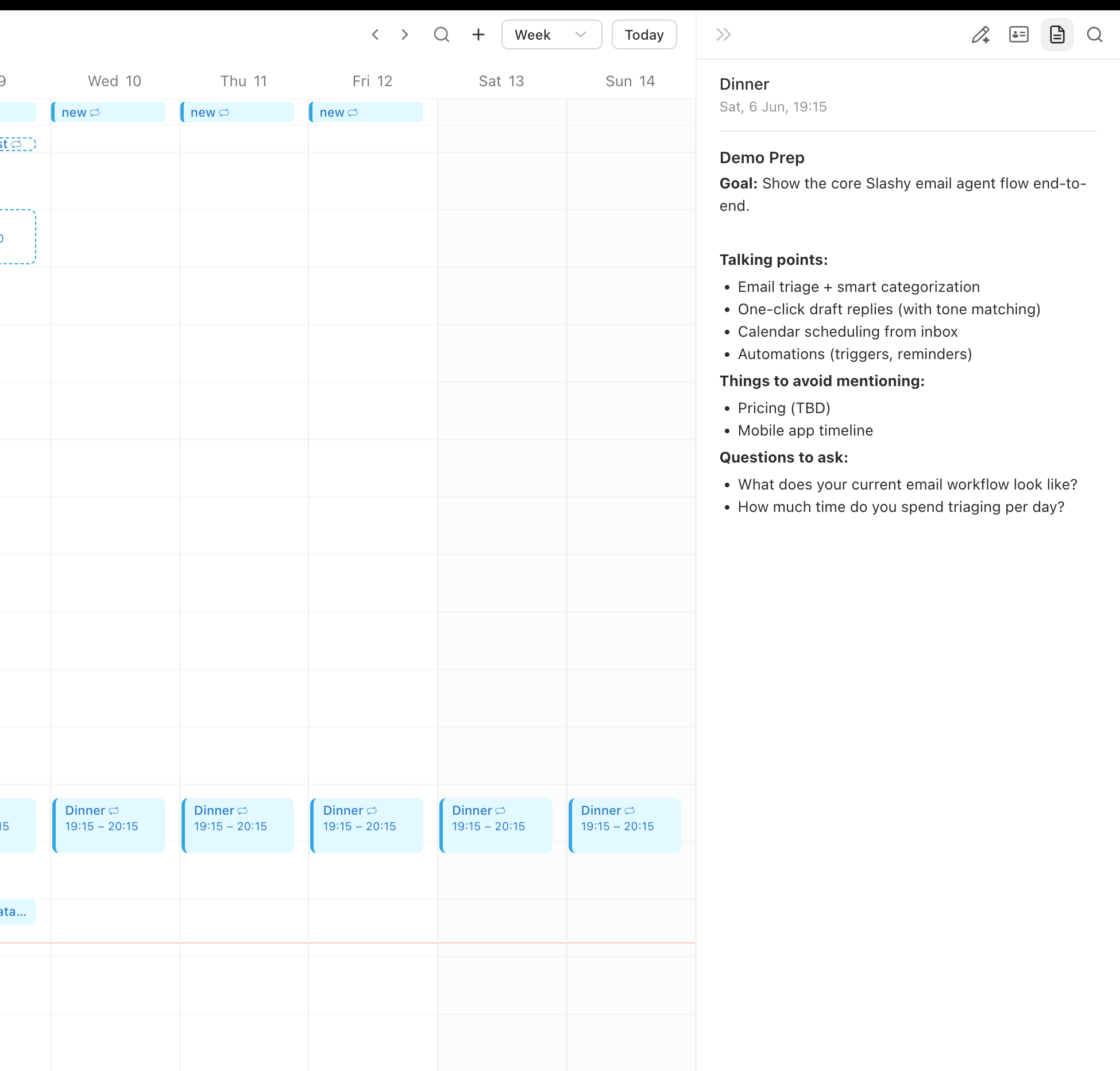 Notes autosave as you type. There is no save button. If you close the event and reopen it, your text is still there.
## Who can see them
Only you. This holds even when:
* The event is on a calendar you share with someone else.
* The event has external attendees.
* The event was created by the Slashy agent rather than by you.
Notes never appear in Google Calendar, in the event invite, in attendee emails, or in any export of the event.
If you want something visible to attendees, put it in the event description, not in private notes. The description syncs to Google Calendar and everyone on the invite sees it.
## Mobile
On the iOS app, open an event and scroll down to the Notes section. The mobile editor supports the same autosave behavior. Rich formatting renders read only on mobile, but plain text edits work.
Schedule events directly from Slashy.
Sync meeting notes from Granola onto events.
Attach Otter transcripts to calendar events.
Pull Circleback notes onto your events.
Move faster across the calendar.
Notes autosave as you type. There is no save button. If you close the event and reopen it, your text is still there.
## Who can see them
Only you. This holds even when:
* The event is on a calendar you share with someone else.
* The event has external attendees.
* The event was created by the Slashy agent rather than by you.
Notes never appear in Google Calendar, in the event invite, in attendee emails, or in any export of the event.
If you want something visible to attendees, put it in the event description, not in private notes. The description syncs to Google Calendar and everyone on the invite sees it.
## Mobile
On the iOS app, open an event and scroll down to the Notes section. The mobile editor supports the same autosave behavior. Rich formatting renders read only on mobile, but plain text edits work.
Schedule events directly from Slashy.
Sync meeting notes from Granola onto events.
Attach Otter transcripts to calendar events.
Pull Circleback notes onto your events.
Move faster across the calendar.