> ## Documentation Index
> Fetch the complete documentation index at: https://help.slashy.com/llms.txt
> Use this file to discover all available pages before exploring further.
# Creating Events & Invites
> Create, edit, and manage calendar events with click-and-drag scheduling, conferencing links, recurrence rules, attendee management, and drag-to-reschedule.
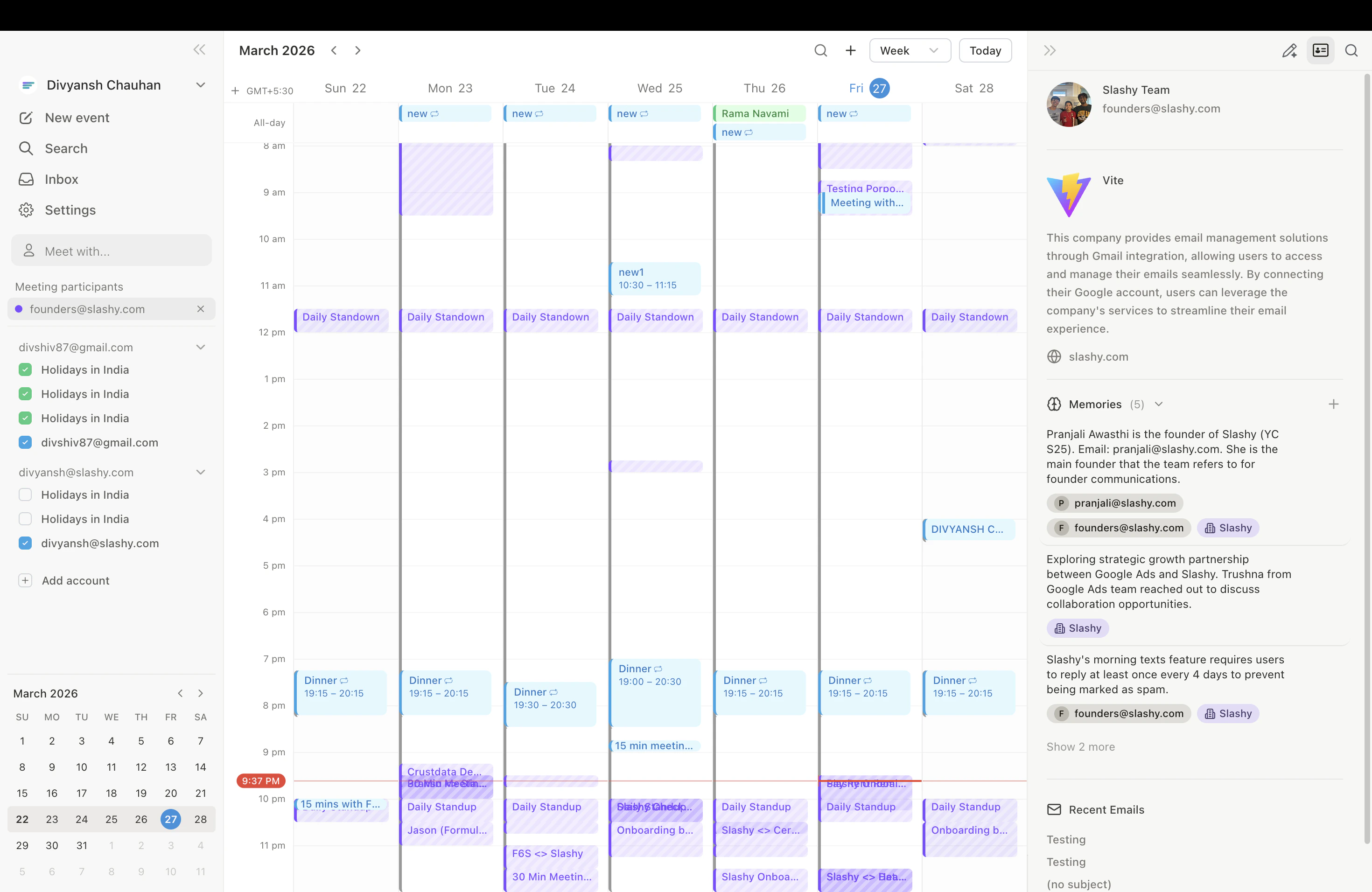
Slashy has a full calendar built into your email client. Create events by clicking and dragging, add attendees and conferencing links, set recurrence rules, and send invites — all without leaving Slashy.
## Opening the Calendar
Press `2` to switch to calendar view, or `p c` to open the calendar in the sidebar panel. Use arrow keys to navigate, `t` to jump to today, or `g` to go to a specific date.
 ## Creating an Event
The fastest method — click on the start time in the calendar grid, drag to the end time, and release. The event editor opens immediately with the time pre-filled.
Click **Create** in the calendar toolbar to open the event editor with a default duration. Set the time and details manually.
Press `b` while viewing an email thread to create a calendar event with context from the conversation.
## The Event Editor
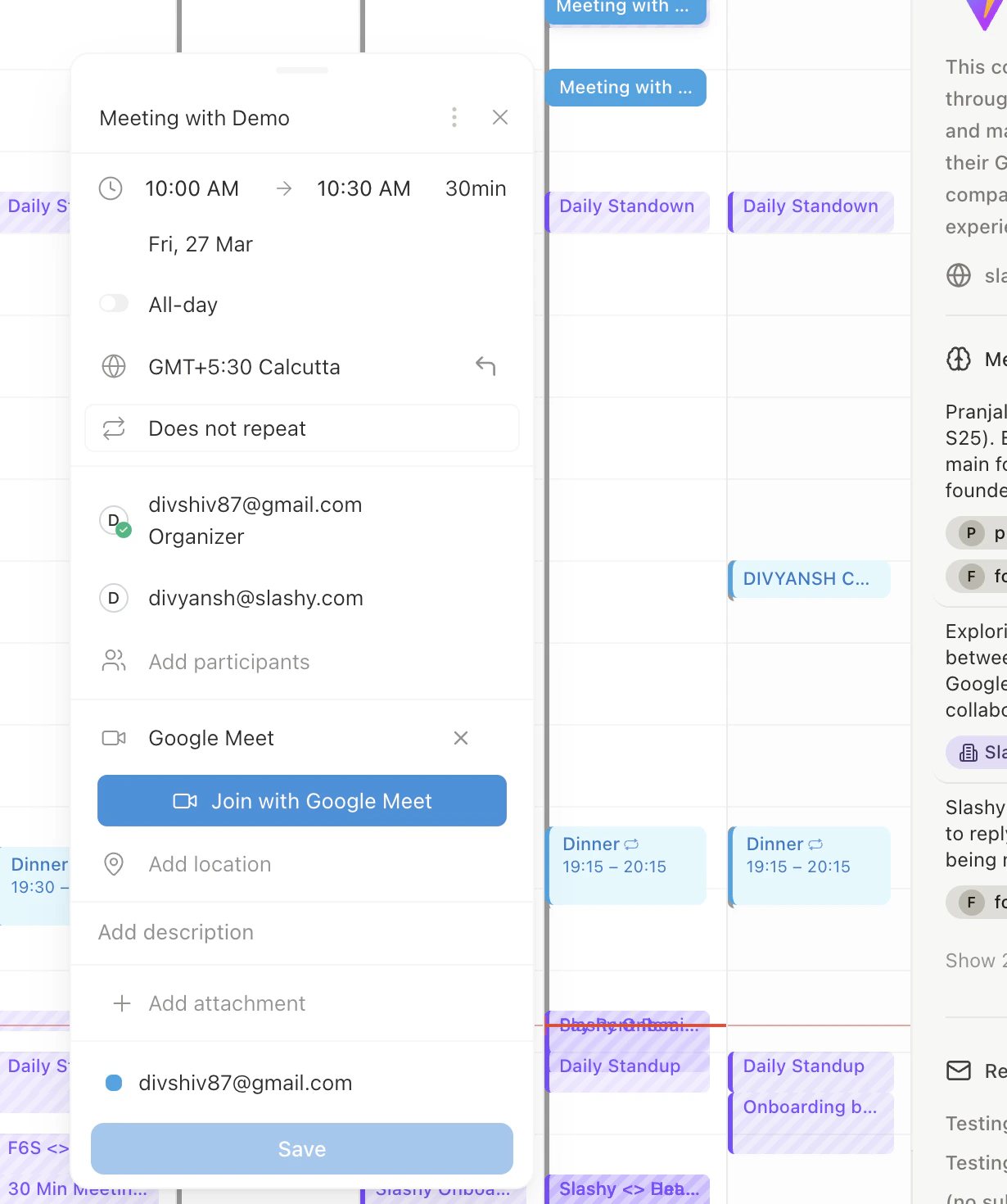
| Field | Description |
| ----------------- | ----------------------------------------------------------- |
| **Title** | Event name shown on the calendar |
| **Date and time** | Start/end with date pickers. Supports all-day events. |
| **Location** | Physical address with Google Places autocomplete |
| **Description** | Notes or agenda for attendees |
| **Attendees** | Add by email. Autocompletes from your contacts. |
| **Conferencing** | Google Meet, Zoom, Teams, Webex, or custom link |
| **Calendar** | Which connected calendar to create the event on |
| **Timezone** | Defaults to yours, changeable for cross-timezone scheduling |
| **Recurrence** | Daily, weekly, monthly, yearly, or custom patterns |
## Creating an Event
The fastest method — click on the start time in the calendar grid, drag to the end time, and release. The event editor opens immediately with the time pre-filled.
Click **Create** in the calendar toolbar to open the event editor with a default duration. Set the time and details manually.
Press `b` while viewing an email thread to create a calendar event with context from the conversation.
## The Event Editor
| Field | Description |
| ----------------- | ----------------------------------------------------------- |
| **Title** | Event name shown on the calendar |
| **Date and time** | Start/end with date pickers. Supports all-day events. |
| **Location** | Physical address with Google Places autocomplete |
| **Description** | Notes or agenda for attendees |
| **Attendees** | Add by email. Autocompletes from your contacts. |
| **Conferencing** | Google Meet, Zoom, Teams, Webex, or custom link |
| **Calendar** | Which connected calendar to create the event on |
| **Timezone** | Defaults to yours, changeable for cross-timezone scheduling |
| **Recurrence** | Daily, weekly, monthly, yearly, or custom patterns |
 ## Conferencing Options
Auto-creates a Meet link. Available by default for Google Calendar users.
Creates a Zoom link. Connect your account in **Settings > Calendars**.
Adds a Teams meeting link.
Adds a Webex link or paste any meeting URL.
Set a default conferencing provider in **Settings > Calendars** so every new event includes your preferred meeting link automatically.
## Recurrence
Toggle recurrence in the event editor. Supported patterns: daily, weekly (specific days), monthly (date or day-of-month), yearly, and custom intervals.
When editing or deleting a recurring event, choose to apply to **this event only**, **this and following events**, or **all events**.
## Drag to Reschedule
Drag any event to a new time slot. Drag the bottom edge to extend or shorten duration. Attendees are notified automatically.
## Creating Events with the AI Agent
You can also create events by telling the agent in natural language:
Tell the agent: *"Schedule a 30-minute meeting with [jane@company.com](mailto:jane@company.com) tomorrow at 2pm."* The agent creates the event, adds a conferencing link, and sends the invite.
Tell the agent: *"Find a time this week for a 1-hour meeting with the sales team."* The agent checks availability across attendees and suggests open slots.
Tell the agent: *"Move my 3pm meeting to Thursday."* The agent updates the event and notifies attendees.
## Deleting Events
Click an event and select **Delete**. For recurring events, choose which instances to delete. Press `z` or `Cmd+Z` to undo within seconds.
**Keyboard shortcuts cheatsheet** -- press `Shift+?` anytime to see every shortcut in Slashy, or visit the [full cheatsheet](/how-to-guides/keyboard-shortcuts).
## Quick Reference
| Action | How |
| ------------------ | -------------------------------- |
| Switch to calendar | `2` or `p c` |
| Create event | Click and drag, or Create button |
| Create from email | `b` while viewing a thread |
| Reschedule | Drag event to new time |
| Delete event | Click event, then Delete |
| Undo delete | `z` or `Cmd+Z` |
| Jump to today | `t` |
| Go to date | `g` |
Insert available time slots directly into emails.
Accept, decline, or propose new times from any thread.
## Conferencing Options
Auto-creates a Meet link. Available by default for Google Calendar users.
Creates a Zoom link. Connect your account in **Settings > Calendars**.
Adds a Teams meeting link.
Adds a Webex link or paste any meeting URL.
Set a default conferencing provider in **Settings > Calendars** so every new event includes your preferred meeting link automatically.
## Recurrence
Toggle recurrence in the event editor. Supported patterns: daily, weekly (specific days), monthly (date or day-of-month), yearly, and custom intervals.
When editing or deleting a recurring event, choose to apply to **this event only**, **this and following events**, or **all events**.
## Drag to Reschedule
Drag any event to a new time slot. Drag the bottom edge to extend or shorten duration. Attendees are notified automatically.
## Creating Events with the AI Agent
You can also create events by telling the agent in natural language:
Tell the agent: *"Schedule a 30-minute meeting with [jane@company.com](mailto:jane@company.com) tomorrow at 2pm."* The agent creates the event, adds a conferencing link, and sends the invite.
Tell the agent: *"Find a time this week for a 1-hour meeting with the sales team."* The agent checks availability across attendees and suggests open slots.
Tell the agent: *"Move my 3pm meeting to Thursday."* The agent updates the event and notifies attendees.
## Deleting Events
Click an event and select **Delete**. For recurring events, choose which instances to delete. Press `z` or `Cmd+Z` to undo within seconds.
**Keyboard shortcuts cheatsheet** -- press `Shift+?` anytime to see every shortcut in Slashy, or visit the [full cheatsheet](/how-to-guides/keyboard-shortcuts).
## Quick Reference
| Action | How |
| ------------------ | -------------------------------- |
| Switch to calendar | `2` or `p c` |
| Create event | Click and drag, or Create button |
| Create from email | `b` while viewing a thread |
| Reschedule | Drag event to new time |
| Delete event | Click event, then Delete |
| Undo delete | `z` or `Cmd+Z` |
| Jump to today | `t` |
| Go to date | `g` |
Insert available time slots directly into emails.
Accept, decline, or propose new times from any thread.