> ## Documentation Index
> Fetch the complete documentation index at: https://help.slashy.com/llms.txt
> Use this file to discover all available pages before exploring further.
# Scheduled Agent Reminders
> Schedule the agent to run tasks on a one-time or recurring basis -- daily inbox scans, weekly summaries, follow-up checks, and custom tasks on your schedule.
Scheduled reminders tell the agent to invoke itself at a future time. When the reminder fires, the agent runs with full tool access, executes your task, and reports back. This powers daily dropped ball scanners, weekly summaries, and timed follow-ups.
 ## One-Time Reminders
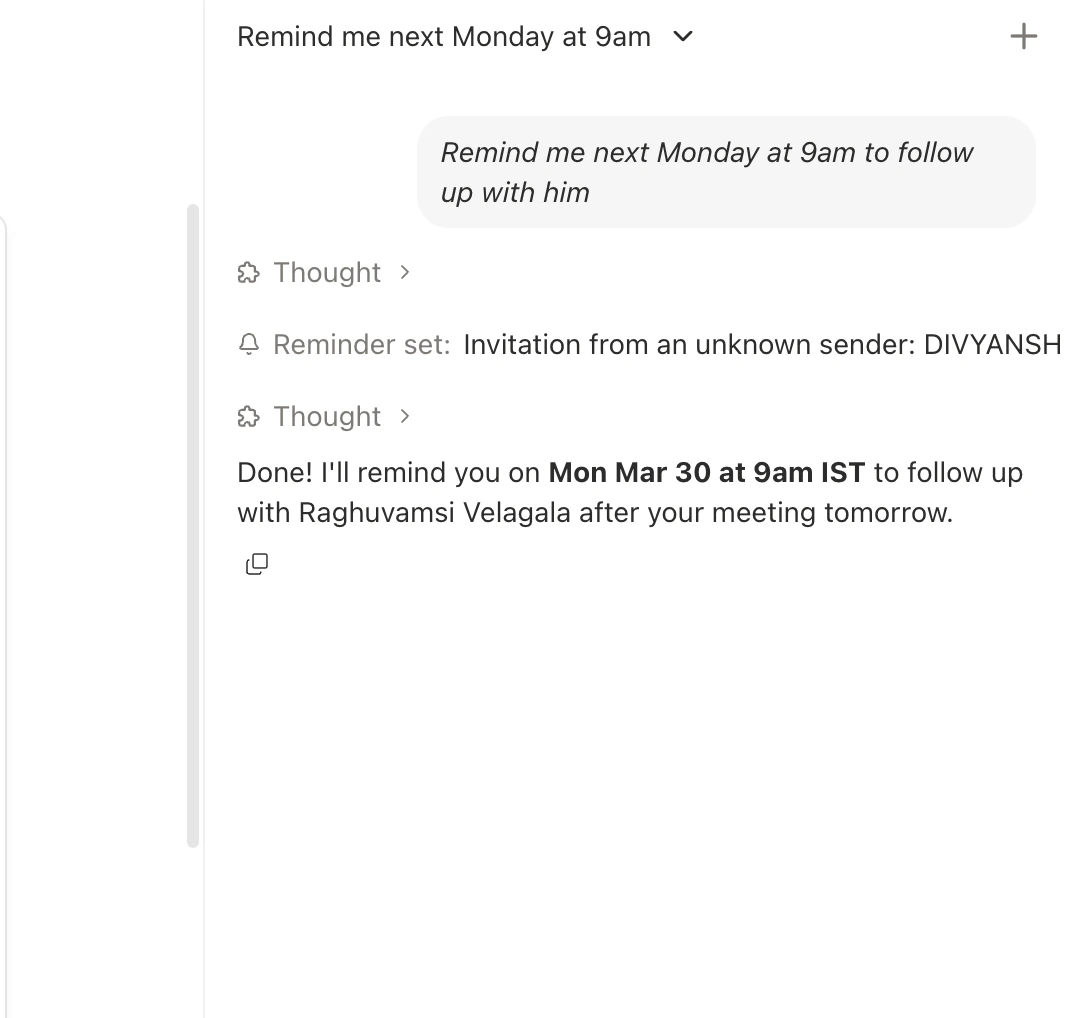
Fire once at a specific time, then deactivate automatically.
### Natural language (agent sidebar)
Describe when and what in plain English:
* *"Remind me next Monday at 9am to follow up with Sarah about the proposal"*
* *"Tomorrow at 2pm, check if John replied to my budget email. If not, draft a follow-up."*
* *"In 3 hours, scan my inbox for unread emails from @bigclient.com and message me on iMessage"*
The agent parses natural language into exact timestamps using your timezone.
### Automation builder UI
You can also create a one-time reminder directly in the builder without describing it in chat:
Go to **Settings > Automations** (`Cmd+,` then Automations), or press `Cmd+K` and search "Automations."
Click **New automation**. Under the **Recurring** group, select **One-time**.
Use the date picker and time dropdown (15-minute increments) to set when the automation should fire.
Describe what the agent should do, then save. The automation fires once at that time and deactivates automatically.
Both methods work. The builder is useful when you want to schedule a precise time without typing a date. The agent sidebar is faster for conversational, relative times like "next Tuesday morning."
## Recurring Reminders
Fire on a schedule -- daily, weekly, or custom -- until you disable or delete them:
* *"Every weekday at 8am, scan for dropped balls and message me on iMessage"*
* *"Every Friday at 3pm, summarize my week's email"*
* *"Every day at 6pm, list emails I received today that I haven't replied to"*
Recurring reminders support optional start and end dates: *"Every weekday at 9am from March 1 to March 31, check if the vendor sent the contract."*
## What Happens When a Reminder Fires
Runs with your task description as context.
Email search, calendar lookup, web search, drafting, memory access -- everything available.
For multi-step tasks (like scanning for dropped balls), chains tool calls as needed.
iMessage notifications send directly. Emails to others are drafted for your review.
The agent doesn't just set a passive reminder -- it actively performs the work. A "dropped ball scanner" searches your emails, analyzes which threads need attention, and sends a structured summary.
## Common Patterns
| Pattern | Schedule | What to Say |
| ------------------------- | ------------- | ---------------------------------------------------------------------------- |
| Morning dropped ball scan | Weekdays 8am | *"Every weekday at 8am, scan for dropped balls, message me on iMessage"* |
| Weekly summary | Fridays 3pm | *"Every Friday at 3pm, summarize my week's email via iMessage"* |
| Follow-up checker | Daily 9am | *"Every day at 9am, check for unanswered customer emails older than 2 days"* |
| One-time follow-up | Specific time | *"Next Wednesday at 10am, check if Sarah replied to my proposal"* |
| End-of-day triage | Weekdays 5pm | *"Every weekday at 5pm, list unread emails I should handle before tomorrow"* |
## Managing Reminders
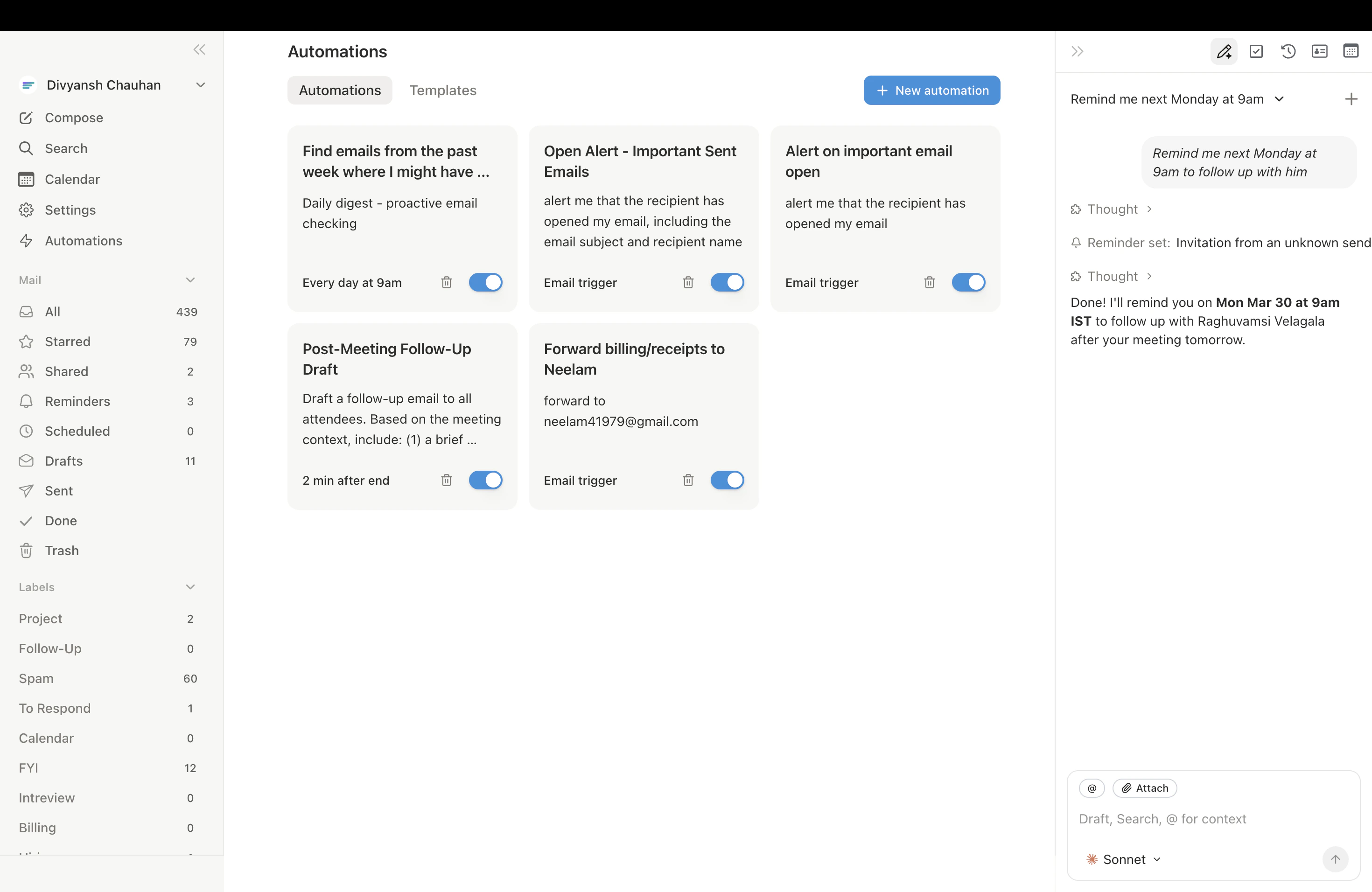
All reminders appear in **Settings > Automations** (`Cmd+,` then Automations) alongside email and calendar triggers. Toggle on/off, delete, or view details.
Manage conversationally too: *"List my scheduled reminders,"* *"Cancel the Friday summary,"* or *"Update my morning scanner to 7:30am."*
## One-Time Reminders
Fire once at a specific time, then deactivate automatically.
### Natural language (agent sidebar)
Describe when and what in plain English:
* *"Remind me next Monday at 9am to follow up with Sarah about the proposal"*
* *"Tomorrow at 2pm, check if John replied to my budget email. If not, draft a follow-up."*
* *"In 3 hours, scan my inbox for unread emails from @bigclient.com and message me on iMessage"*
The agent parses natural language into exact timestamps using your timezone.
### Automation builder UI
You can also create a one-time reminder directly in the builder without describing it in chat:
Go to **Settings > Automations** (`Cmd+,` then Automations), or press `Cmd+K` and search "Automations."
Click **New automation**. Under the **Recurring** group, select **One-time**.
Use the date picker and time dropdown (15-minute increments) to set when the automation should fire.
Describe what the agent should do, then save. The automation fires once at that time and deactivates automatically.
Both methods work. The builder is useful when you want to schedule a precise time without typing a date. The agent sidebar is faster for conversational, relative times like "next Tuesday morning."
## Recurring Reminders
Fire on a schedule -- daily, weekly, or custom -- until you disable or delete them:
* *"Every weekday at 8am, scan for dropped balls and message me on iMessage"*
* *"Every Friday at 3pm, summarize my week's email"*
* *"Every day at 6pm, list emails I received today that I haven't replied to"*
Recurring reminders support optional start and end dates: *"Every weekday at 9am from March 1 to March 31, check if the vendor sent the contract."*
## What Happens When a Reminder Fires
Runs with your task description as context.
Email search, calendar lookup, web search, drafting, memory access -- everything available.
For multi-step tasks (like scanning for dropped balls), chains tool calls as needed.
iMessage notifications send directly. Emails to others are drafted for your review.
The agent doesn't just set a passive reminder -- it actively performs the work. A "dropped ball scanner" searches your emails, analyzes which threads need attention, and sends a structured summary.
## Common Patterns
| Pattern | Schedule | What to Say |
| ------------------------- | ------------- | ---------------------------------------------------------------------------- |
| Morning dropped ball scan | Weekdays 8am | *"Every weekday at 8am, scan for dropped balls, message me on iMessage"* |
| Weekly summary | Fridays 3pm | *"Every Friday at 3pm, summarize my week's email via iMessage"* |
| Follow-up checker | Daily 9am | *"Every day at 9am, check for unanswered customer emails older than 2 days"* |
| One-time follow-up | Specific time | *"Next Wednesday at 10am, check if Sarah replied to my proposal"* |
| End-of-day triage | Weekdays 5pm | *"Every weekday at 5pm, list unread emails I should handle before tomorrow"* |
## Managing Reminders
All reminders appear in **Settings > Automations** (`Cmd+,` then Automations) alongside email and calendar triggers. Toggle on/off, delete, or view details.
Manage conversationally too: *"List my scheduled reminders,"* *"Cancel the Friday summary,"* or *"Update my morning scanner to 7:30am."*
 ## Reminders vs. Email Snooze
Email snooze (`h`) moves a specific thread back to your inbox at a set time. Agent reminders invoke the full AI to perform a task. Use snooze for "remind me about this email." Use agent reminders for "do this work for me at this time."
***
## Related Articles
Automate actions on incoming email
Automate meeting prep and follow-ups
What the agent can and cannot do
Copy-paste recipes for common automations
## Reminders vs. Email Snooze
Email snooze (`h`) moves a specific thread back to your inbox at a set time. Agent reminders invoke the full AI to perform a task. Use snooze for "remind me about this email." Use agent reminders for "do this work for me at this time."
***
## Related Articles
Automate actions on incoming email
Automate meeting prep and follow-ups
What the agent can and cannot do
Copy-paste recipes for common automations