> ## Documentation Index
> Fetch the complete documentation index at: https://help.slashy.com/llms.txt
> Use this file to discover all available pages before exploring further.
# Automations Overview
> Triggers, reminders, and the automations dashboard. Everything Slashy can automate -- email triggers, calendar triggers, scheduled reminders, and auto-reminders. Set up in seconds with natural language.
Looking for where to manage your reminders or see what triggers are running? You're in the right place.
Slashy automations run in the background and handle repetitive email tasks for you. Tell the AI agent what you want in plain English, and it creates the automation. No code, no complex rules.
## How Automations Work
Open the agent sidebar (`Cmd+Shift+L`) and describe the automation in natural language. Example: *"When I receive a receipt, forward it to [receipts@expensify.com](mailto:receipts@expensify.com)."*
The agent parses your request into a condition (what to match) and an action (what to do). It shows you a preview for confirmation.
Every matching email or calendar event fires the action. Emails to others are always drafted for your review first.
## Types of Automations
Fire when an email matches a natural-language condition. Forward receipts, alert on VIP emails, draft replies automatically.
Fire before or after calendar events. Meeting prep briefings, post-meeting follow-ups, RSVP management.
Automatic nudges when emails go unanswered. The AI detects dropped balls and reminds you.
Schedule the agent to run at a specific time. Daily inbox scans, weekly summaries, one-off future tasks.
## Automation Templates
The Automations page ships with 50+ ready-to-use templates so you can activate common automations in one click without writing anything.
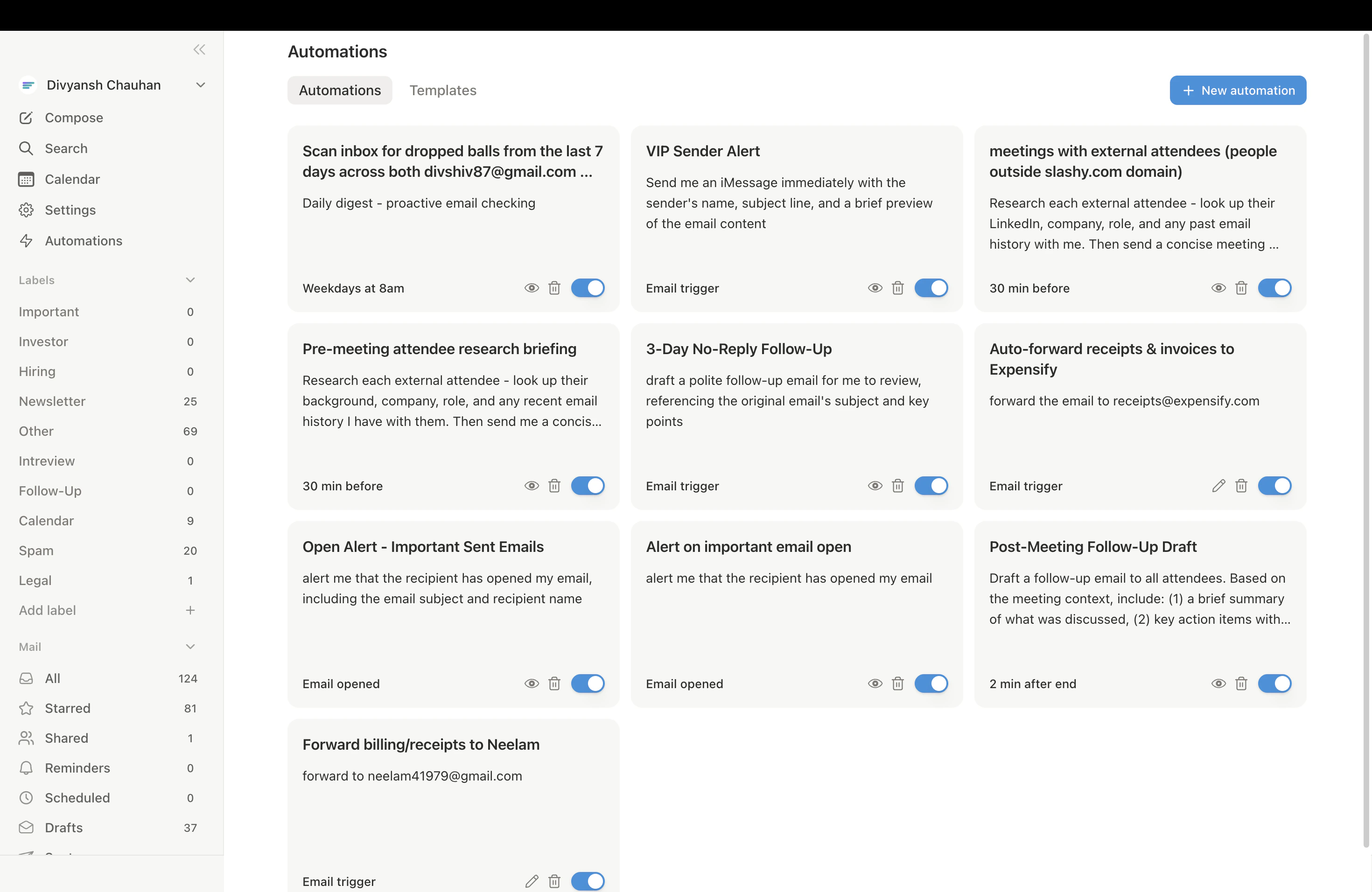 **Opening the Automations page:** Click the lightning bolt icon in the left sidebar, or press `Cmd+K` and type "Automations."
Templates are organized into four category tabs:
| Category | What's inside |
| ----------------------------- | -------------------------------------------------------------------- |
| **Meeting Prep & Scheduling** | Pre-meeting briefings, join reminders, post-meeting follow-ups |
| **Sales & Pipeline** | VIP alerts, deal follow-up trackers, intro email detectors |
| **Real-time Alerts** | OTP forwarding, receipt forwarding, urgent keyword alerts |
| **Follow-up Tracking** | Dropped ball scanners, unanswered thread nudges, customer SLA checks |
Each template card shows a realistic preview of what it does. Click one to activate it or customize the condition and timing before saving.
**Popular with \[your role]:** Based on the job title you set in your profile, the Automations page surfaces a personalized section, for example "Popular with Founders" or "Popular with Sales teams." These float the templates most relevant to how you use email.
## Managing Automations
All automations appear in **Settings > Automations** (`Cmd+,` then Automations tab). From there you can:
* **Toggle** automations on or off
* **Delete** automations you no longer need
* **View activity** to see recent trigger firings
You can also manage via the agent sidebar: *"List my automations"* or *"Disable the receipt forwarding trigger."*
Start with the [10 Automations Every User Should Set Up](/how-to-guides/10-automations) for a curated list of the highest-impact automations.
***
## Related Articles
Step-by-step setup for the essentials.
What the agent can and cannot do on its own.
Control your agent's writing style and preferences.
Connect your phone to receive automation alerts.
**Opening the Automations page:** Click the lightning bolt icon in the left sidebar, or press `Cmd+K` and type "Automations."
Templates are organized into four category tabs:
| Category | What's inside |
| ----------------------------- | -------------------------------------------------------------------- |
| **Meeting Prep & Scheduling** | Pre-meeting briefings, join reminders, post-meeting follow-ups |
| **Sales & Pipeline** | VIP alerts, deal follow-up trackers, intro email detectors |
| **Real-time Alerts** | OTP forwarding, receipt forwarding, urgent keyword alerts |
| **Follow-up Tracking** | Dropped ball scanners, unanswered thread nudges, customer SLA checks |
Each template card shows a realistic preview of what it does. Click one to activate it or customize the condition and timing before saving.
**Popular with \[your role]:** Based on the job title you set in your profile, the Automations page surfaces a personalized section, for example "Popular with Founders" or "Popular with Sales teams." These float the templates most relevant to how you use email.
## Managing Automations
All automations appear in **Settings > Automations** (`Cmd+,` then Automations tab). From there you can:
* **Toggle** automations on or off
* **Delete** automations you no longer need
* **View activity** to see recent trigger firings
You can also manage via the agent sidebar: *"List my automations"* or *"Disable the receipt forwarding trigger."*
Start with the [10 Automations Every User Should Set Up](/how-to-guides/10-automations) for a curated list of the highest-impact automations.
***
## Related Articles
Step-by-step setup for the essentials.
What the agent can and cannot do on its own.
Control your agent's writing style and preferences.
Connect your phone to receive automation alerts.