> ## Documentation Index
> Fetch the complete documentation index at: https://help.slashy.com/llms.txt
> Use this file to discover all available pages before exploring further.
# Email Triggers
> Automatically act on incoming and outgoing emails -- match conditions in natural language, fire one-time or repeating actions, and use open triggers for tracked email alerts.
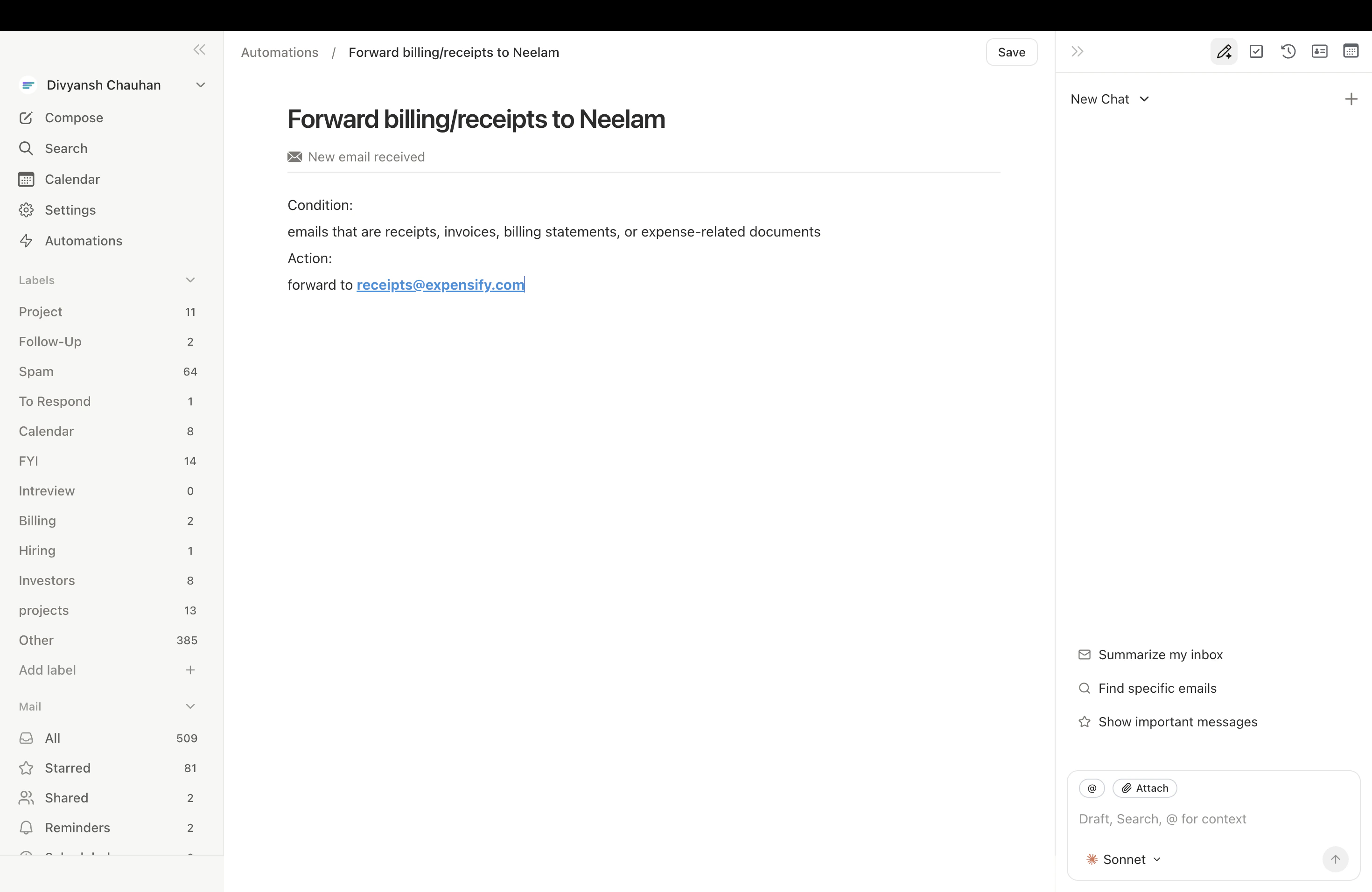
Email triggers fire when an email matches a condition you define in plain English. The AI evaluates every incoming and outgoing email against your triggers and executes the action -- drafting a reply, forwarding, sending an iMessage alert, or anything else the agent can do.
## Anatomy of a Trigger
Every email trigger has two parts:
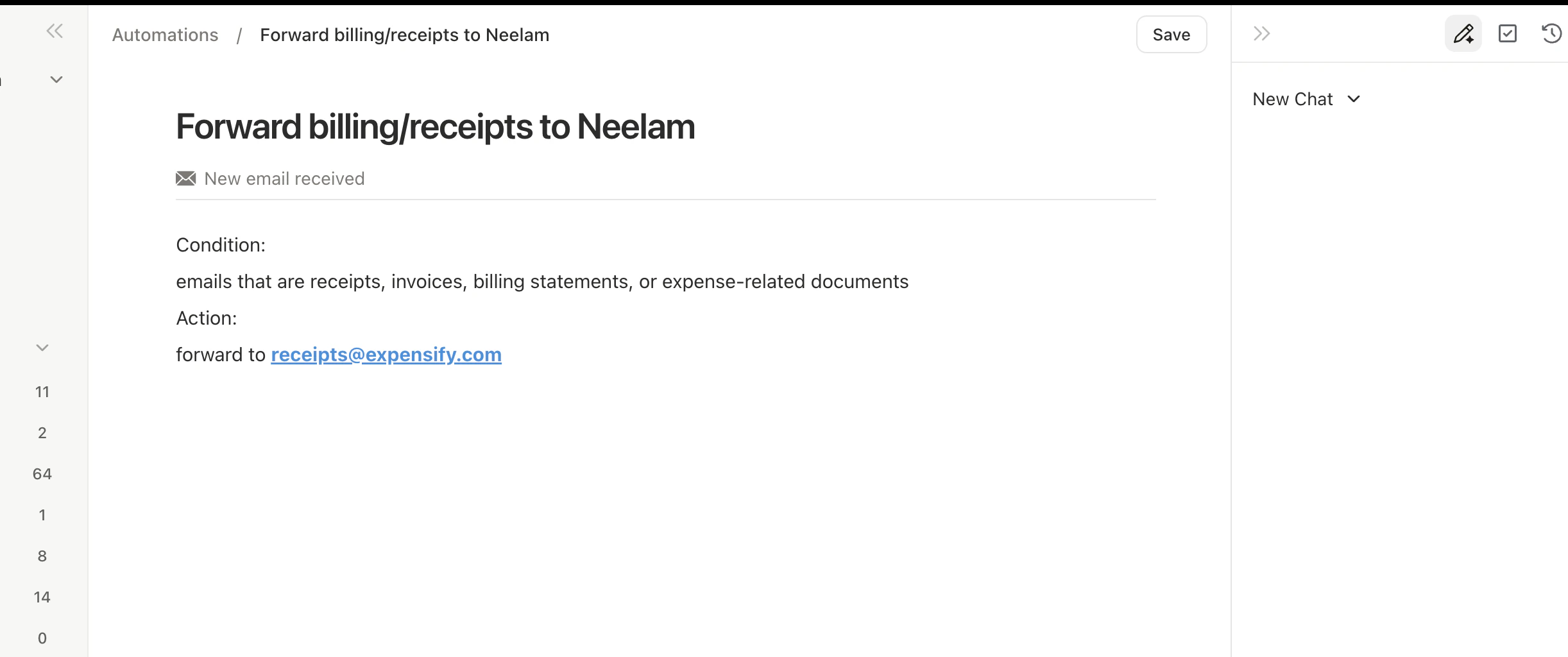
1. **Condition** -- natural language description of which emails match (e.g., "receipts and payment confirmations," "emails where someone asks me for a reference")
2. **Action** -- what the agent does on match (e.g., "forward to [receipts@expensify.com](mailto:receipts@expensify.com)," "message me on iMessage with a preview")
Conditions use AI understanding, not keyword matching. "Emails about legal matters" matches contracts, litigation, compliance, and NDAs even if "legal" never appears.
 ## Creating a Trigger
Press `p a` or `Cmd+Shift+L`.
Example: *"Create an email trigger: when I receive an email from @sequoia.com, message me on iMessage with a preview."*
The agent shows the condition and action for review.
Find it in **Settings > Automations** to toggle, edit, or delete.
## One-Time vs. Repeating
| Mode | Behavior | Use Case |
| ------------- | -------------------------------------------- | ----------------------------------------------- |
| **Repeating** | Fires every match, stays active indefinitely | Receipt forwarding, VIP alerts |
| **One-time** | Fires once, then auto-disables | "Let me know when Sarah replies to my proposal" |
Triggers default to repeating. Say "create a one-time trigger" to get single-fire behavior.
## Open Triggers
Open triggers fire when a tracked email you sent is opened by the recipient.
1. You send an email with tracking enabled (on by default)
2. Recipient opens it -- tracking pixel notifies Slashy
3. If an open trigger matches, the agent executes the action
Slashy filters out automated opens (Gmail Image Proxy, Apple Mail Privacy Protection, Microsoft SafeLinks) so you only get alerts on real human opens.
## Creating a Trigger
Press `p a` or `Cmd+Shift+L`.
Example: *"Create an email trigger: when I receive an email from @sequoia.com, message me on iMessage with a preview."*
The agent shows the condition and action for review.
Find it in **Settings > Automations** to toggle, edit, or delete.
## One-Time vs. Repeating
| Mode | Behavior | Use Case |
| ------------- | -------------------------------------------- | ----------------------------------------------- |
| **Repeating** | Fires every match, stays active indefinitely | Receipt forwarding, VIP alerts |
| **One-time** | Fires once, then auto-disables | "Let me know when Sarah replies to my proposal" |
Triggers default to repeating. Say "create a one-time trigger" to get single-fire behavior.
## Open Triggers
Open triggers fire when a tracked email you sent is opened by the recipient.
1. You send an email with tracking enabled (on by default)
2. Recipient opens it -- tracking pixel notifies Slashy
3. If an open trigger matches, the agent executes the action
Slashy filters out automated opens (Gmail Image Proxy, Apple Mail Privacy Protection, Microsoft SafeLinks) so you only get alerts on real human opens.
 ## Smart Sent-Email Filtering
Triggers fire on outgoing emails from real email clients (Gmail, Slashy, Superhuman, Shortwave) but **not** from mass mailer tools (Apollo, Outreach). This prevents triggers from firing hundreds of times during batch campaigns.
## Automatic Memory Extraction
A hidden system trigger runs on every incoming email, extracting useful information -- contact job changes, commitments, meeting reschedules -- and storing it as memories. Review in **Settings > Memories**.
## Managing Triggers
All triggers appear in **Settings > Automations** (`Cmd+,` then Automations). Toggle on/off, delete, or view details. You can also manage conversationally: *"list my email triggers"* or *"disable the receipt forwarding trigger."*
***
## Related Articles
Automate meeting prep and follow-ups
Schedule the agent for future tasks
The most impactful automations to set up
What the agent can and cannot do
## Smart Sent-Email Filtering
Triggers fire on outgoing emails from real email clients (Gmail, Slashy, Superhuman, Shortwave) but **not** from mass mailer tools (Apollo, Outreach). This prevents triggers from firing hundreds of times during batch campaigns.
## Automatic Memory Extraction
A hidden system trigger runs on every incoming email, extracting useful information -- contact job changes, commitments, meeting reschedules -- and storing it as memories. Review in **Settings > Memories**.
## Managing Triggers
All triggers appear in **Settings > Automations** (`Cmd+,` then Automations). Toggle on/off, delete, or view details. You can also manage conversationally: *"list my email triggers"* or *"disable the receipt forwarding trigger."*
***
## Related Articles
Automate meeting prep and follow-ups
Schedule the agent for future tasks
The most impactful automations to set up
What the agent can and cannot do