> ## Documentation Index
> Fetch the complete documentation index at: https://help.slashy.com/llms.txt
> Use this file to discover all available pages before exploring further.
# Calendar Triggers
> Fire automations before, during, or after meetings -- prep briefings, late-to-meeting checks, post-meeting follow-ups, and real-time event change reactions.
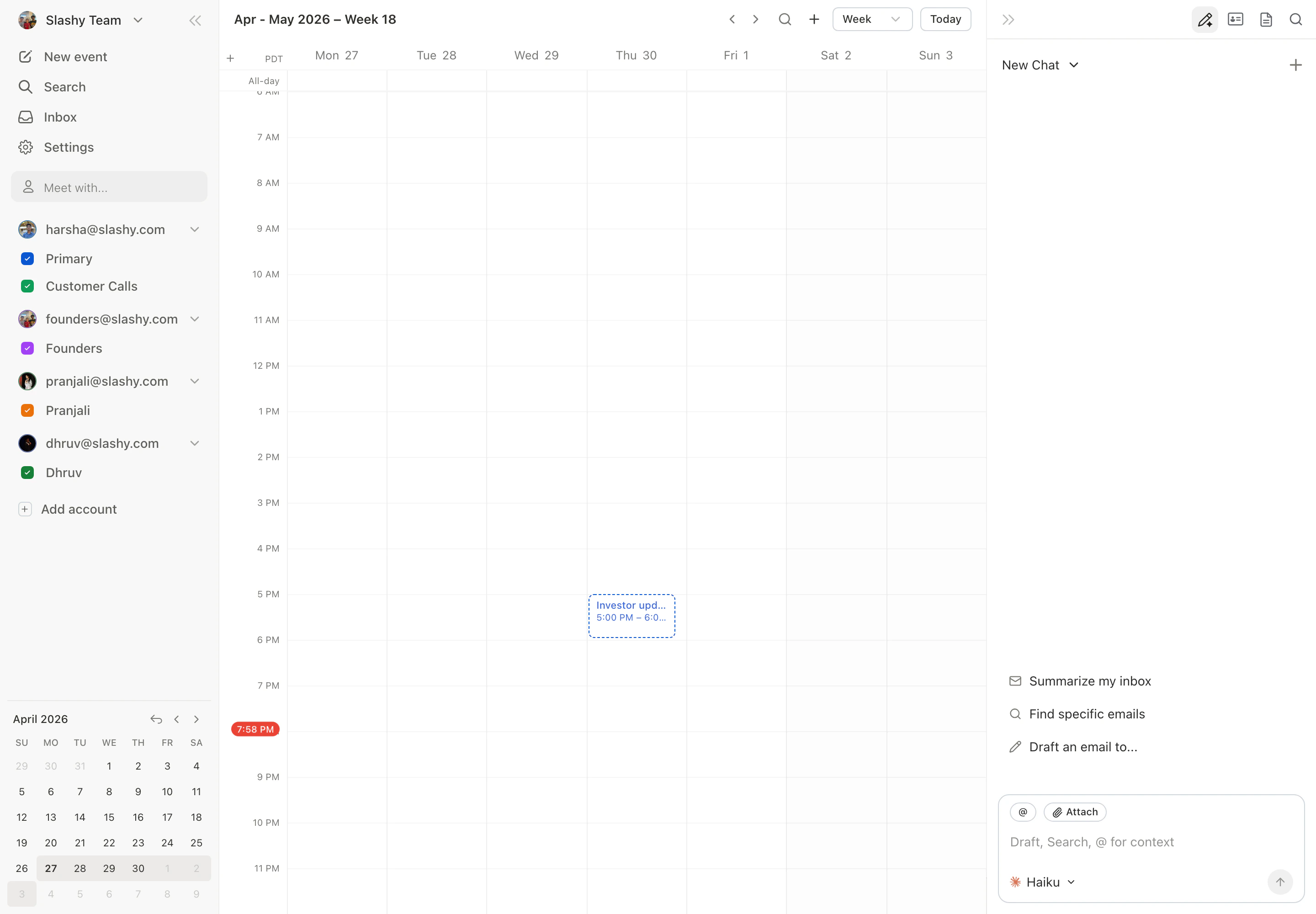
Calendar triggers are automations tied to your calendar events. Define which events to match, when to fire, and what the agent should do. These power meeting prep briefings, post-meeting follow-ups, and real-time reactions to schedule changes.
 ## Anatomy of a Calendar Trigger
Every calendar trigger has three parts:
1. **Condition** -- which events match (e.g., "meetings with external attendees," "1-on-1s with my direct reports")
2. **Timing** -- when to fire relative to the event
3. **Action** -- what the agent does (e.g., "prep me and send the briefing on iMessage," "draft a follow-up email")
## Timing Options
The trigger builder offers three timing modes, each with a dropdown of preset intervals:
| Timing | Available intervals | Use Case |
| ----------------------- | ------------------------------- | -------------------------------- |
| **Before event starts** | 5 / 10 / 15 / 30 / 60 / 120 min | Meeting prep, join reminders |
| **After event starts** | 5 / 10 / 15 / 30 / 60 / 120 min | "Am I late?" presence checks |
| **After event ends** | 5 / 10 / 15 / 30 / 60 / 120 min | Follow-up drafts, summary emails |
"On event change" triggers (for reacting to reschedules and cancellations) are set up via the agent sidebar in natural language rather than the timing dropdown.
## Creating a Calendar Trigger
You can create a calendar trigger two ways.
**Via the agent sidebar (natural language):**
Press `p a` or `Cmd+Shift+L`.
Example: *"10 minutes before any meeting with external attendees, prep me and send the briefing on iMessage."*
The agent creates the trigger with condition, timing, and action.
Find it in **Settings > Automations** alongside email triggers and reminders.
**Via the automation builder:**
Open **Settings > Automations**, click **New automation**, choose **Calendar** as the trigger type, then select your timing (before event starts, after event starts, or after event ends) and interval from the dropdown.
## Meeting Presence Check
Triggers that fire after a meeting starts can check whether you've joined the Google Meet call:
1. Trigger fires N minutes after event start
2. Agent checks Google Meet API for who's in the call
3. If you're not present, sends an iMessage alert with the Meet link
Works with Google Meet links attached to calendar events. The agent can see who has joined, who is late, and who hasn't connected.
## Common Patterns
| Pattern | Timing | What to Tell the Agent |
| -------------- | ----------------- | ------------------------------------------------------------------ |
| Meeting prep | 10 min before | *"10 min before external meetings, prep me and send on iMessage"* |
| Late check | 5 min after start | *"5 min after any meeting starts, check if I've joined the Meet"* |
| Follow-up | 5 min after end | *"5 min after external meetings end, draft a follow-up email"* |
| Schedule alert | On event change | *"When investor meetings are rescheduled, message me on iMessage"* |
| Join reminder | 1 min before | *"1 min before every meeting, message me with the meeting link"* |
## Troubleshooting Calendar Triggers
Check **Settings > Automations** to confirm the trigger is enabled. Verify the condition matches the event (e.g., "external attendees" requires at least one non-organization attendee). Also confirm Read Mode is off -- it pauses action-taking automations.
Edit the trigger condition to be more specific. Instead of "all meetings," try "meetings with external attendees" or "meetings with more than 2 attendees." The agent uses the condition text to match events.
Edit the trigger timing in **Settings > Automations**. Use the timing dropdown to pick a different interval (5, 10, 15, 30, 60, or 120 minutes before event starts). For back-to-back meetings, 5 minutes works better than 10.
## How Scheduling Works
Calendar triggers use AWS EventBridge with timezone-aware scheduling. When you create a trigger, Slashy identifies matching future events and schedules invocations. As events are added, rescheduled, or deleted, invocations update automatically.
When a trigger fires, the agent receives full event context -- title, description, attendees with RSVP status, meeting link, and your action instruction.
***
## Related Articles
Automate actions on incoming email
Schedule the agent for future tasks
What the agent can and cannot do
Automate pre-meeting research and briefings
## Anatomy of a Calendar Trigger
Every calendar trigger has three parts:
1. **Condition** -- which events match (e.g., "meetings with external attendees," "1-on-1s with my direct reports")
2. **Timing** -- when to fire relative to the event
3. **Action** -- what the agent does (e.g., "prep me and send the briefing on iMessage," "draft a follow-up email")
## Timing Options
The trigger builder offers three timing modes, each with a dropdown of preset intervals:
| Timing | Available intervals | Use Case |
| ----------------------- | ------------------------------- | -------------------------------- |
| **Before event starts** | 5 / 10 / 15 / 30 / 60 / 120 min | Meeting prep, join reminders |
| **After event starts** | 5 / 10 / 15 / 30 / 60 / 120 min | "Am I late?" presence checks |
| **After event ends** | 5 / 10 / 15 / 30 / 60 / 120 min | Follow-up drafts, summary emails |
"On event change" triggers (for reacting to reschedules and cancellations) are set up via the agent sidebar in natural language rather than the timing dropdown.
## Creating a Calendar Trigger
You can create a calendar trigger two ways.
**Via the agent sidebar (natural language):**
Press `p a` or `Cmd+Shift+L`.
Example: *"10 minutes before any meeting with external attendees, prep me and send the briefing on iMessage."*
The agent creates the trigger with condition, timing, and action.
Find it in **Settings > Automations** alongside email triggers and reminders.
**Via the automation builder:**
Open **Settings > Automations**, click **New automation**, choose **Calendar** as the trigger type, then select your timing (before event starts, after event starts, or after event ends) and interval from the dropdown.
## Meeting Presence Check
Triggers that fire after a meeting starts can check whether you've joined the Google Meet call:
1. Trigger fires N minutes after event start
2. Agent checks Google Meet API for who's in the call
3. If you're not present, sends an iMessage alert with the Meet link
Works with Google Meet links attached to calendar events. The agent can see who has joined, who is late, and who hasn't connected.
## Common Patterns
| Pattern | Timing | What to Tell the Agent |
| -------------- | ----------------- | ------------------------------------------------------------------ |
| Meeting prep | 10 min before | *"10 min before external meetings, prep me and send on iMessage"* |
| Late check | 5 min after start | *"5 min after any meeting starts, check if I've joined the Meet"* |
| Follow-up | 5 min after end | *"5 min after external meetings end, draft a follow-up email"* |
| Schedule alert | On event change | *"When investor meetings are rescheduled, message me on iMessage"* |
| Join reminder | 1 min before | *"1 min before every meeting, message me with the meeting link"* |
## Troubleshooting Calendar Triggers
Check **Settings > Automations** to confirm the trigger is enabled. Verify the condition matches the event (e.g., "external attendees" requires at least one non-organization attendee). Also confirm Read Mode is off -- it pauses action-taking automations.
Edit the trigger condition to be more specific. Instead of "all meetings," try "meetings with external attendees" or "meetings with more than 2 attendees." The agent uses the condition text to match events.
Edit the trigger timing in **Settings > Automations**. Use the timing dropdown to pick a different interval (5, 10, 15, 30, 60, or 120 minutes before event starts). For back-to-back meetings, 5 minutes works better than 10.
## How Scheduling Works
Calendar triggers use AWS EventBridge with timezone-aware scheduling. When you create a trigger, Slashy identifies matching future events and schedules invocations. As events are added, rescheduled, or deleted, invocations update automatically.
When a trigger fires, the agent receives full event context -- title, description, attendees with RSVP status, meeting link, and your action instruction.
***
## Related Articles
Automate actions on incoming email
Schedule the agent for future tasks
What the agent can and cannot do
Automate pre-meeting research and briefings