> ## Documentation Index
> Fetch the complete documentation index at: https://help.slashy.com/llms.txt
> Use this file to discover all available pages before exploring further.
# Auto-Reminders
> AI automatically creates follow-up reminders on sent emails. Determines if a reply is expected, sets a wait time of 1-14 days, and skips no-reply addresses, newsletters, and auto-replies.
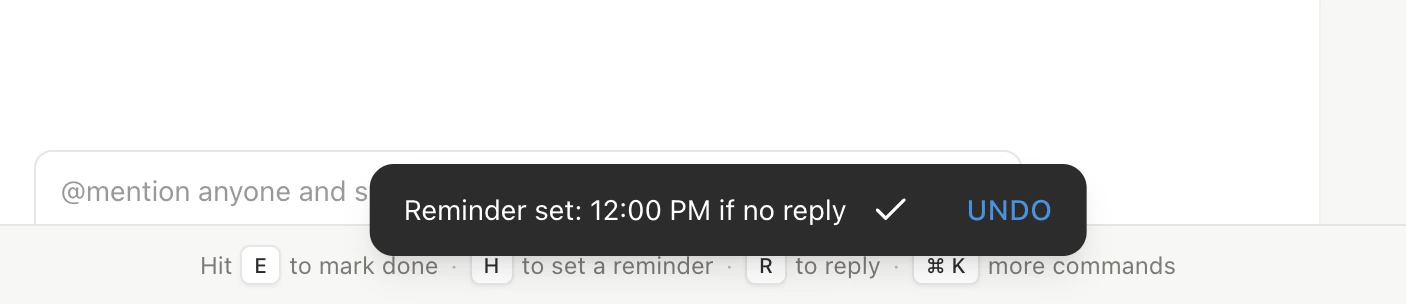
Auto-reminders silently analyze every email you send and create "if no reply" follow-up reminders when the AI determines you're waiting for a response. No manual action required.
 ## How It Works
Works on all outgoing email automatically.
Reads content, tone, and whether you asked a question, made a request, or set a deadline.
Picks 1-14 days based on urgency and nature of the email.
Only fires if the recipient hasn't replied by the wait period.
If the recipient replies before the timer, the reminder is automatically canceled.
## Enabling Auto-Reminders
Off by default. Turn on in **Settings** (`Cmd+,`) **> Account > Auto-reminders** toggle. Only applies to future sent emails -- not retroactive.
## What Gets a Reminder
The AI creates reminders when your email:
* Asks a question expecting an answer
* Makes a request or asks someone to do something
* Proposes a meeting, deadline, or next step
* Sends information requiring confirmation
## What Gets Skipped
| Category | Why |
| ------------------------ | ------------------------------------------- |
| **No-reply addresses** | Will never get a response |
| **Newsletters** | Replies aren't expected |
| **Auto-replies** | Out-of-office messages don't need follow-up |
| **Thank-you notes** | Simple acknowledgments don't expect a reply |
| **System notifications** | Receipts and confirmations |
## Wait Time Selection
* **1-2 days** -- urgent requests, short deadlines
* **3-5 days** -- standard business requests, scheduling
* **7-14 days** -- low-urgency, informational, cold outreach
## Auto vs. Manual Reminders
| | Auto-Reminders | Manual Reminders |
| -------------- | ----------------------------------- | ------------------------------ |
| **Trigger** | AI creates on sent emails | You set with `h` |
| **Config** | One toggle -- AI decides everything | You choose time and conditions |
| **Type** | Always "if no reply" | "If no reply" or "regardless" |
| **Applies to** | Sent emails only | Any thread |
| **Wait time** | AI selects 1-14 days | You set exactly |
Both features work together. If both fire on the same thread, whichever triggers first moves it to your inbox.
## Disabling
Toggle off in **Settings > Account**. Existing reminders still fire at their scheduled times; new sent emails won't get auto-reminders.
| Action | How |
| ------------------- | --------------------------------------- |
| Enable/disable | **Settings > Account > Auto-reminders** |
| Set manual reminder | `h` while viewing a thread |
| View all reminders | `g h` |
***
## Related Articles
Complete follow-up workflow
Automate actions on incoming email
Schedule the agent for future tasks
All automation types in one place
## How It Works
Works on all outgoing email automatically.
Reads content, tone, and whether you asked a question, made a request, or set a deadline.
Picks 1-14 days based on urgency and nature of the email.
Only fires if the recipient hasn't replied by the wait period.
If the recipient replies before the timer, the reminder is automatically canceled.
## Enabling Auto-Reminders
Off by default. Turn on in **Settings** (`Cmd+,`) **> Account > Auto-reminders** toggle. Only applies to future sent emails -- not retroactive.
## What Gets a Reminder
The AI creates reminders when your email:
* Asks a question expecting an answer
* Makes a request or asks someone to do something
* Proposes a meeting, deadline, or next step
* Sends information requiring confirmation
## What Gets Skipped
| Category | Why |
| ------------------------ | ------------------------------------------- |
| **No-reply addresses** | Will never get a response |
| **Newsletters** | Replies aren't expected |
| **Auto-replies** | Out-of-office messages don't need follow-up |
| **Thank-you notes** | Simple acknowledgments don't expect a reply |
| **System notifications** | Receipts and confirmations |
## Wait Time Selection
* **1-2 days** -- urgent requests, short deadlines
* **3-5 days** -- standard business requests, scheduling
* **7-14 days** -- low-urgency, informational, cold outreach
## Auto vs. Manual Reminders
| | Auto-Reminders | Manual Reminders |
| -------------- | ----------------------------------- | ------------------------------ |
| **Trigger** | AI creates on sent emails | You set with `h` |
| **Config** | One toggle -- AI decides everything | You choose time and conditions |
| **Type** | Always "if no reply" | "If no reply" or "regardless" |
| **Applies to** | Sent emails only | Any thread |
| **Wait time** | AI selects 1-14 days | You set exactly |
Both features work together. If both fire on the same thread, whichever triggers first moves it to your inbox.
## Disabling
Toggle off in **Settings > Account**. Existing reminders still fire at their scheduled times; new sent emails won't get auto-reminders.
| Action | How |
| ------------------- | --------------------------------------- |
| Enable/disable | **Settings > Account > Auto-reminders** |
| Set manual reminder | `h` while viewing a thread |
| View all reminders | `g h` |
***
## Related Articles
Complete follow-up workflow
Automate actions on incoming email
Schedule the agent for future tasks
All automation types in one place