> ## Documentation Index
> Fetch the complete documentation index at: https://help.slashy.com/llms.txt
> Use this file to discover all available pages before exploring further.
# AI Email Editing & Rating
> Select text to improve, shorten, lengthen, fix grammar, or custom-edit with diff highlighting. Rate your draft's effectiveness with Cmd+P.
Slashy's AI can edit any part of your email on demand and rate your draft before sending. Both features use your writing style, memories, and recipient context to produce results that sound like you.
## AI Editing: Select and Transform
Highlight text in the compose editor to see a floating toolbar with quick actions.
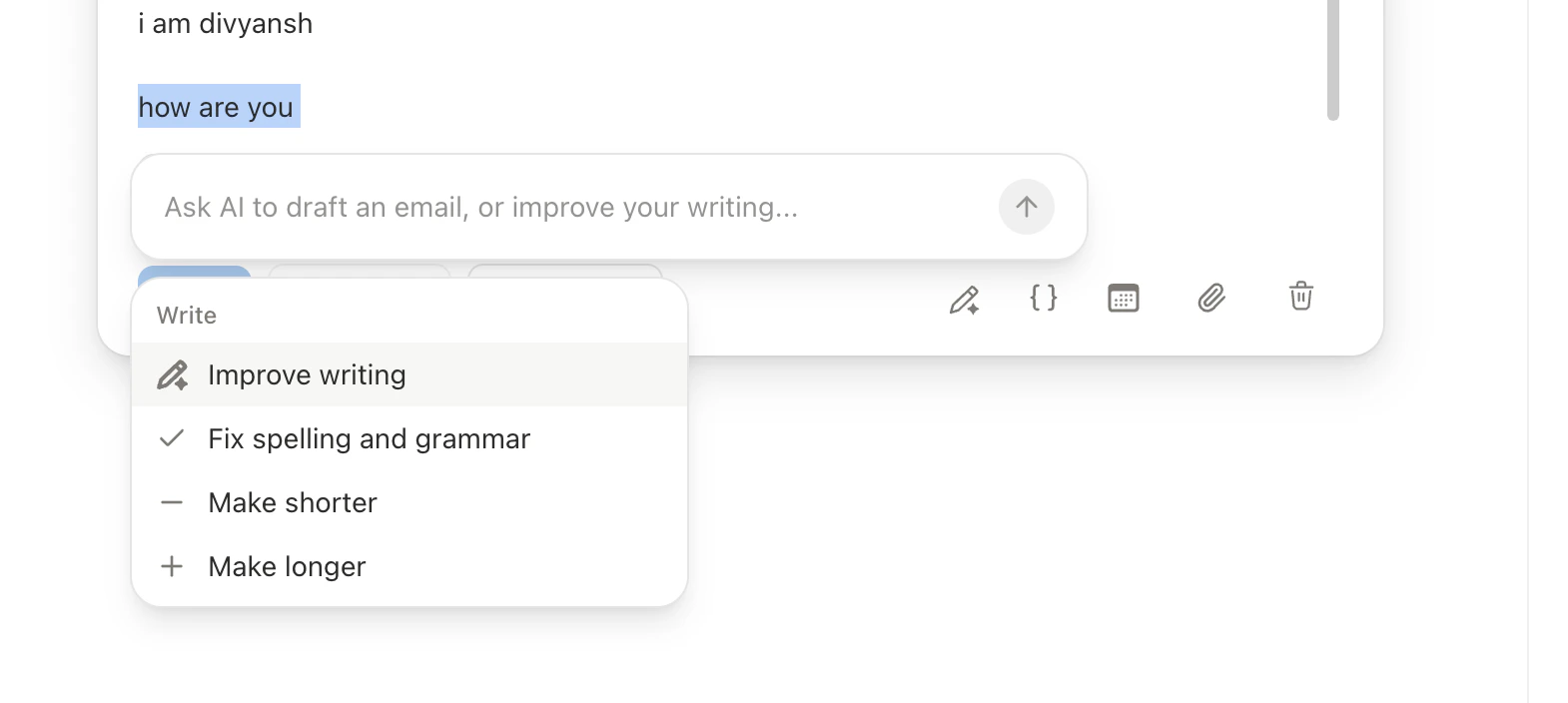 ### Quick Actions
| Action | What It Does |
| --------------- | -------------------------------------------------------------------------------------------- |
| **Improve** | Rewrites for clarity and professionalism, preserving meaning |
| **Fix Grammar** | Corrects spelling, grammar, punctuation without changing tone |
| **Shorten** | Condenses text, removes filler, tightens phrasing |
| **Lengthen** | Expands with more detail or supporting points |
| **Custom** | Type any instruction: "make more casual," "rewrite as bullet points," "translate to Spanish" |
### Diff Highlighting
After the AI generates its edit, changes appear highlighted in the editor -- removed text with strikethrough, new text highlighted. Review before committing.
### Quick Actions
| Action | What It Does |
| --------------- | -------------------------------------------------------------------------------------------- |
| **Improve** | Rewrites for clarity and professionalism, preserving meaning |
| **Fix Grammar** | Corrects spelling, grammar, punctuation without changing tone |
| **Shorten** | Condenses text, removes filler, tightens phrasing |
| **Lengthen** | Expands with more detail or supporting points |
| **Custom** | Type any instruction: "make more casual," "rewrite as bullet points," "translate to Spanish" |
### Diff Highlighting
After the AI generates its edit, changes appear highlighted in the editor -- removed text with strikethrough, new text highlighted. Review before committing.
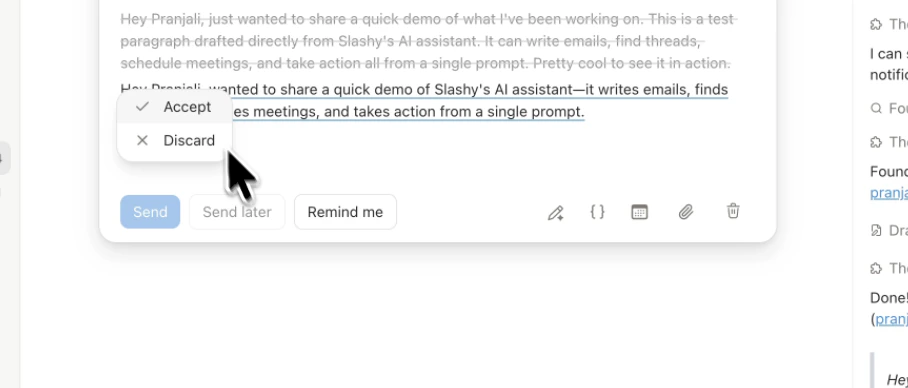 ### Accept or Discard
* **Accept** -- applies the edit, diff highlighting disappears
* **Discard** -- reverts to your original text
Run multiple edits on different sections independently. Works on any selection -- a word, sentence, paragraph, or the entire body.
### Multi-Turn Editing
`Cmd+J` in the compose window opens an inline AI editor that remembers every edit you have made or discarded in the current session. Follow-up instructions work in context, so you can say:
* "Make it shorter"
* "Undo that last change"
* "Go back to the version before the rewrite"
* "Change the POV to first person"
Each instruction builds on the session history rather than starting fresh. The session resets when you close the compose window.
When you ask the inline editor to propose meeting times, it checks the recipient's calendar availability and only offers slots that are free for both of you.
### Context Awareness
The AI considers your writing style, memories, thread context, and recipient information. "Improve" on a casual team email produces different results than "Improve" on a client proposal.
***
## AI Email Rating
Press `Cmd+P` to rate your draft before sending. The AI returns:
| Component | Description |
| ----------------------- | ------------------------------------------------------------------------ |
| **Inferred goal** | What the AI thinks you're trying to accomplish |
| **Effectiveness score** | How well the draft achieves that goal |
| **Specific issues** | Concrete problems (e.g., "the ask is buried in paragraph 3") |
| **Suggestions** | Actionable improvements (e.g., "move the request to the first sentence") |
### Accept or Discard
* **Accept** -- applies the edit, diff highlighting disappears
* **Discard** -- reverts to your original text
Run multiple edits on different sections independently. Works on any selection -- a word, sentence, paragraph, or the entire body.
### Multi-Turn Editing
`Cmd+J` in the compose window opens an inline AI editor that remembers every edit you have made or discarded in the current session. Follow-up instructions work in context, so you can say:
* "Make it shorter"
* "Undo that last change"
* "Go back to the version before the rewrite"
* "Change the POV to first person"
Each instruction builds on the session history rather than starting fresh. The session resets when you close the compose window.
When you ask the inline editor to propose meeting times, it checks the recipient's calendar availability and only offers slots that are free for both of you.
### Context Awareness
The AI considers your writing style, memories, thread context, and recipient information. "Improve" on a casual team email produces different results than "Improve" on a client proposal.
***
## AI Email Rating
Press `Cmd+P` to rate your draft before sending. The AI returns:
| Component | Description |
| ----------------------- | ------------------------------------------------------------------------ |
| **Inferred goal** | What the AI thinks you're trying to accomplish |
| **Effectiveness score** | How well the draft achieves that goal |
| **Specific issues** | Concrete problems (e.g., "the ask is buried in paragraph 3") |
| **Suggestions** | Actionable improvements (e.g., "move the request to the first sentence") |
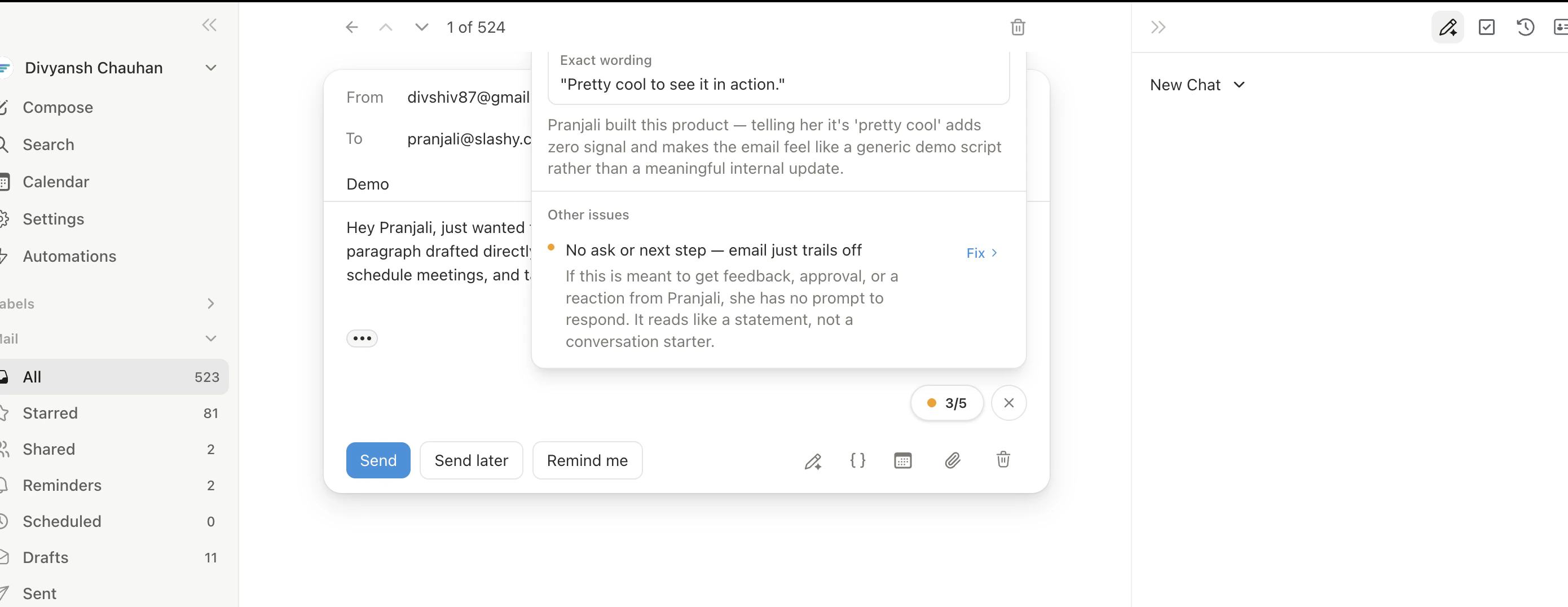 The rating considers enriched recipient data, your memories, and thread context -- not just grammar. It flags when cold outreach is too long for a busy exec, or when a follow-up misses a reference to the previous conversation.
**Best for high-stakes emails:** cold outreach, negotiations, sensitive internal comms, and follow-ups where you want to maximize response rate.
### Quick Reference
| Action | How |
| --------------------- | ------------------------------------------- |
| AI edit selected text | Select text, choose from toolbar |
| Custom AI edit | Select text, click Custom, type instruction |
| Rate email | `Cmd+P` |
| Accept edit | Click Accept after reviewing diff |
| Discard edit | Click Discard to revert |
***
## Related Articles
Ghost text predictions while you type
Automatic draft suggestions on incoming email
Set writing style and preferences
Write and send emails with AI assistance
The rating considers enriched recipient data, your memories, and thread context -- not just grammar. It flags when cold outreach is too long for a busy exec, or when a follow-up misses a reference to the previous conversation.
**Best for high-stakes emails:** cold outreach, negotiations, sensitive internal comms, and follow-ups where you want to maximize response rate.
### Quick Reference
| Action | How |
| --------------------- | ------------------------------------------- |
| AI edit selected text | Select text, choose from toolbar |
| Custom AI edit | Select text, click Custom, type instruction |
| Rate email | `Cmd+P` |
| Accept edit | Click Accept after reviewing diff |
| Discard edit | Click Discard to revert |
***
## Related Articles
Ghost text predictions while you type
Automatic draft suggestions on incoming email
Set writing style and preferences
Write and send emails with AI assistance