> ## Documentation Index
> Fetch the complete documentation index at: https://help.slashy.com/llms.txt
> Use this file to discover all available pages before exploring further.
# Sidebar Agent & Command Palette
> Open the AI agent sidebar to chat with Slashy, search emails, draft replies, manage your calendar, and run commands from a conversational interface.
The agent sidebar is your primary way to interact with Slashy's AI. The command palette gives fast access to every action without touching a mouse.
## Opening the Sidebar
Two ways to open it:
* `p a` -- press `p` then `a` in sequence (panel: agent)
* `Cmd+Shift+L` -- direct shortcut from anywhere
The sidebar opens on the right and stays open as you navigate your inbox. Resize by dragging the left edge.
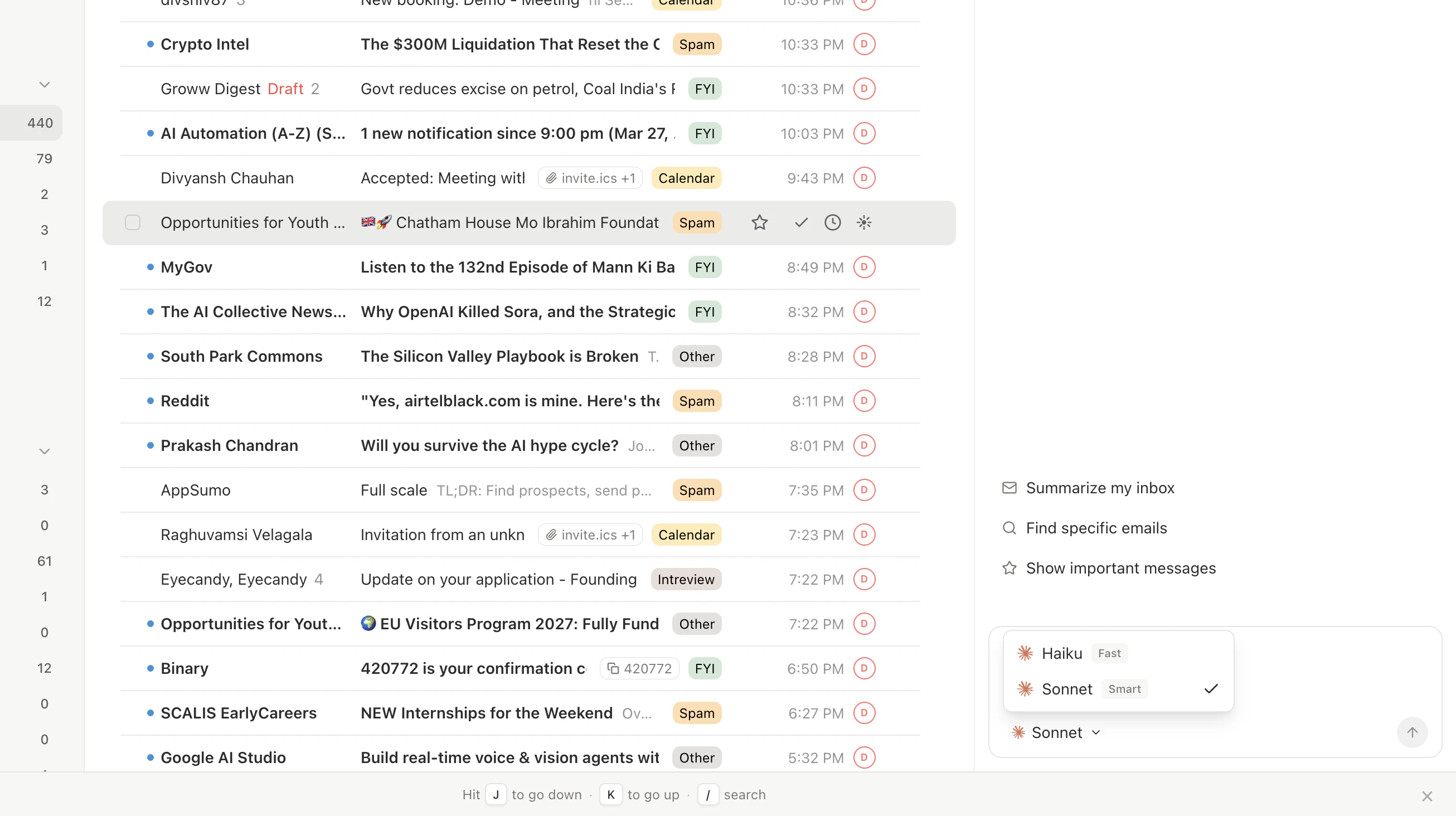 ## What the Agent Can Do
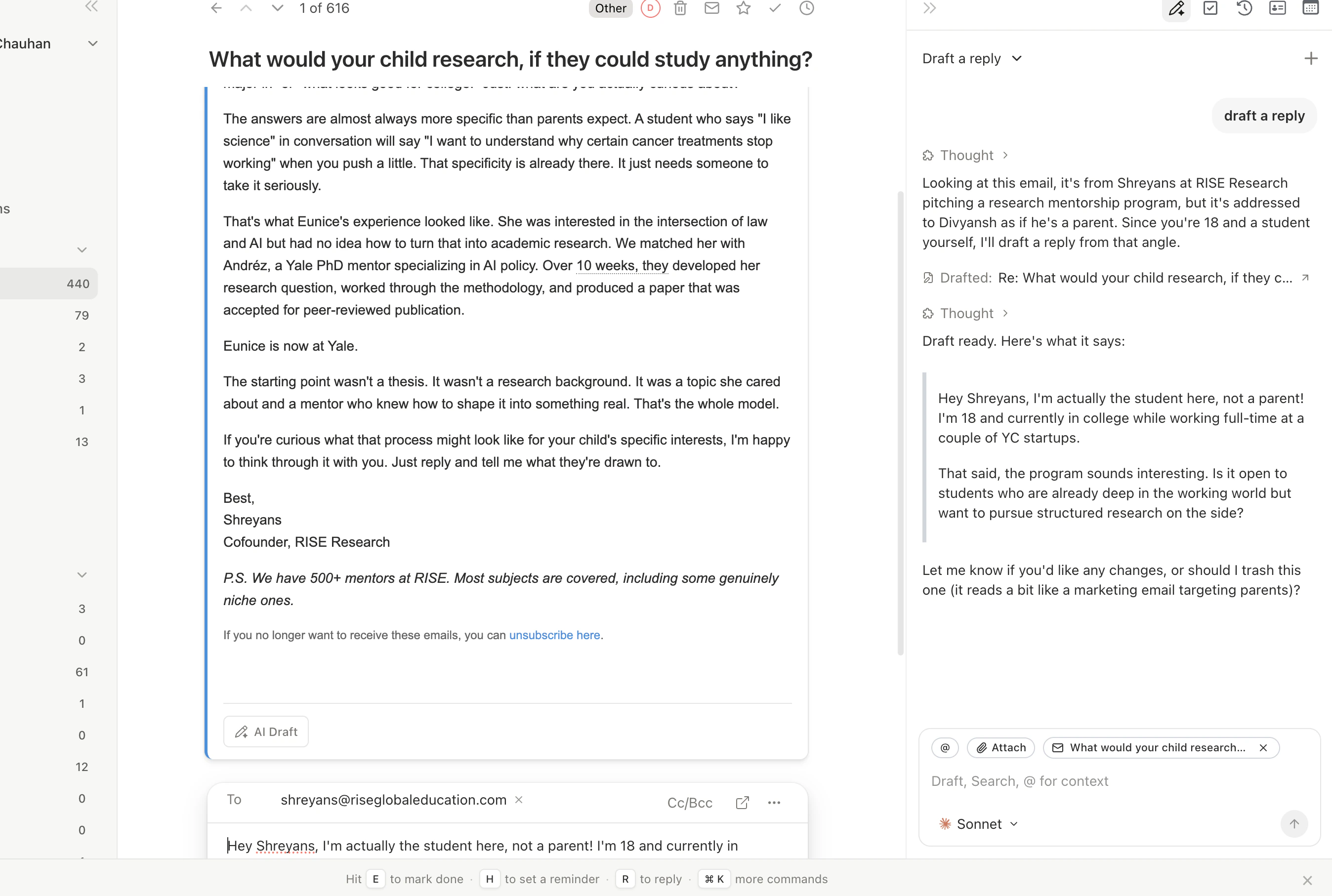
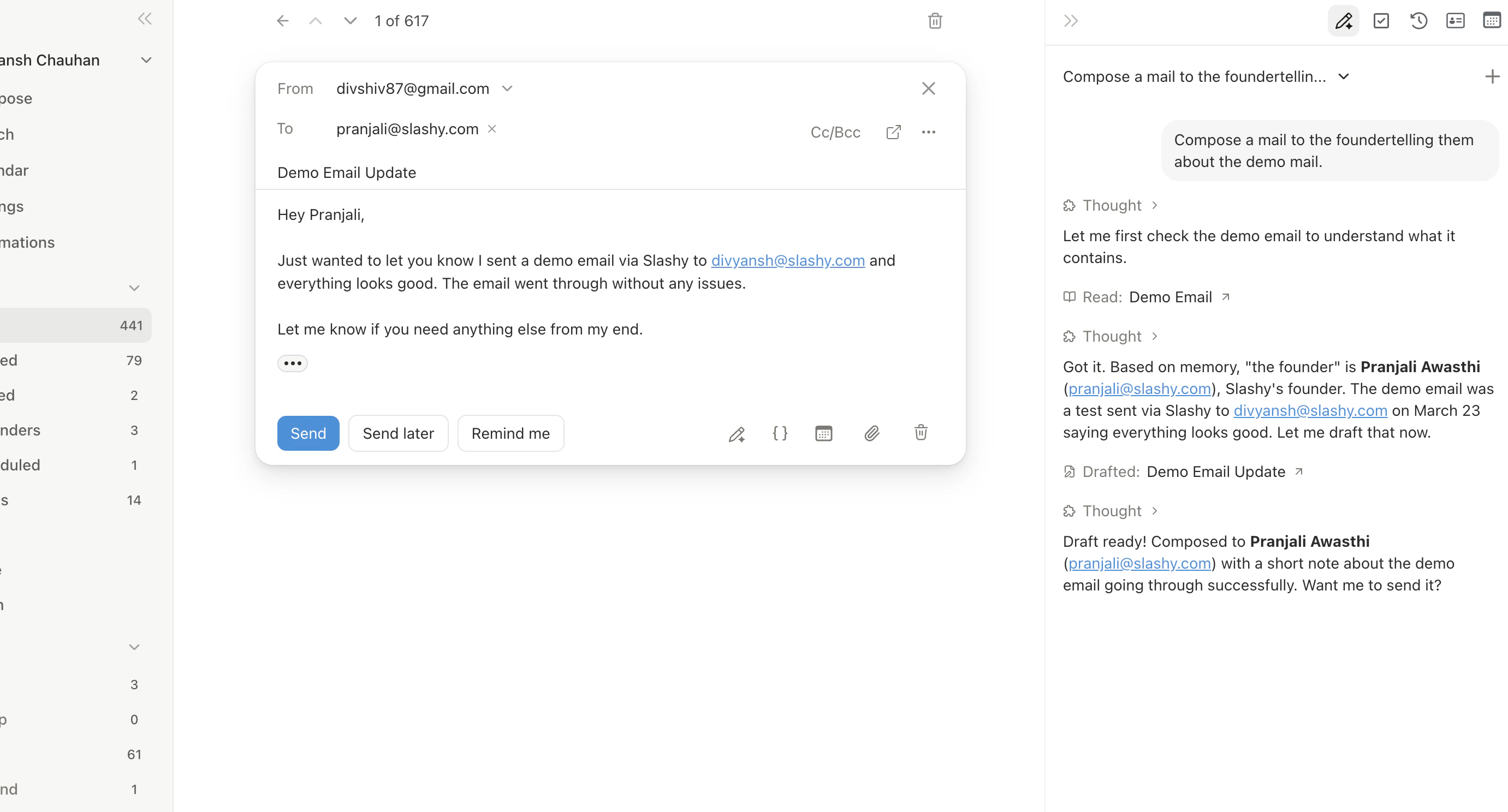
The agent has full tool access for email and calendar. Tool use indicators show what it did (e.g., "Searched emails," "Created draft").
* **Search emails** -- "Find all emails from Sarah last week about the budget"
* **Read threads** -- "What did John say in his last email?"
* **Draft and send** -- "Draft a reply saying we accept the proposal"
* **Manage calendar** -- "Schedule a 30-minute call with Mike tomorrow"
* **Create automations** -- "Set up an email trigger for receipts"
* **Research contacts** -- "Look up this person on LinkedIn"
* **Manage memories** -- "Remember that I always CC finance@ on vendor invoices"
## Ambient Context
When the sidebar is open, the agent automatically picks up what you have selected or open, and displays a context chip above the input:
* **Email threads selected:** the chip shows "N emails selected." Ask "draft a reply to this" or "summarize these threads" without saying which ones you mean.
* **Calendar event open:** the chip shows the event name. Ask "prep me for this meeting" and the agent uses the attendees, notes, and description from that event.
You can dismiss any chip by clicking the X on it. Dismissed chips exclude that item from the agent's context for that message.
## What the Agent Can Do
The agent has full tool access for email and calendar. Tool use indicators show what it did (e.g., "Searched emails," "Created draft").
* **Search emails** -- "Find all emails from Sarah last week about the budget"
* **Read threads** -- "What did John say in his last email?"
* **Draft and send** -- "Draft a reply saying we accept the proposal"
* **Manage calendar** -- "Schedule a 30-minute call with Mike tomorrow"
* **Create automations** -- "Set up an email trigger for receipts"
* **Research contacts** -- "Look up this person on LinkedIn"
* **Manage memories** -- "Remember that I always CC finance@ on vendor invoices"
## Ambient Context
When the sidebar is open, the agent automatically picks up what you have selected or open, and displays a context chip above the input:
* **Email threads selected:** the chip shows "N emails selected." Ask "draft a reply to this" or "summarize these threads" without saying which ones you mean.
* **Calendar event open:** the chip shows the event name. Ask "prep me for this meeting" and the agent uses the attendees, notes, and description from that event.
You can dismiss any chip by clicking the X on it. Dismissed chips exclude that item from the agent's context for that message.
 Select multiple threads before opening the agent to batch-process them, for example: "archive everything that doesn't need a reply" or "which of these need action today?"
## File Upload
Upload files into the conversation via the attachment icon or drag-and-drop. Supports PDF, images, Word docs, and other common formats. The agent processes content and can reference it when drafting.
## Model Selector
| Model | Best For | Speed |
| ---------- | ---------------------------------- | --------------- |
| **Haiku** | Quick questions, simple tasks | Fastest |
| **Sonnet** | Most tasks -- good balance | Fast |
| **Opus** | Complex reasoning, nuanced writing | Highest quality |
Switch models mid-conversation from the top of the sidebar.
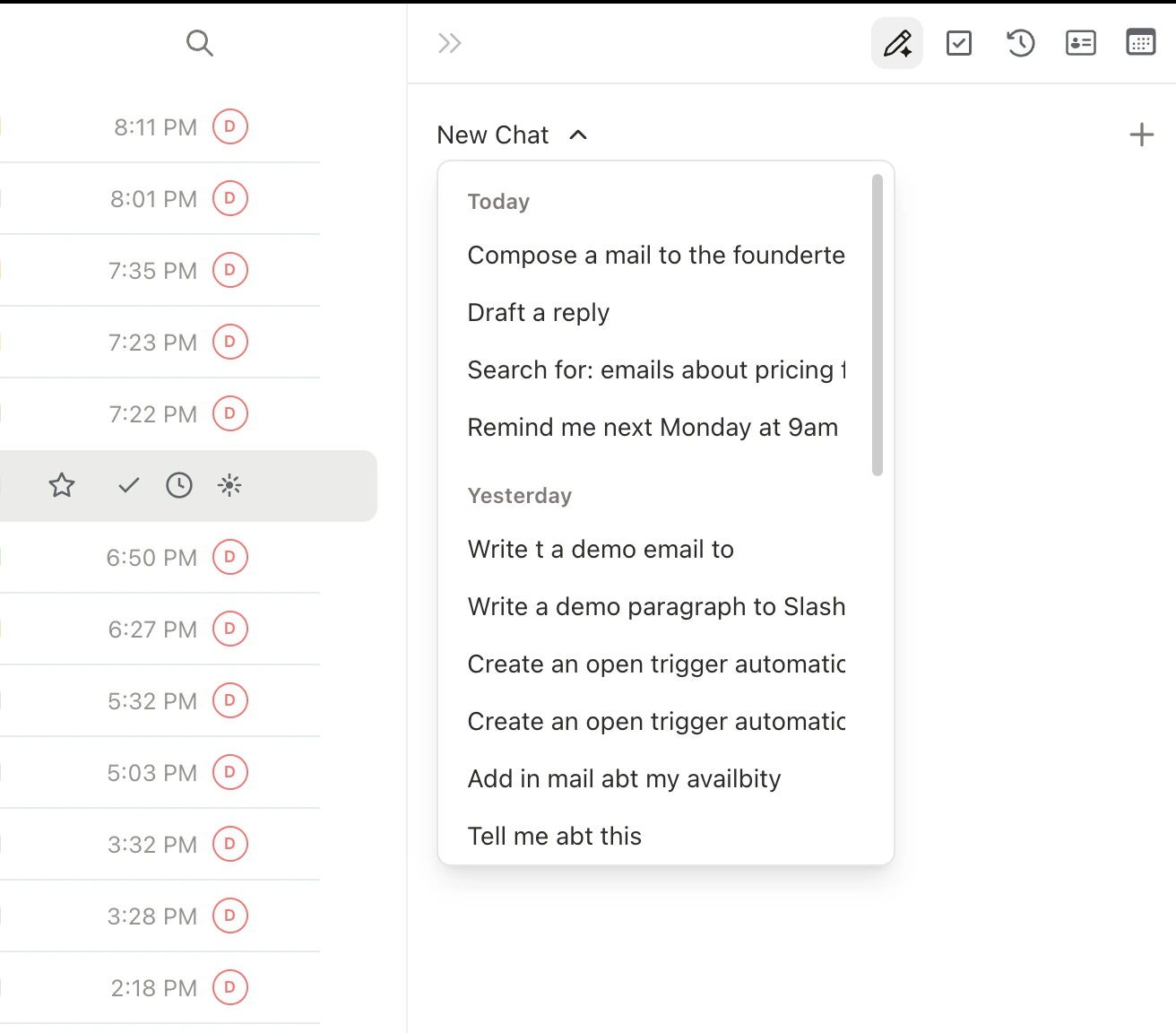
## Conversation History
Past conversations are saved and searchable. Click the history icon at the top of the sidebar to browse previous chats. Start a fresh conversation with `Cmd+Alt+N`.
Select multiple threads before opening the agent to batch-process them, for example: "archive everything that doesn't need a reply" or "which of these need action today?"
## File Upload
Upload files into the conversation via the attachment icon or drag-and-drop. Supports PDF, images, Word docs, and other common formats. The agent processes content and can reference it when drafting.
## Model Selector
| Model | Best For | Speed |
| ---------- | ---------------------------------- | --------------- |
| **Haiku** | Quick questions, simple tasks | Fastest |
| **Sonnet** | Most tasks -- good balance | Fast |
| **Opus** | Complex reasoning, nuanced writing | Highest quality |
Switch models mid-conversation from the top of the sidebar.
## Conversation History
Past conversations are saved and searchable. Click the history icon at the top of the sidebar to browse previous chats. Start a fresh conversation with `Cmd+Alt+N`.
 ## The Command Palette
Press `Cmd+K` to open the command palette. It has three modes:
Type any action name: "Archive," "Compose," "Star," "Go to Sent," "Settings." Every action in Slashy is accessible here.
Find emails with natural language or Gmail-style operators. AI search interprets intent: "emails where someone asked me for a reference."
Jump to links from the current thread -- URLs, calendar event links, attachment downloads.
## The Command Palette
Press `Cmd+K` to open the command palette. It has three modes:
Type any action name: "Archive," "Compose," "Star," "Go to Sent," "Settings." Every action in Slashy is accessible here.
Find emails with natural language or Gmail-style operators. AI search interprets intent: "emails where someone asked me for a reference."
Jump to links from the current thread -- URLs, calendar event links, attachment downloads.
 ***
## Related Articles
What the agent can and cannot do
Automate actions on incoming email
Schedule the agent for future tasks
Every shortcut for navigating Slashy faster
***
## Related Articles
What the agent can and cannot do
Automate actions on incoming email
Schedule the agent for future tasks
Every shortcut for navigating Slashy faster