> ## Documentation Index
> Fetch the complete documentation index at: https://help.slashy.com/llms.txt
> Use this file to discover all available pages before exploring further.
# Connect your Codex subscription
> Bring your own ChatGPT/Codex subscription and use it as a model in Slashy's AI agent chat, with an optional faster tier.
If you have a ChatGPT subscription with Codex access, connect it to use as a model in Slashy's AI agent chat, alongside Sonnet, Opus, and Haiku.
## Connect Codex
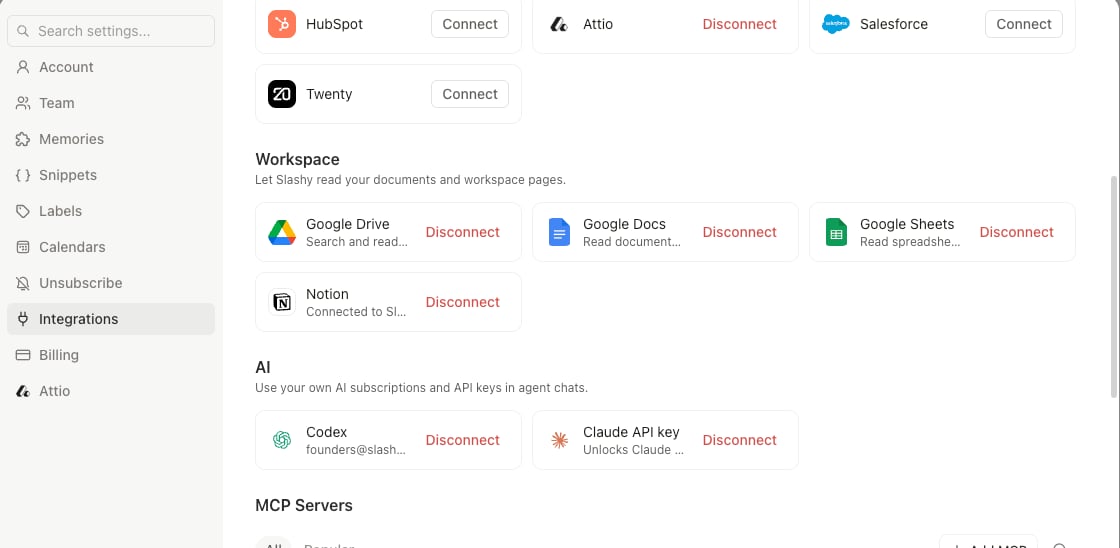
Press `Cmd+,`, then choose Integrations in the sidebar.
Find Codex and click Connect.
Slashy shows a one-time code and opens OpenAI's device sign-in page in a new tab. Enter the code there to authorize.
Once connected, Slashy shows your ChatGPT account and plan next to Codex in Settings. You can also start the connection from the agent chat's model picker: choose Codex from the list, and if you're not connected yet, it opens the same Settings panel.
 Codex powers the AI agent chat on web and iMessage. Automations and AI drafts continue to run on Slashy's own models.
## Using Codex in agent chat
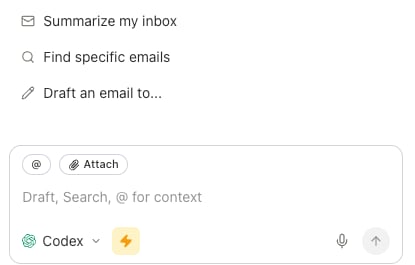
Open the model picker at the bottom of the agent chat and select Codex. Your next messages in that conversation run on your connected ChatGPT subscription instead of Slashy's default model.
## Fast mode
When Codex is selected, a lightning-bolt toggle appears next to the model picker. Turning it on switches to a faster response tier that uses more of your Codex usage per message, about 1.5x faster at roughly 2.5x the usage cost. Toggle it off to return to Codex's standard speed.
Codex powers the AI agent chat on web and iMessage. Automations and AI drafts continue to run on Slashy's own models.
## Using Codex in agent chat
Open the model picker at the bottom of the agent chat and select Codex. Your next messages in that conversation run on your connected ChatGPT subscription instead of Slashy's default model.
## Fast mode
When Codex is selected, a lightning-bolt toggle appears next to the model picker. Turning it on switches to a faster response tier that uses more of your Codex usage per message, about 1.5x faster at roughly 2.5x the usage cost. Toggle it off to return to Codex's standard speed.
 Save Fast mode for messages where you're waiting on the response, and leave it off for anything you can let run in the background.
## If you hit your Codex limit
If your ChatGPT plan's usage limit is reached mid-conversation, Slashy automatically falls back to your normal Slashy model so the conversation keeps going. Once your Codex usage resets, selecting Codex again picks up where you left off.
## Disconnecting
In Settings → Integrations, click Disconnect next to Codex. Slashy stops using your ChatGPT subscription for agent chats immediately; your other AI features are unaffected.
Sonnet, Opus, and bringing your own Anthropic key.
Chat with the agent and run commands.
What the agent can and cannot do on its own.
Talk to the agent instead of typing.
Save Fast mode for messages where you're waiting on the response, and leave it off for anything you can let run in the background.
## If you hit your Codex limit
If your ChatGPT plan's usage limit is reached mid-conversation, Slashy automatically falls back to your normal Slashy model so the conversation keeps going. Once your Codex usage resets, selecting Codex again picks up where you left off.
## Disconnecting
In Settings → Integrations, click Disconnect next to Codex. Slashy stops using your ChatGPT subscription for agent chats immediately; your other AI features are unaffected.
Sonnet, Opus, and bringing your own Anthropic key.
Chat with the agent and run commands.
What the agent can and cannot do on its own.
Talk to the agent instead of typing.